
























Getting Started
preface
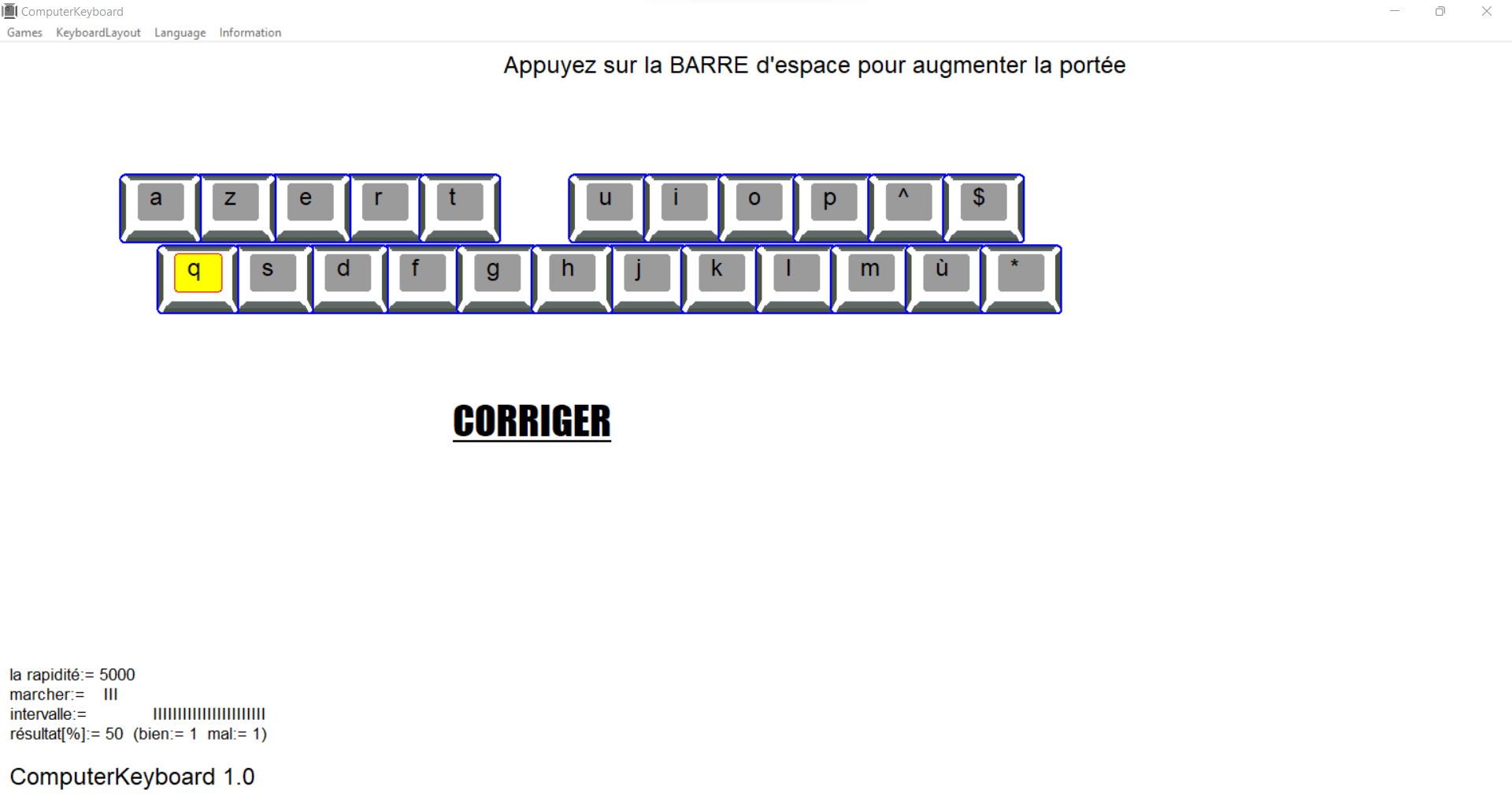
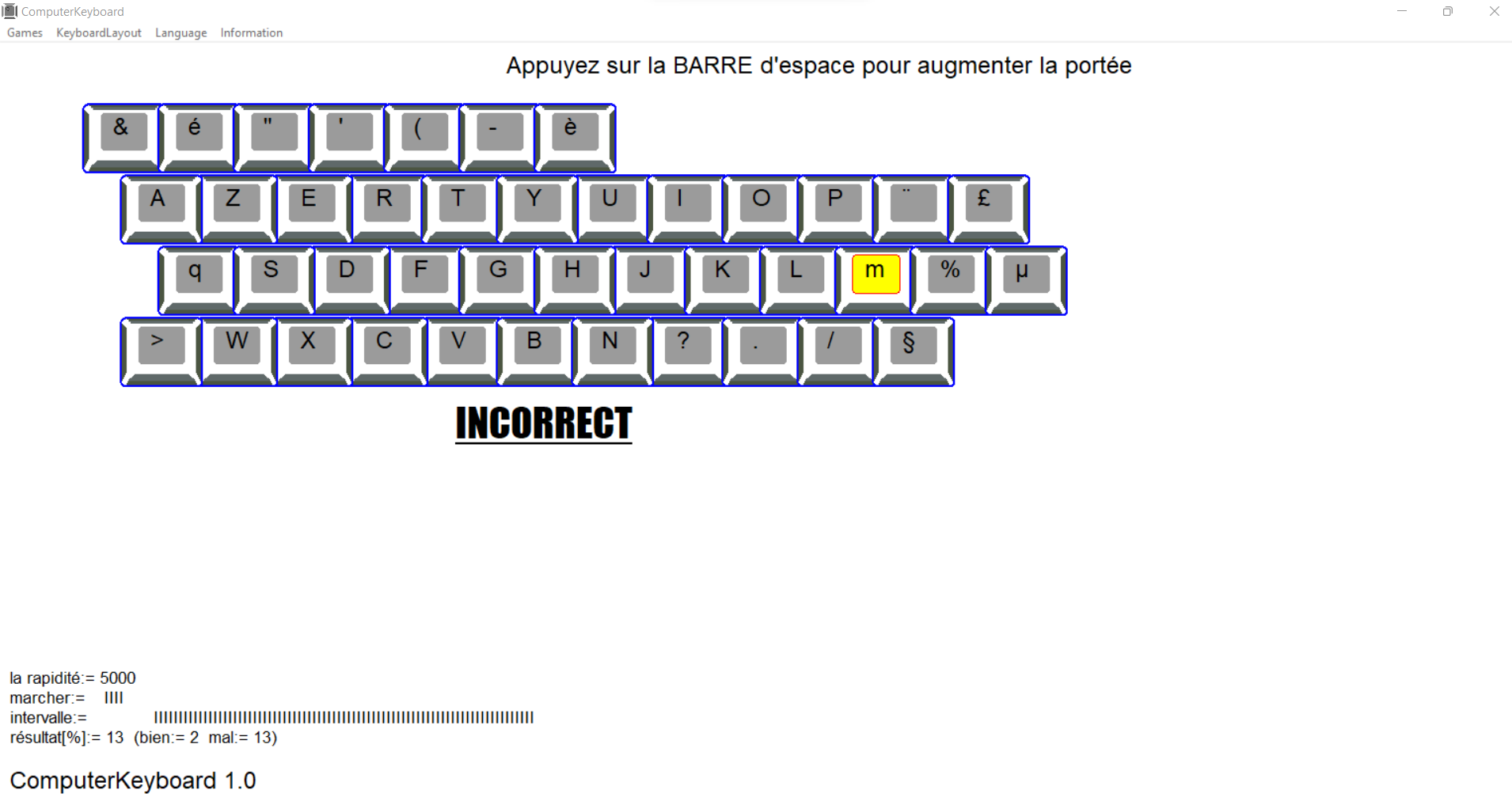
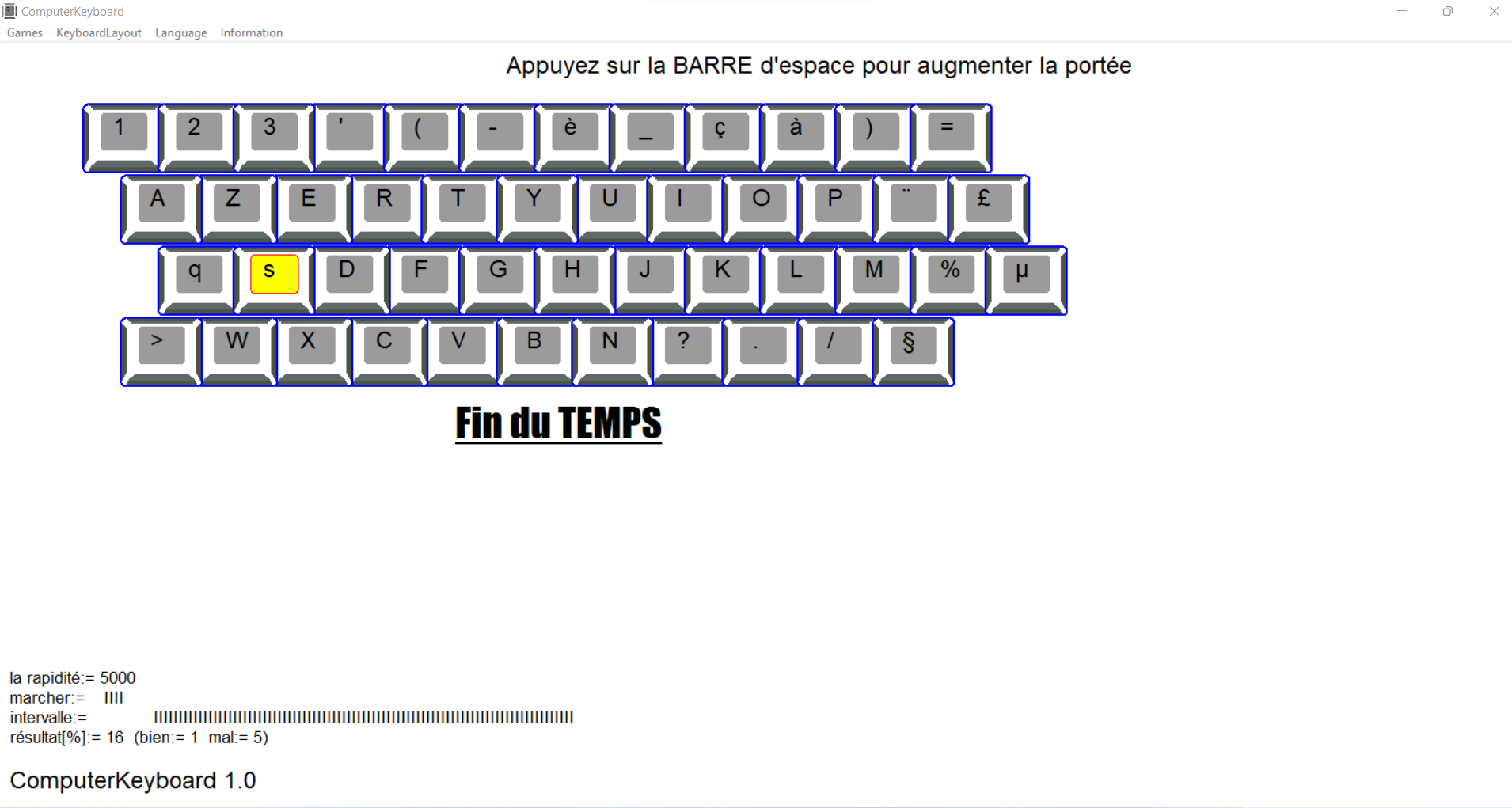
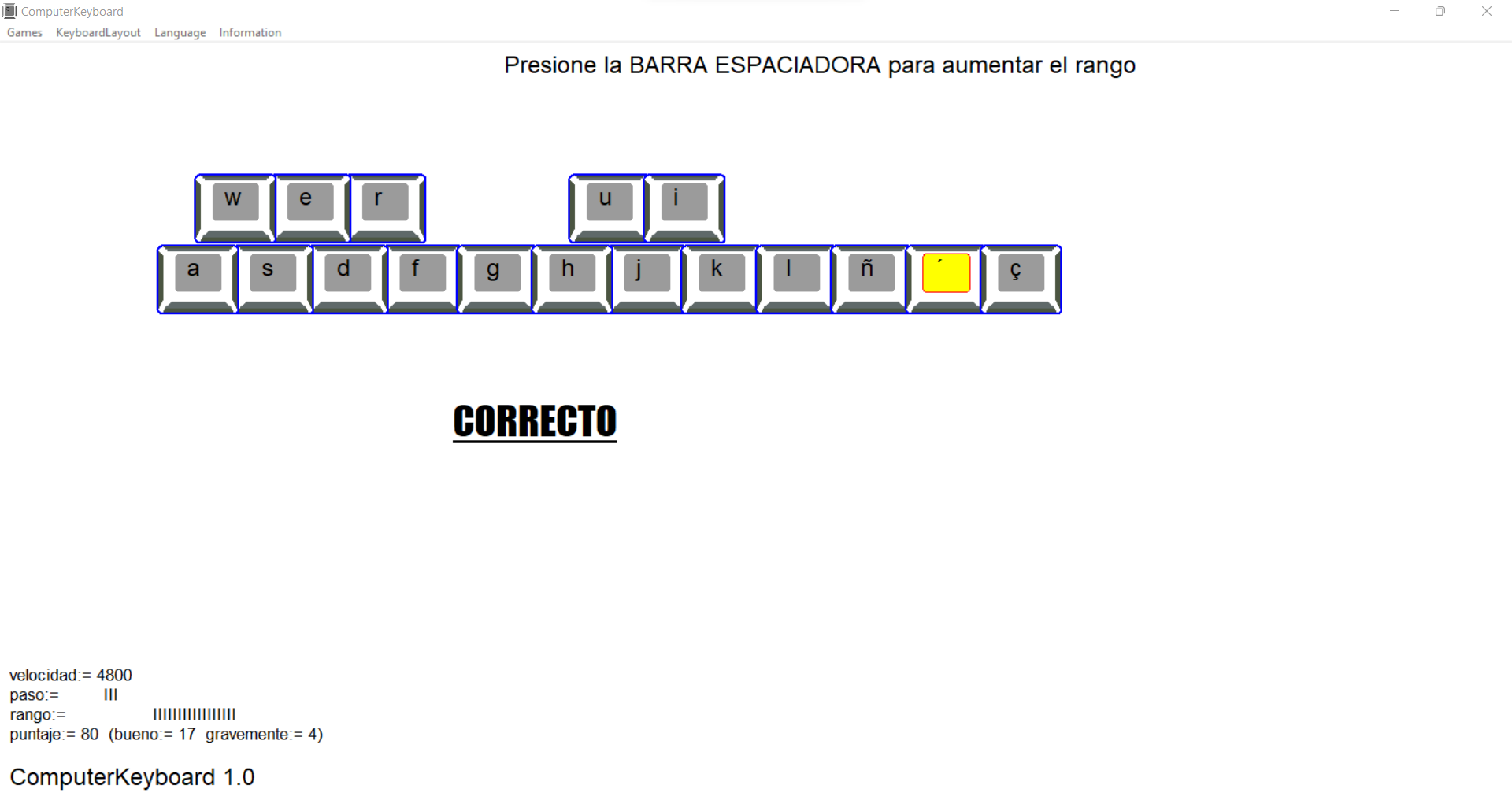
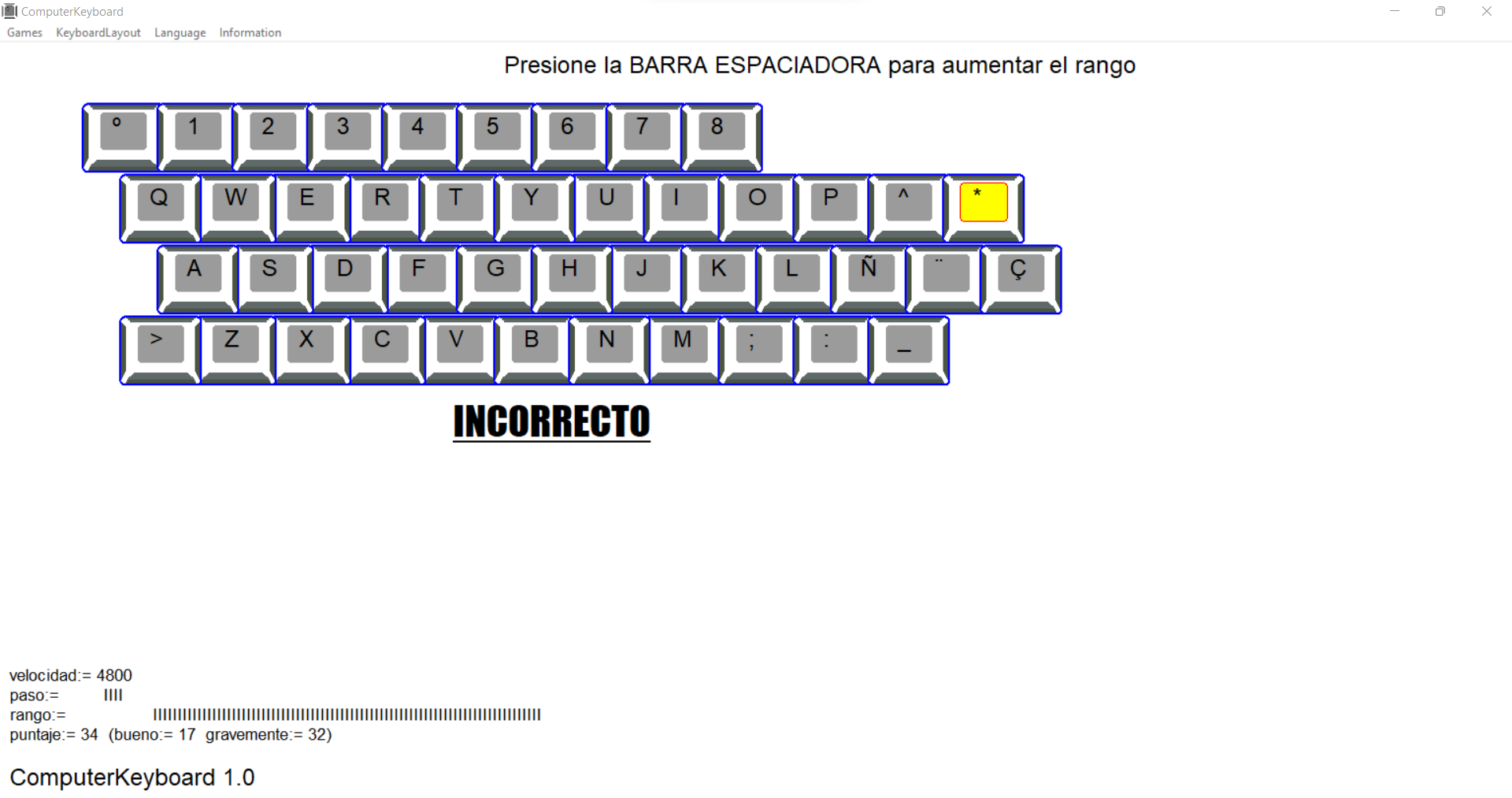
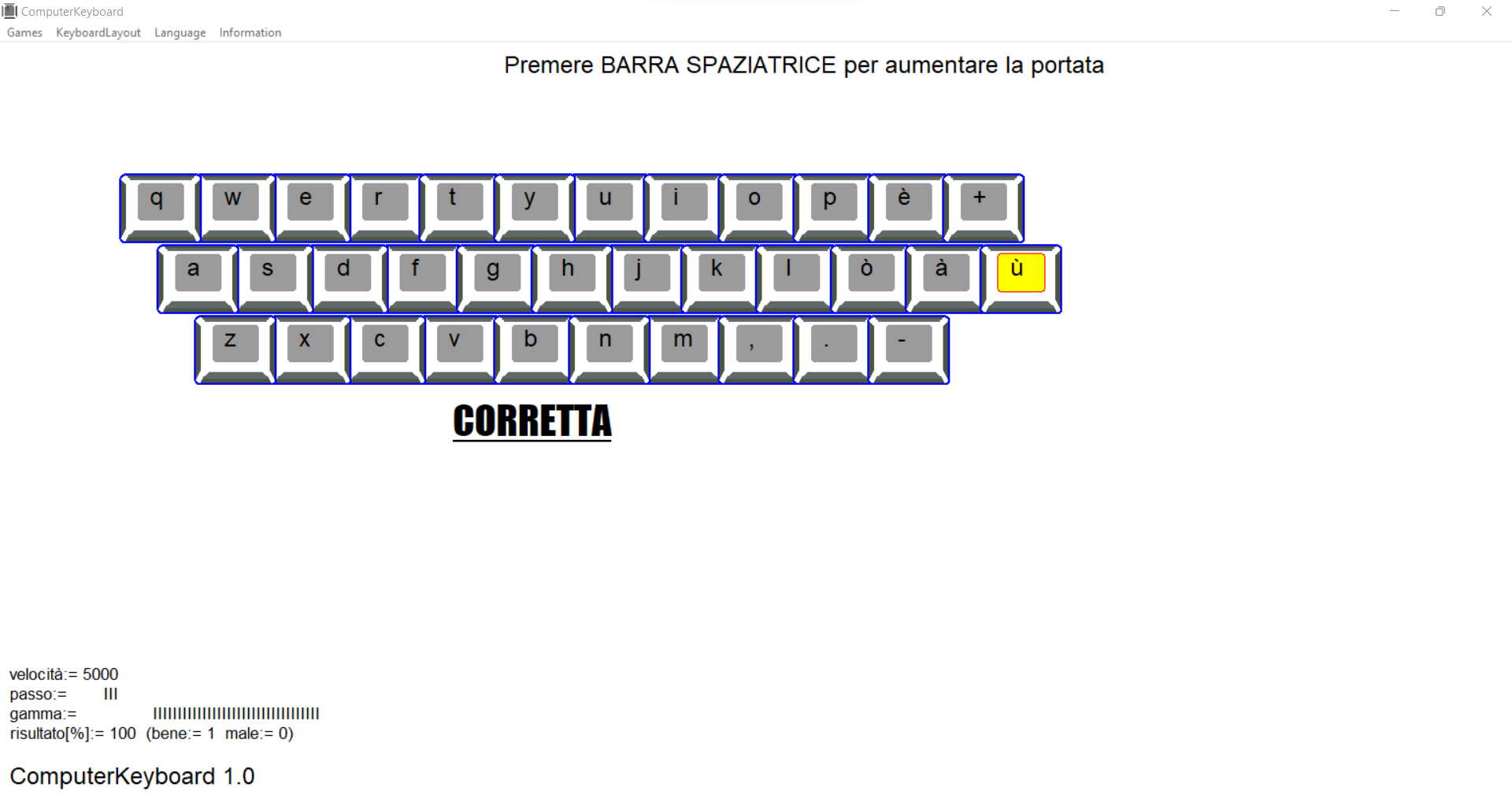
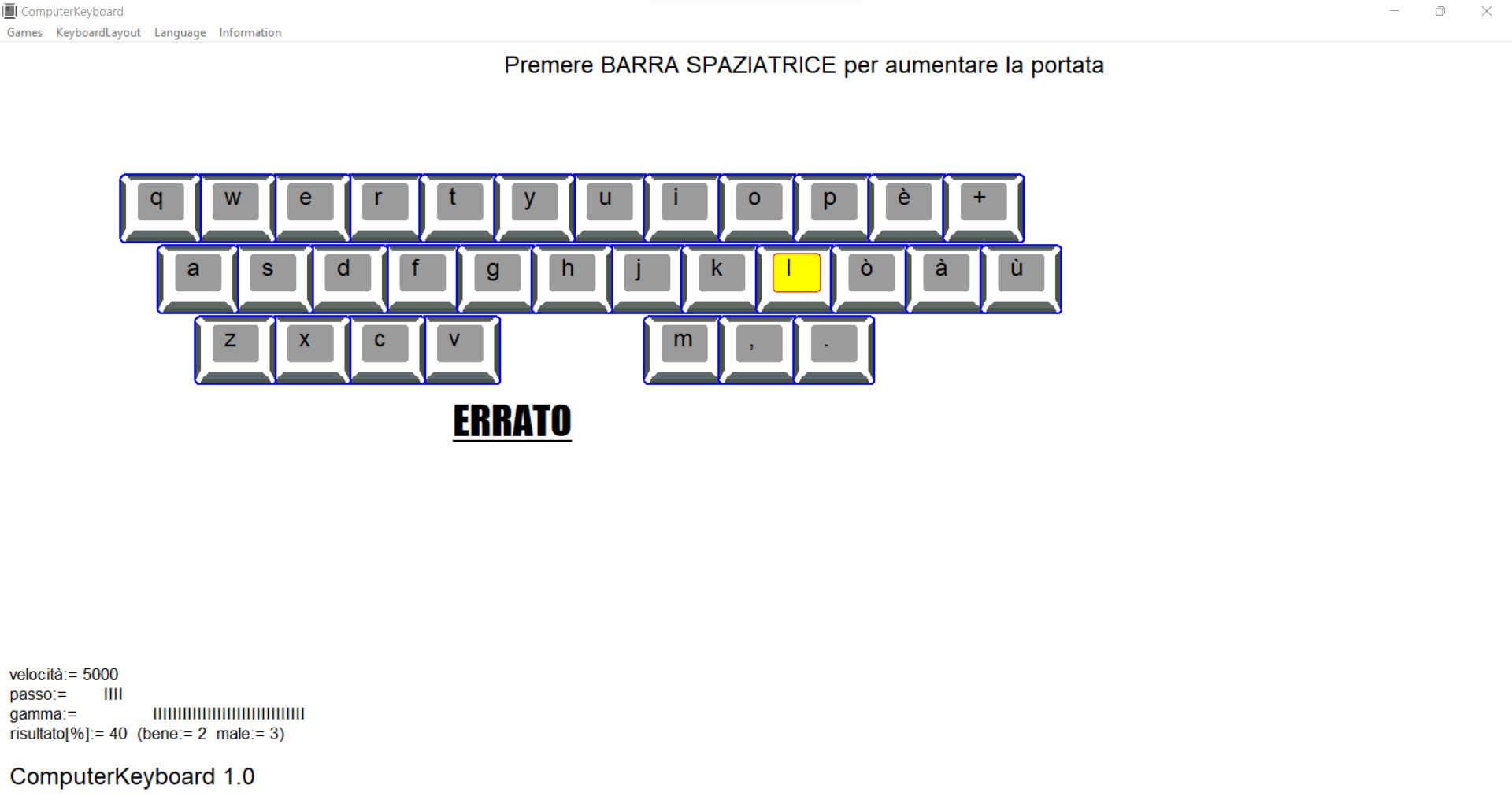
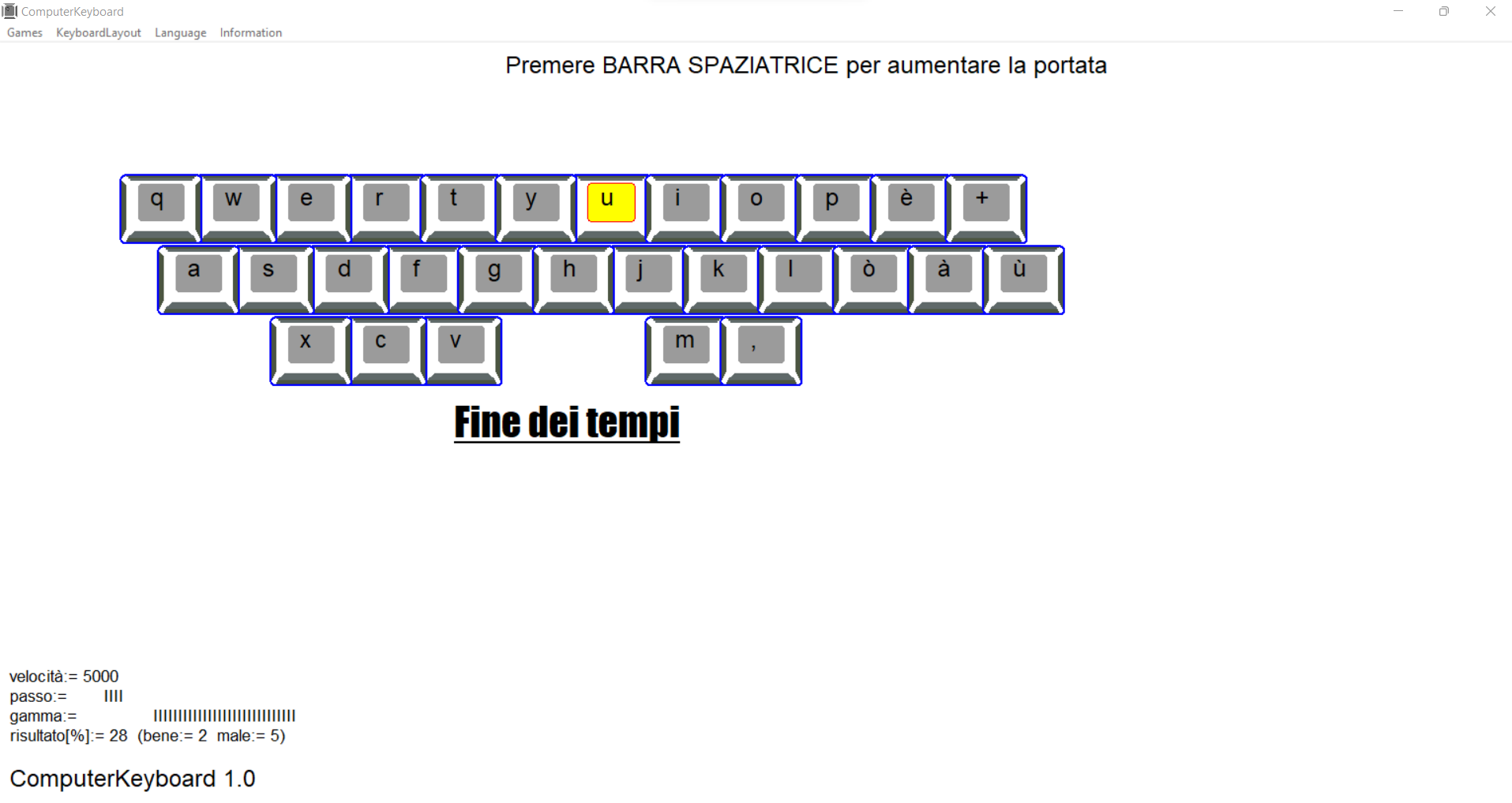
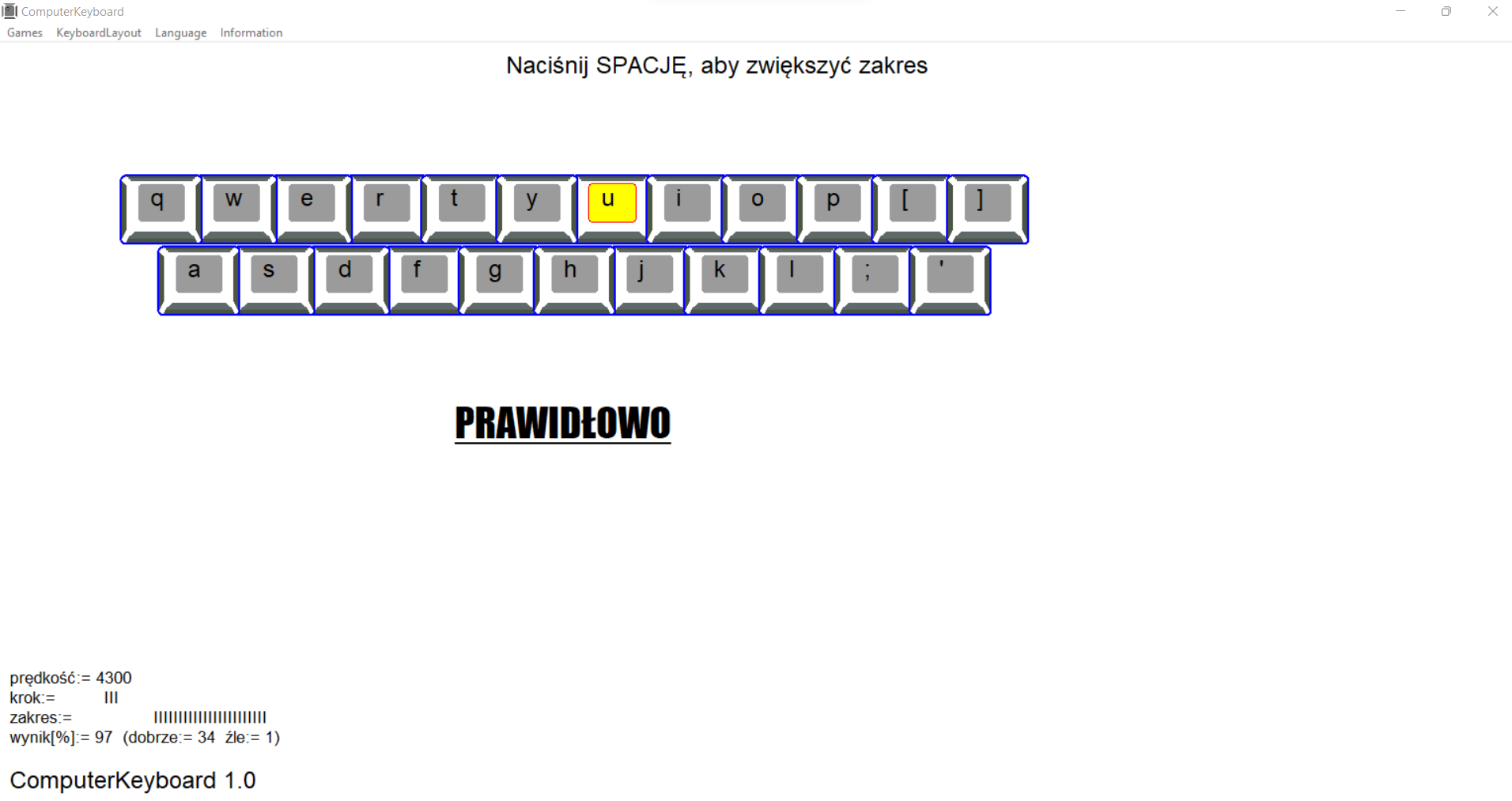
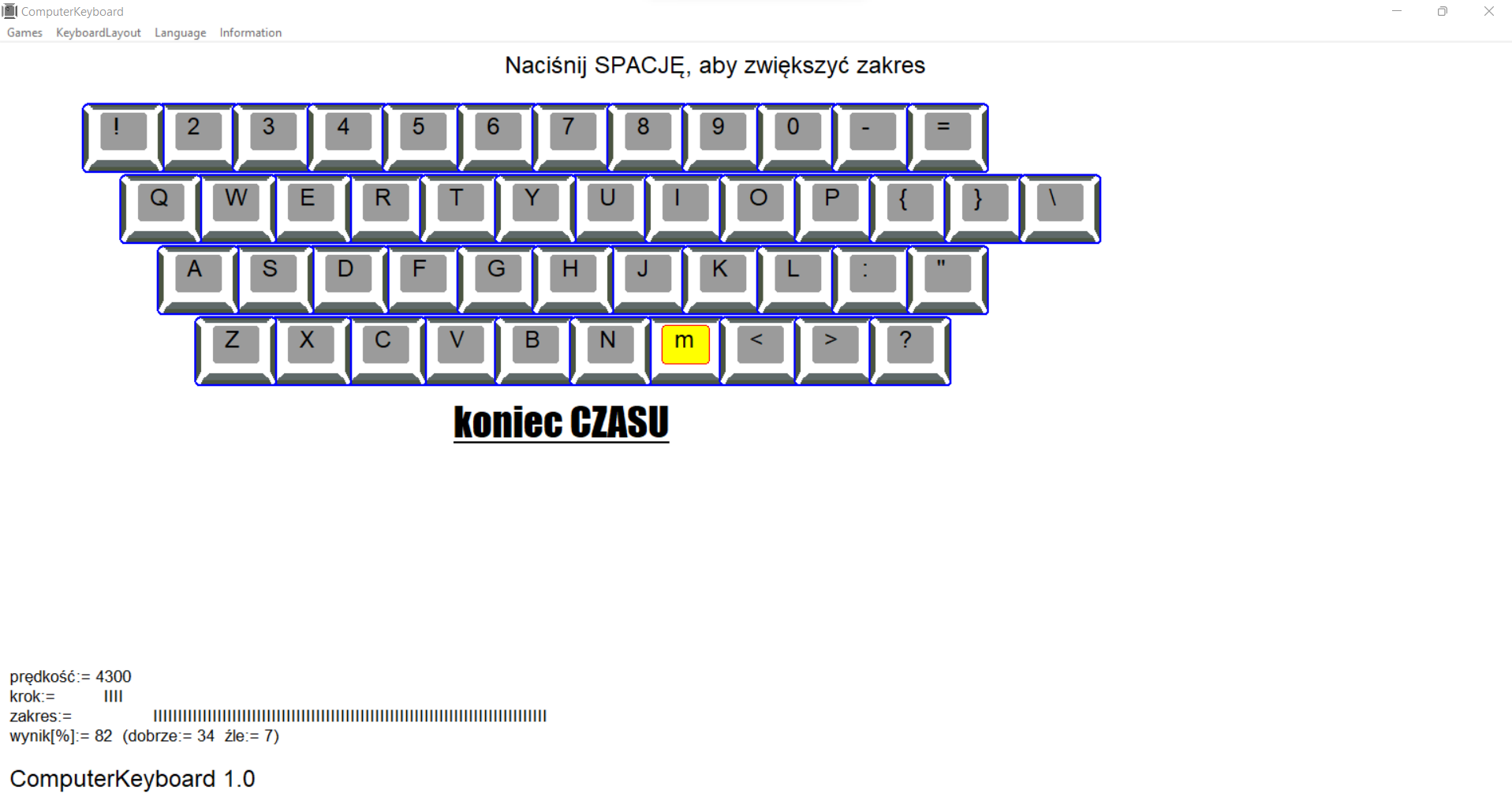
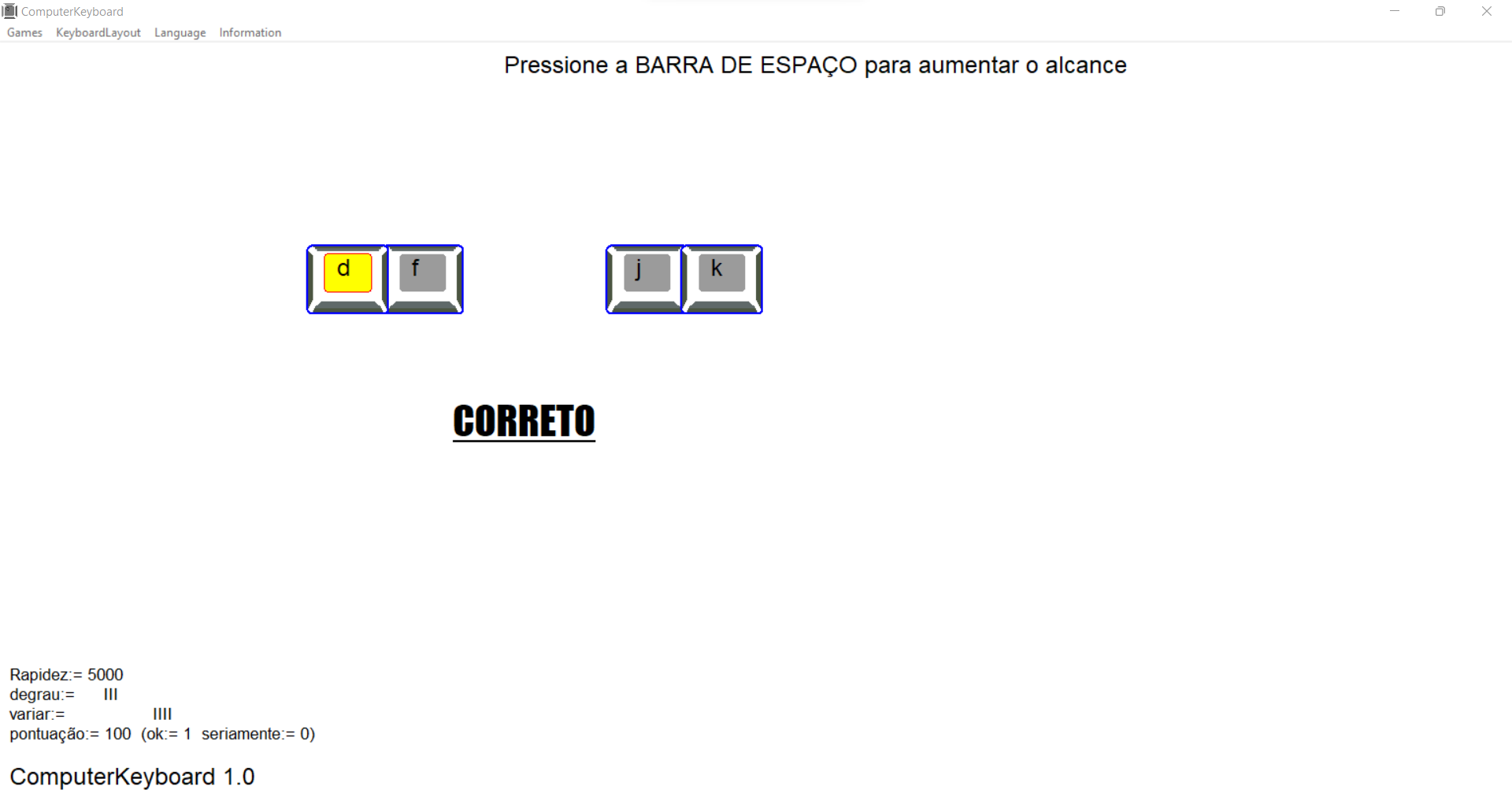
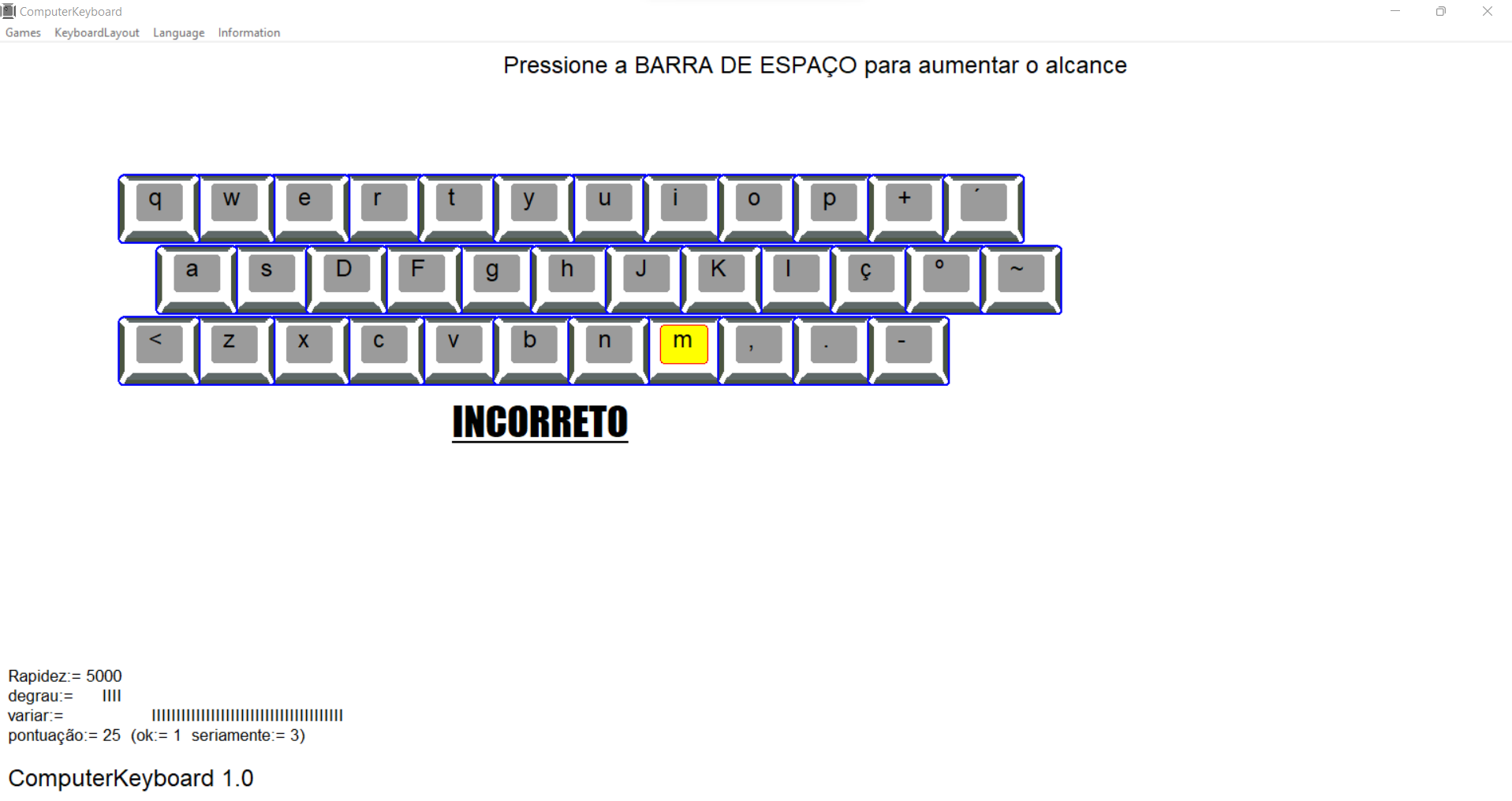
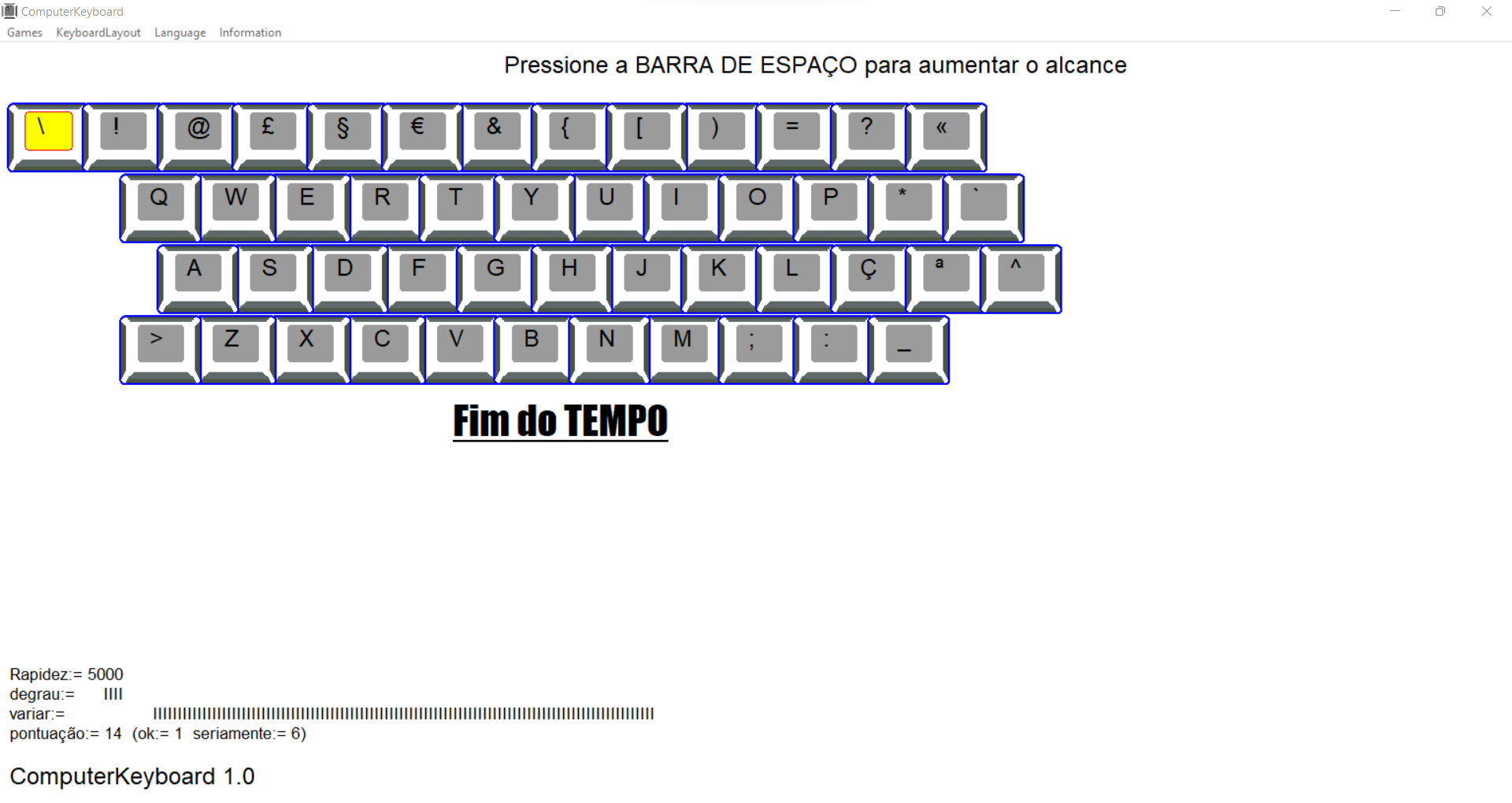
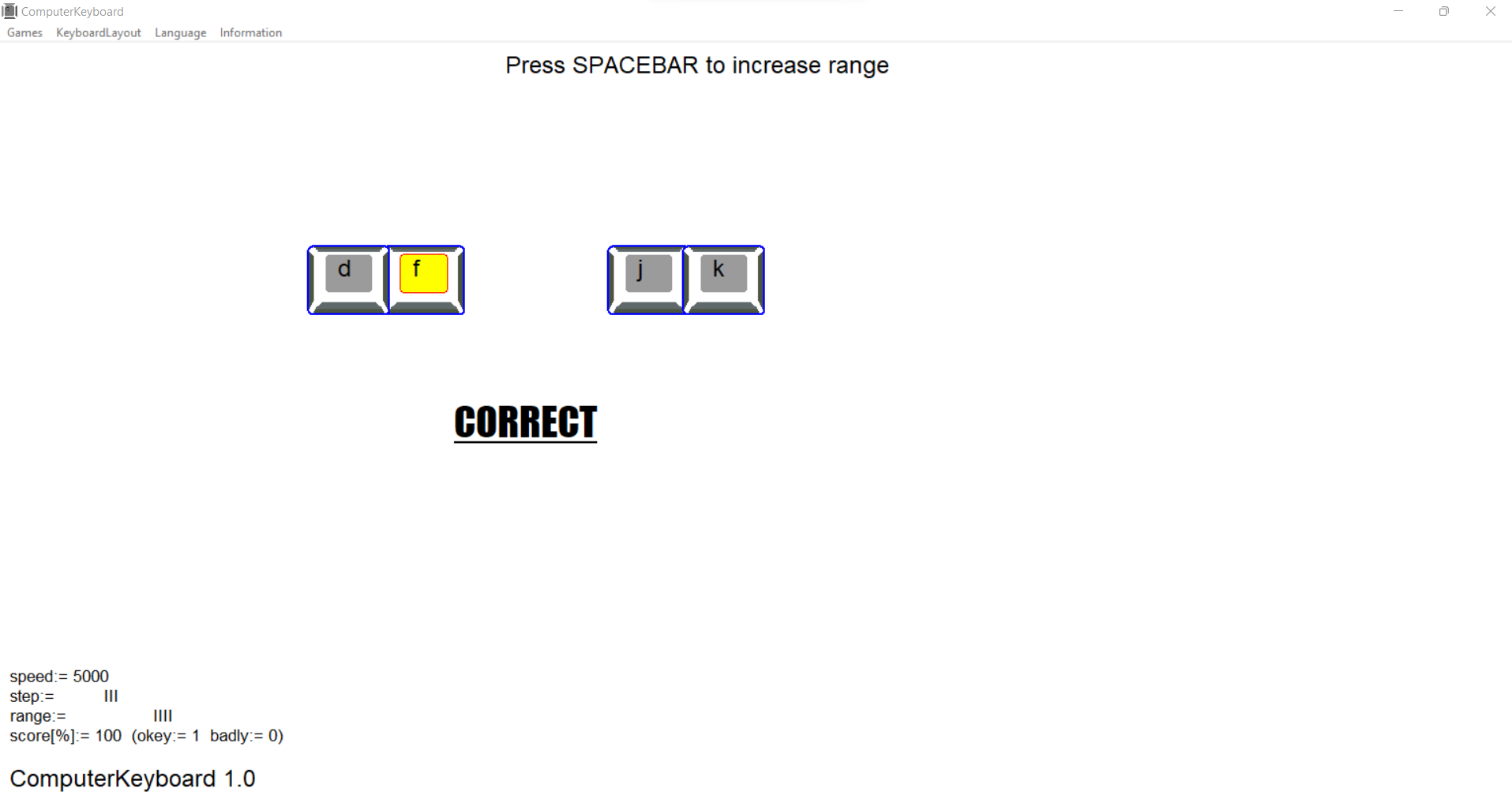
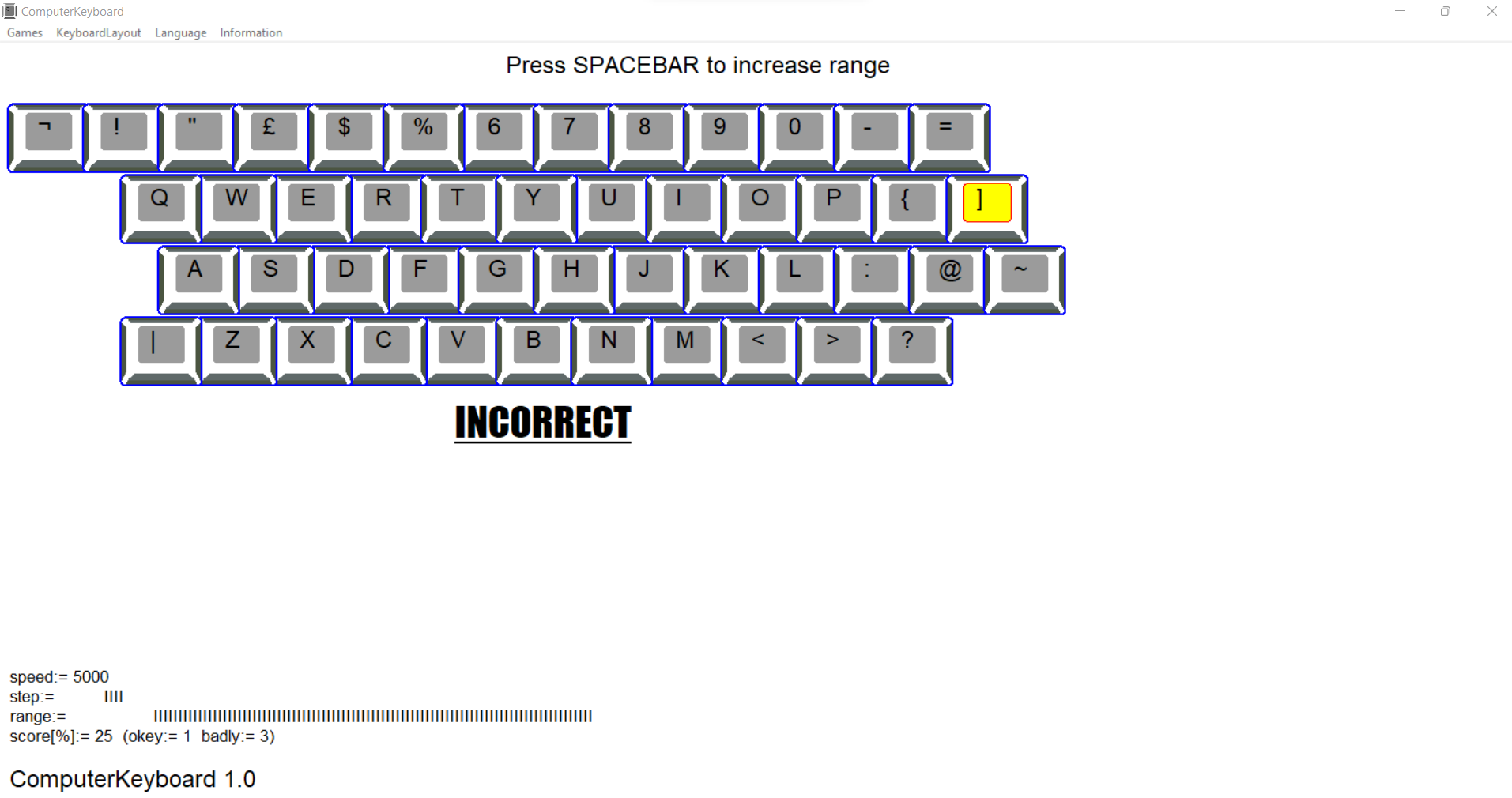
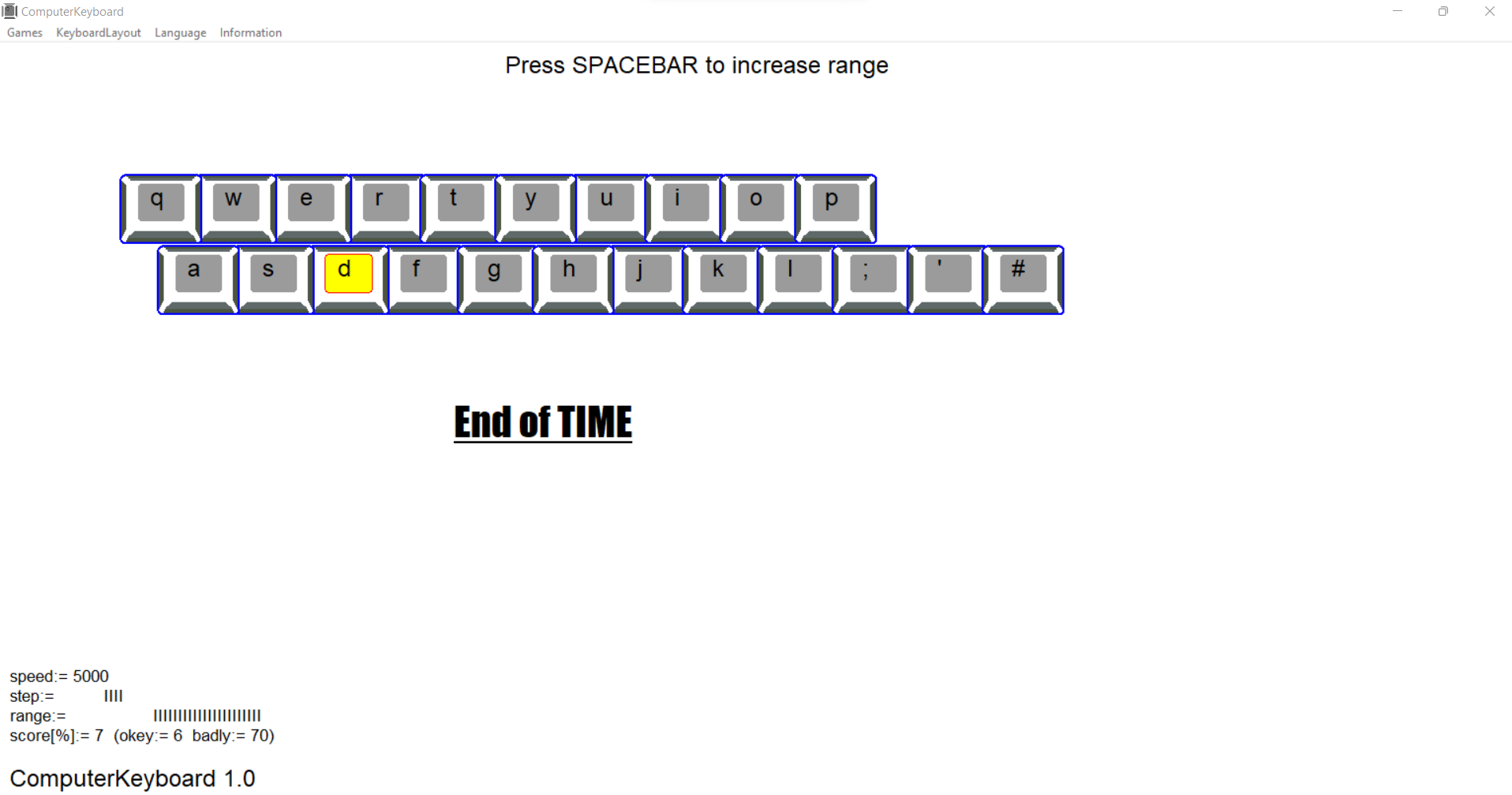
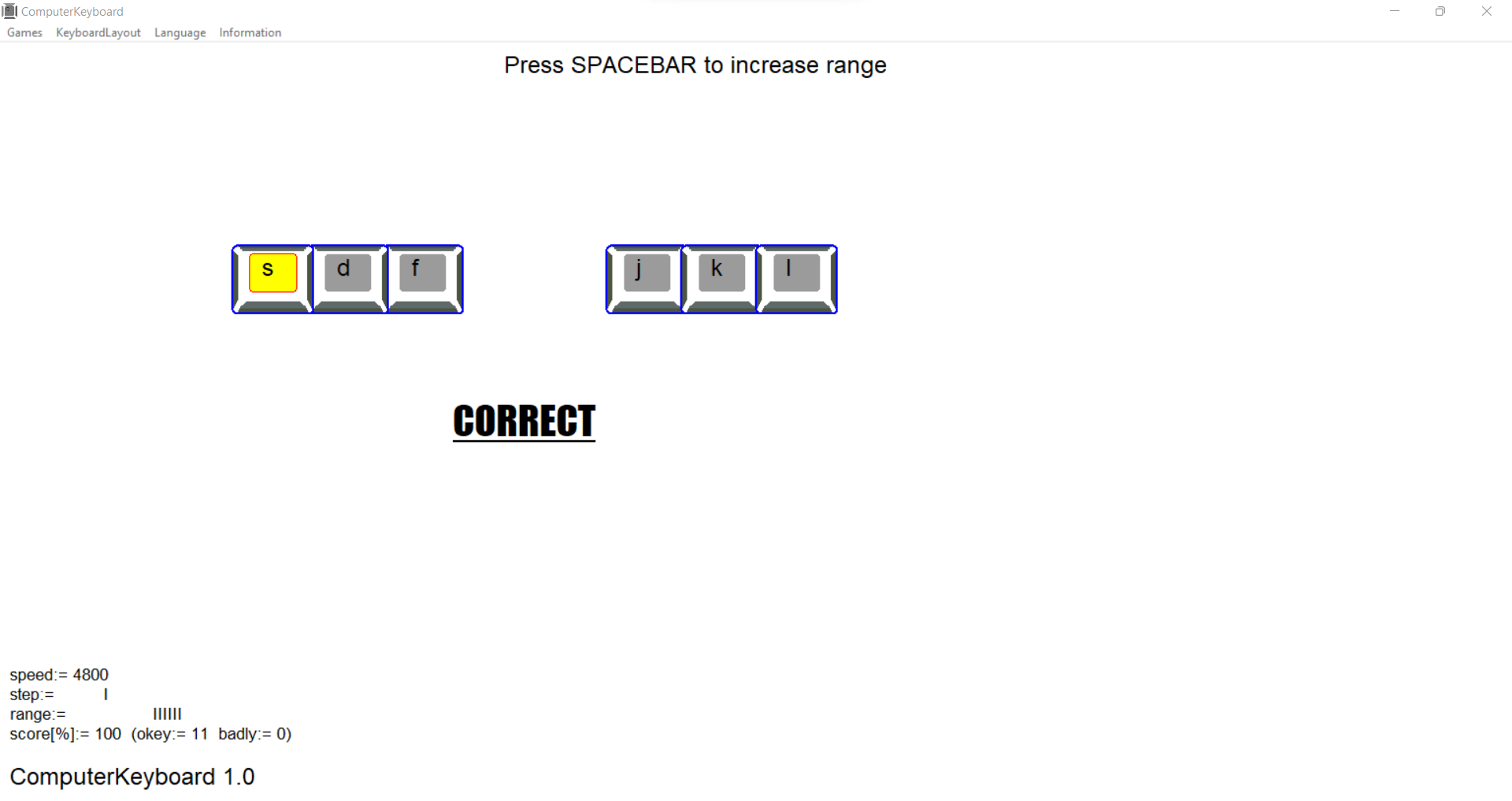
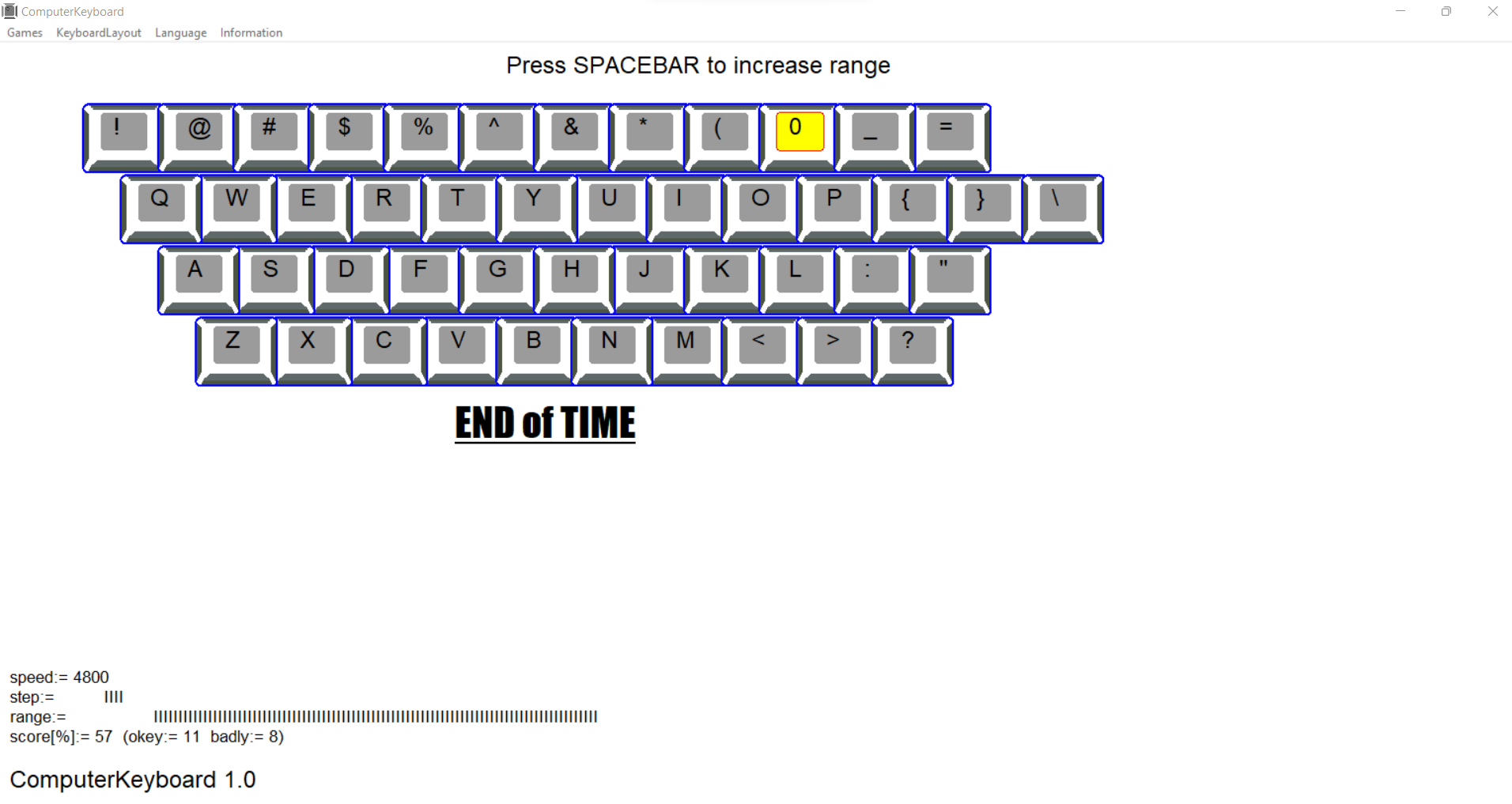
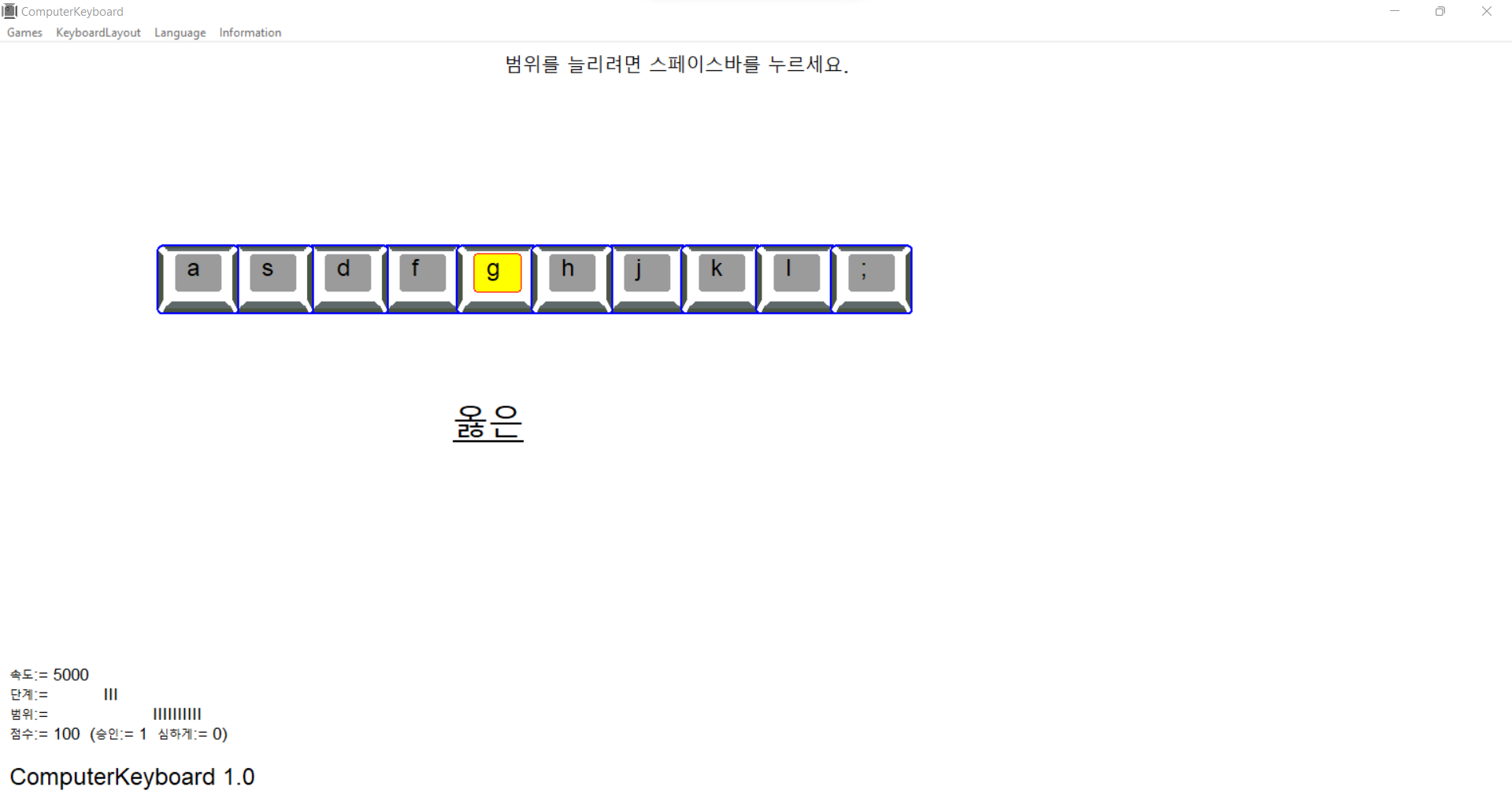
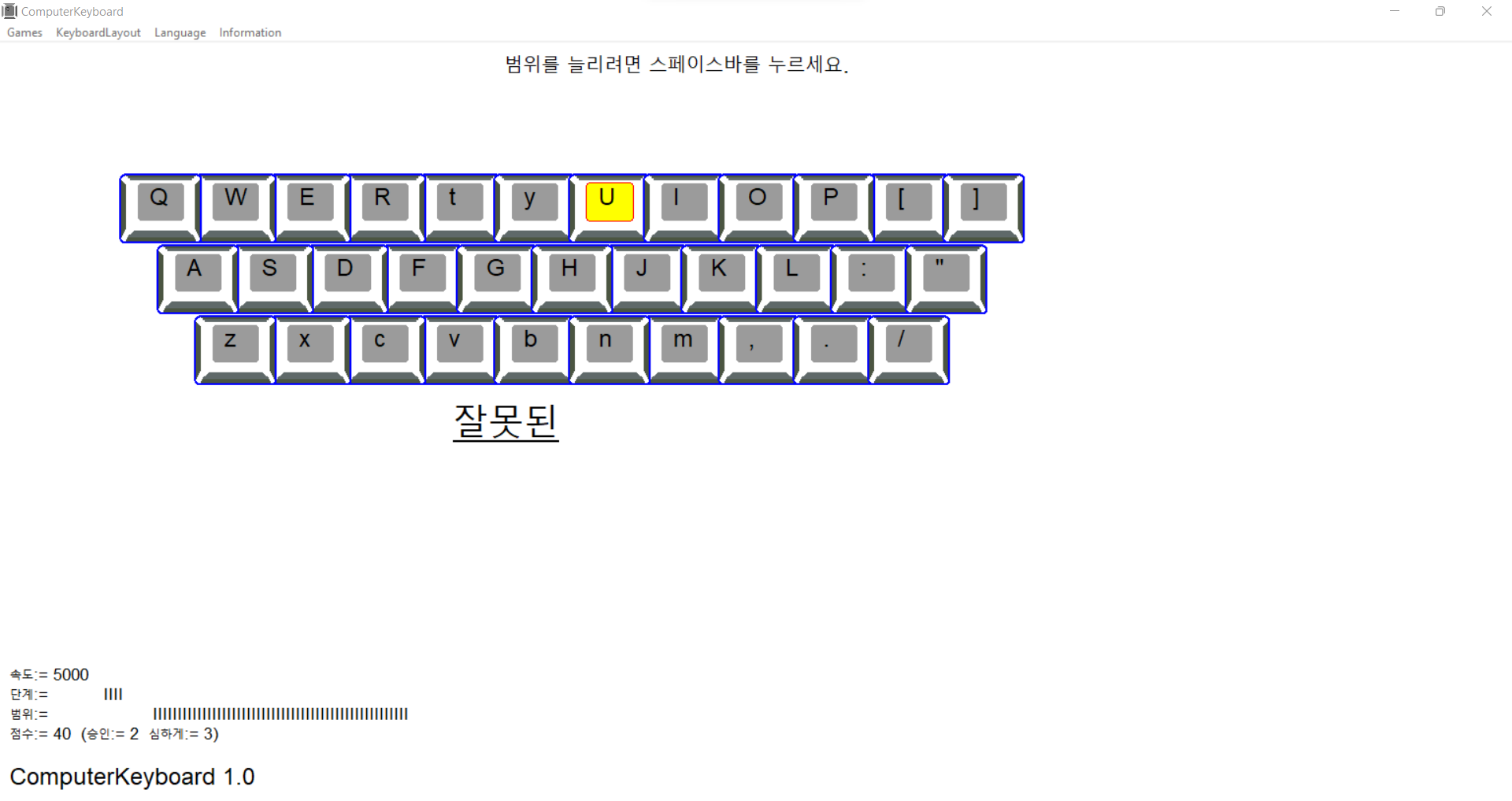
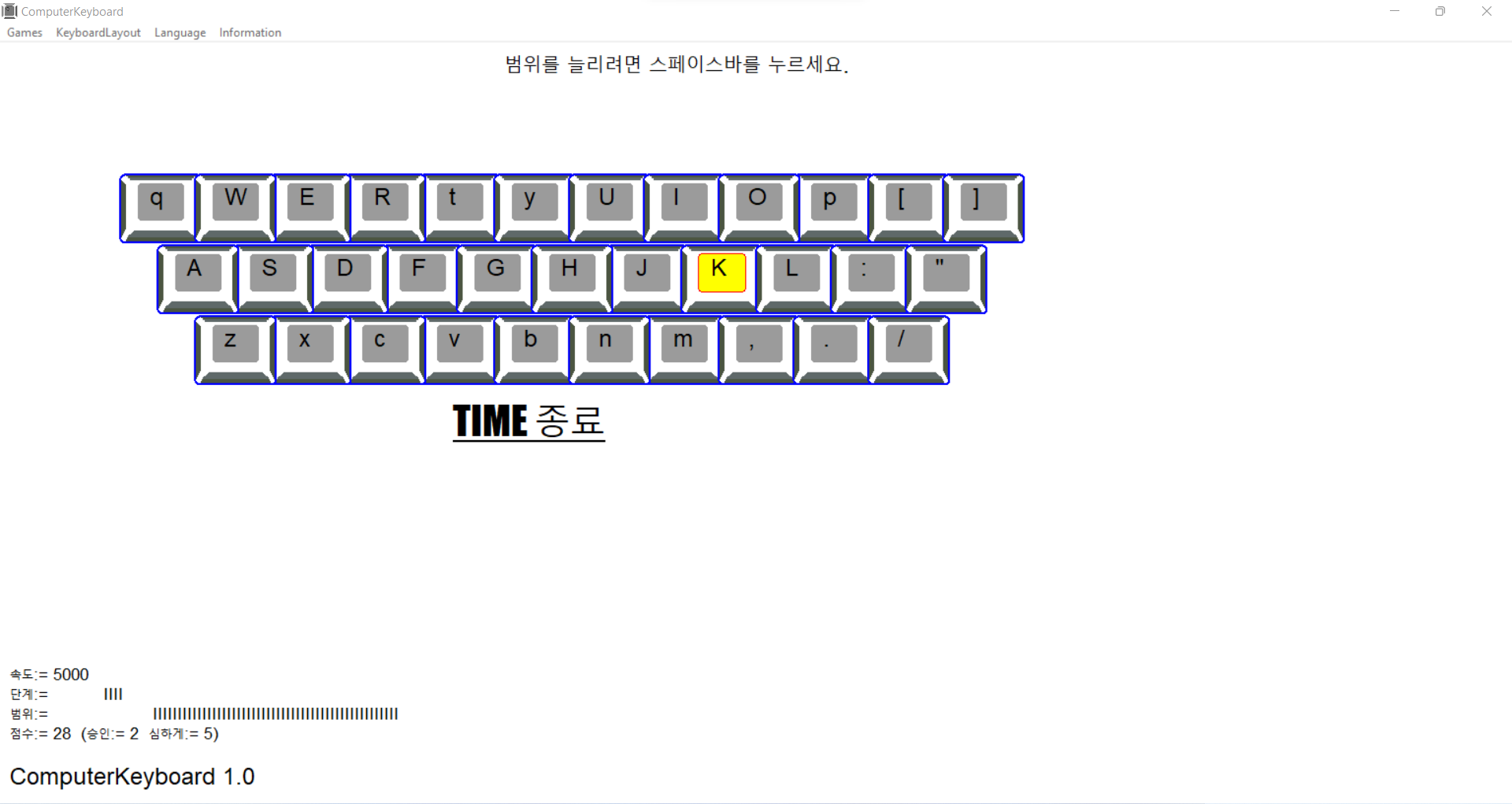
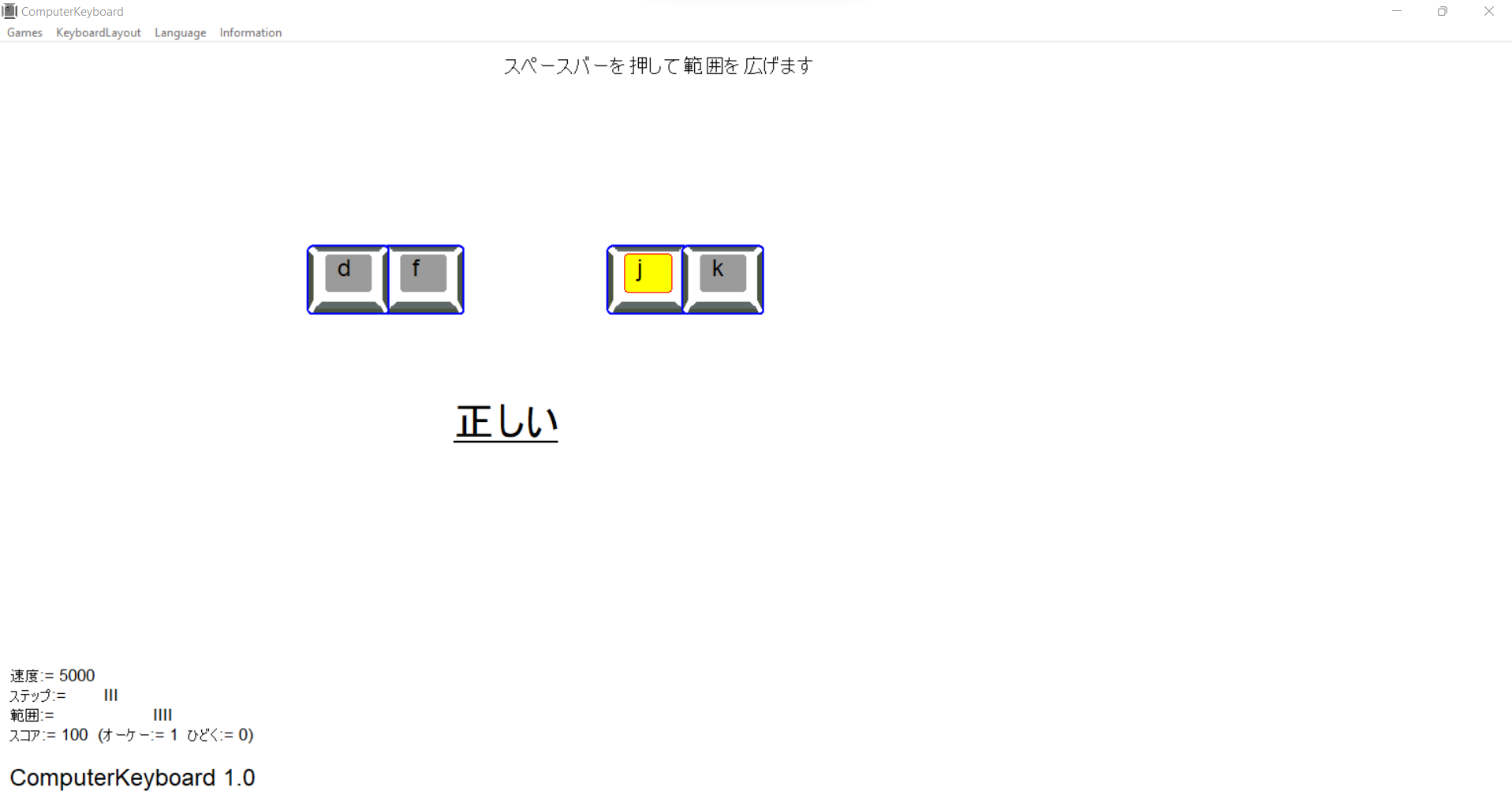
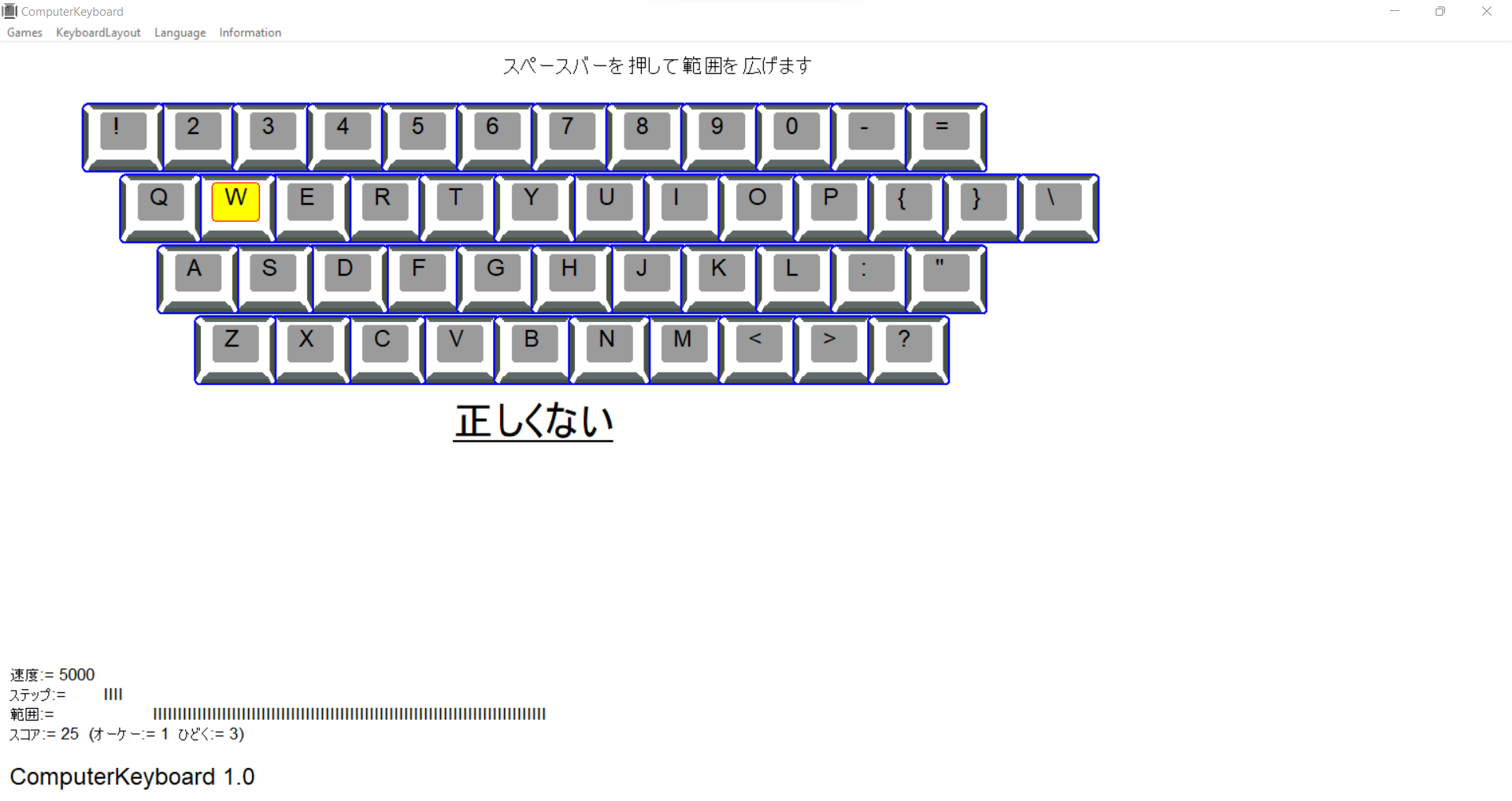
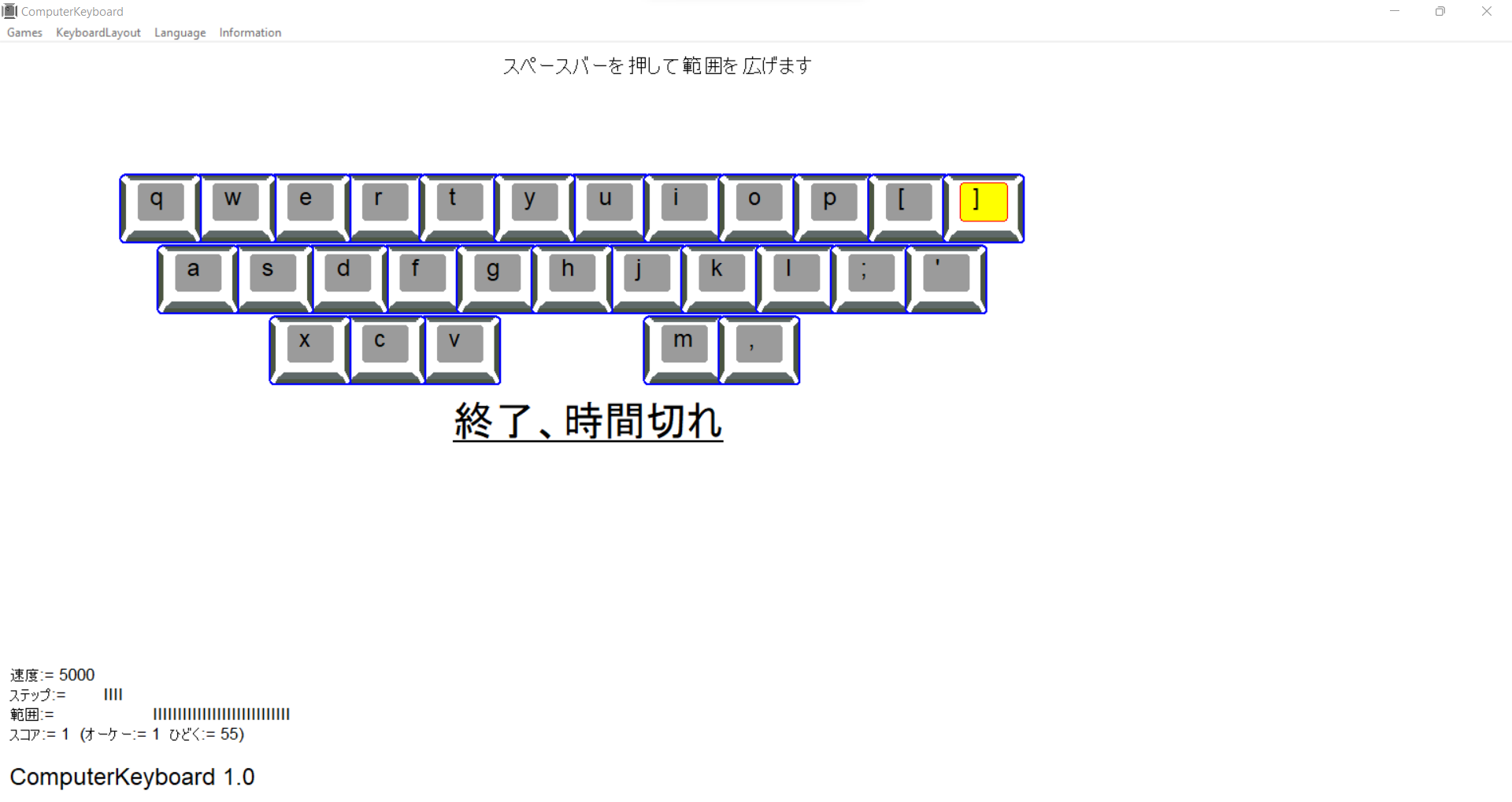
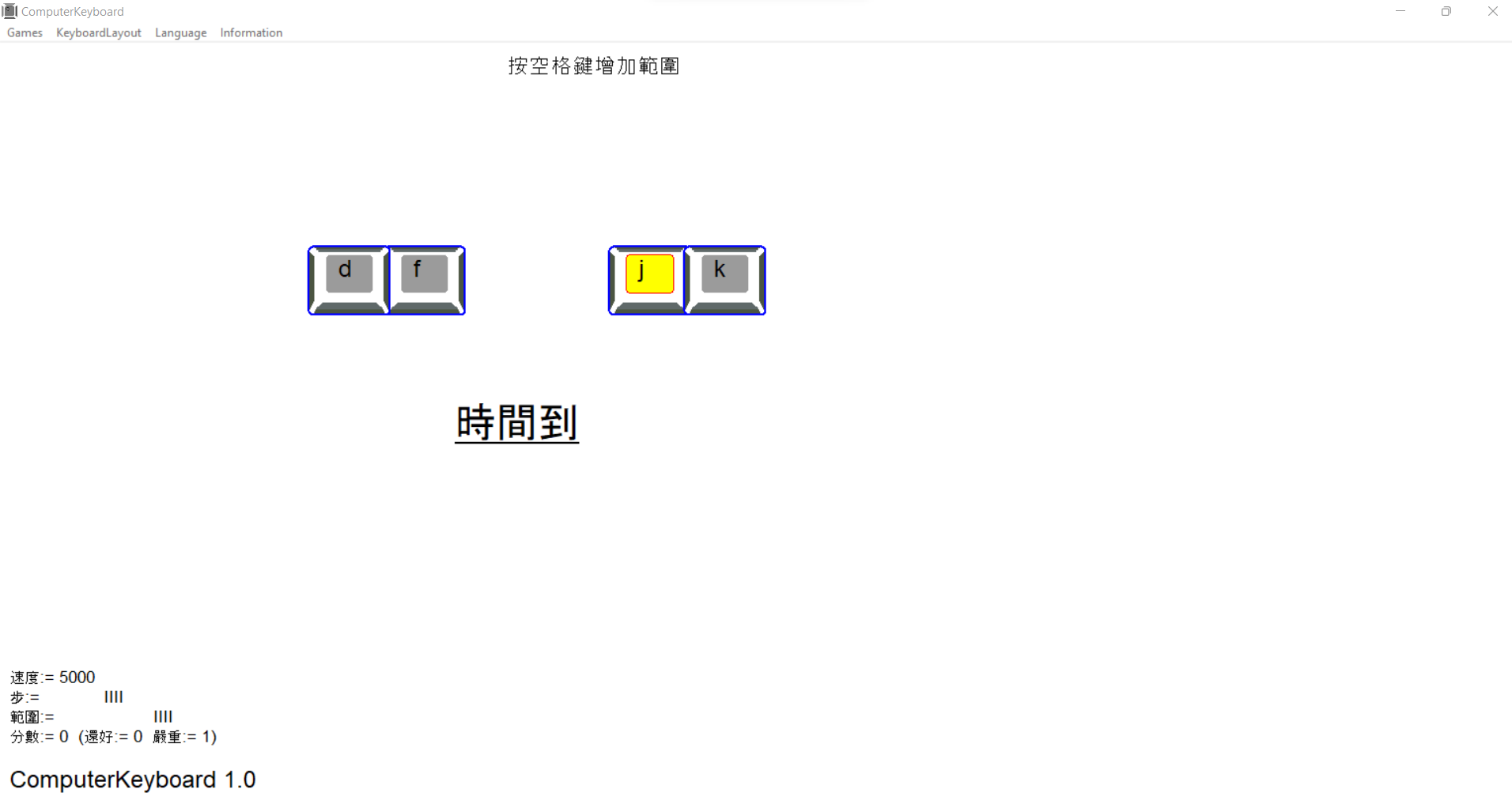
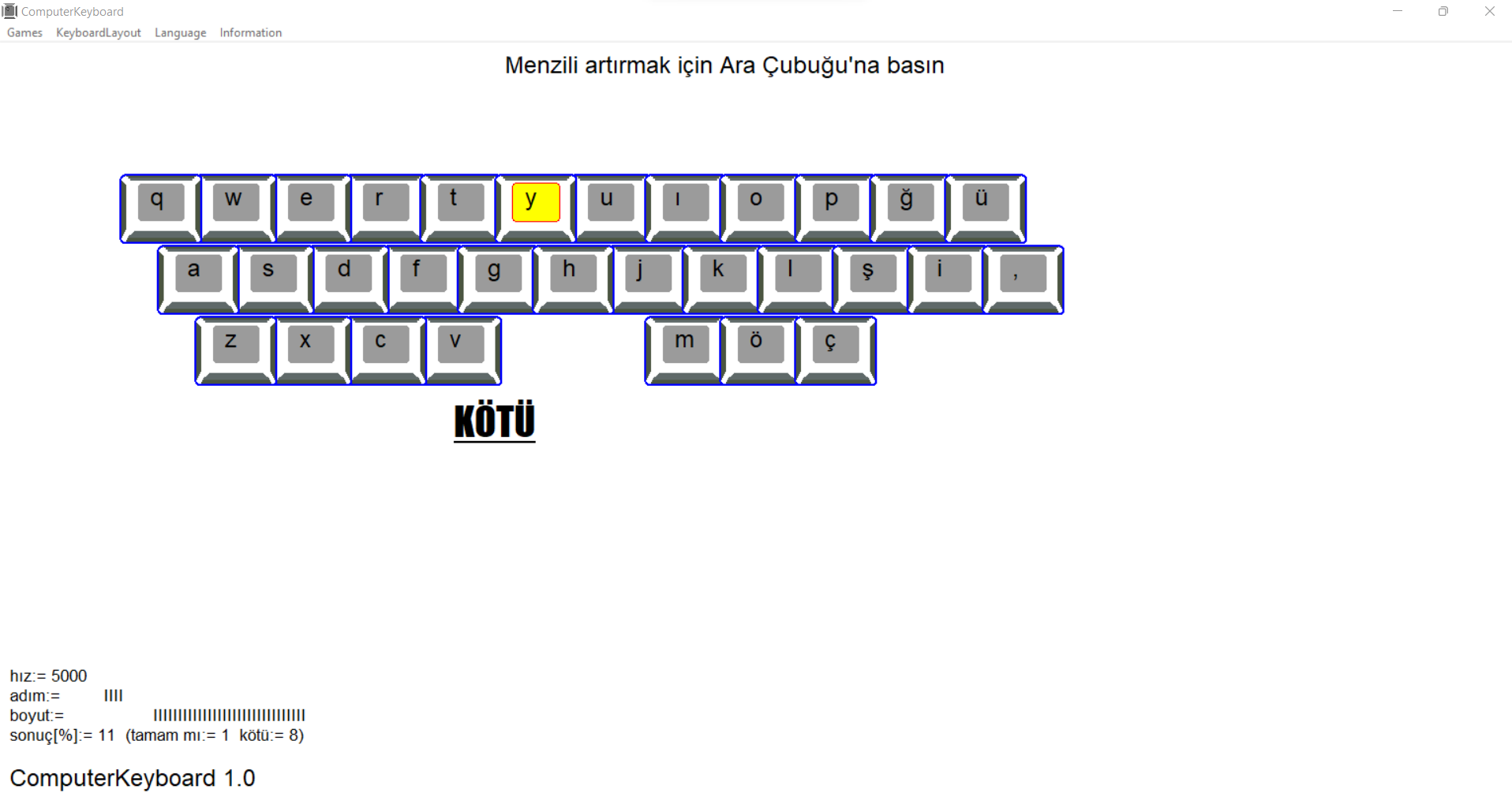
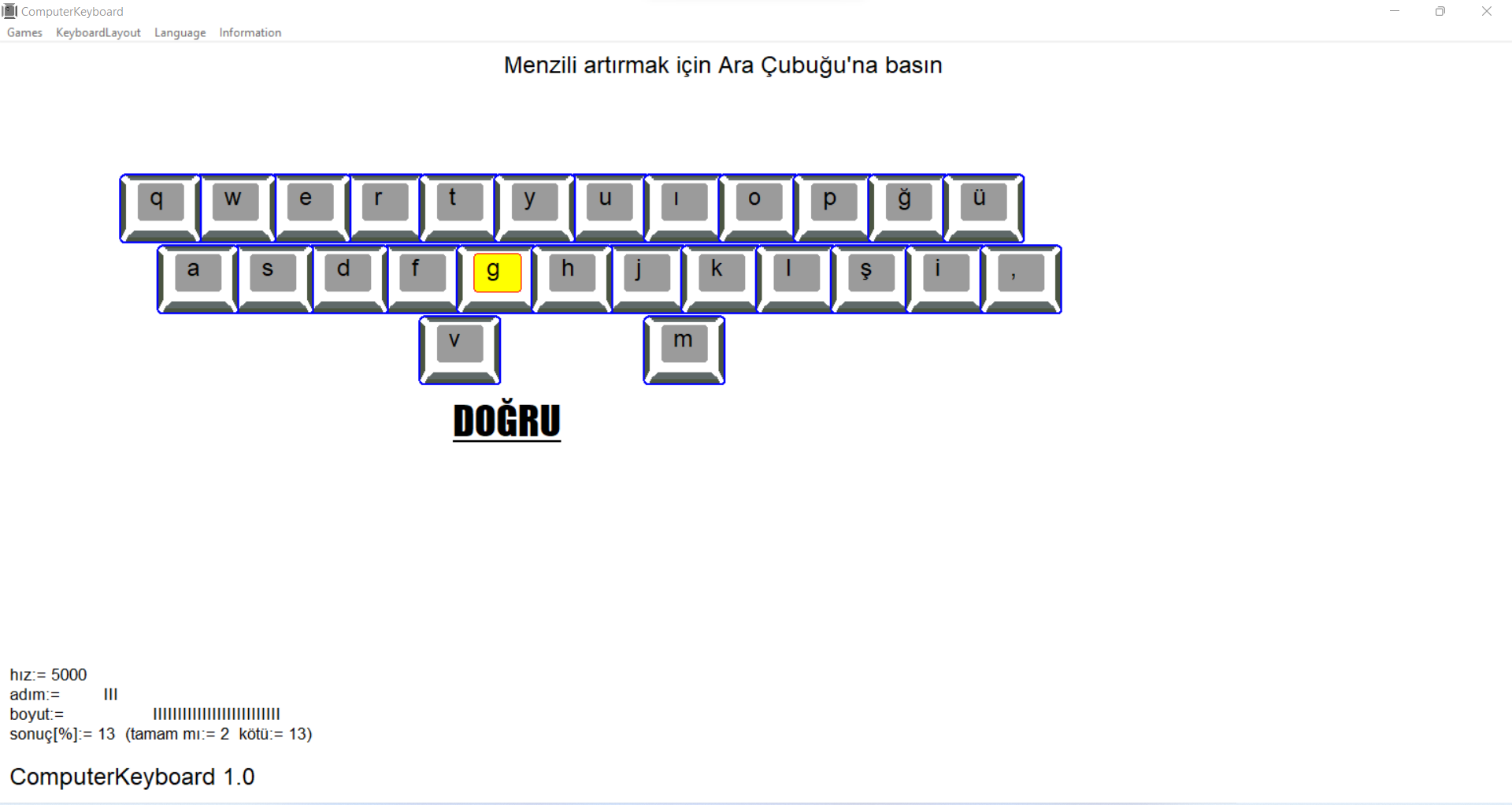
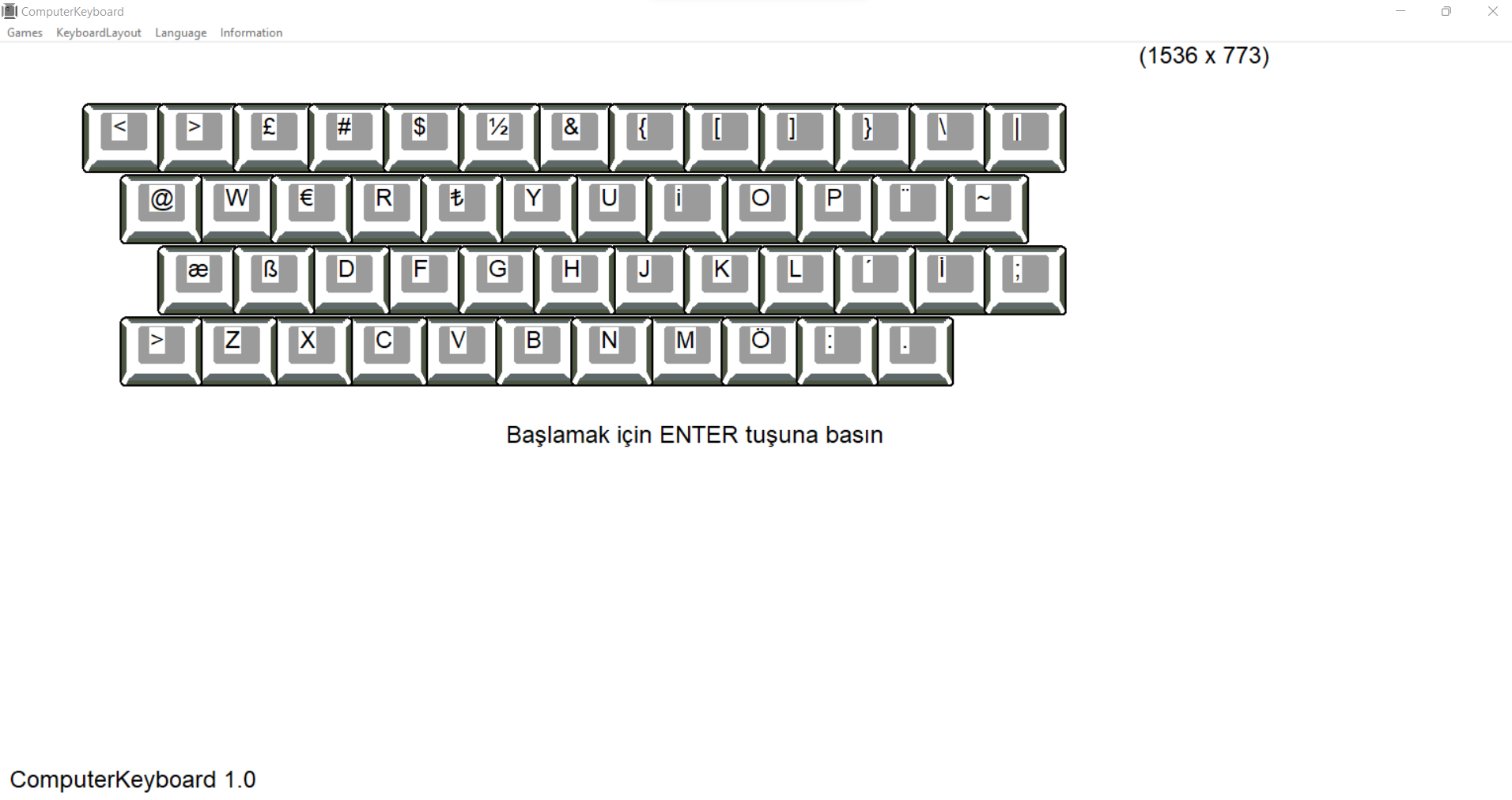
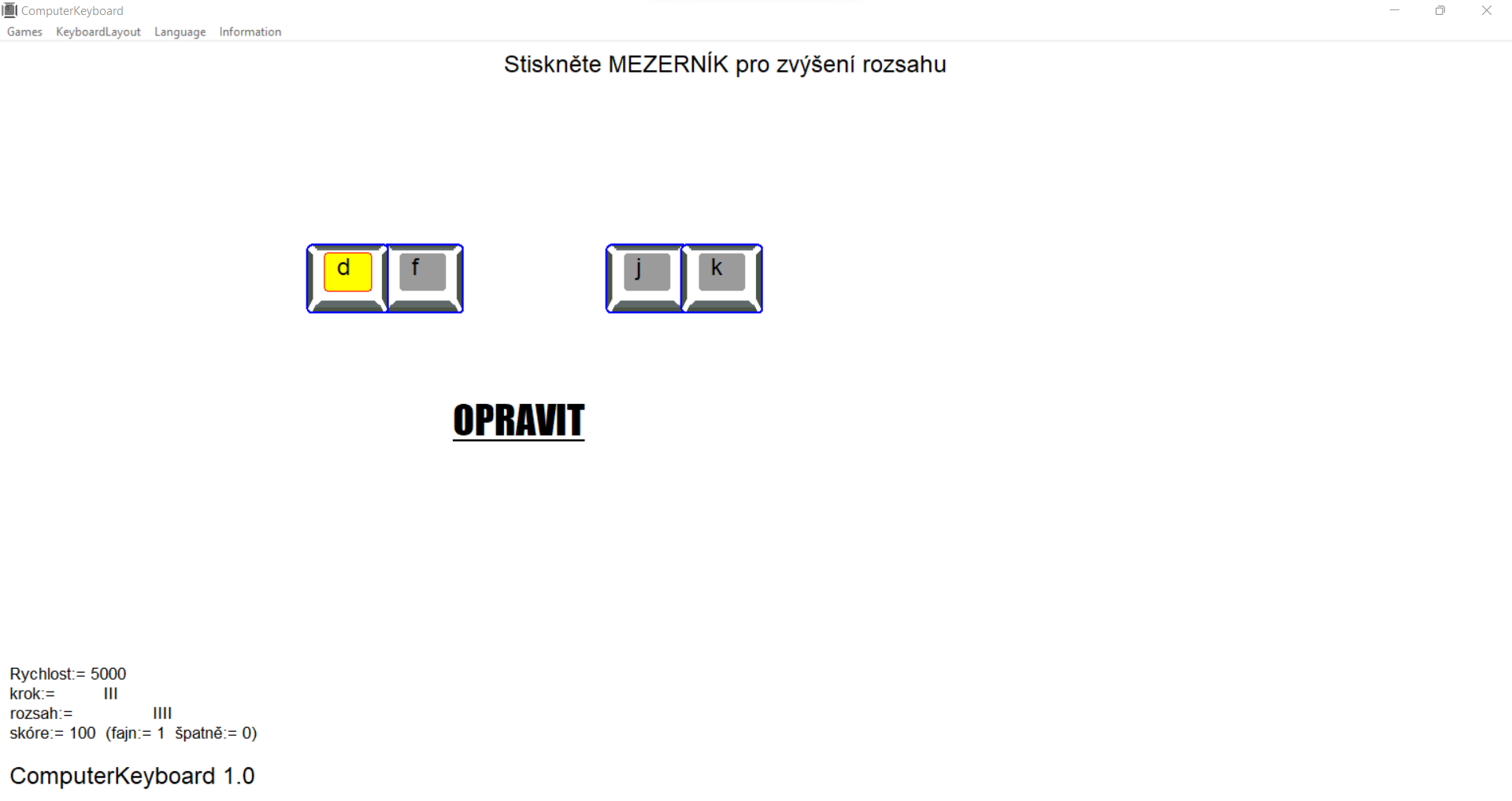
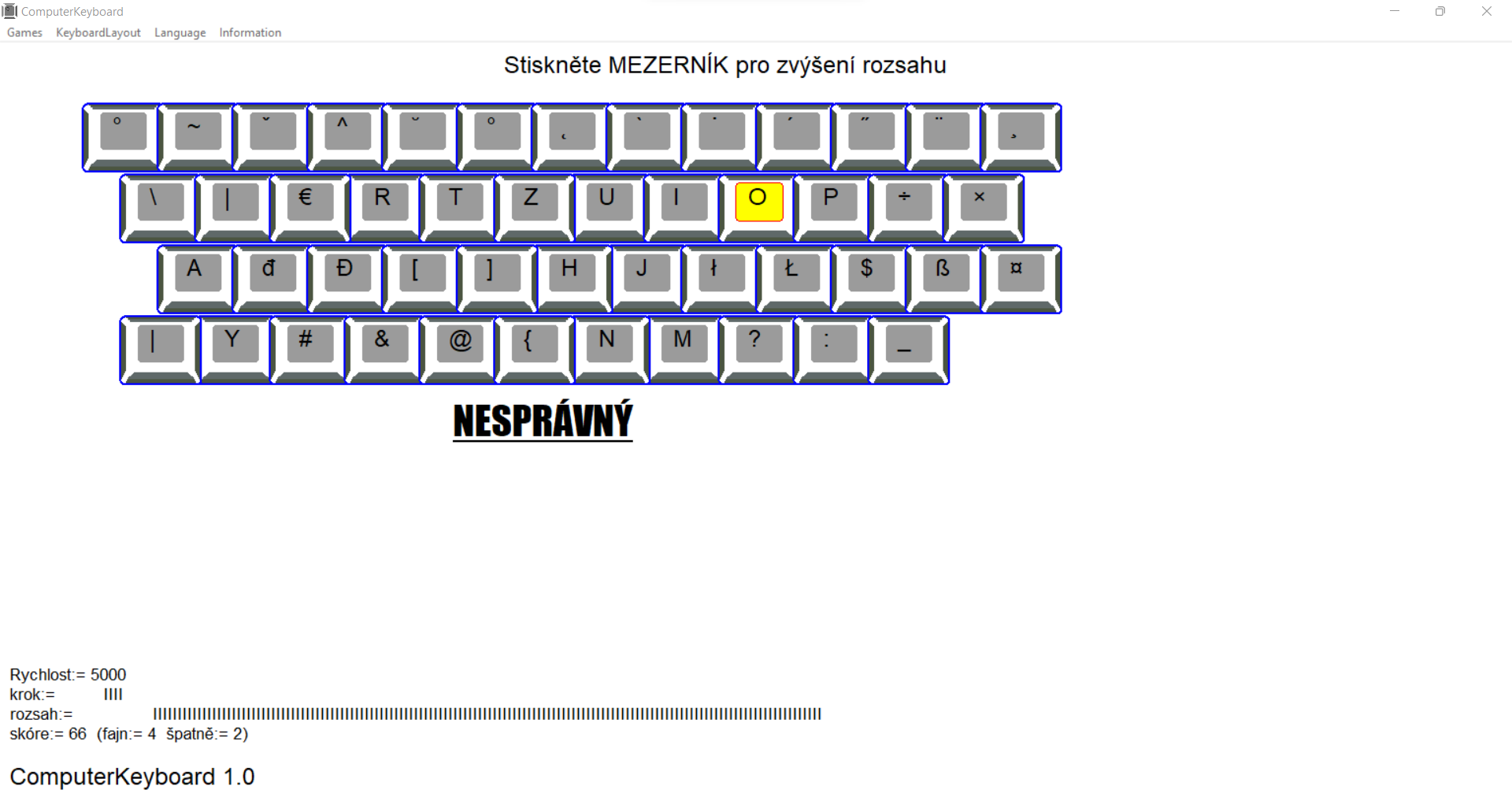
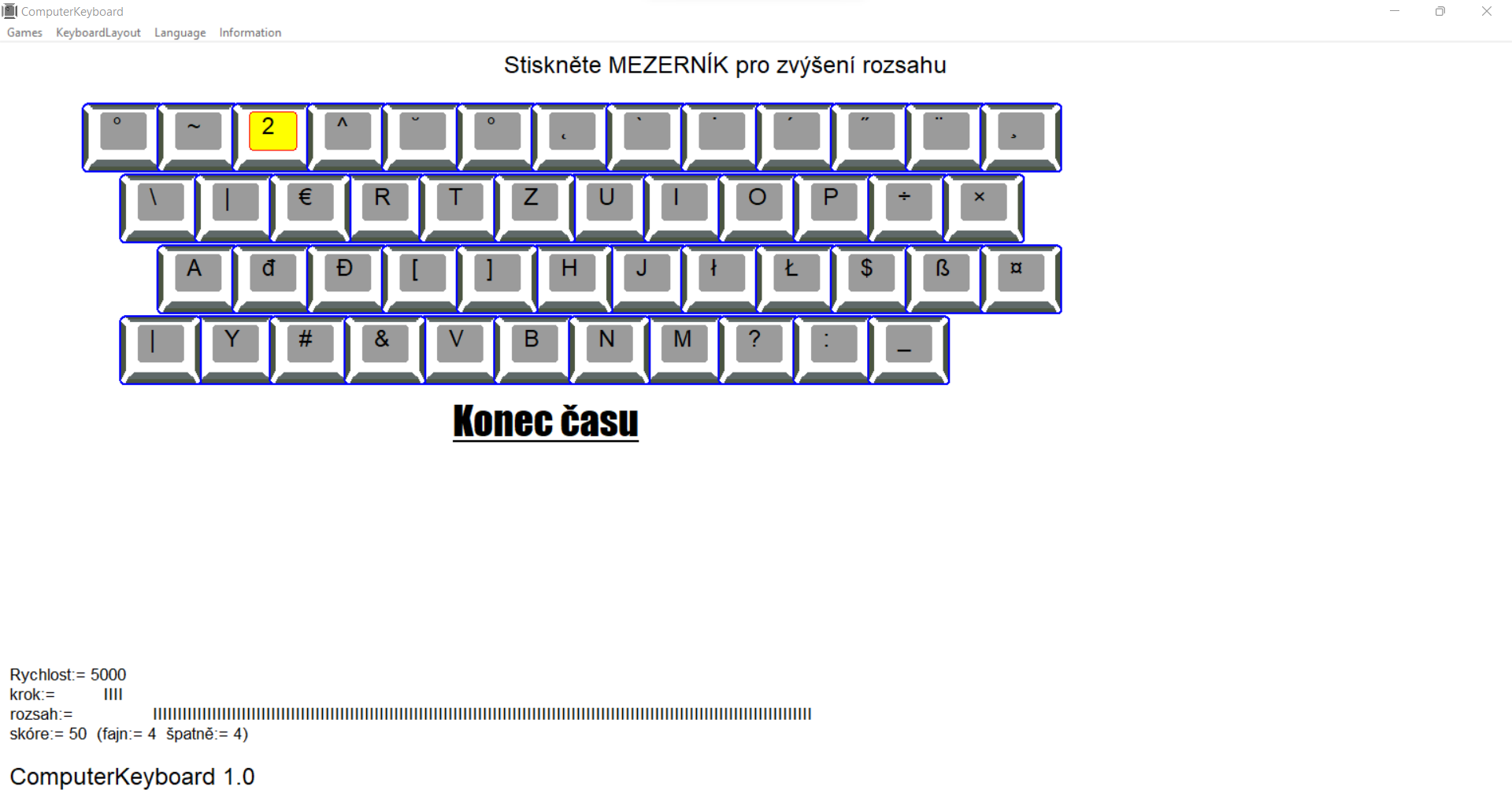
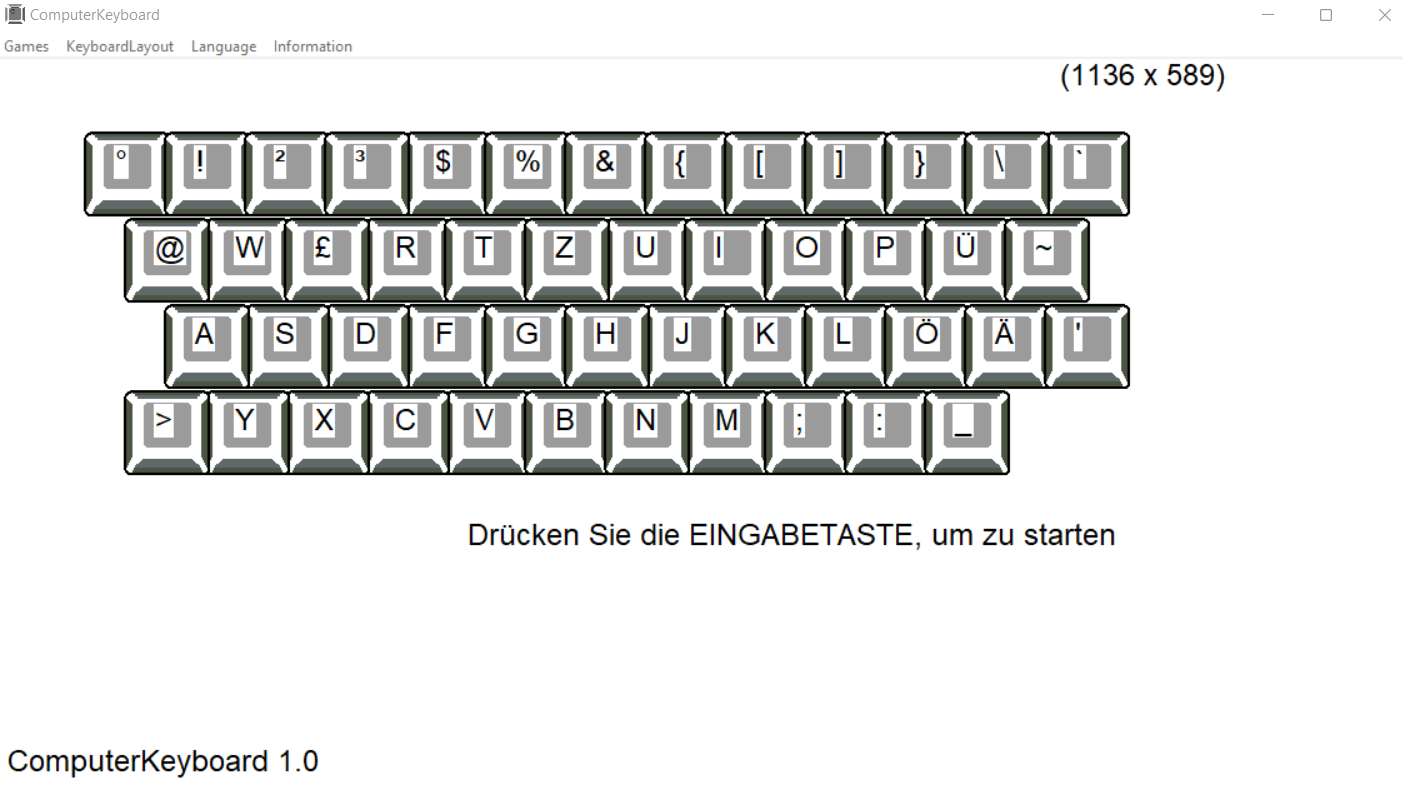
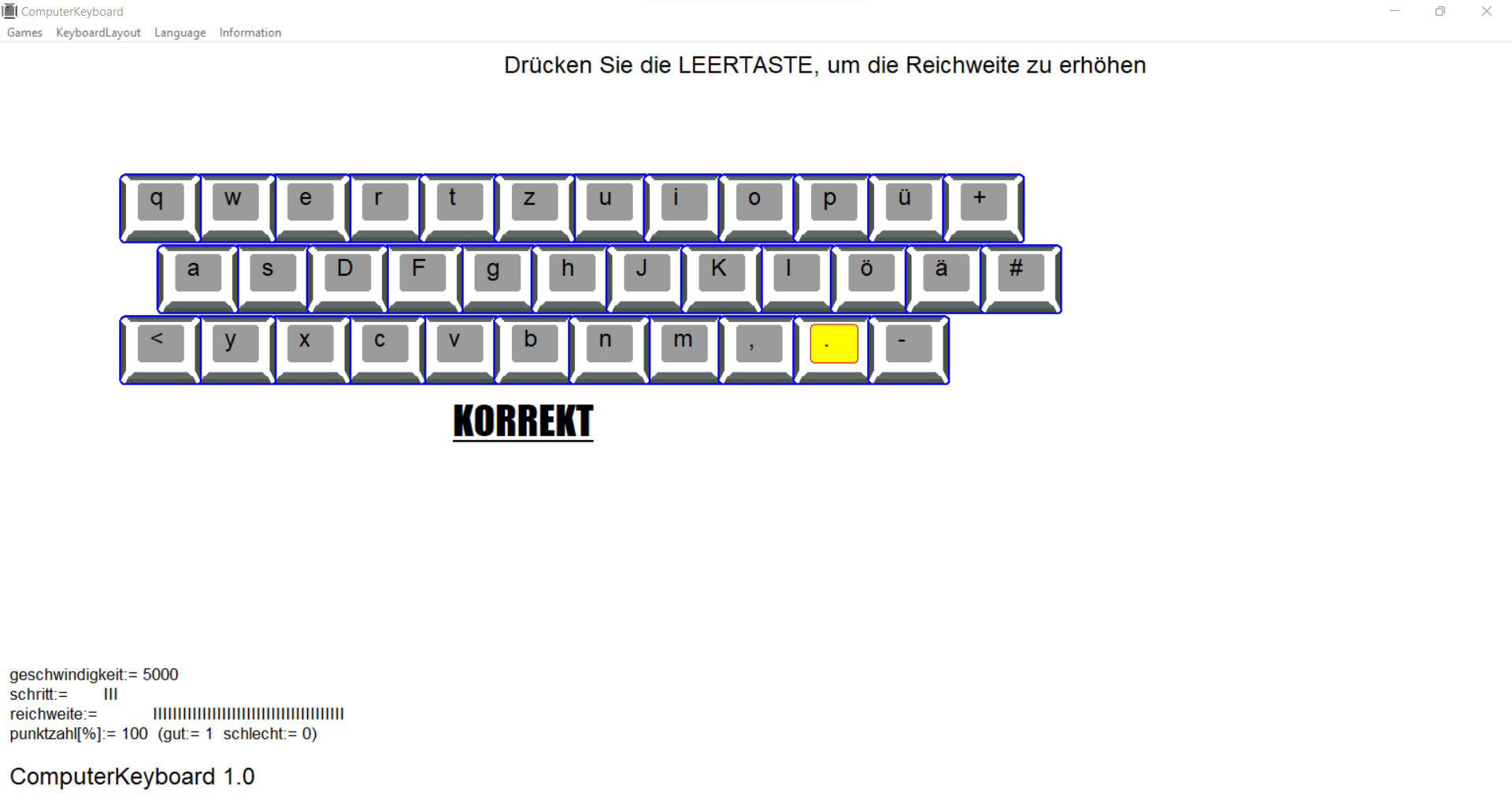
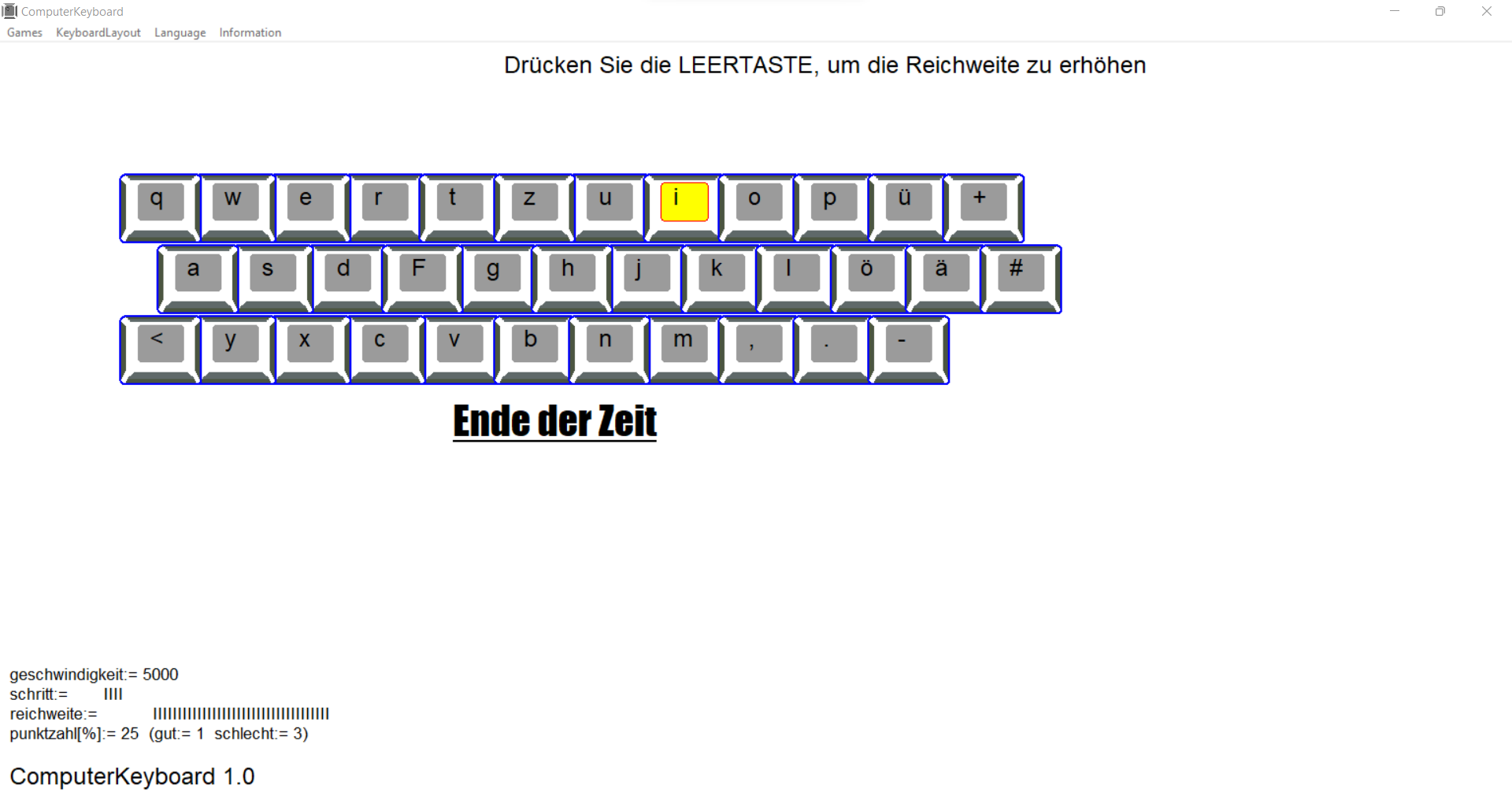
you start your adventure with ComputerKeyboard with four basic keys. As you progress, the number of keys increases - the time needed to press the appropriate key also decreases. Giving a wrong answer reduces the number of keys.
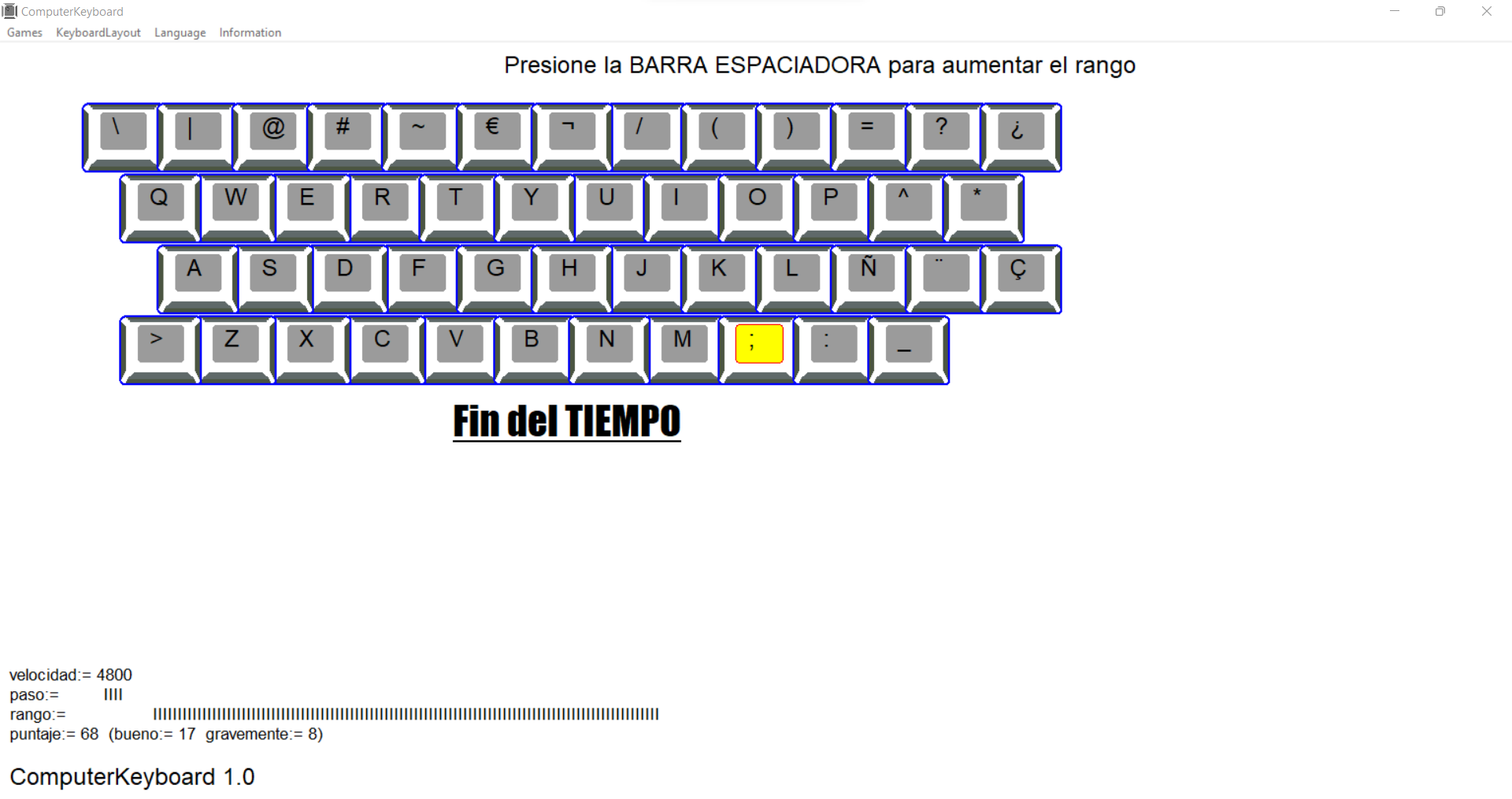
At any time, it can increase the range of available keys.
how to start
Home row – the starting position for our hands, consisting of placing the index finger of the left hand on the key with the “F” protrusion and the index finger of the right hand on the key with the “J” protrusion. This is the so-called starting position.
Start by placing your hands correctly on the keyboard – the index fingers should be on the above-mentioned keys with bulges – and the remaining fingers should be placed in sequence along the line of the base keys.
Also find the additional keys on the keyboard (shift, alt) and coordinate the movements of your fingers with them.
Shift - when pressed together with a letter, it allows you to enter capital letters, and with a number or upper character on a key, it enters the second character entered on your keyboard.
(practice the movements of the little finger of the left and right hand)
Make sure the CapsLock key has not been pressed accidentally.
Alt or AltGr - On some keyboard layouts, pressing a key together with another key allows you to enter certain letters, symbols, or language-specific characters.
program keys:
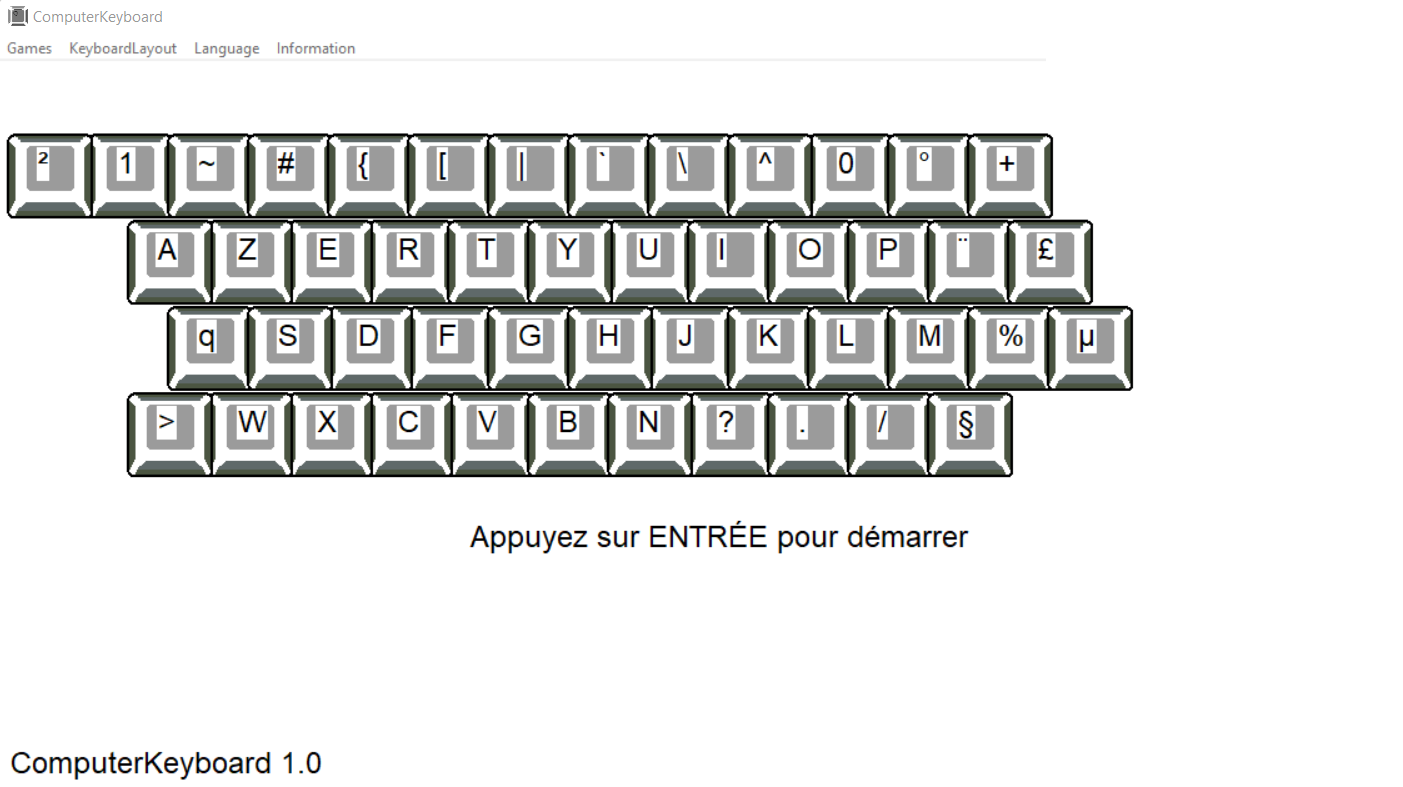
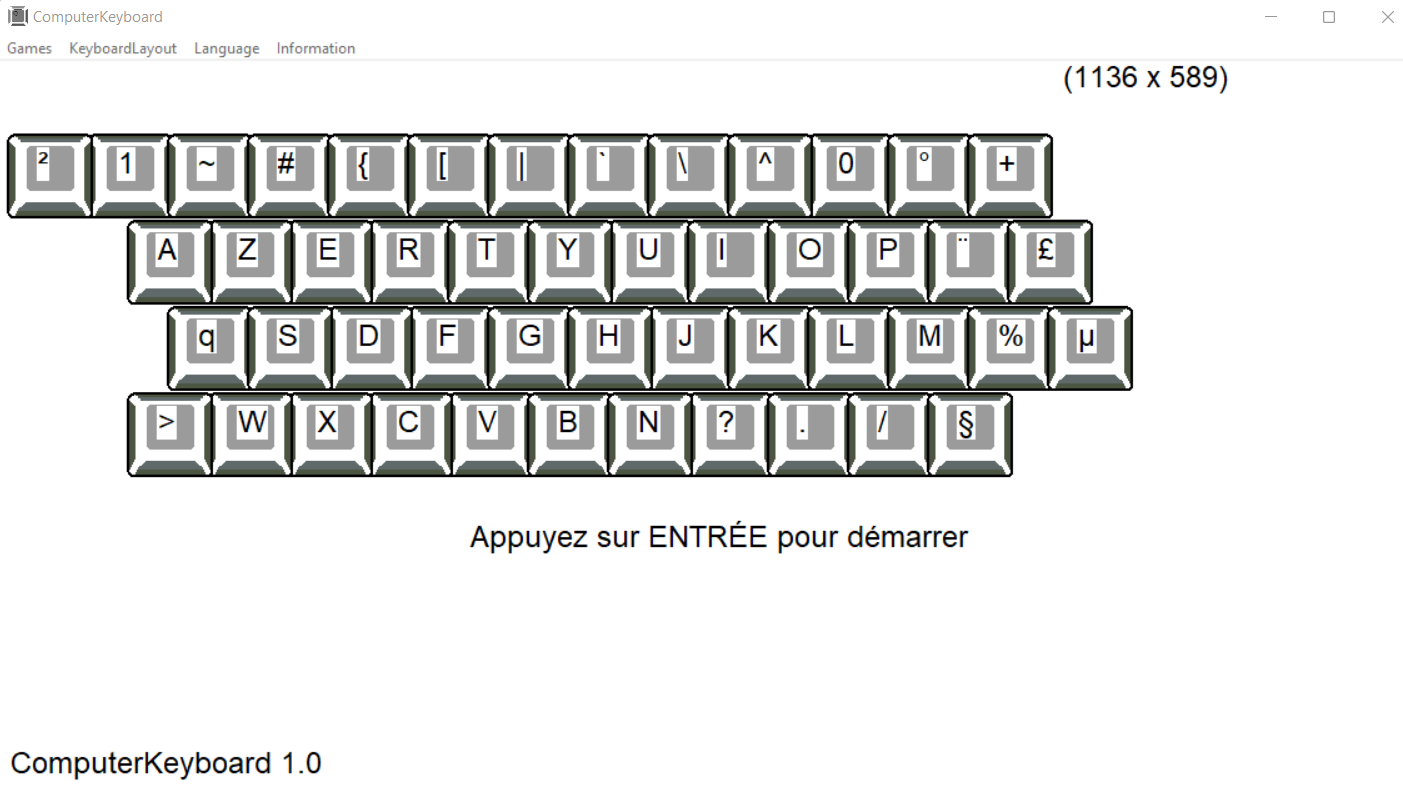
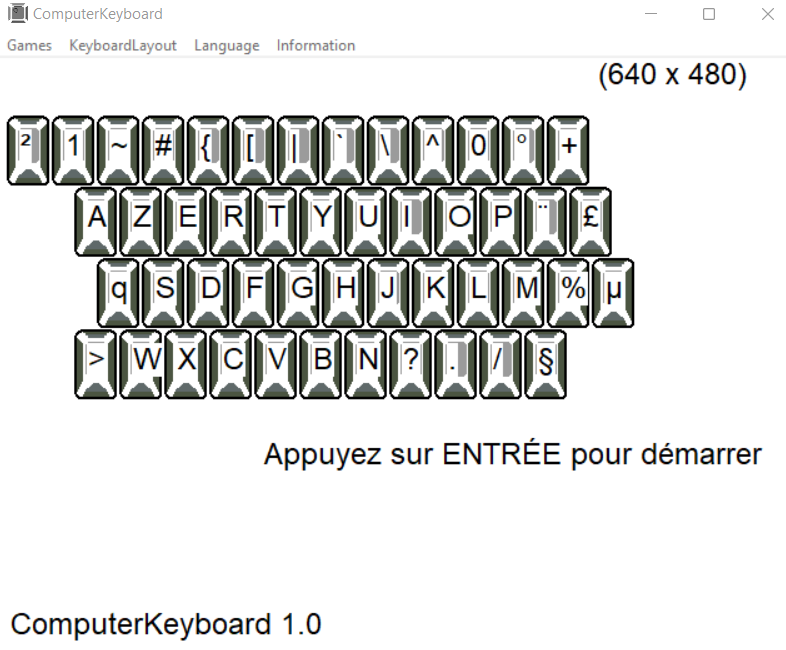
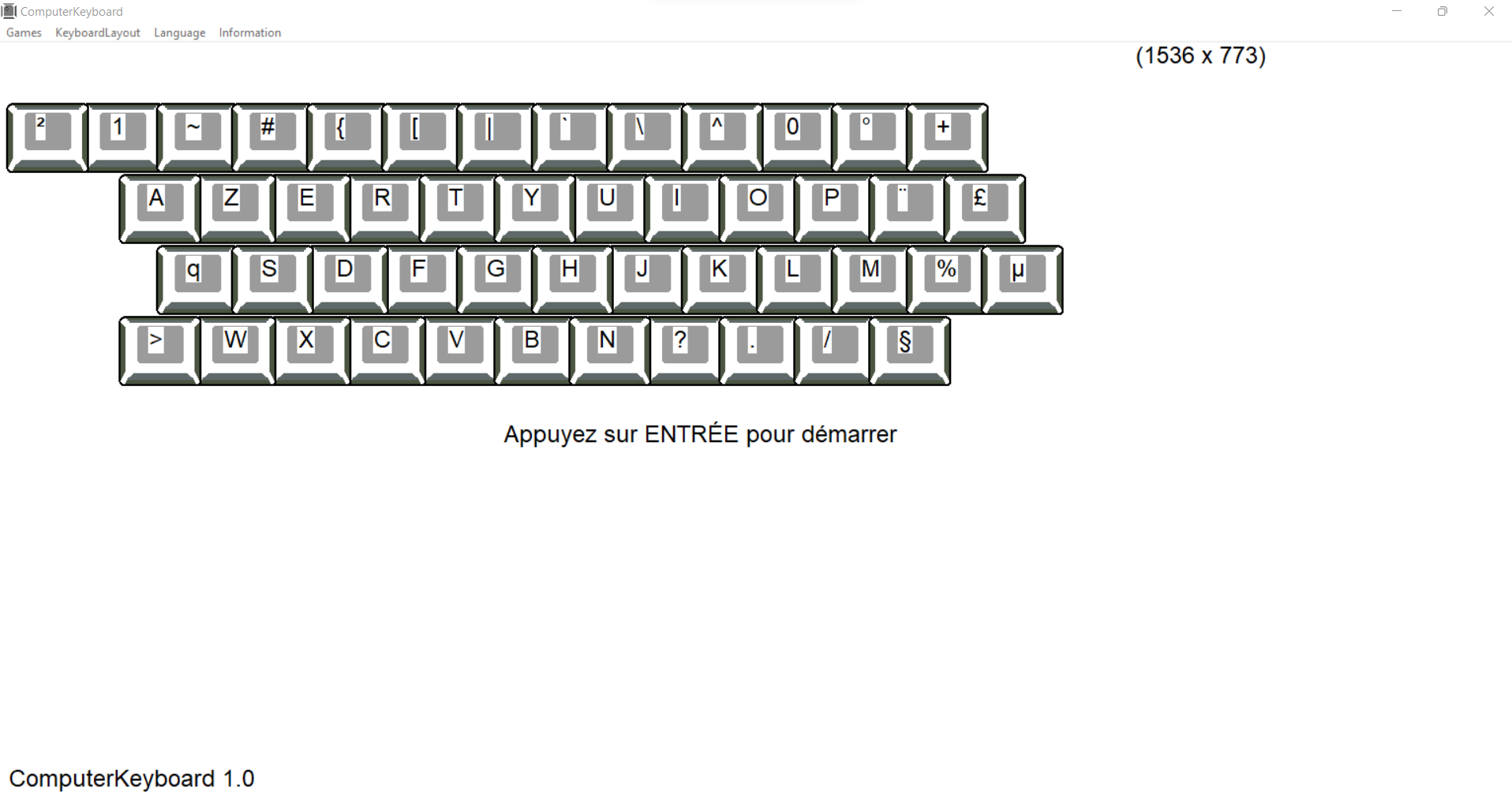
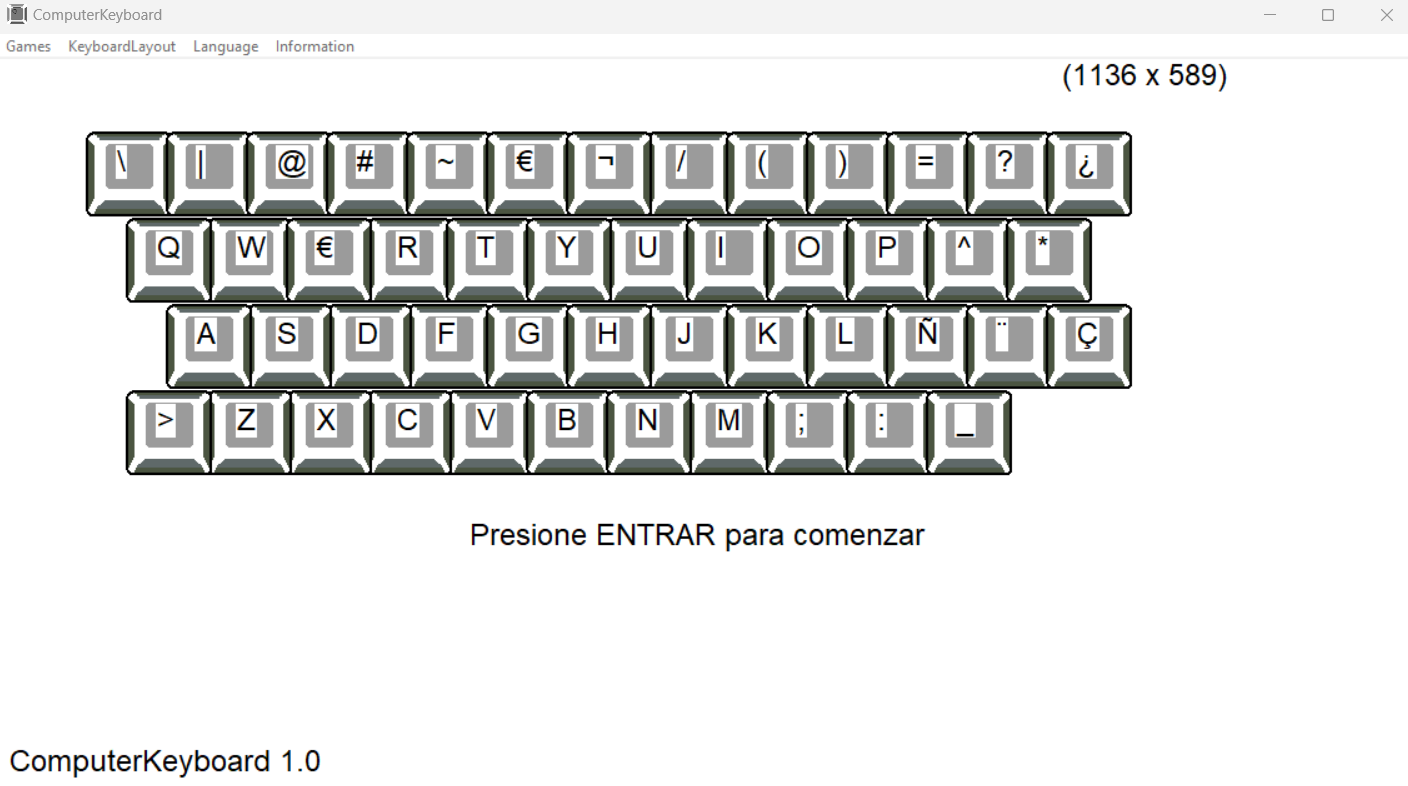
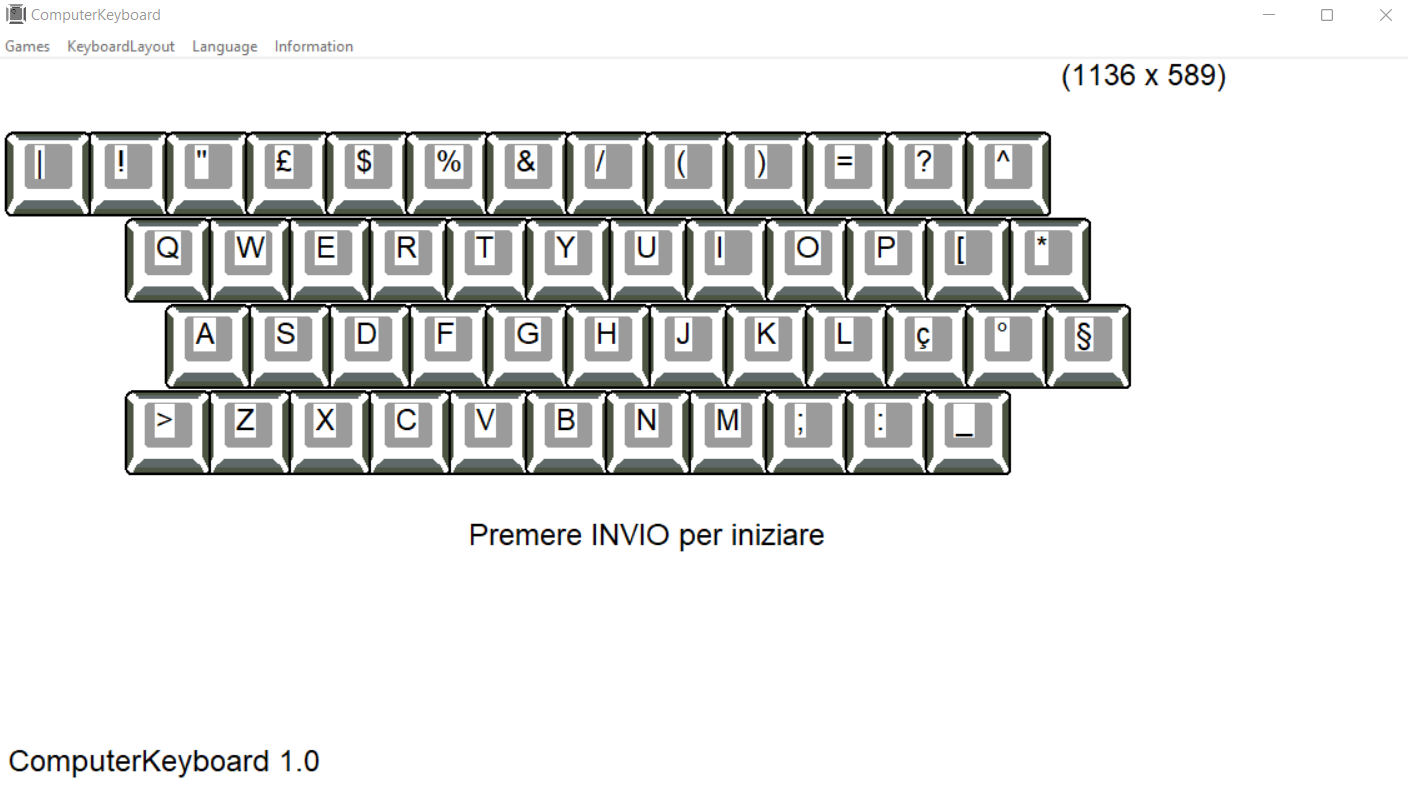
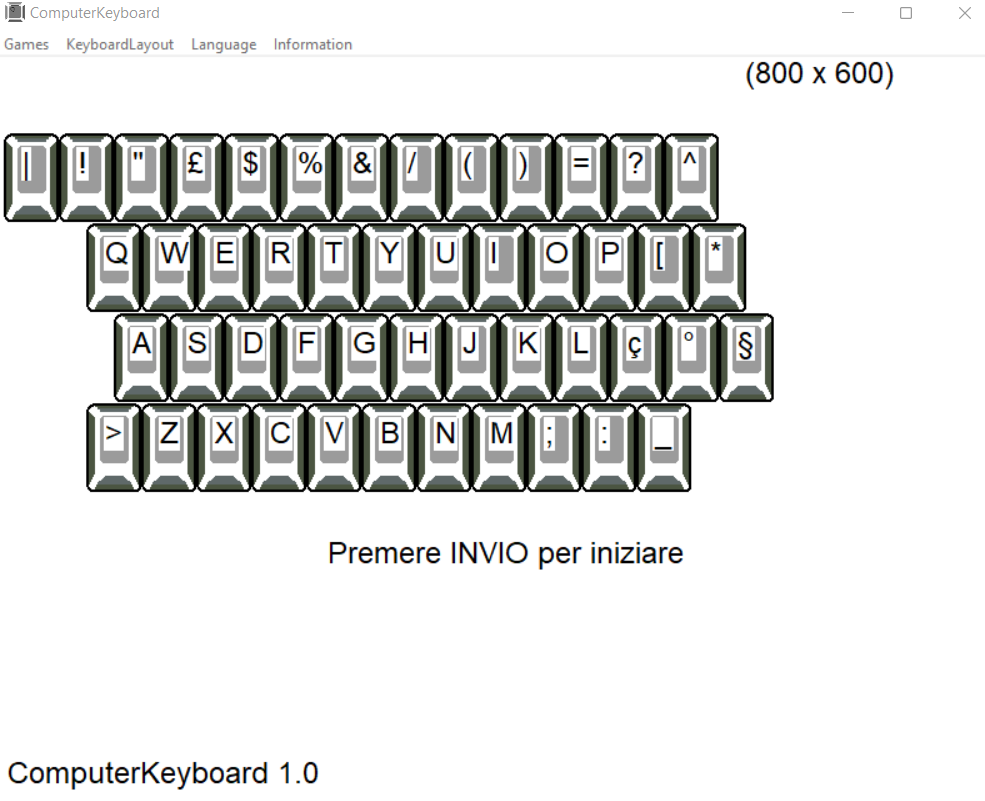
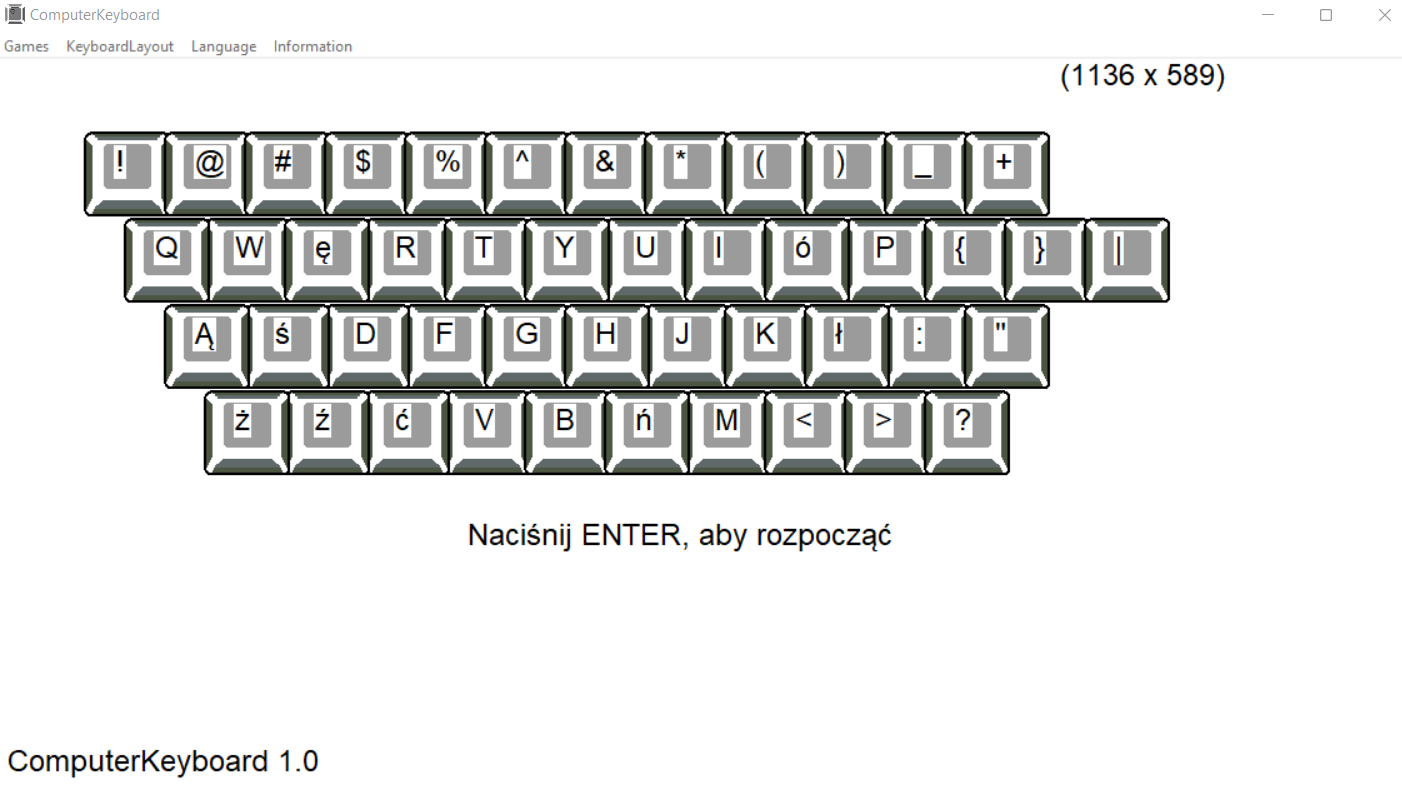
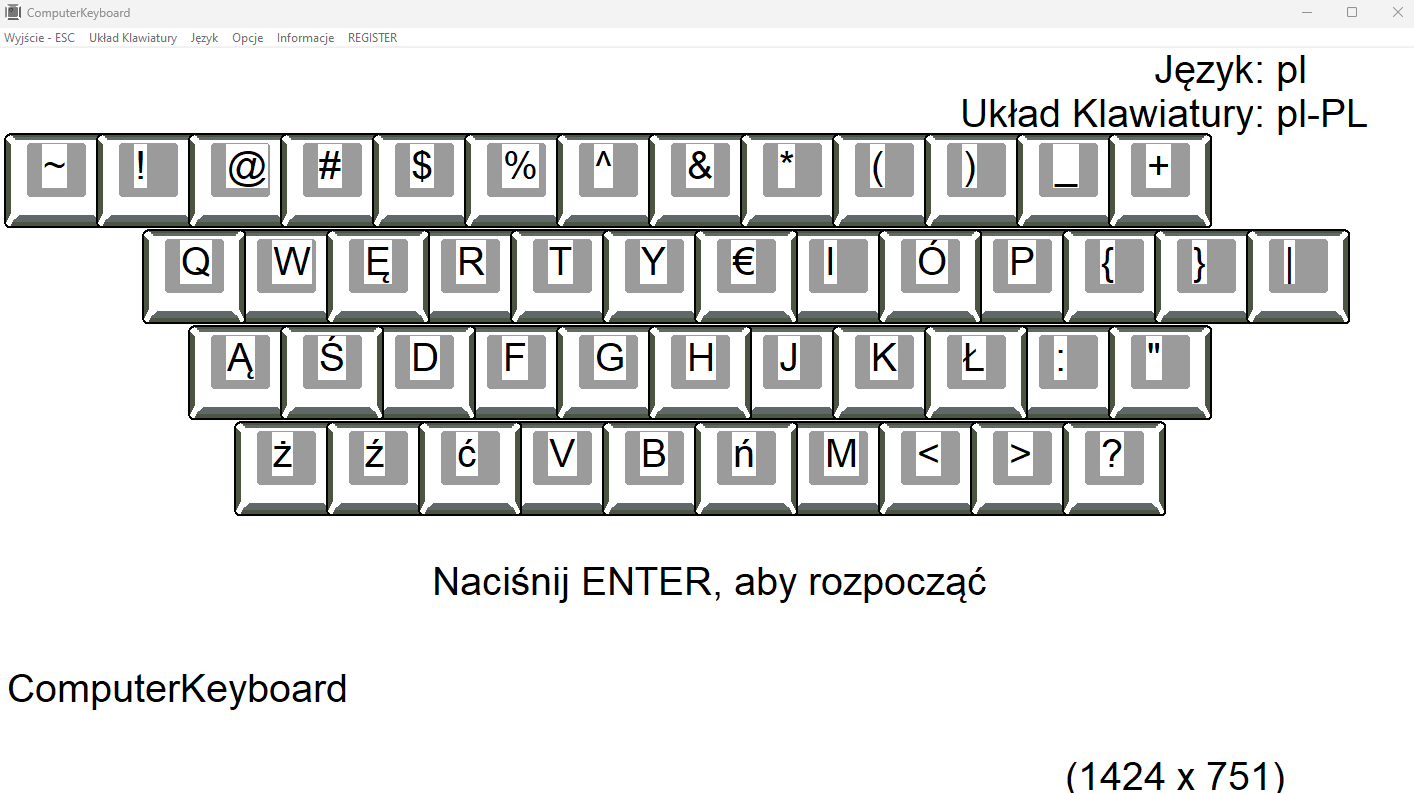
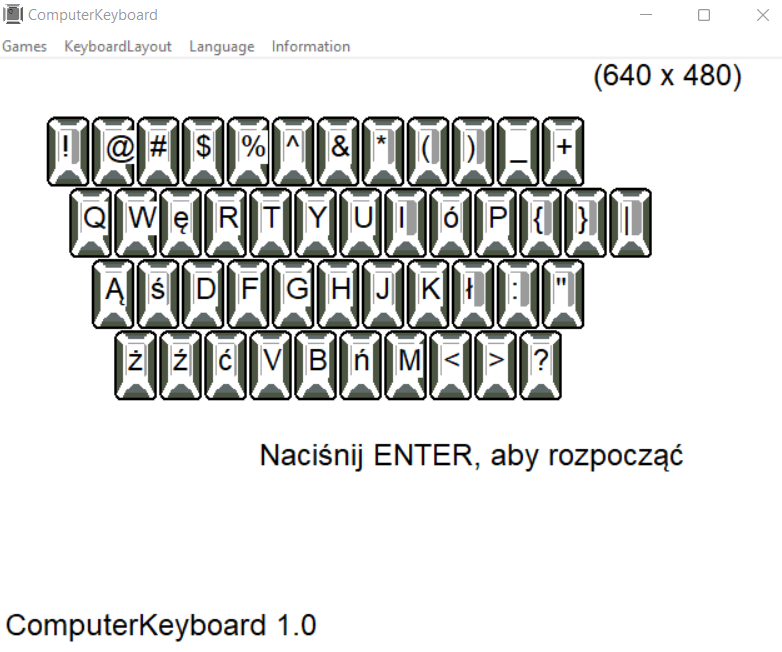
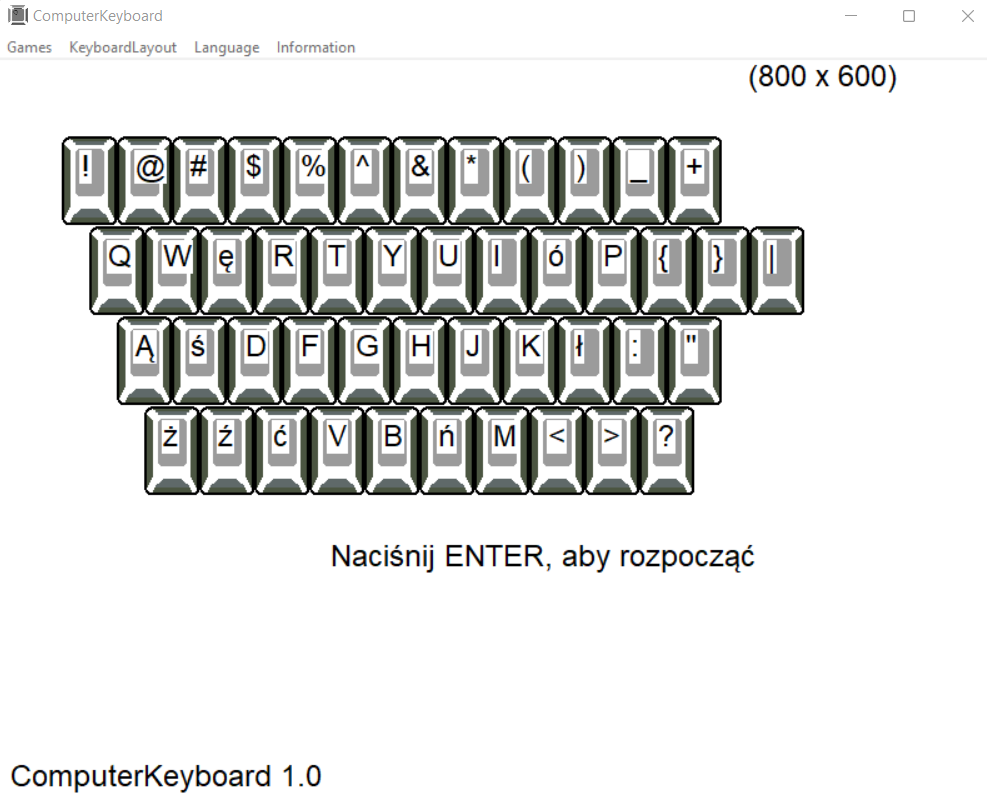
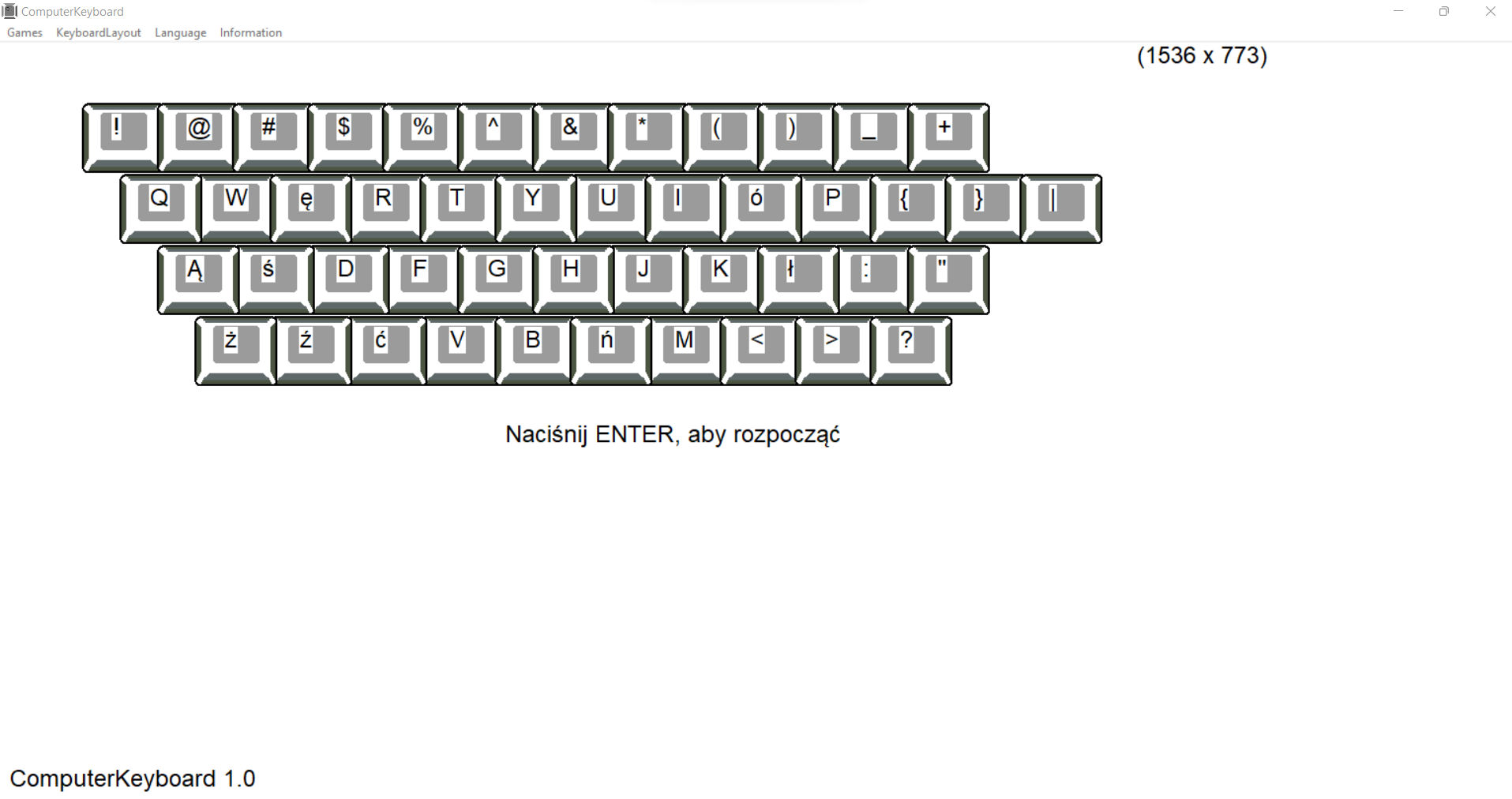
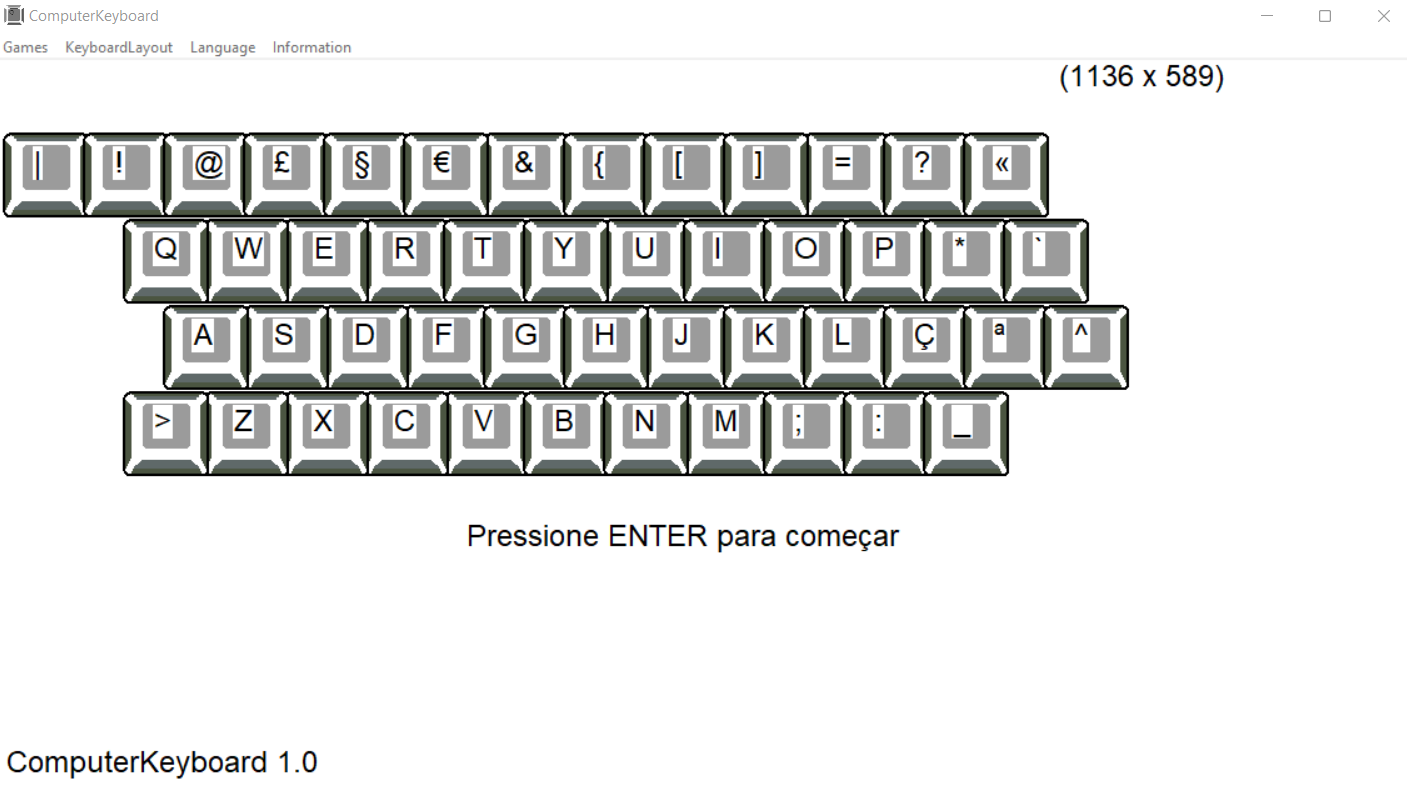
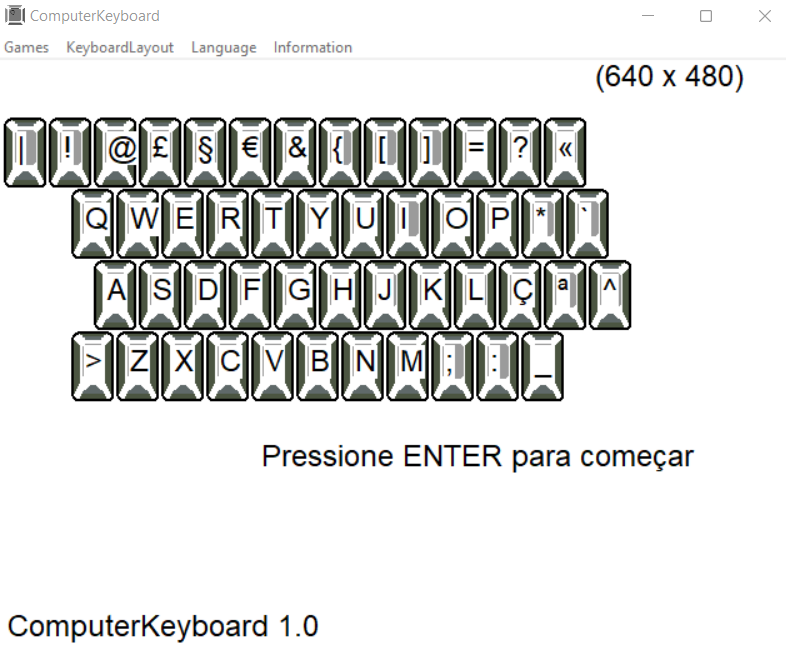
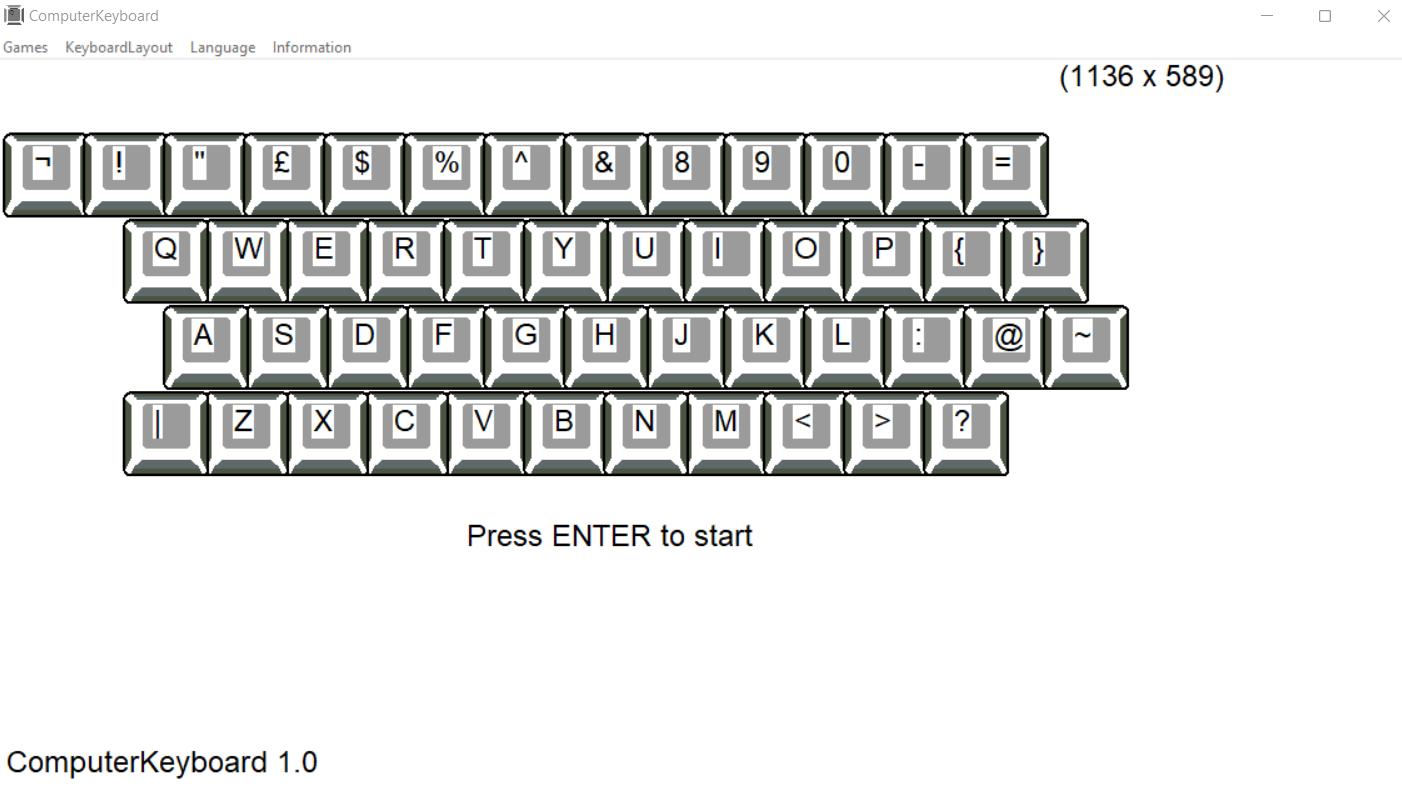
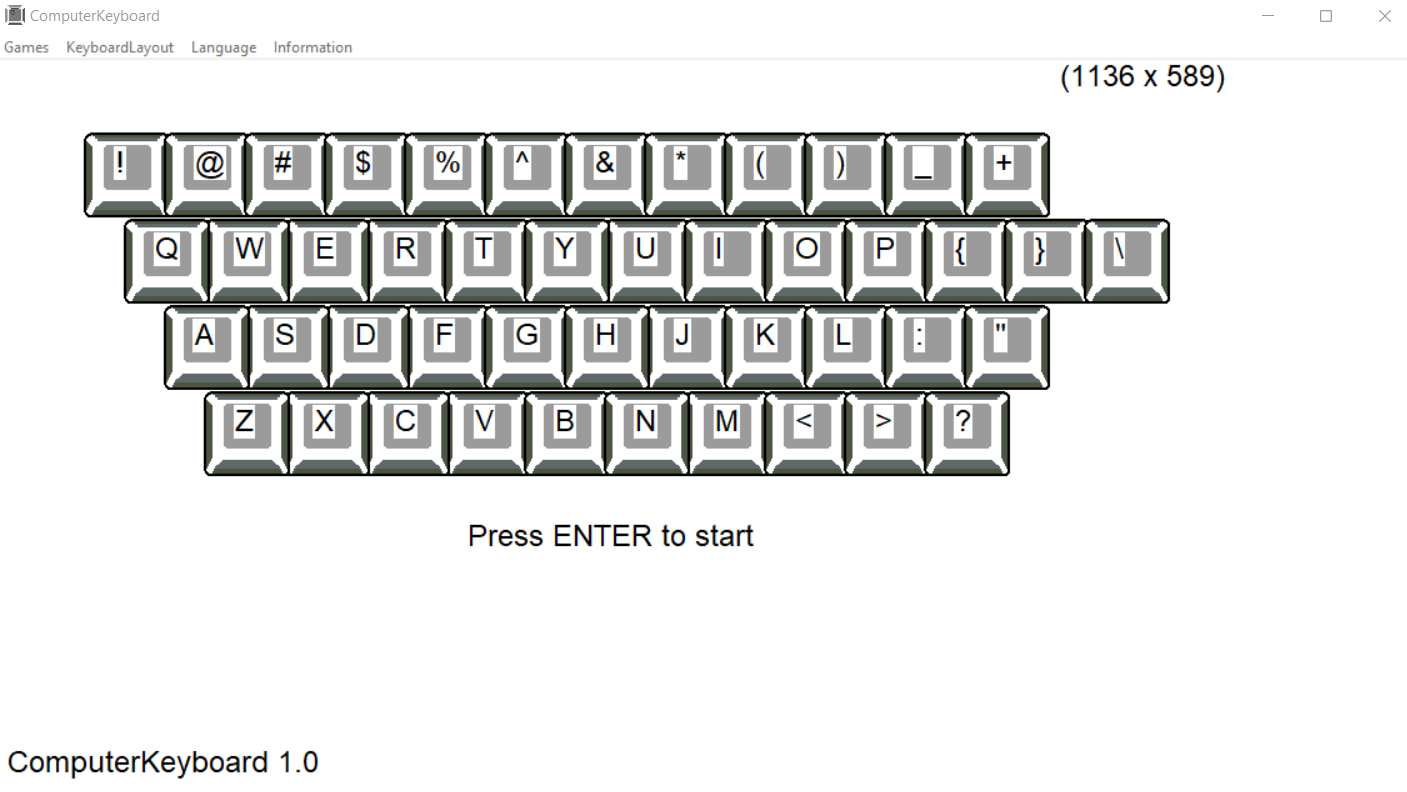
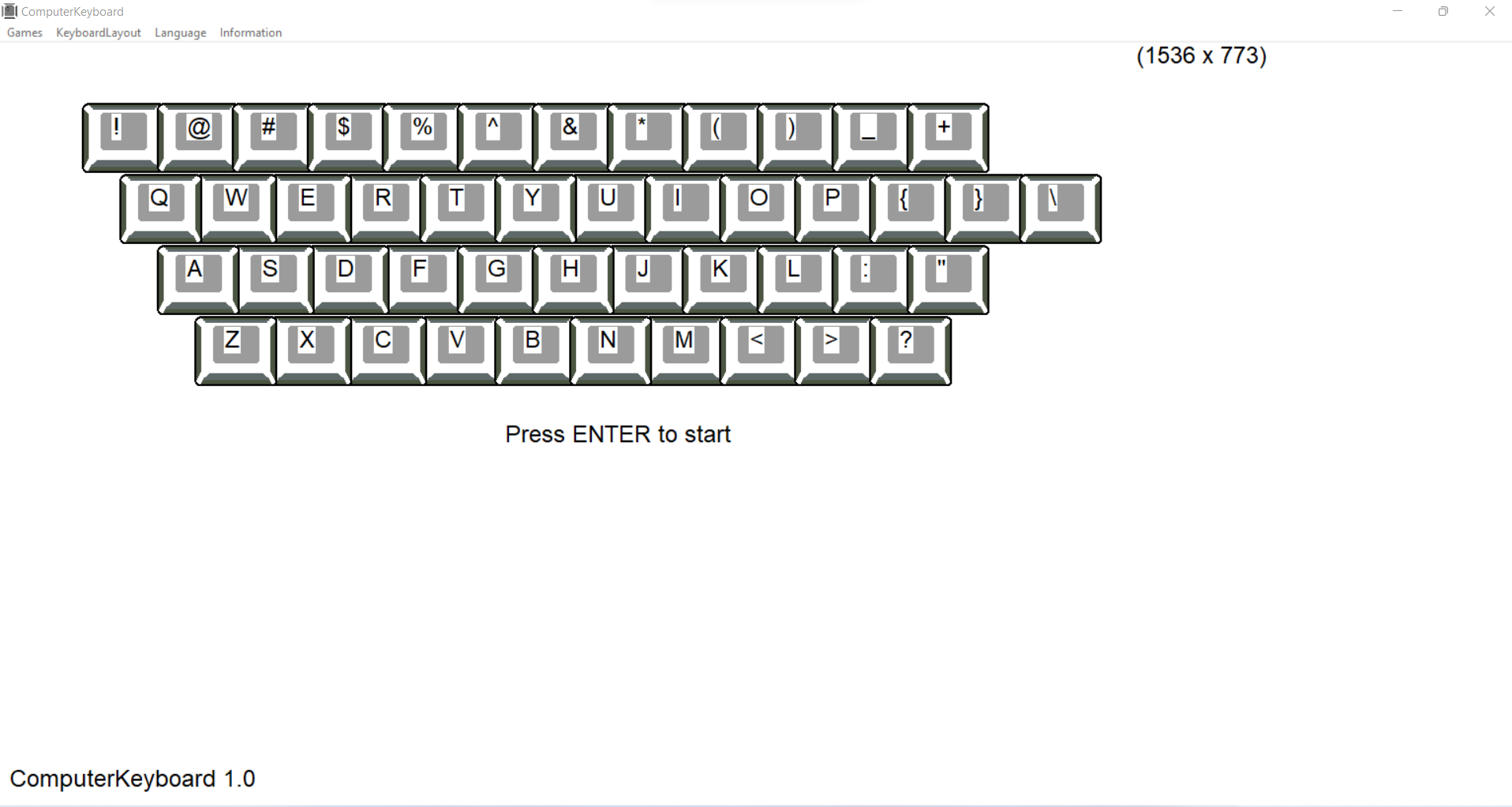
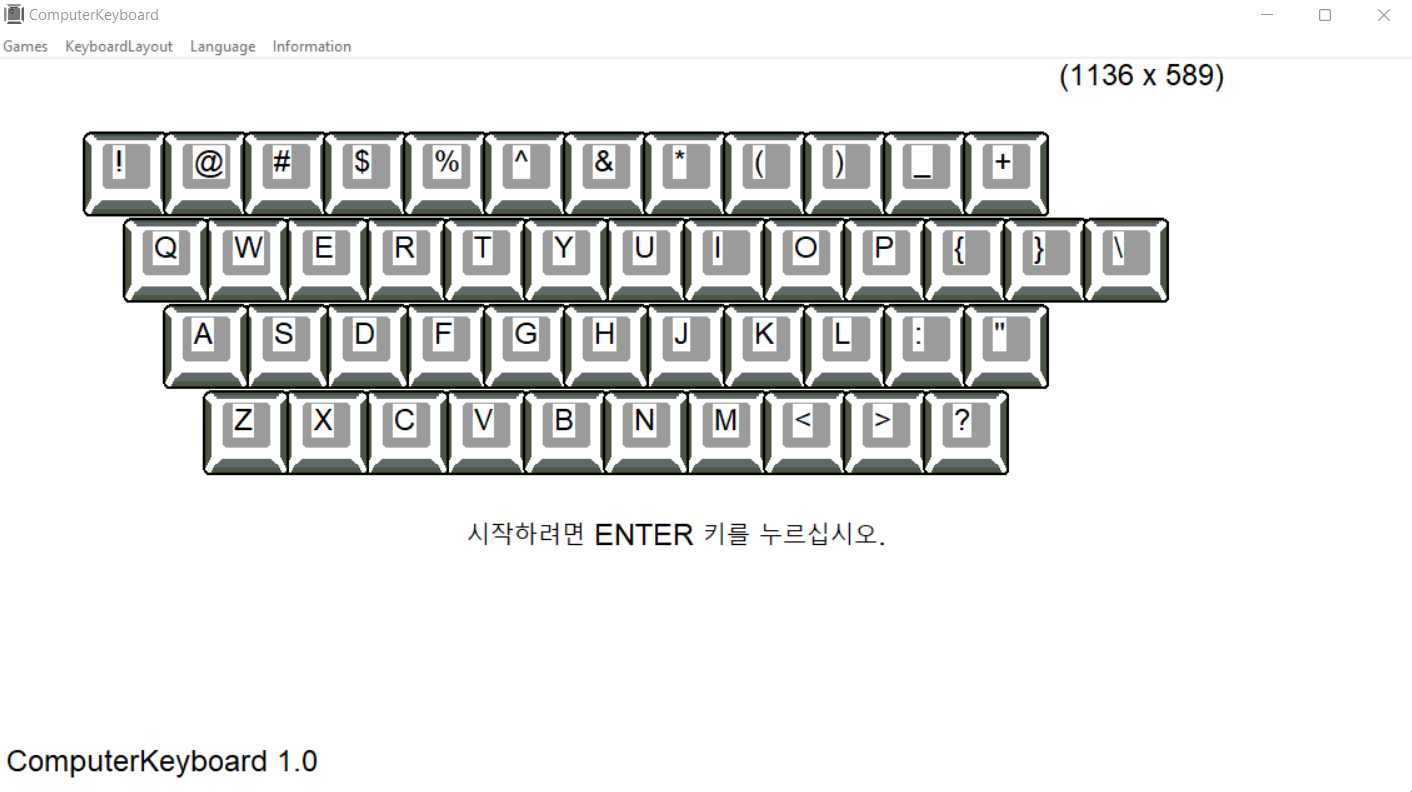
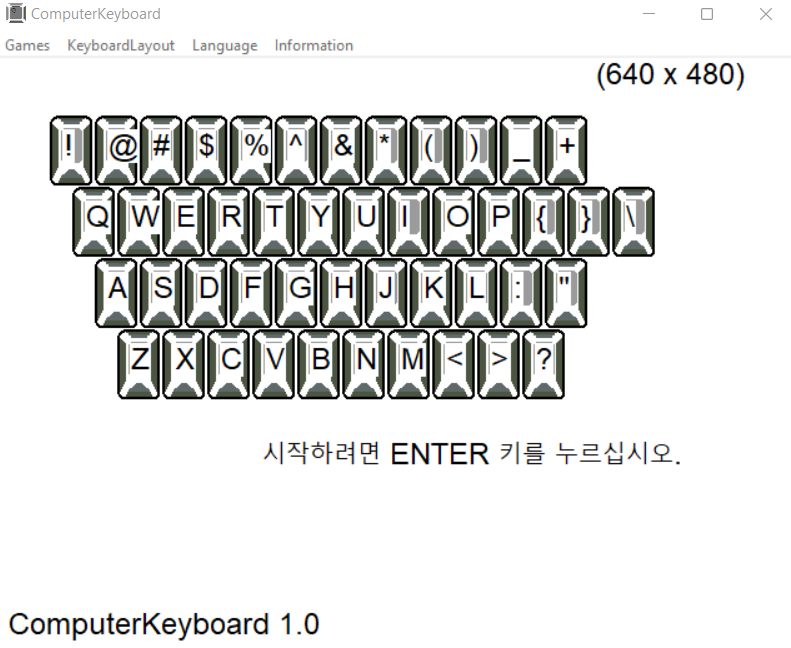
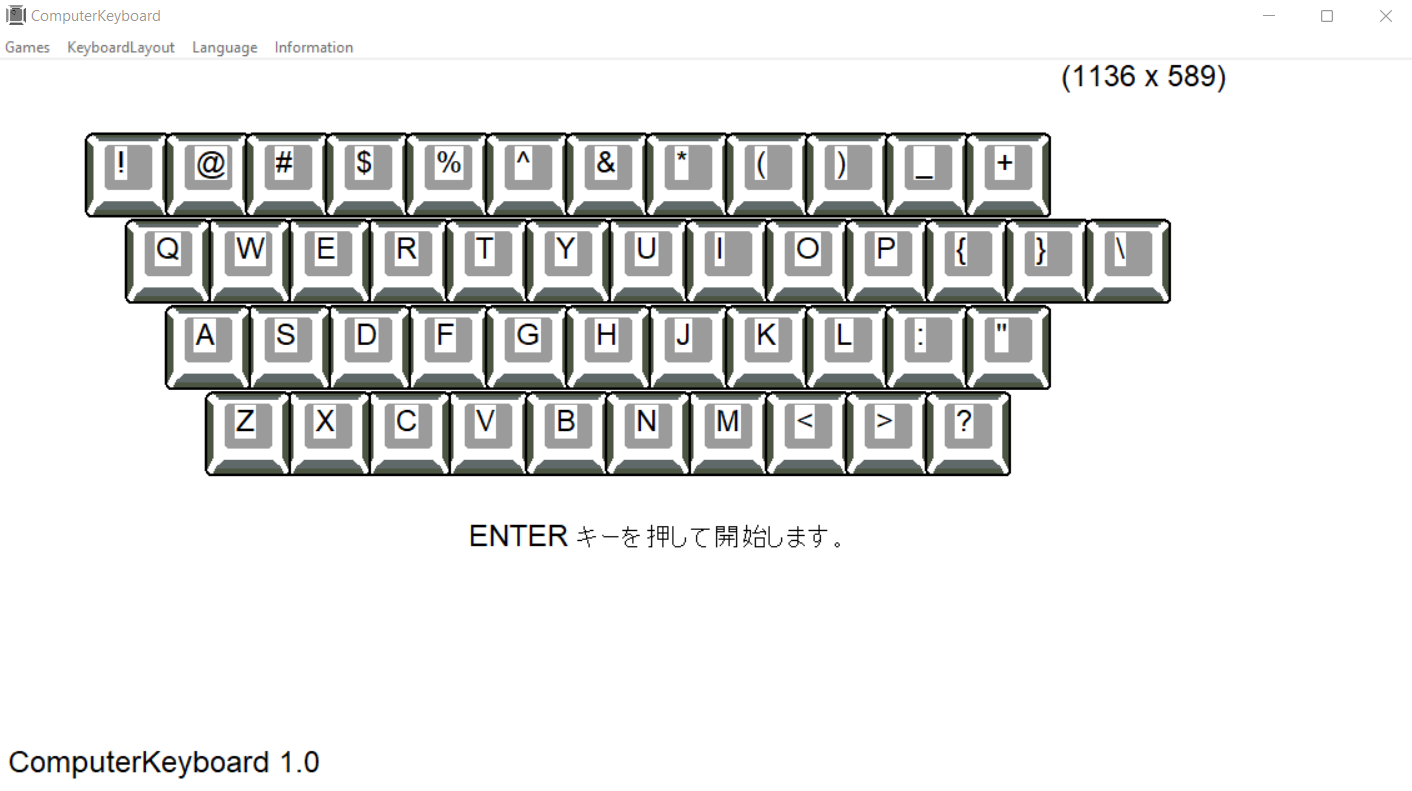
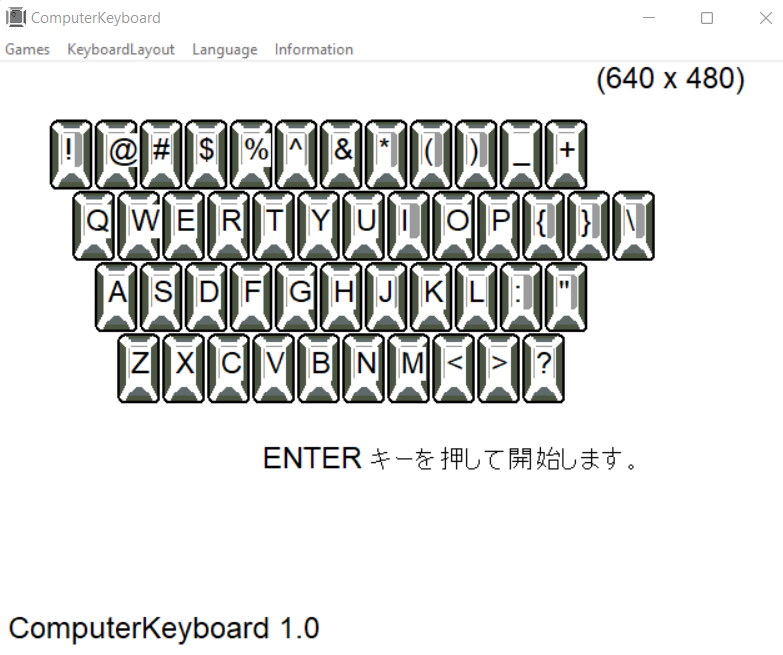
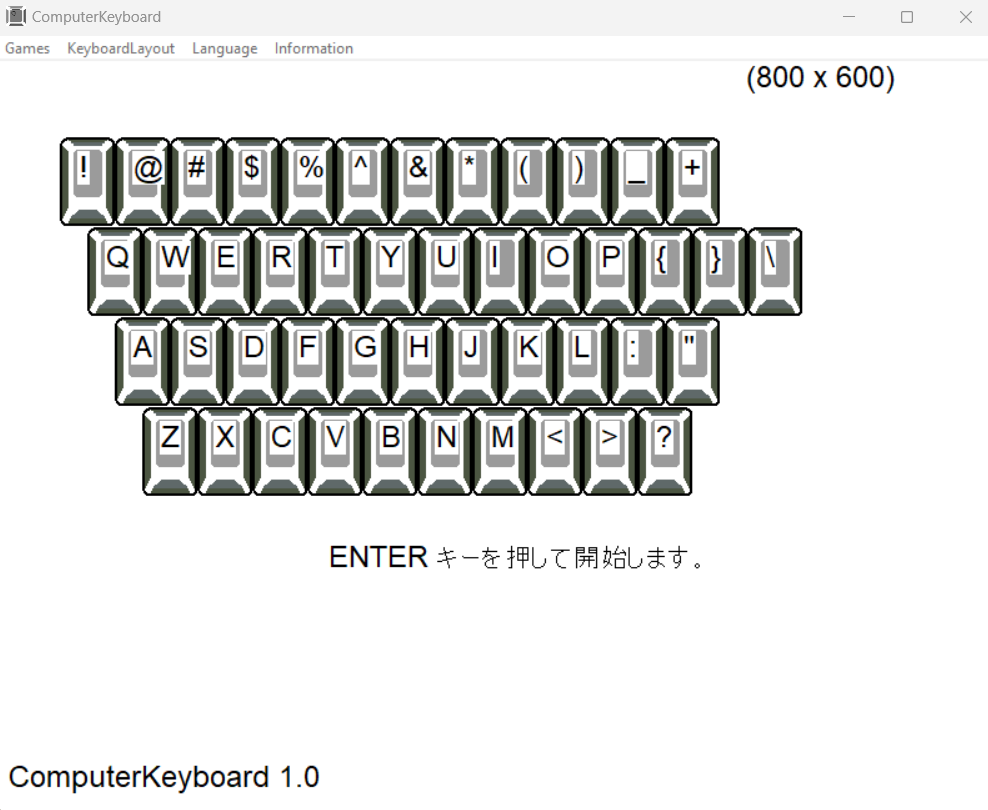
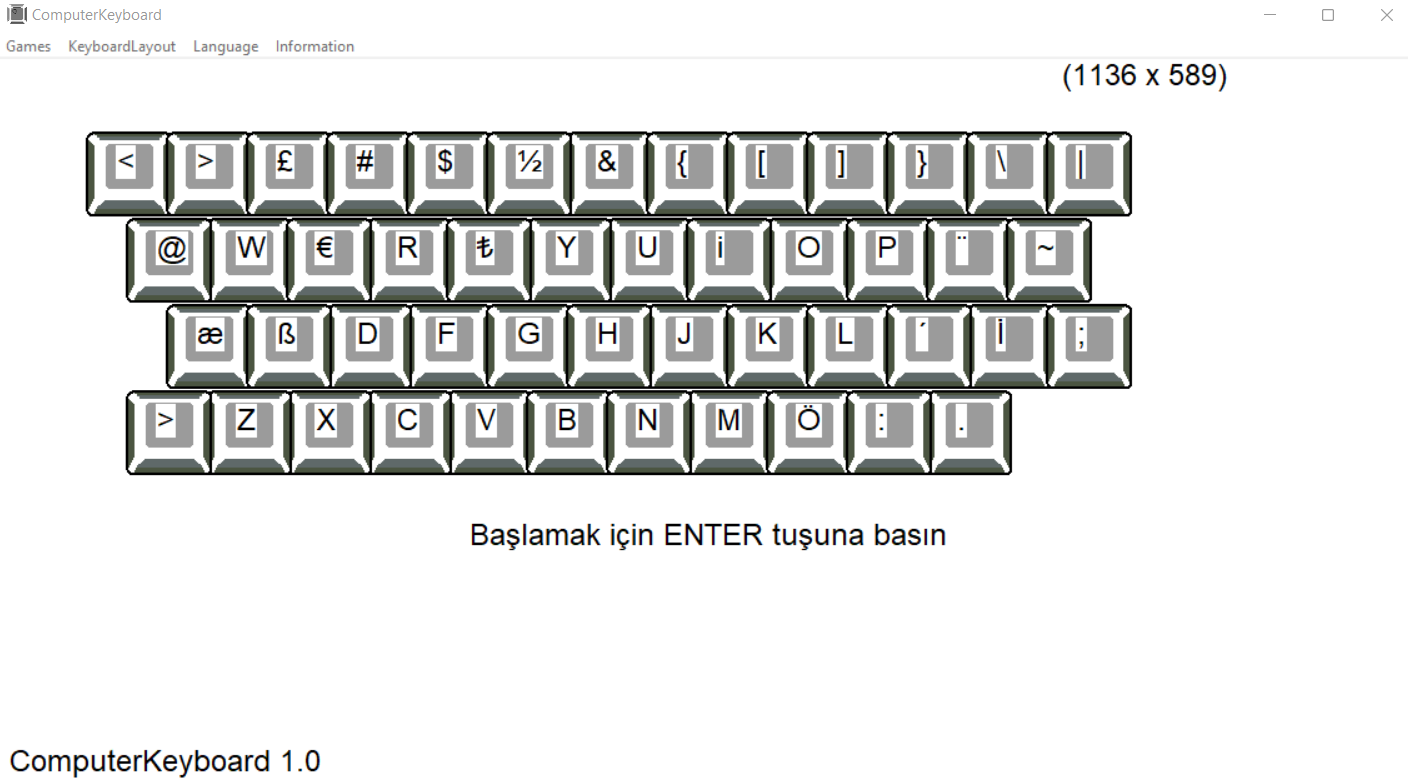
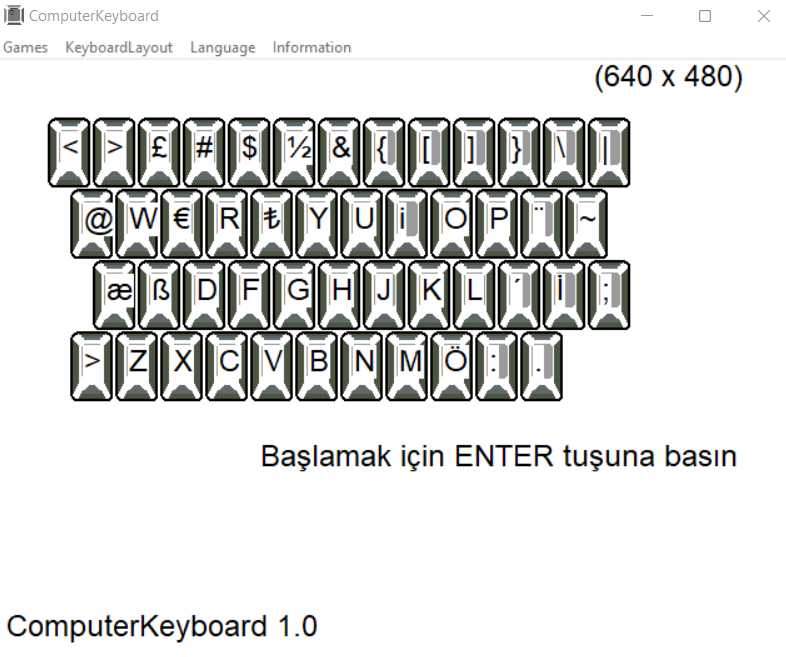
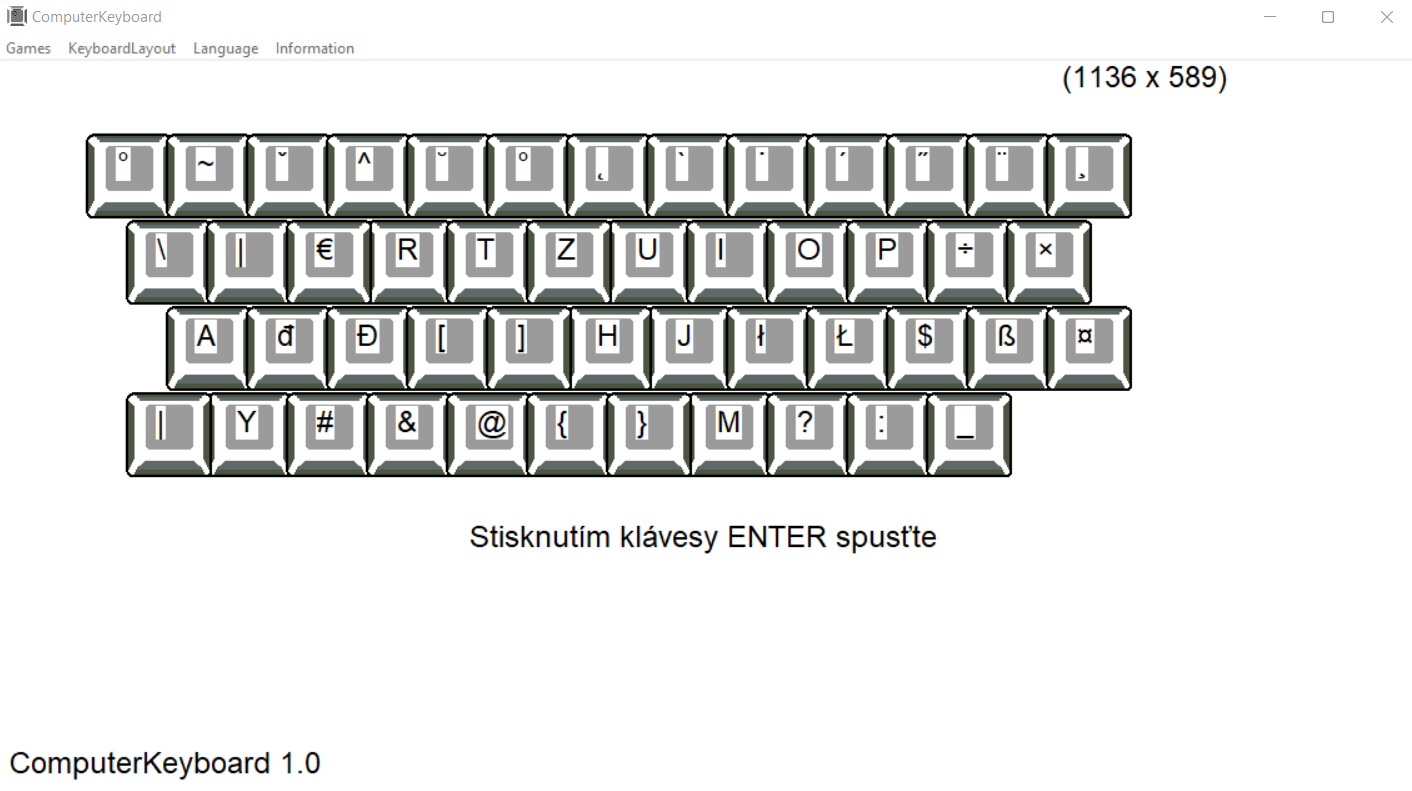
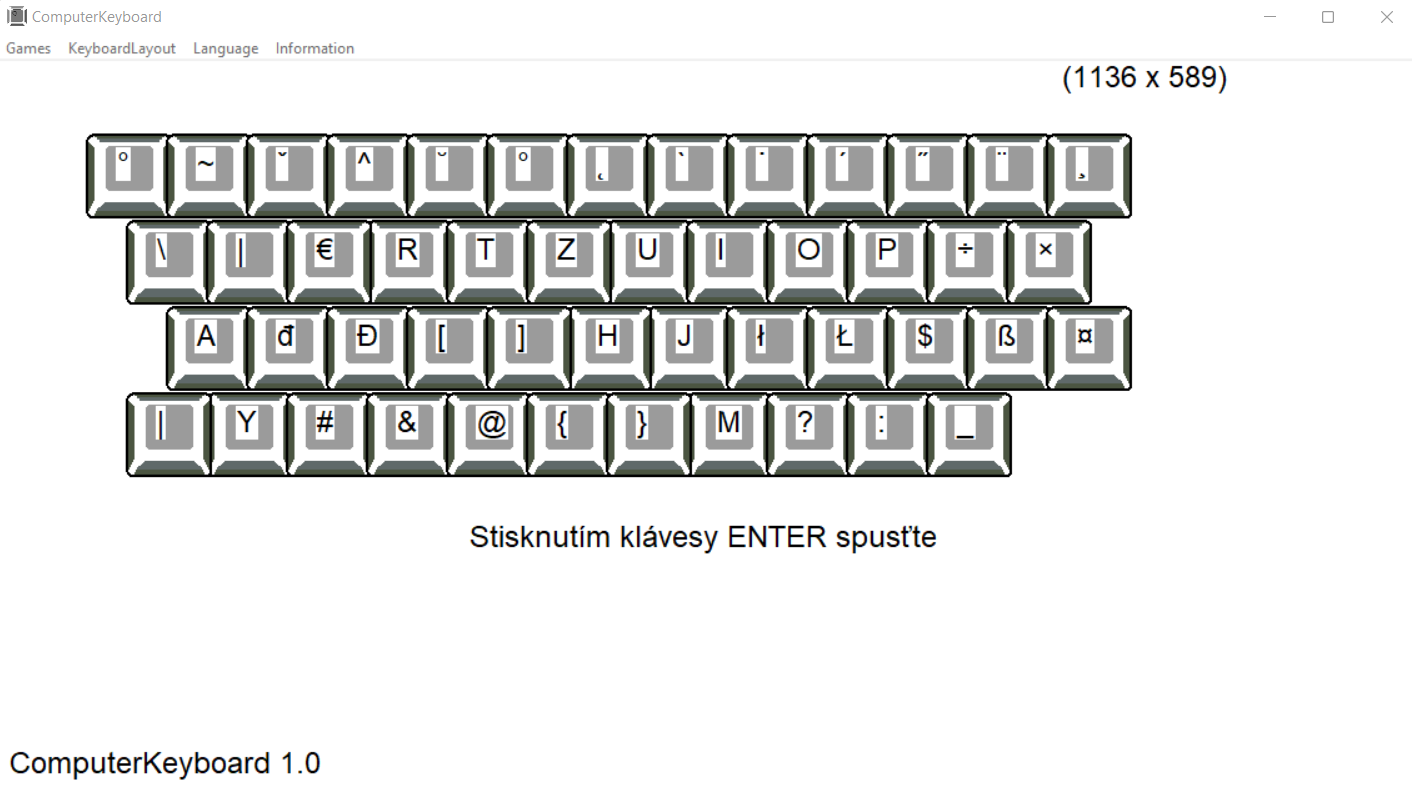
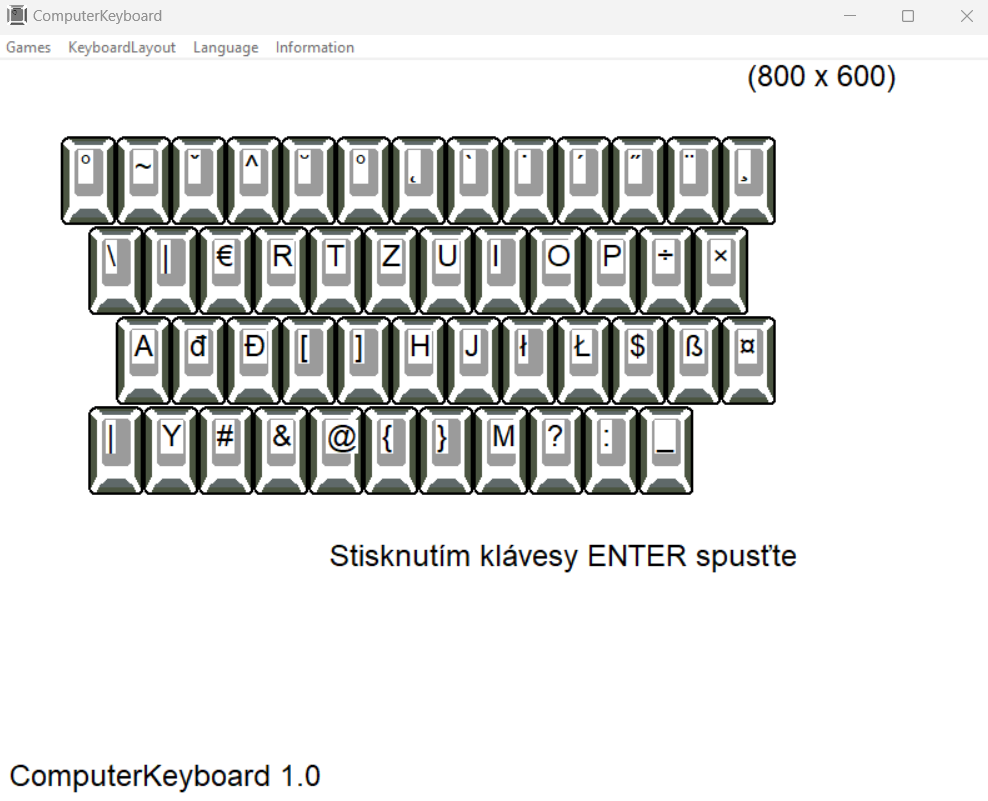
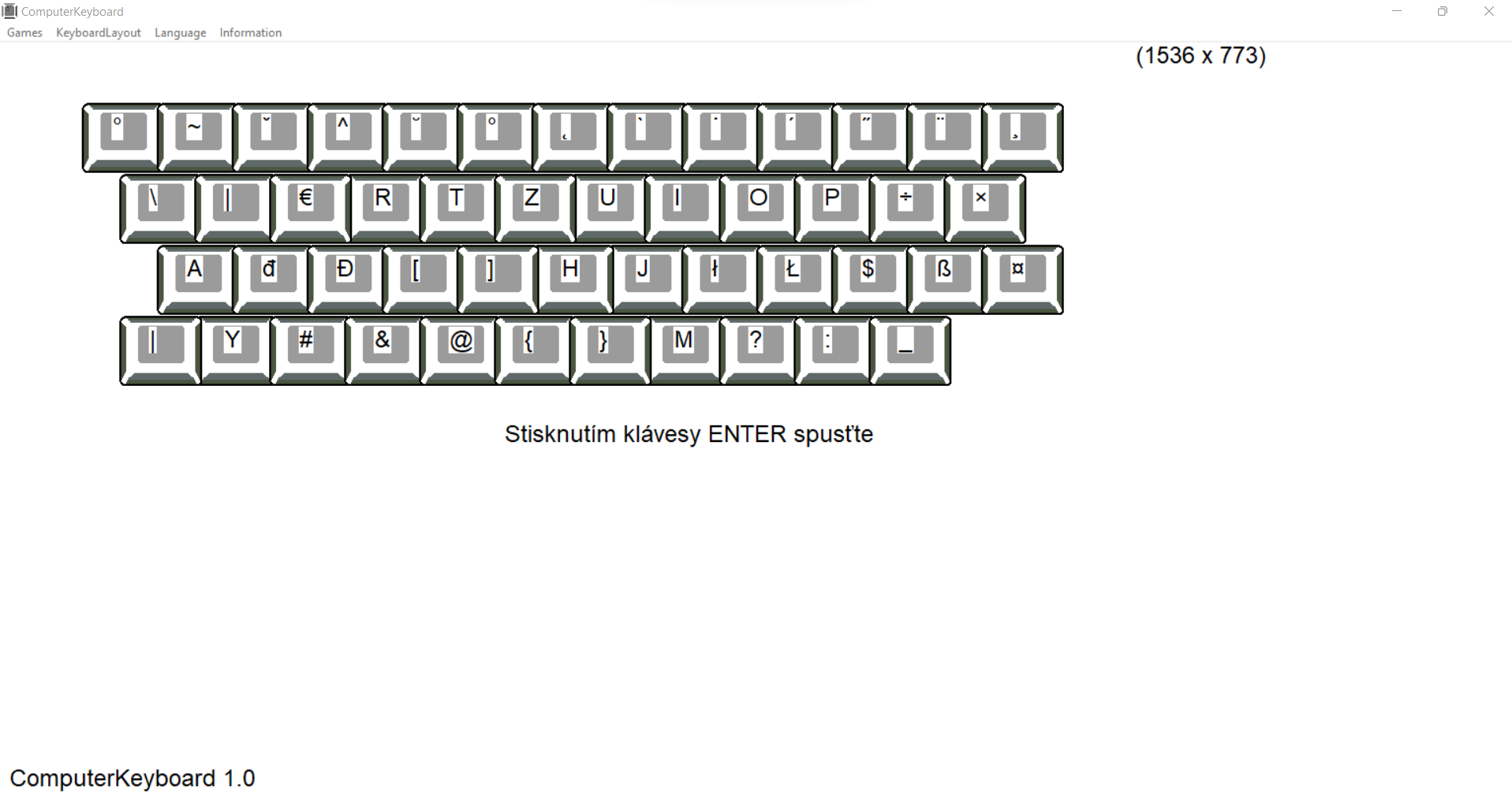
ENTER - start
ESC - Exit
SPACE - increase range
program options:
Exit – exit the program
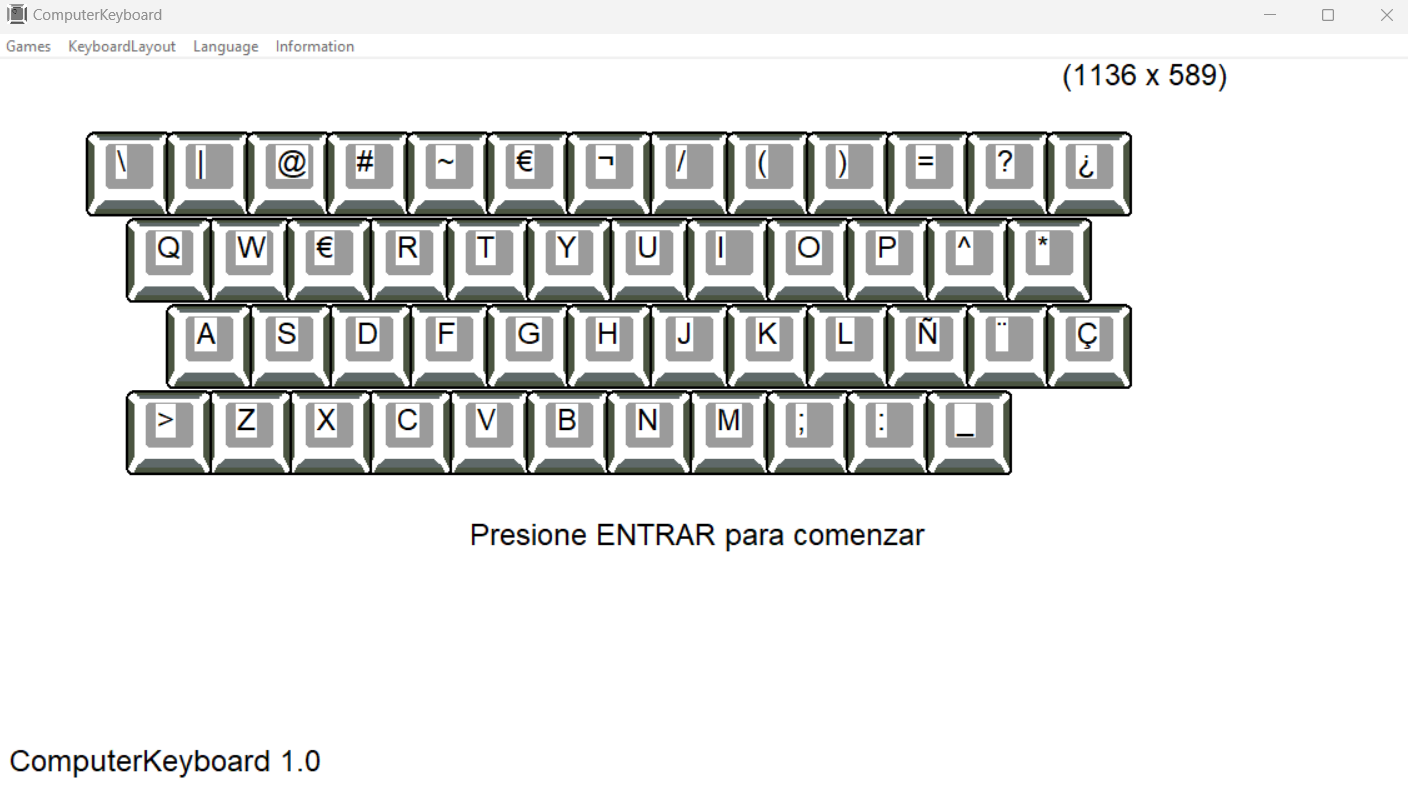
KeyboardLayuot – keyboard selection
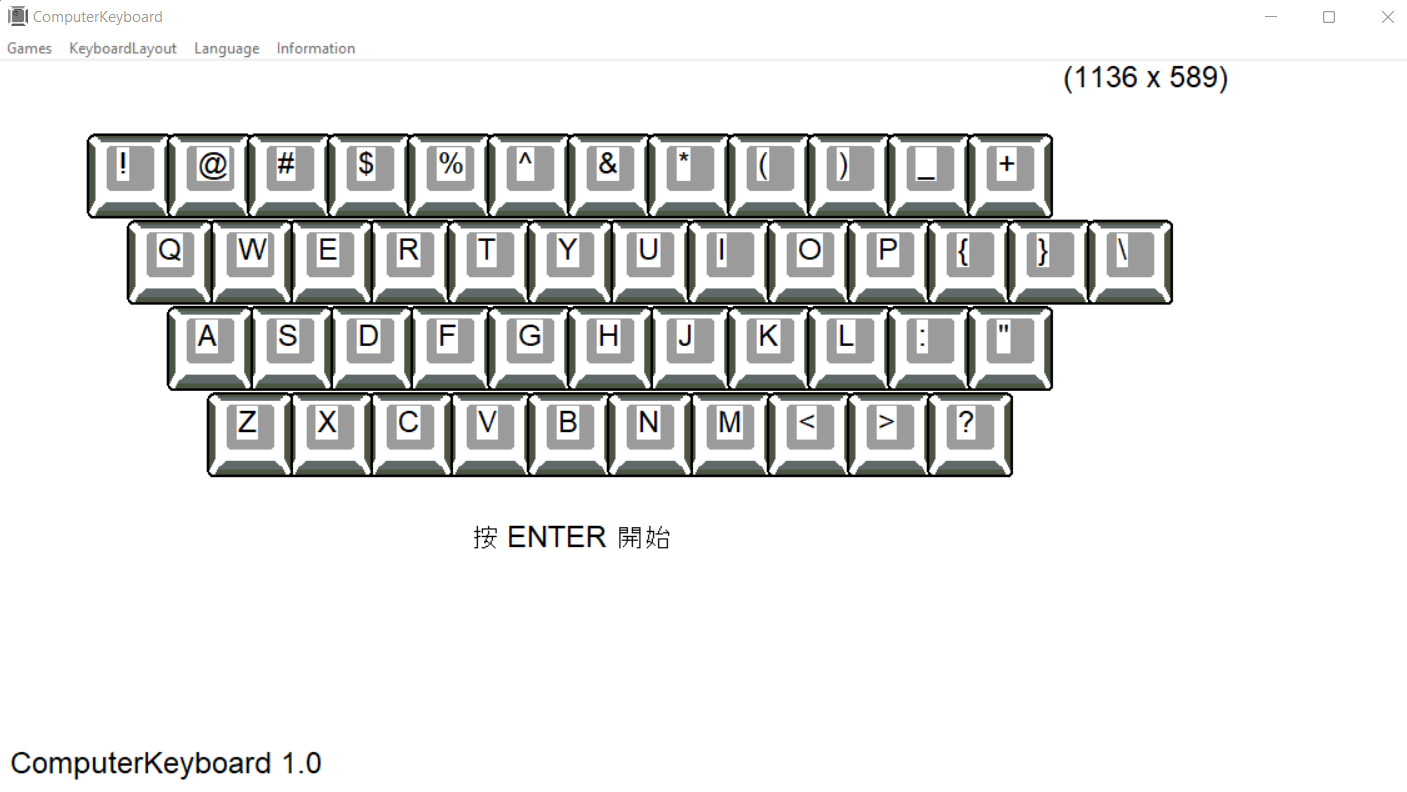
Language - language selection
About – information about the creator
System settings
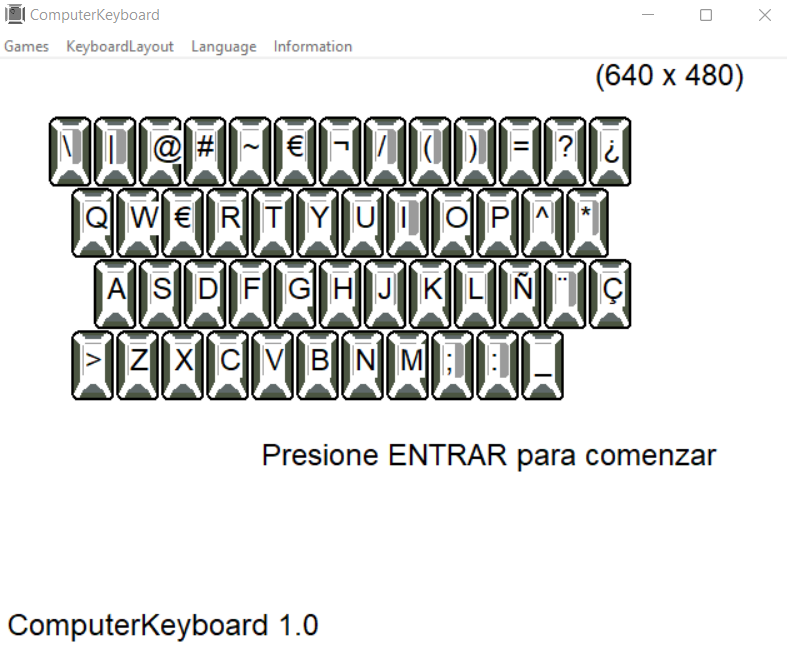
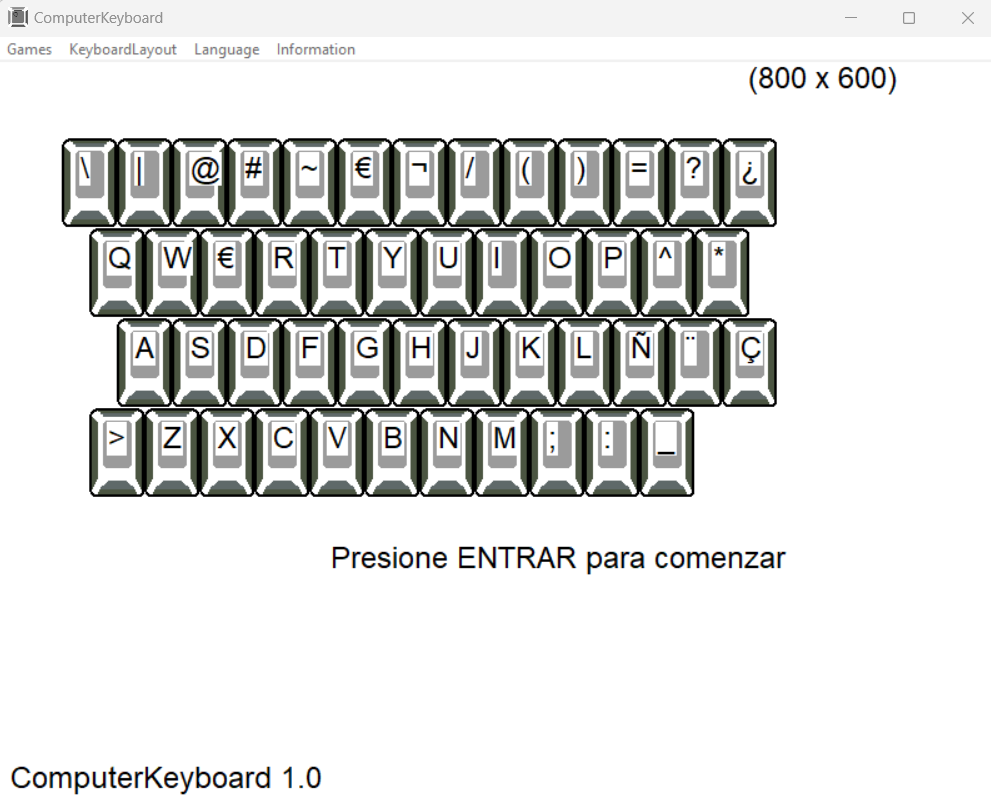
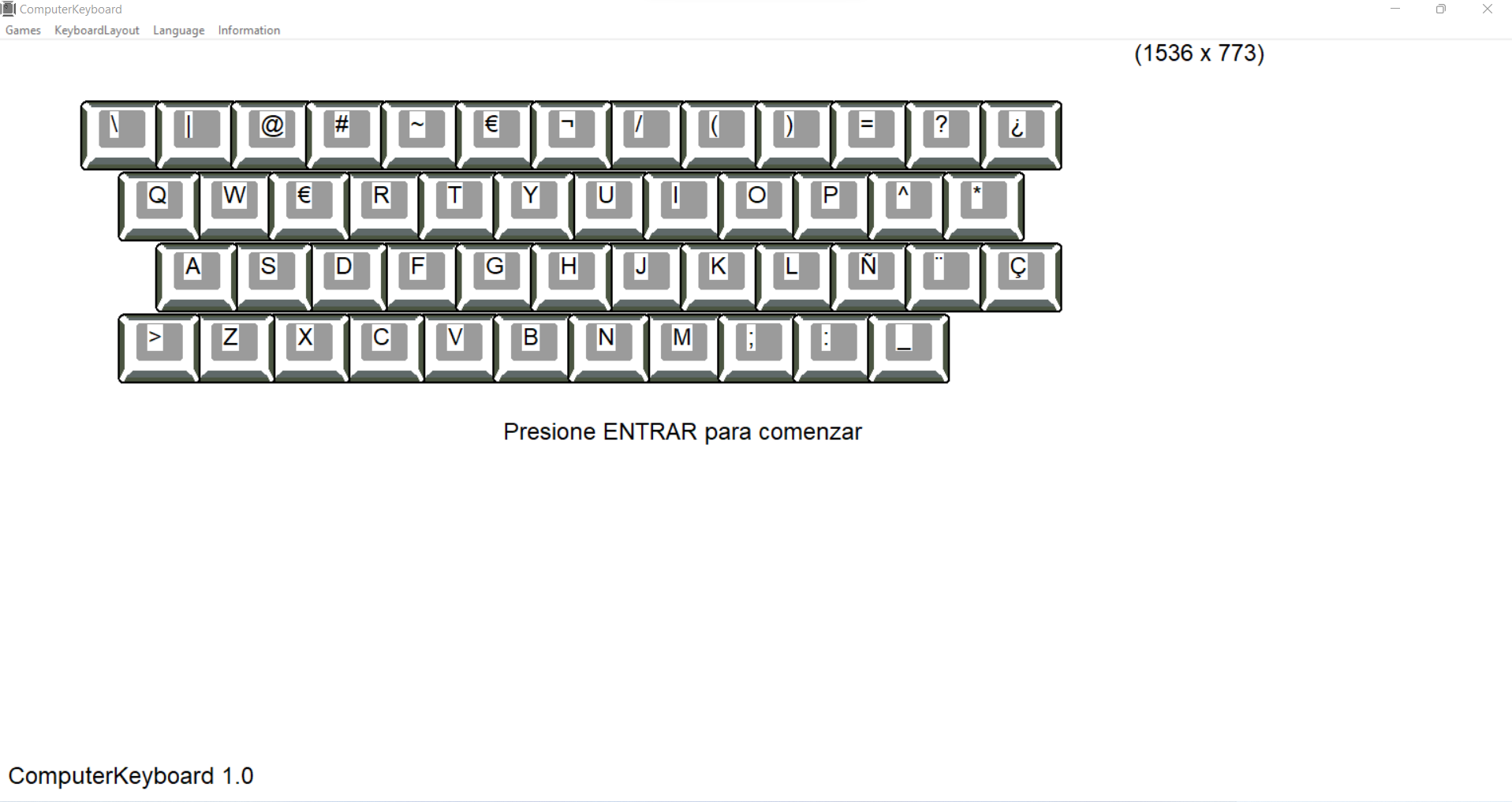
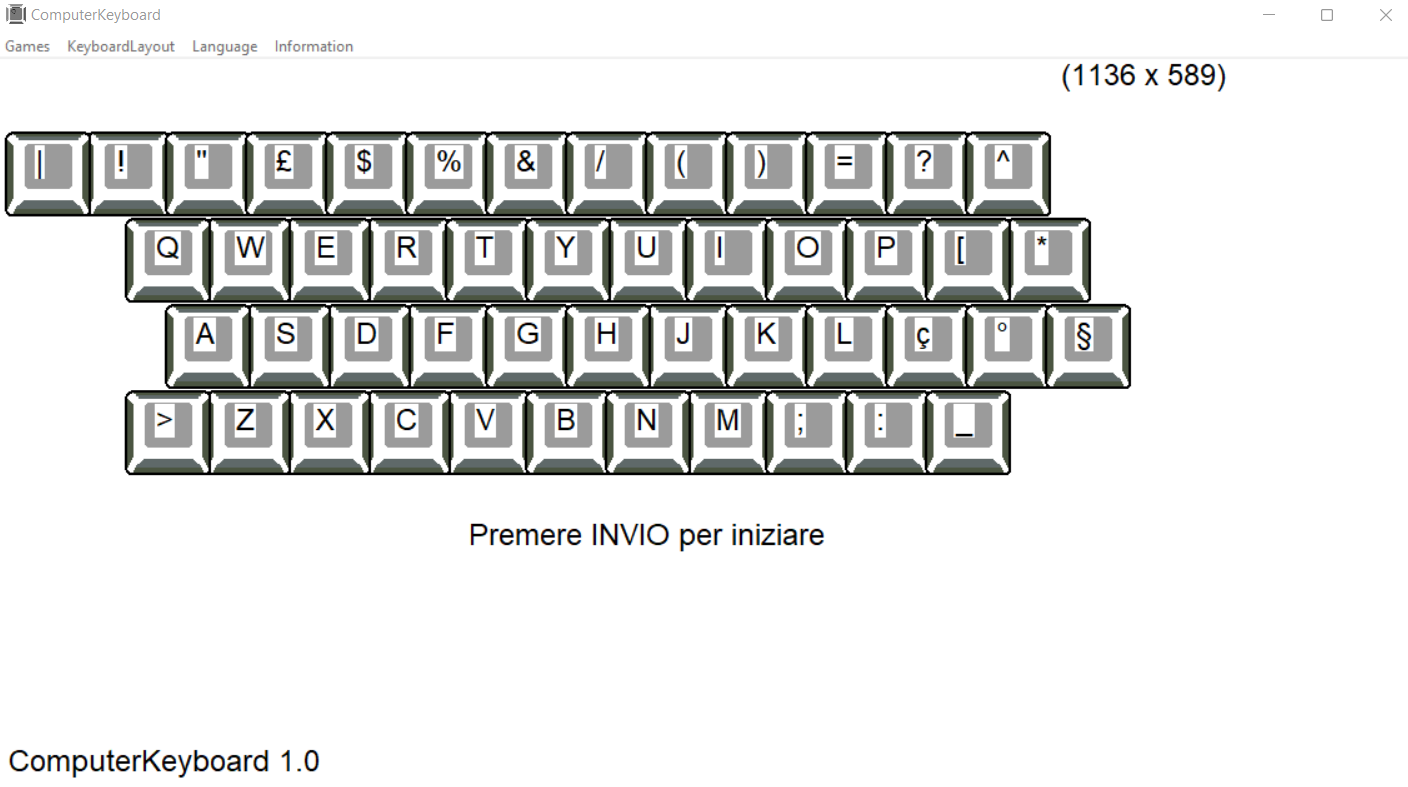
If you select a different keyboard than the one installed in the operating system, you must add the appropriate keyboard layout.
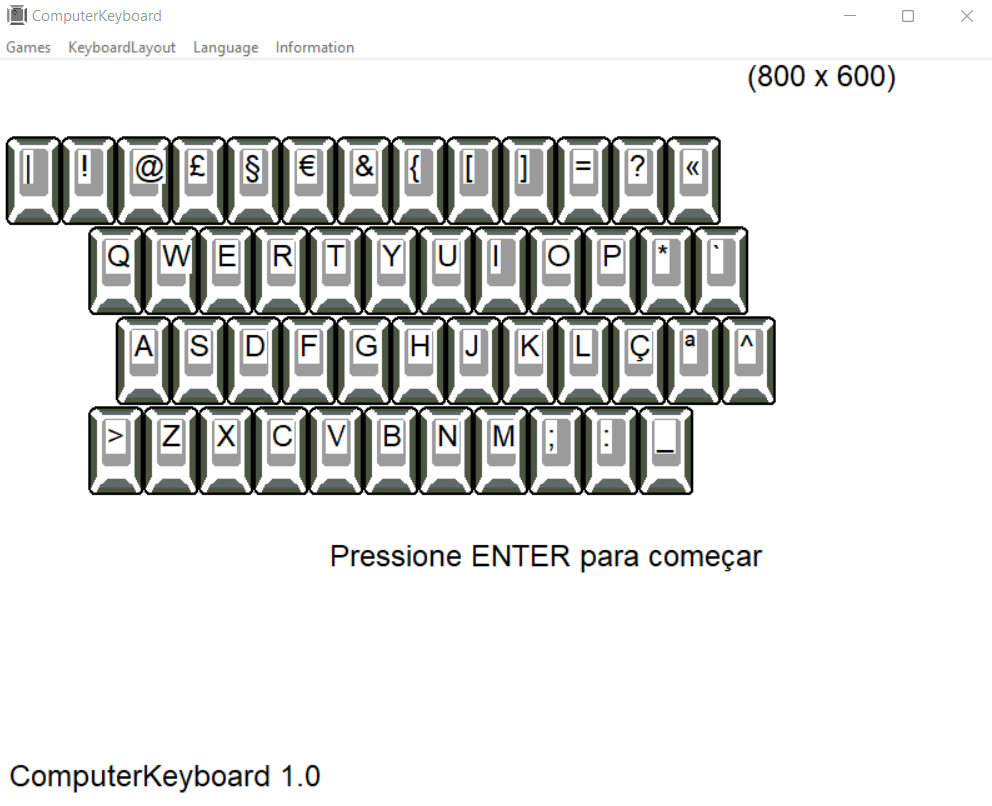
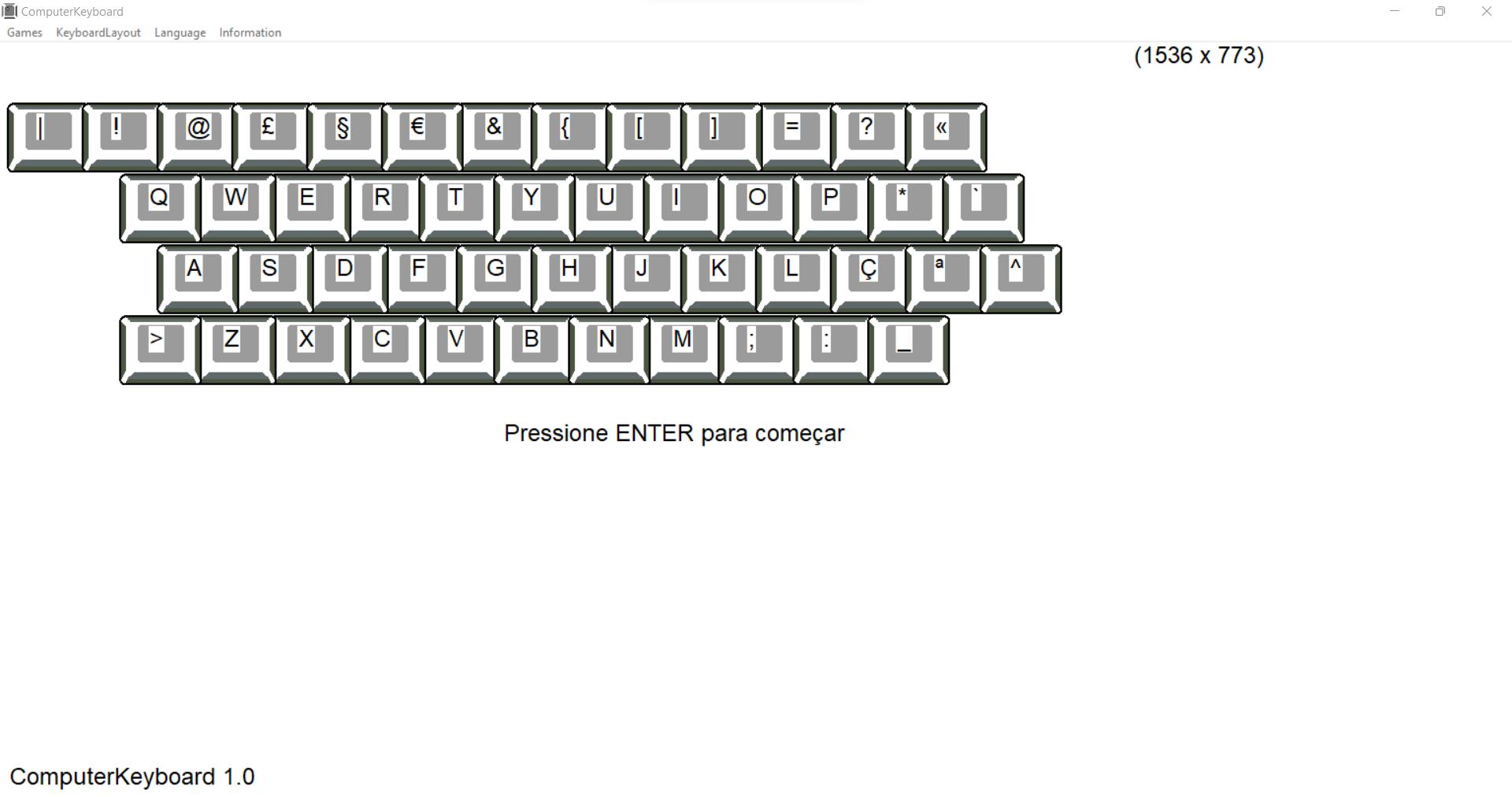
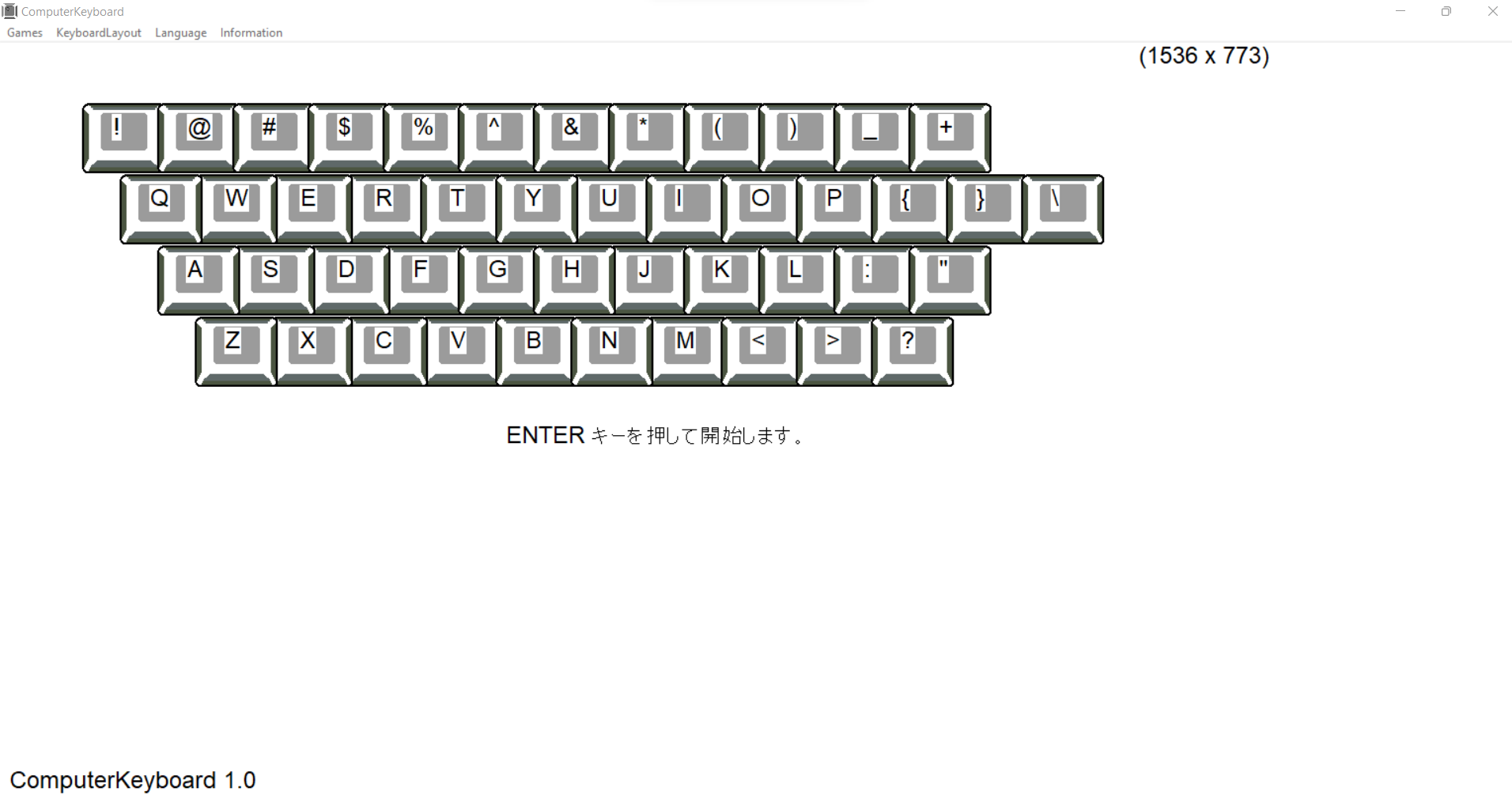
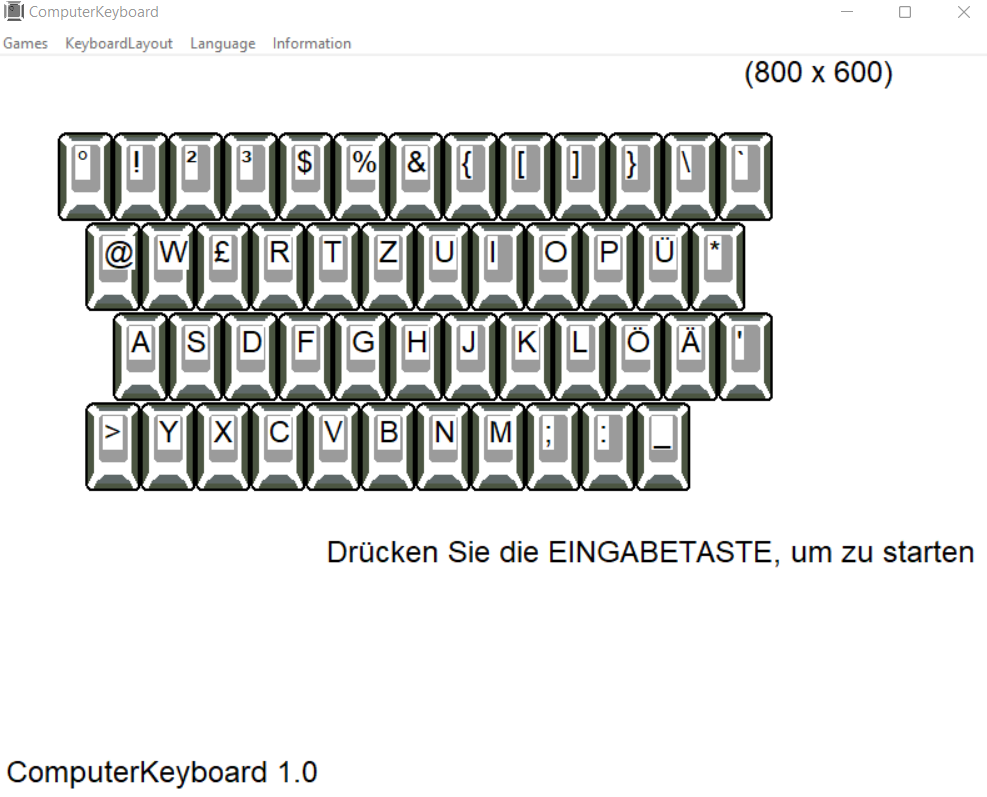
You can also customize the appearance to your preference by changing the scale or resolution in your system's screen settings
remember
To look at the characters displayed on the monitor by the ComputerKeyboard program, and not at the keyboard, when answering.
always maintain correct posture at your desk when using your computer