ComputerKeyboard      


ComputerKeyboard       

      ComputerKeyboard      


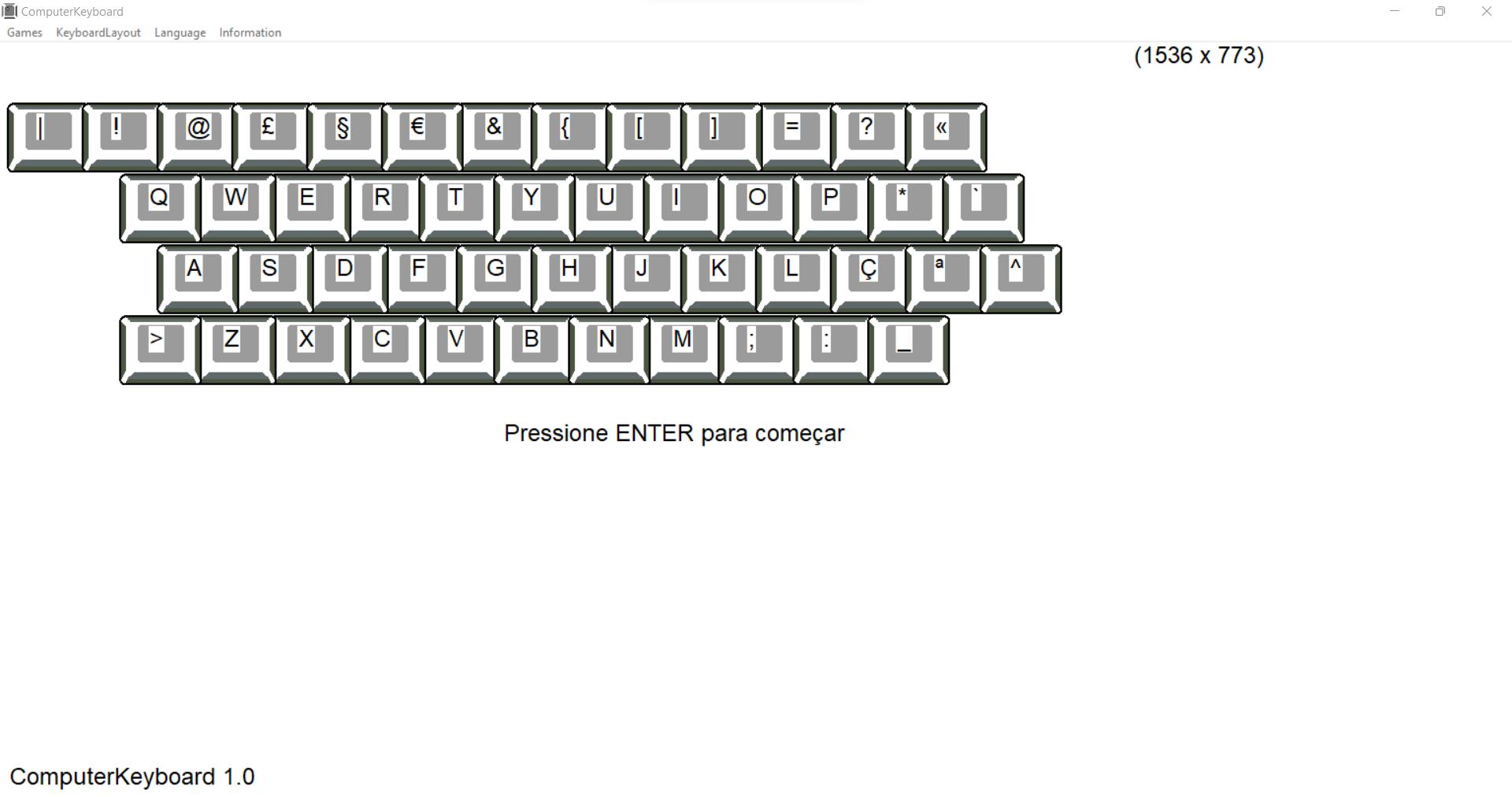
          AZERTY: FR


ComputerKeyboard

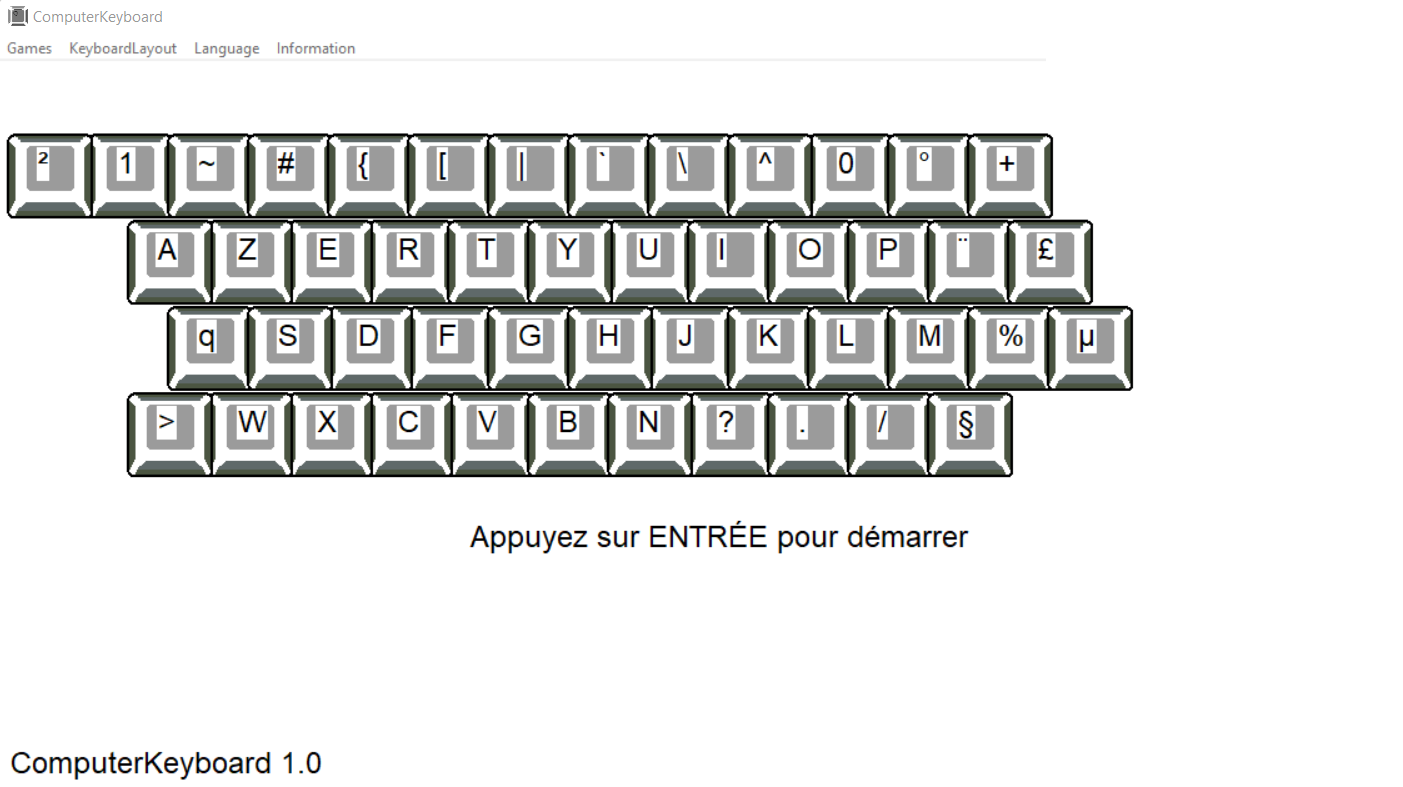
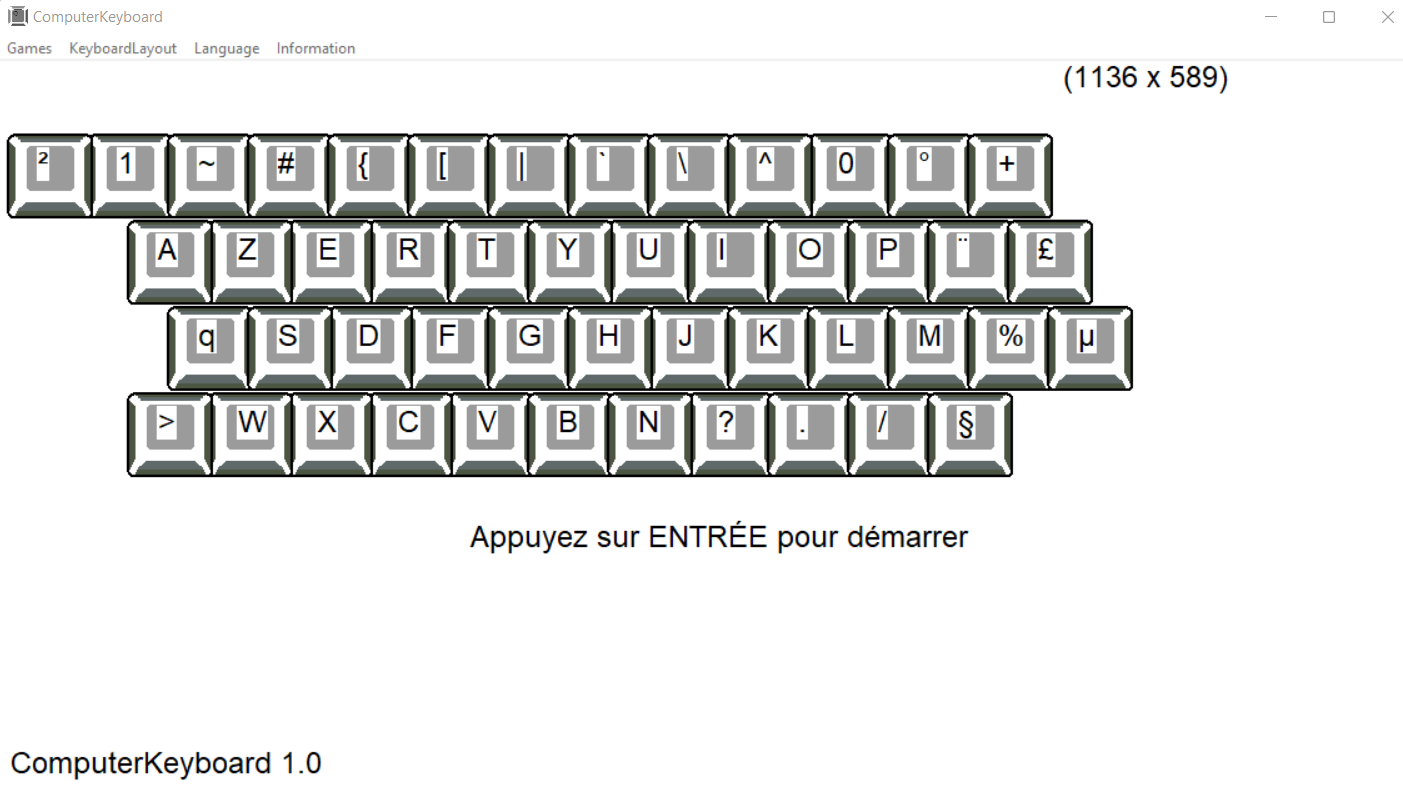
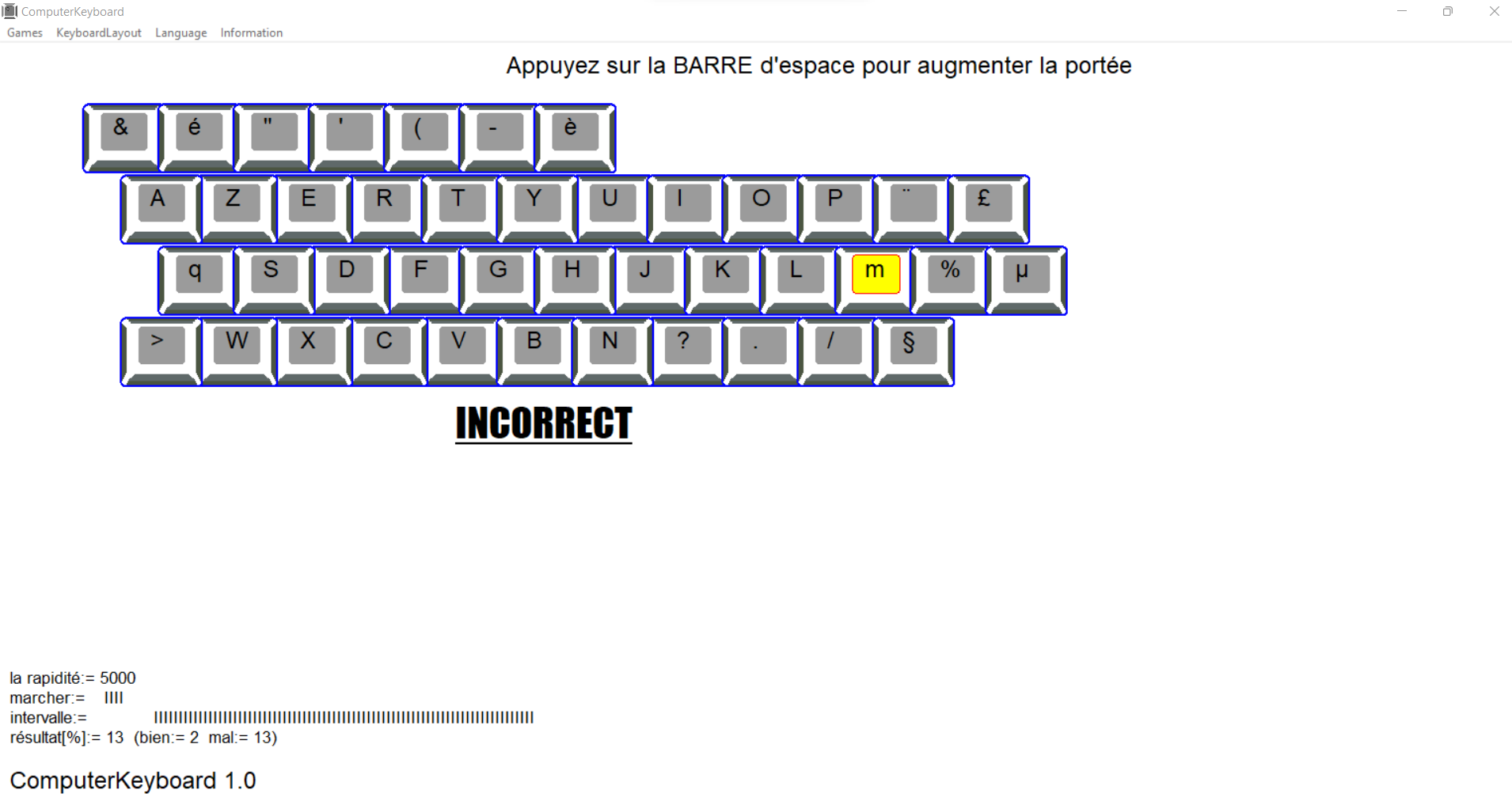
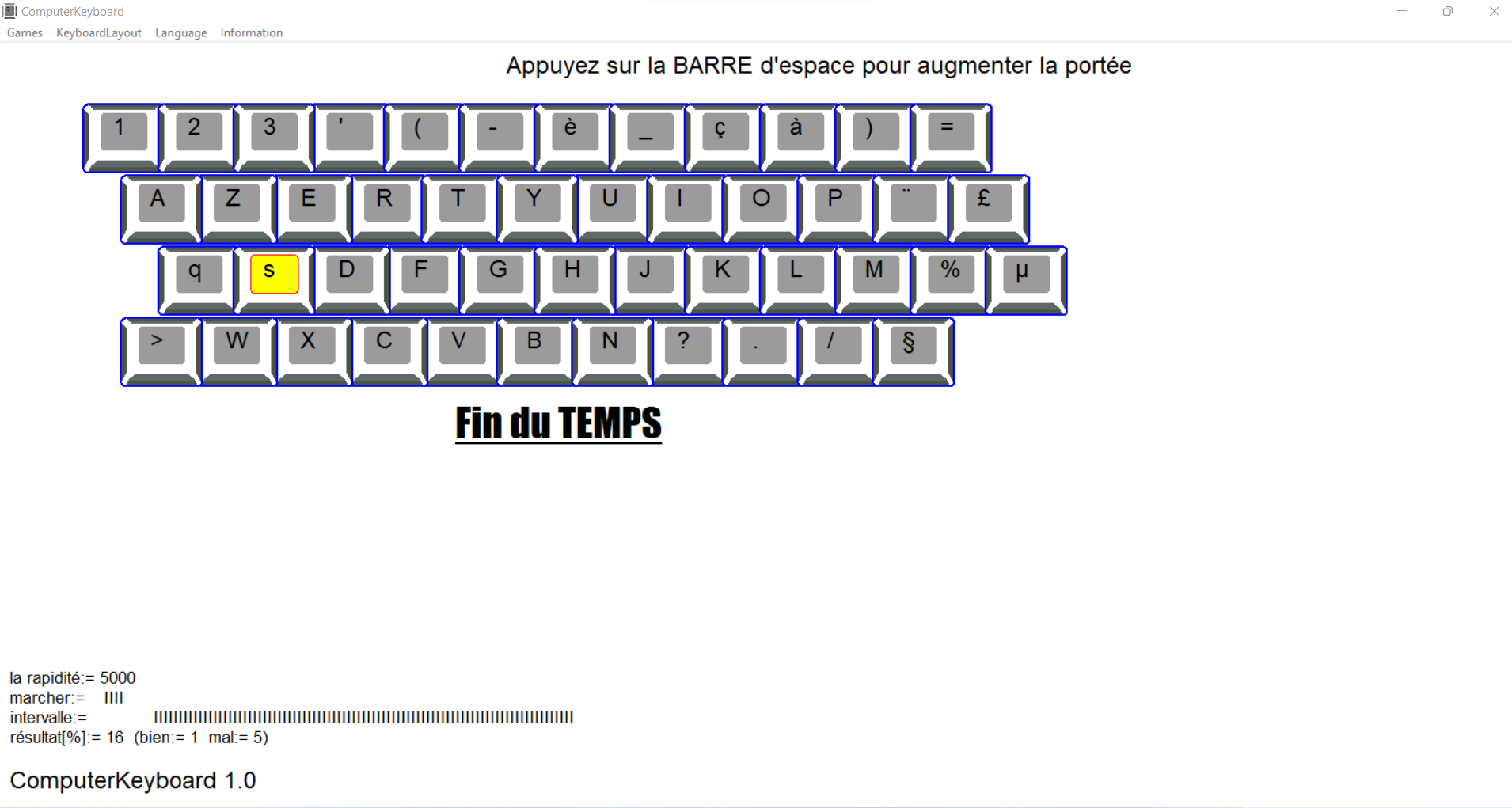
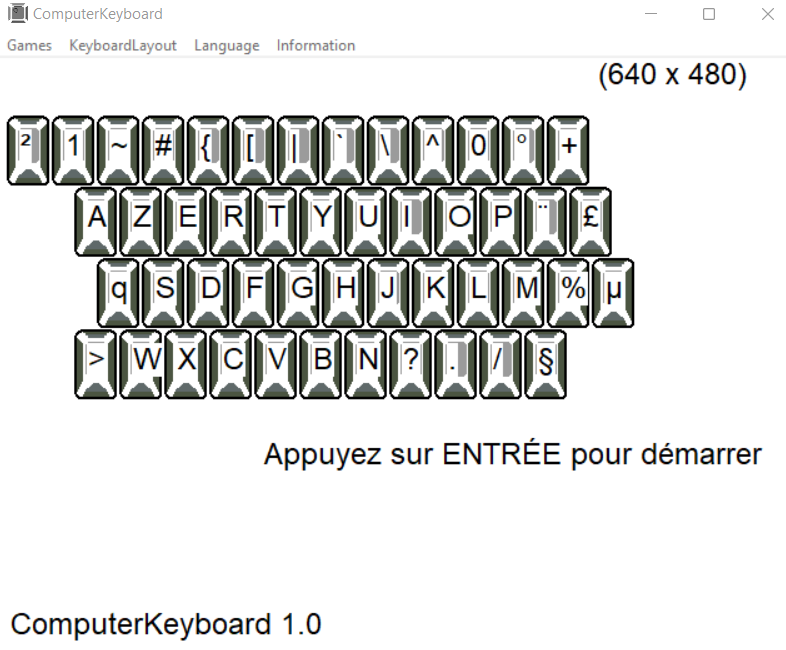
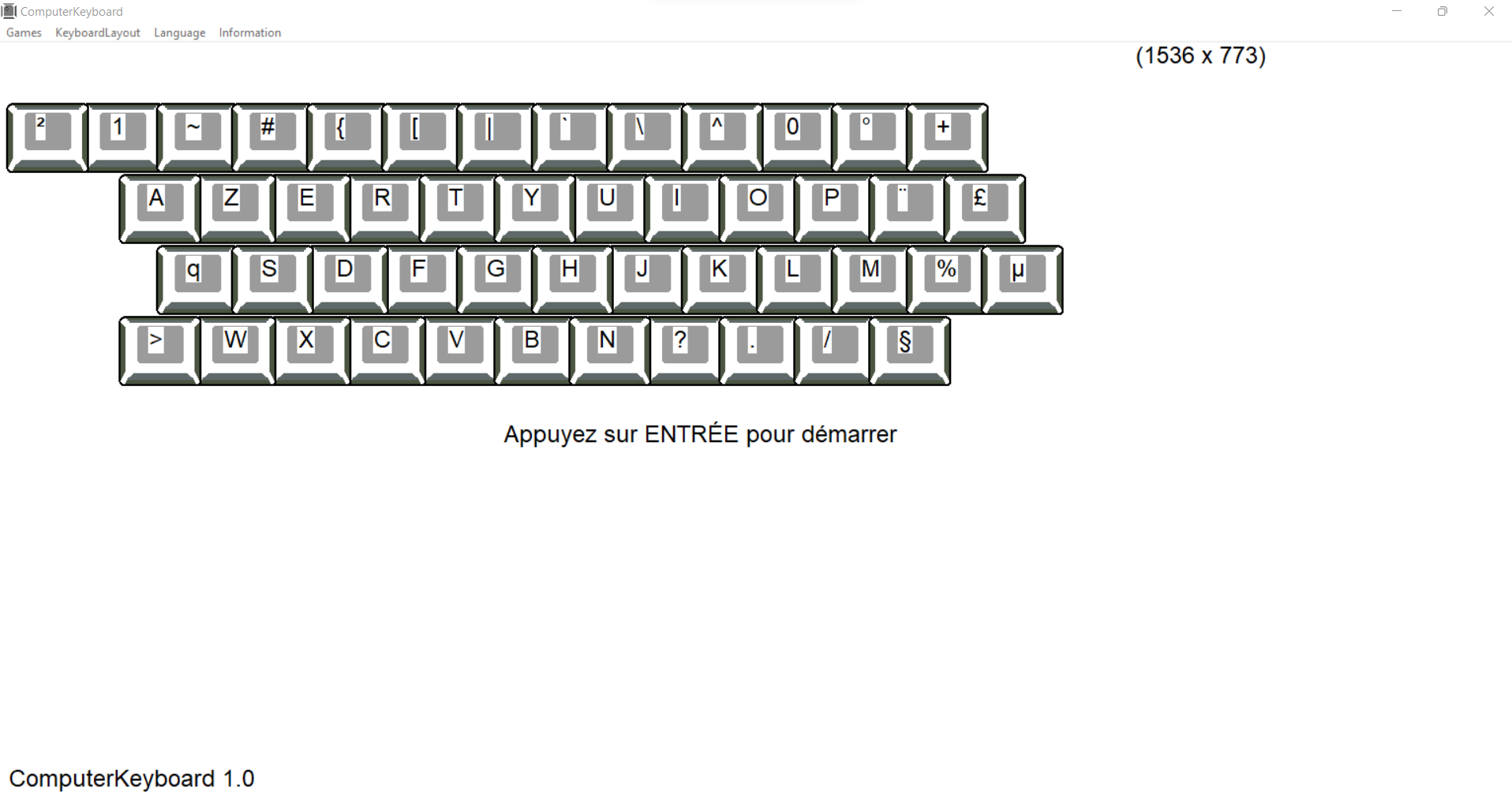
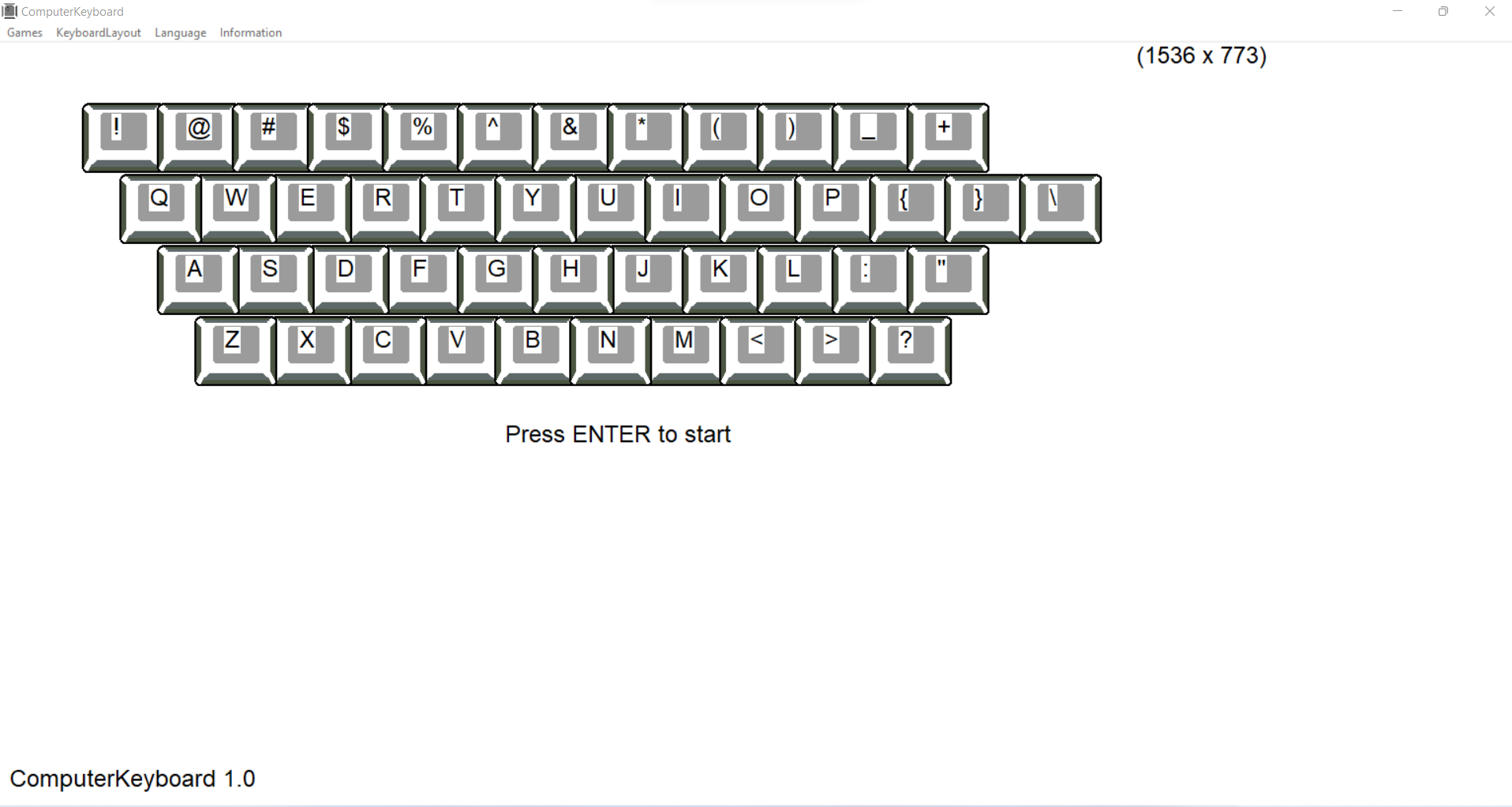
cette application vous aide à apprendre à taper sans regarder le clavier. dans la mise en page:

  • AZERTY FR (Français)

  • QWERTY ES (espagnol)
  • QWERTY IT (italien)
  • QWERTY GB (anglais)
  • QWERTY PR (portugais)
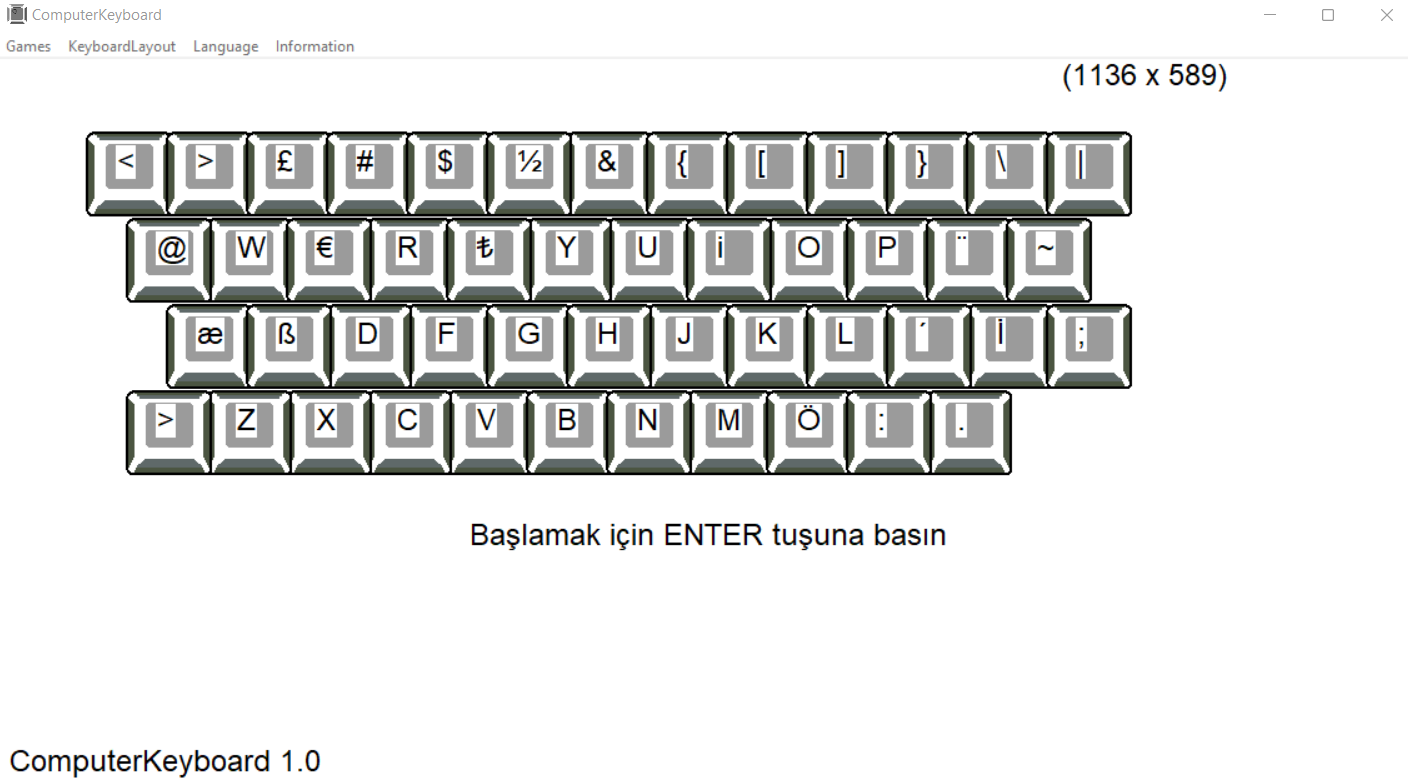
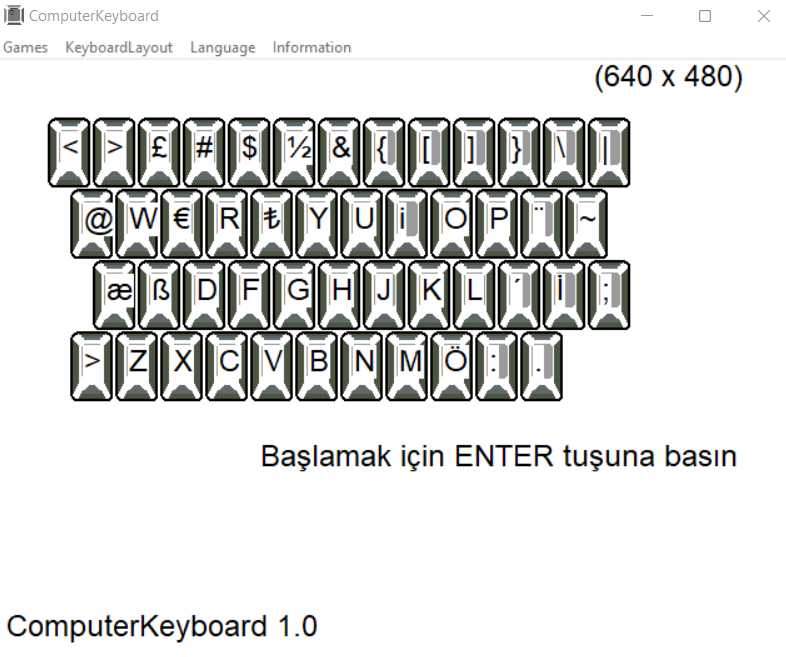
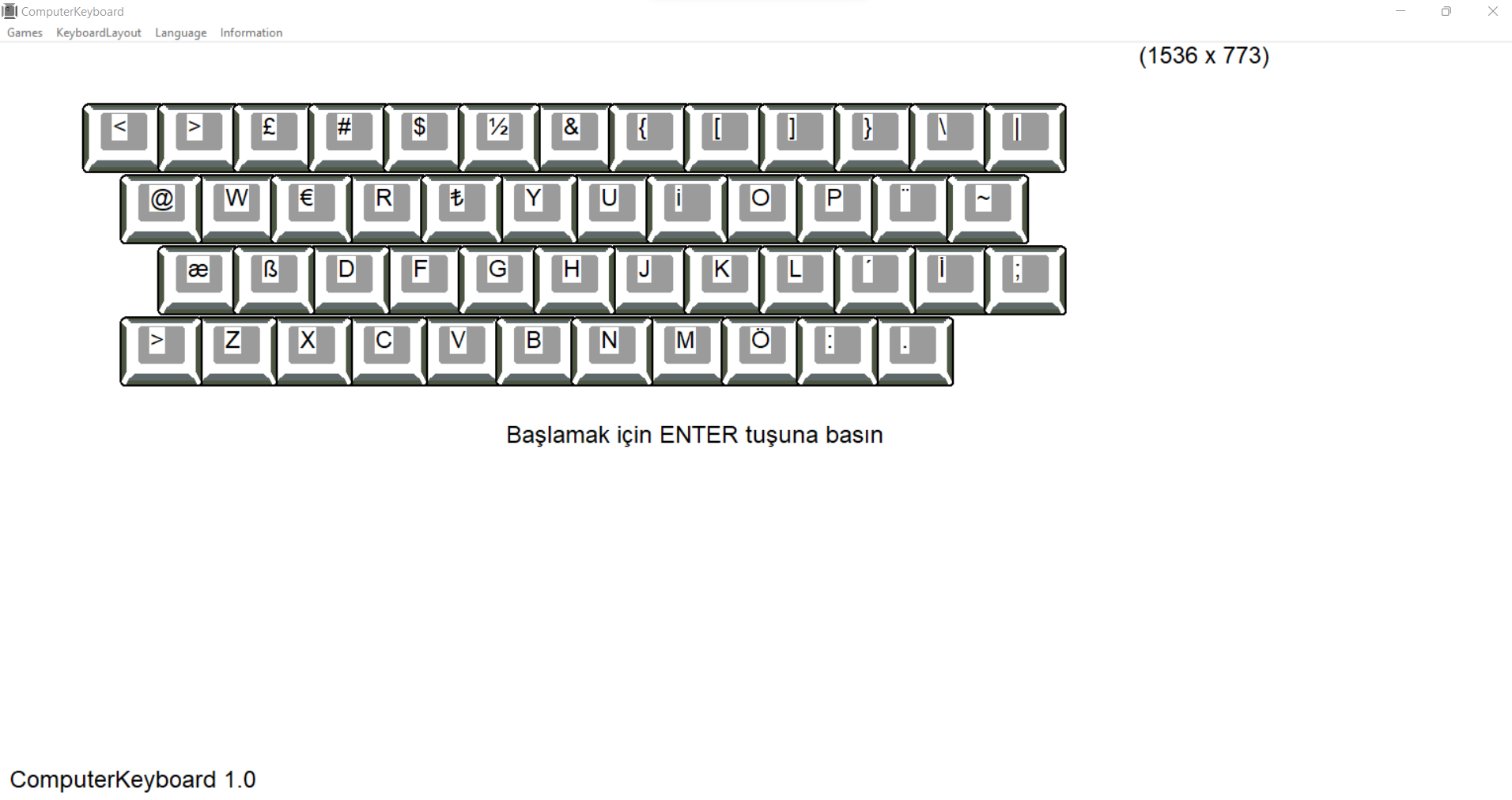
  • QWERTY TR (turc)
  • QWERTY US (américain)
  • QWERTY US (américain) KO(coréen)
  • QWERTY US (américain) JA(japonais)
  • QWERTY US (américain) ZH(chinois)
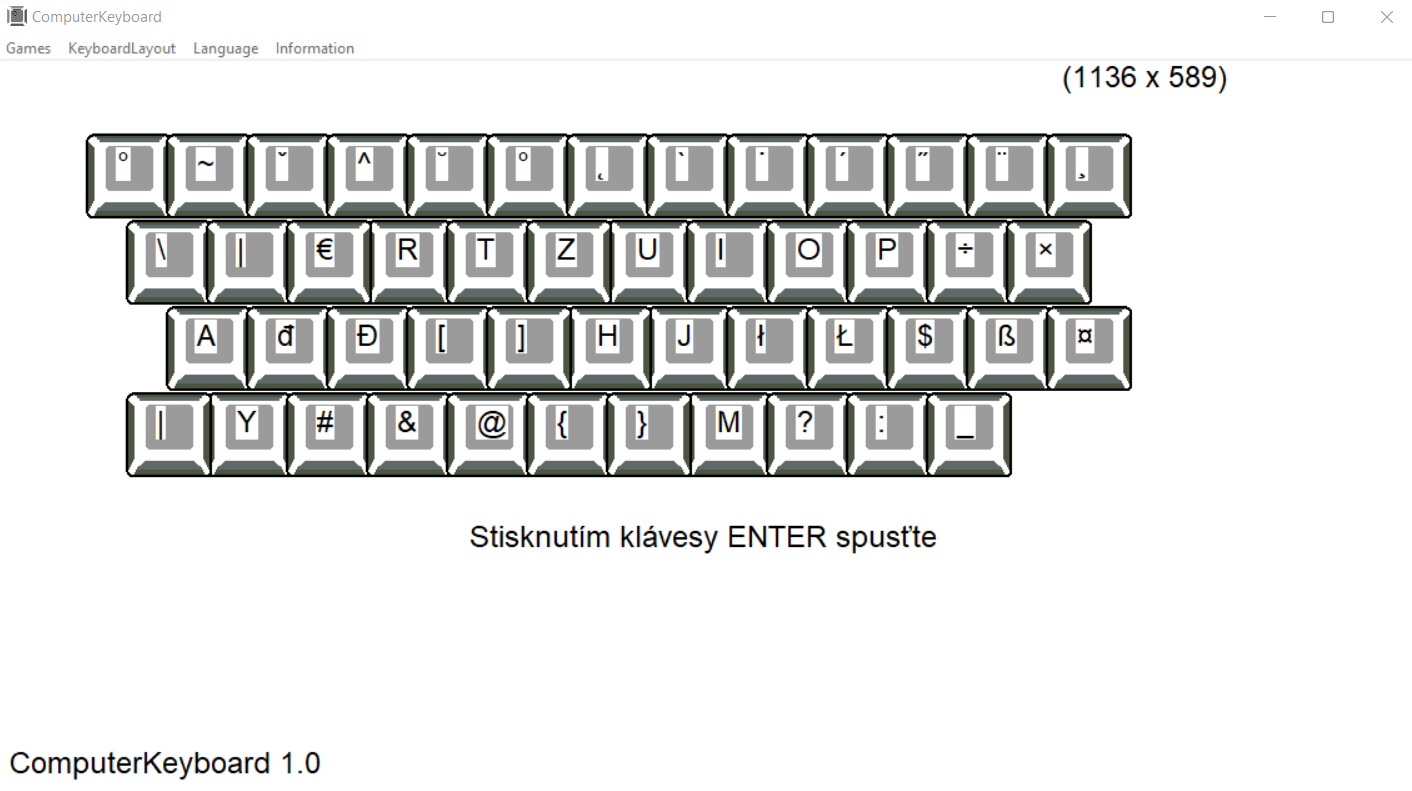
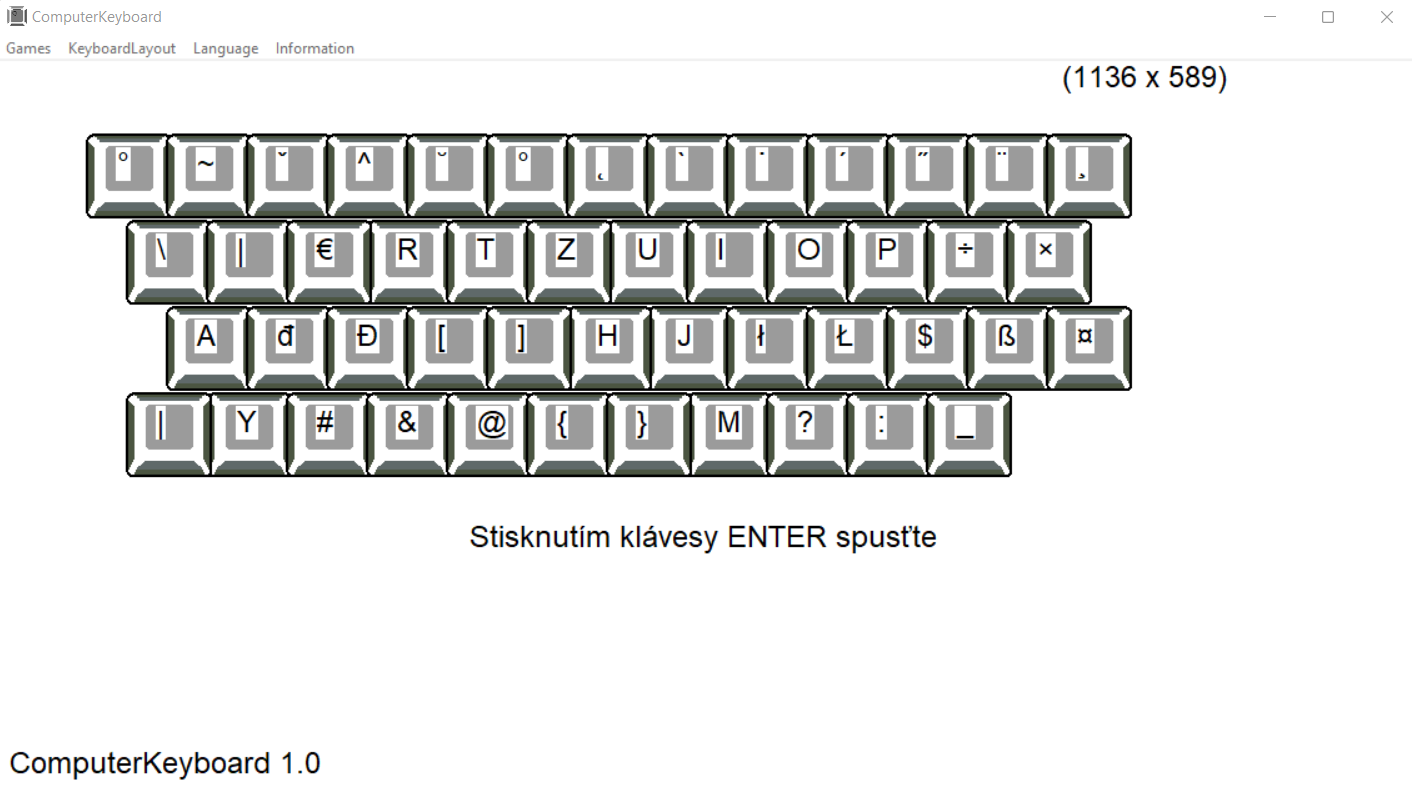
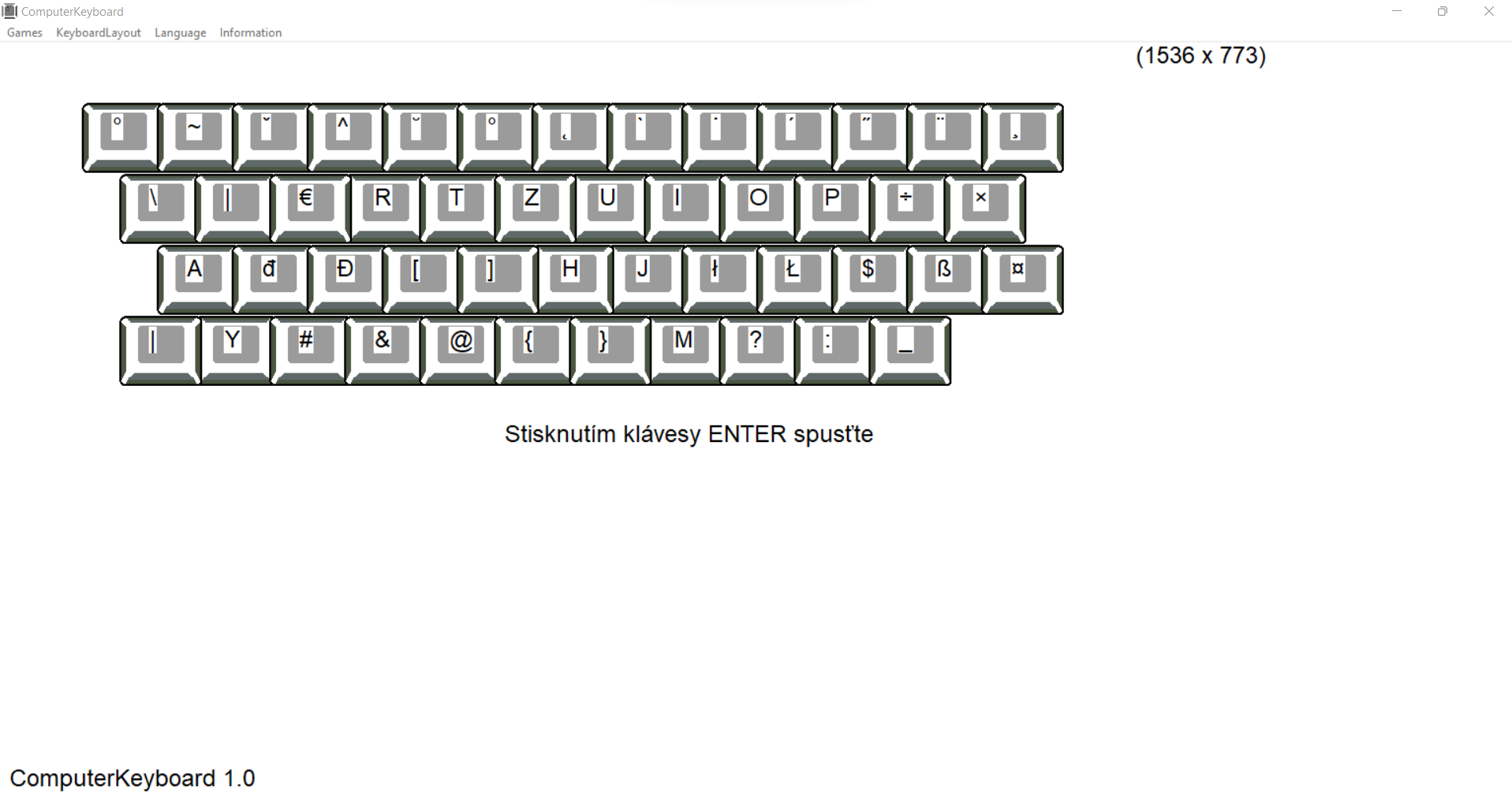
  • QWERTZ CZ (tchèque)
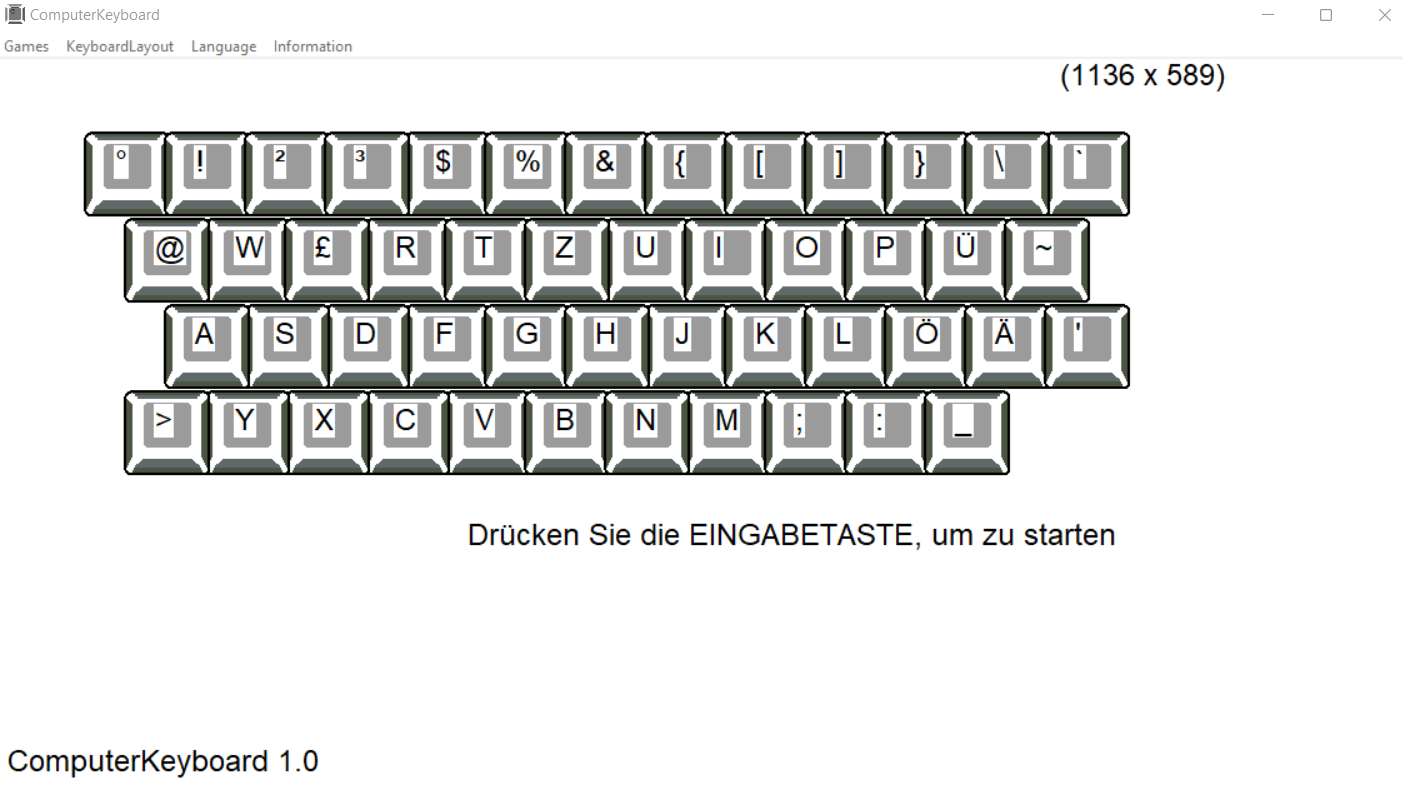
  • QWERTZ DE (allemand et autrichien)


  •               
    Télécharger à partir de Microsoft


  •           QWERTY: ES


    ComputerKeyboard

    cette application vous aide à apprendre à taper sans regarder le clavier. dans la mise en page:

  • QWERTY ES (español)

  • AZERTY FR (francés)
  • QWERTY IT (italiano)
  • QWERTY PR (portugués)
  • QWERTY GB (inglés)
  • QWERTY US (estadounidense)
  • QWERTY US (estadounidense) KO(coreano)
  • QWERTY US (estadounidense) JA(japonés)
  • QWERTY US (estadounidense) ZH(Chino)
  • QWERTY TR (turco
  • QWERTZ CZ (checo)
  • QWERTZ DE (alemán y austriaco)


  •               
    Obtenerlo de Microsoft


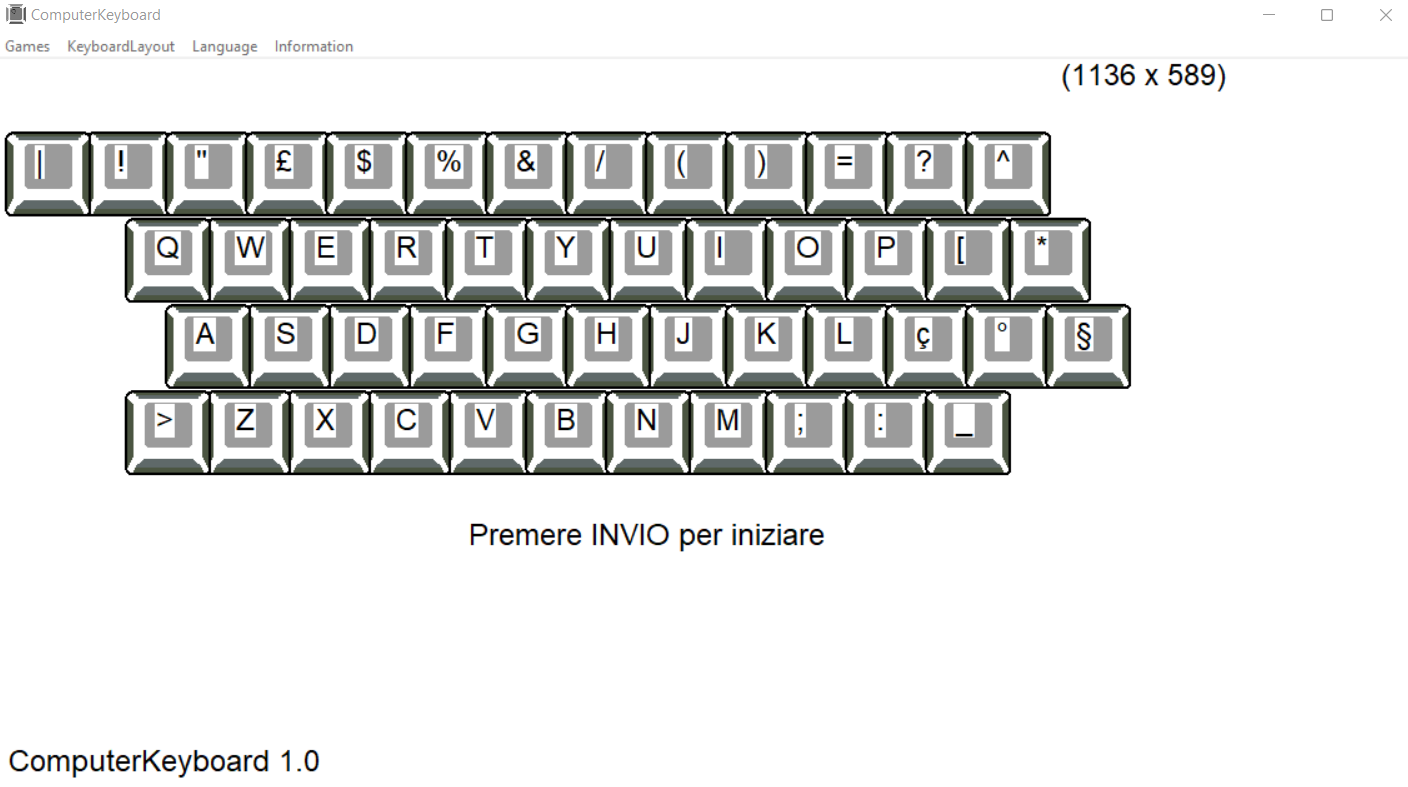
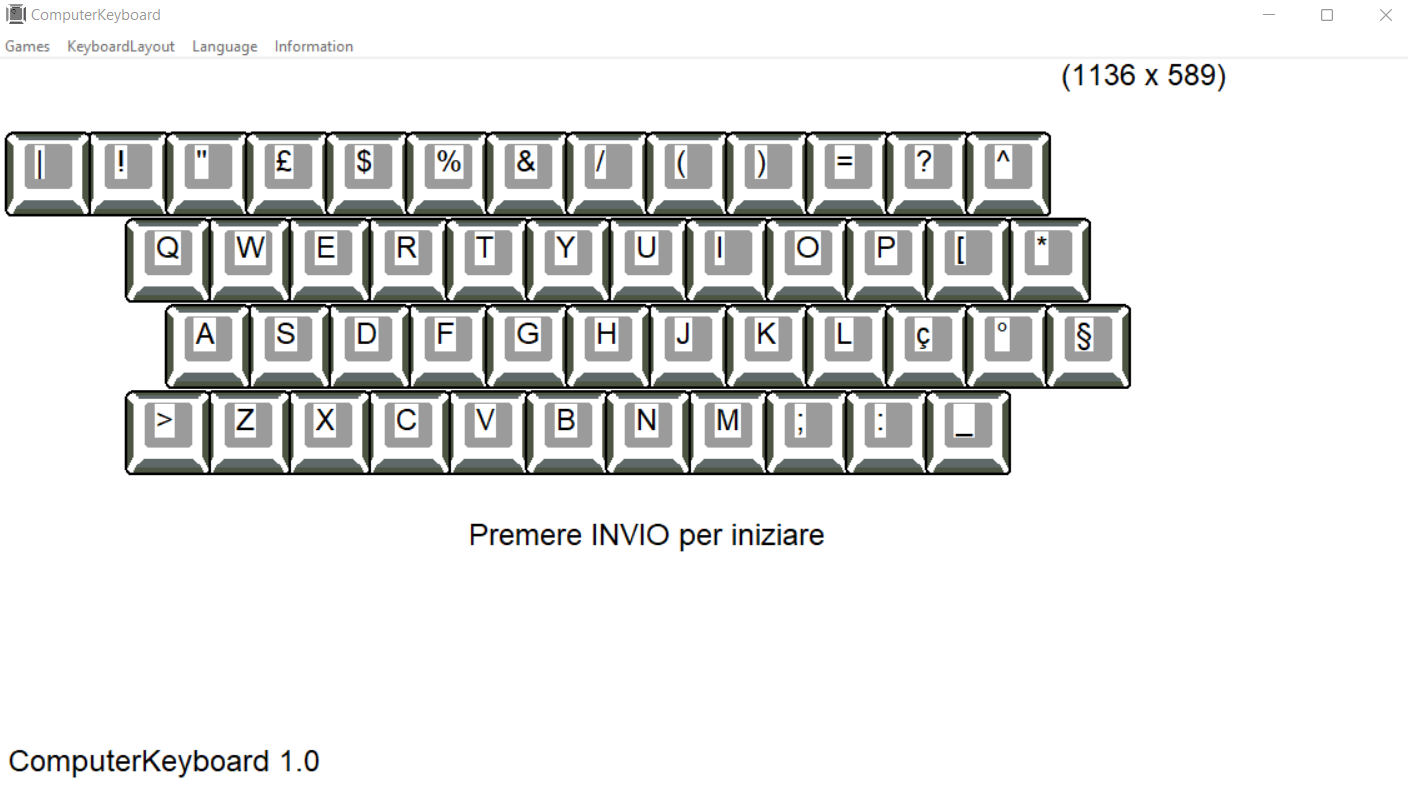
              QWERTY: IT


    ComputerKeyboard

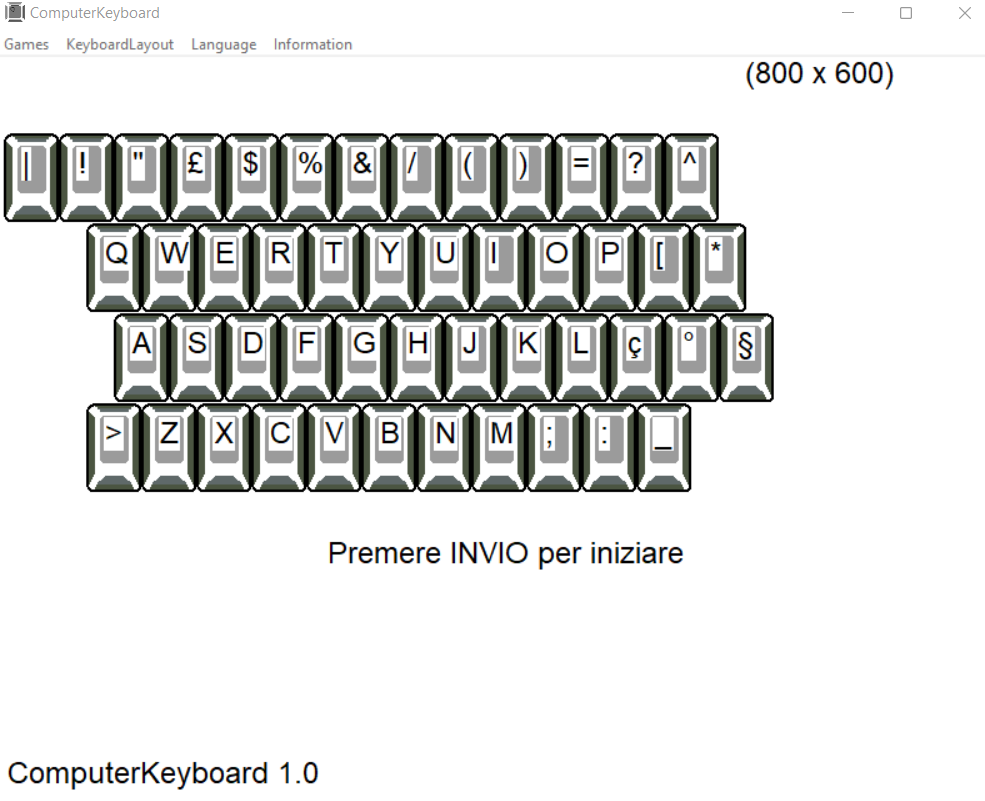
    questa app ti aiuta a imparare a digitare senza guardare la tastiera. nel sistema:

  • QWERTY IT (italiano)

  • AZERTY FR(francese)
  • QWERTY ES (spagnolo)
  • QWERTY GB (inglese)
  • QWERTY PR (portoghese)
  • QWERTY TR (turco)
  • QWERTY US (americana)
  • QWERTY US (americana) KO (coreana)
  • QWERTY US (americano) JA (giapponese)
  • QWERTY US (americana) ZH (cinese)
  • QWERTZ CZ (ceco)
  • QWERTZ DE (tedesco e austriaco)


  •               
    Scaricalo da Microsoft


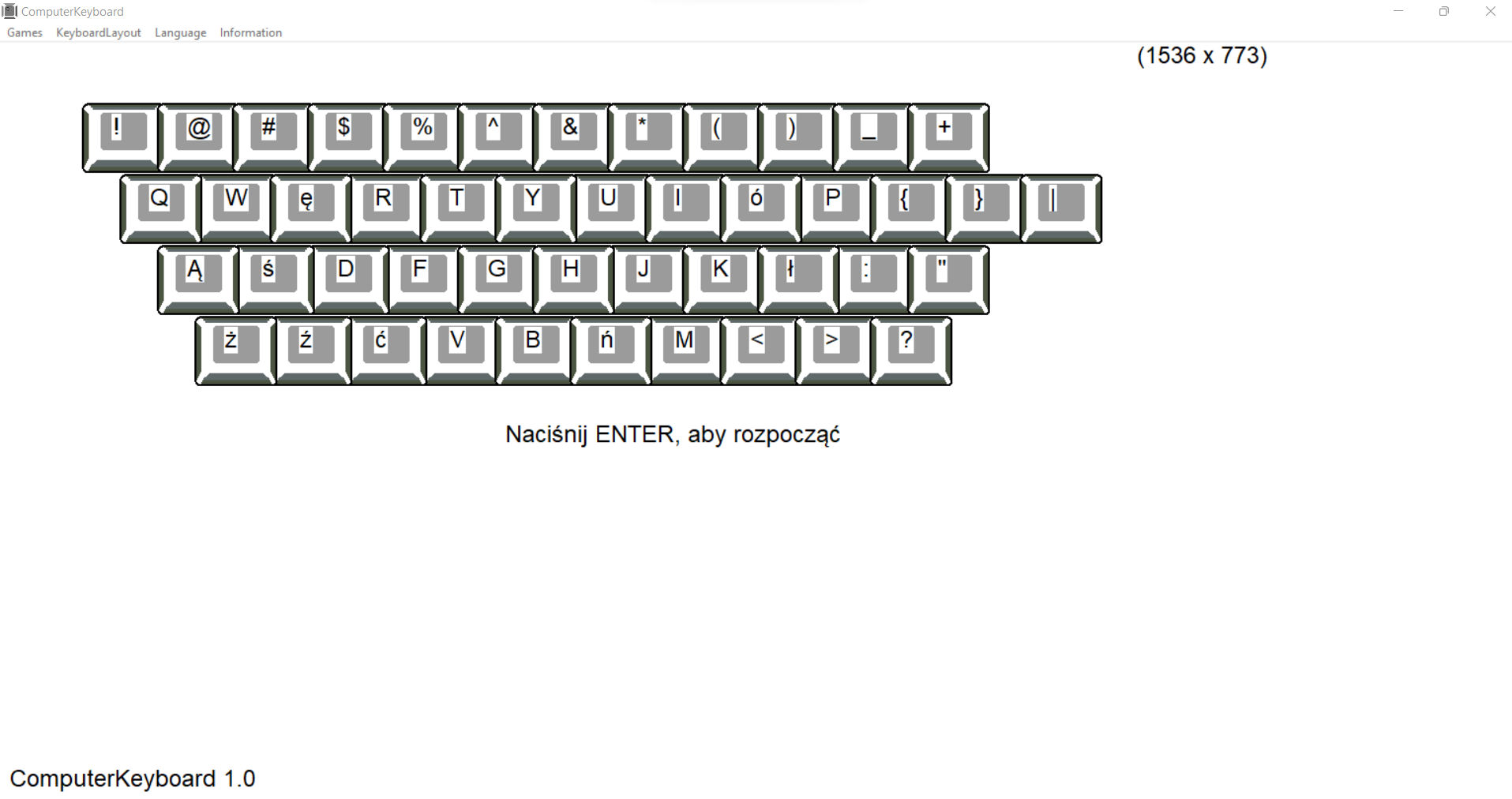
              QWERTY: PL


    ComputerKeyboard

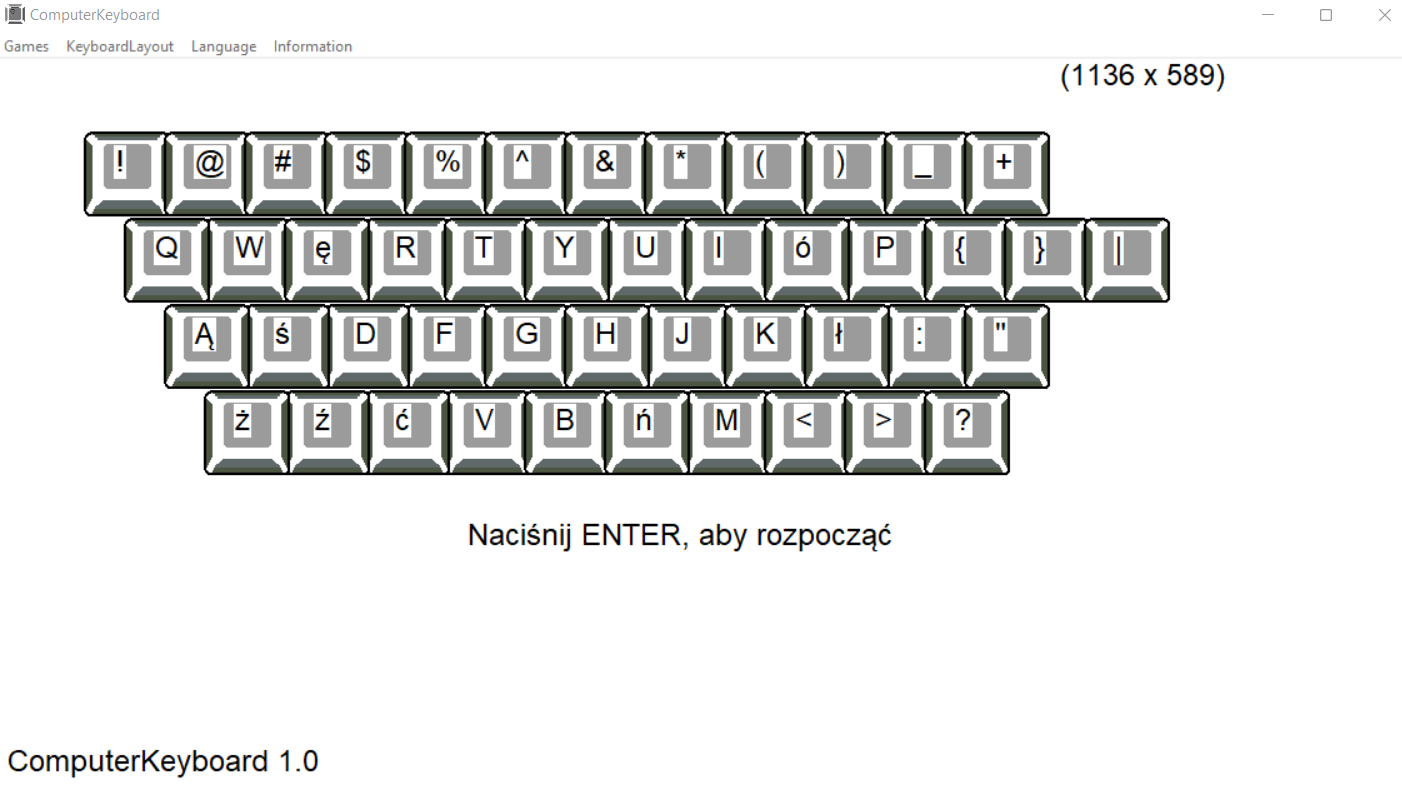
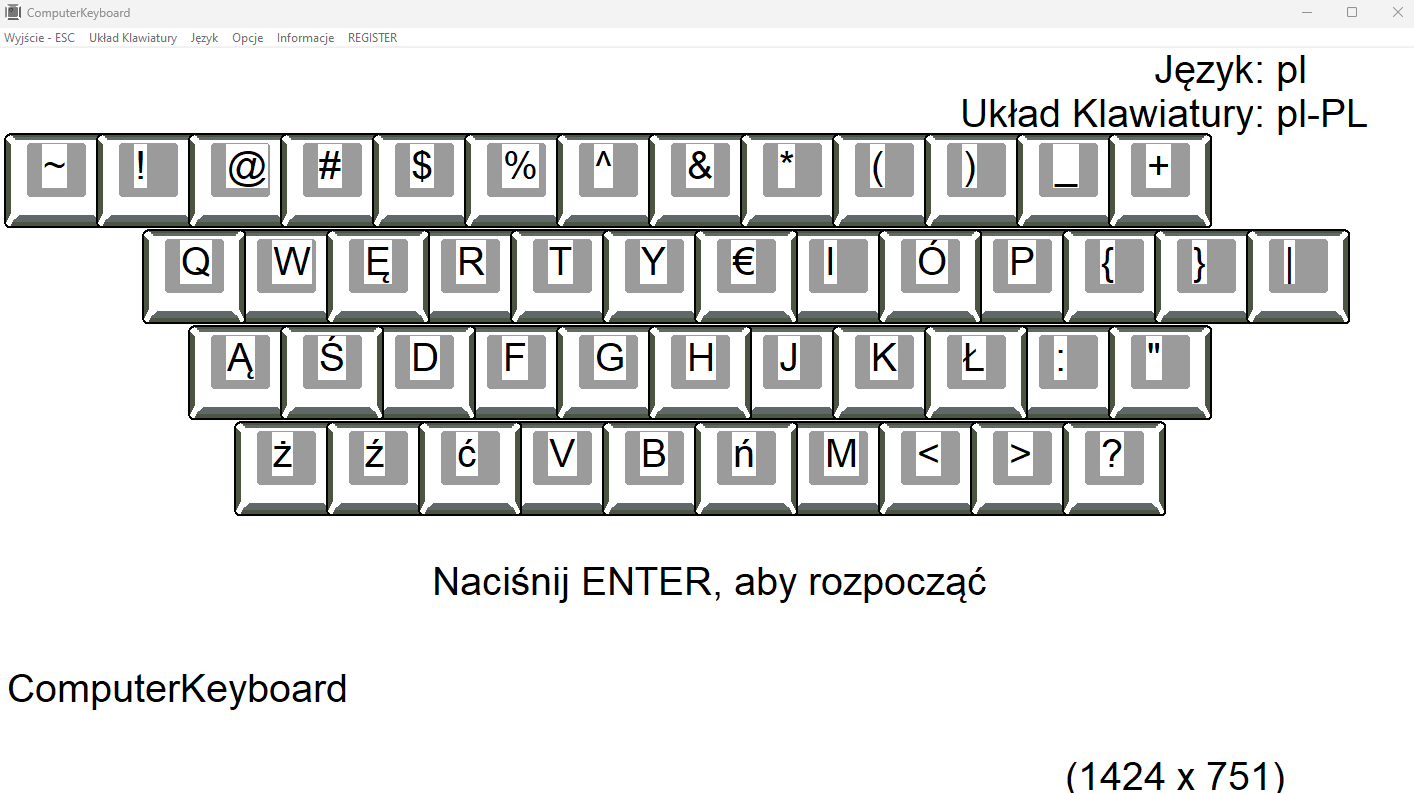
    ta aplikacja pomaga w nauce pisania bez patrzenia na klawiaturę w układzie:

  • QWERTY PL (polskiej)

  • AZERTY (francuskiej)
  • QWERTY ES (hiszpańskiej)
  • QWERTY IT (włoskiej)
  • QWERTY PR (portugalskiej)
  • QWERTY TR (tureckiej)
  • QWERTY US (amerykańskiej)
  • QWERTY GB (angielskiej)
  • QWERTZ DE (niemieckiej i austriackiej)
  • QWERTZ CZ (czeskiej)


  •               
    Pobierz od firmy Microsoft


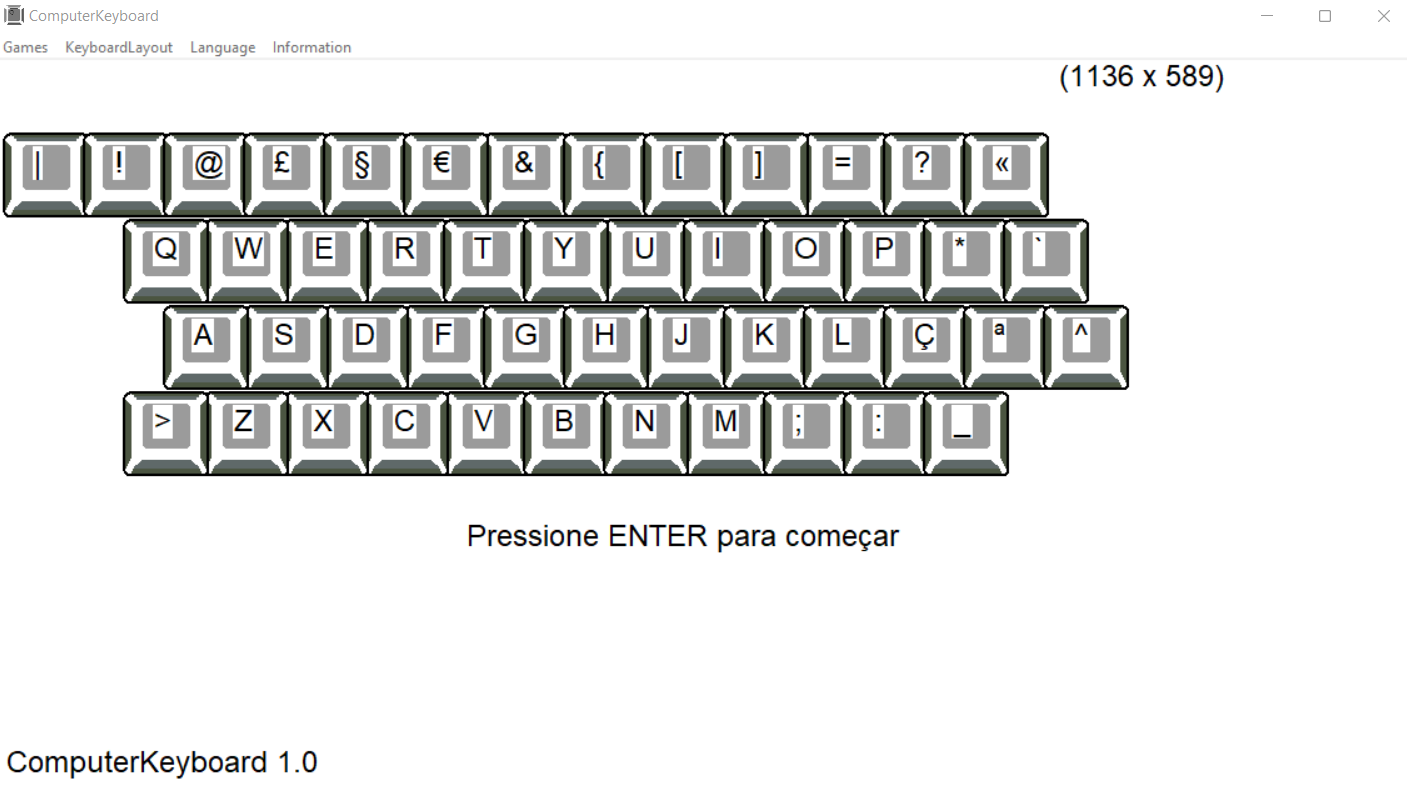
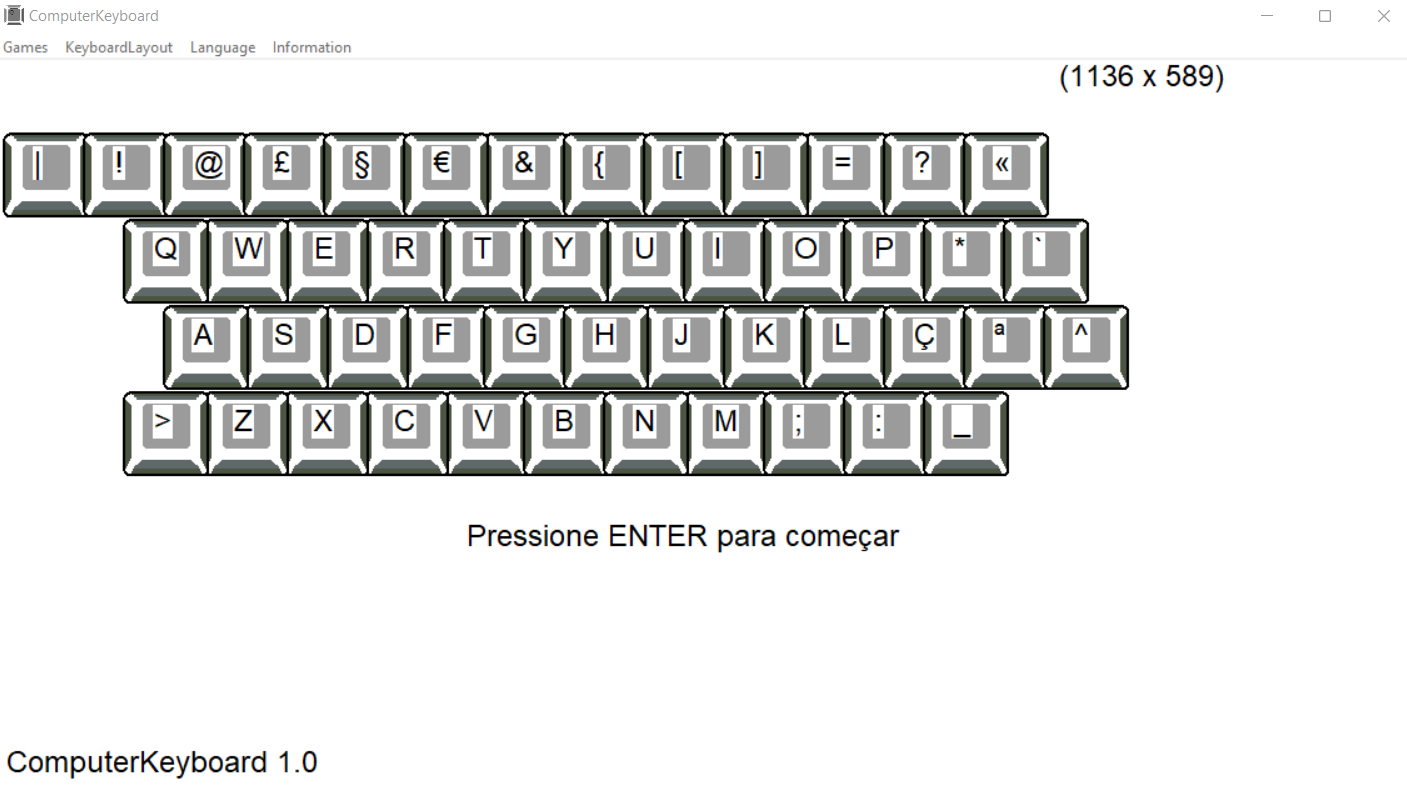
              QWERTY: PR


    ComputerKeyboard

    este aplicativo ajuda você a aprender a digitar sem olhar para o teclado. no sistema:

  • QWERTY PR (português)

  • AZERTY (francês)
  • QWERTY ES (espanhol)
  • QWERTY IT (italiano)
  • QWERTY GB (inglês)
  • QWERTY TR (Turco)
  • QWERTY US (americano)
  • QWERTY US (americano) KO (coreano)
  • QWERTY US (americano) JA (japonês)
  • QWERTY US (americano) ZH (chinês)
  • QWERTZ CZ (tcheco)
  • QWERTZ DE (alemão e austríaco)


  • Obter da Microsoft


              QWERTY: GB


    ComputerKeyboard

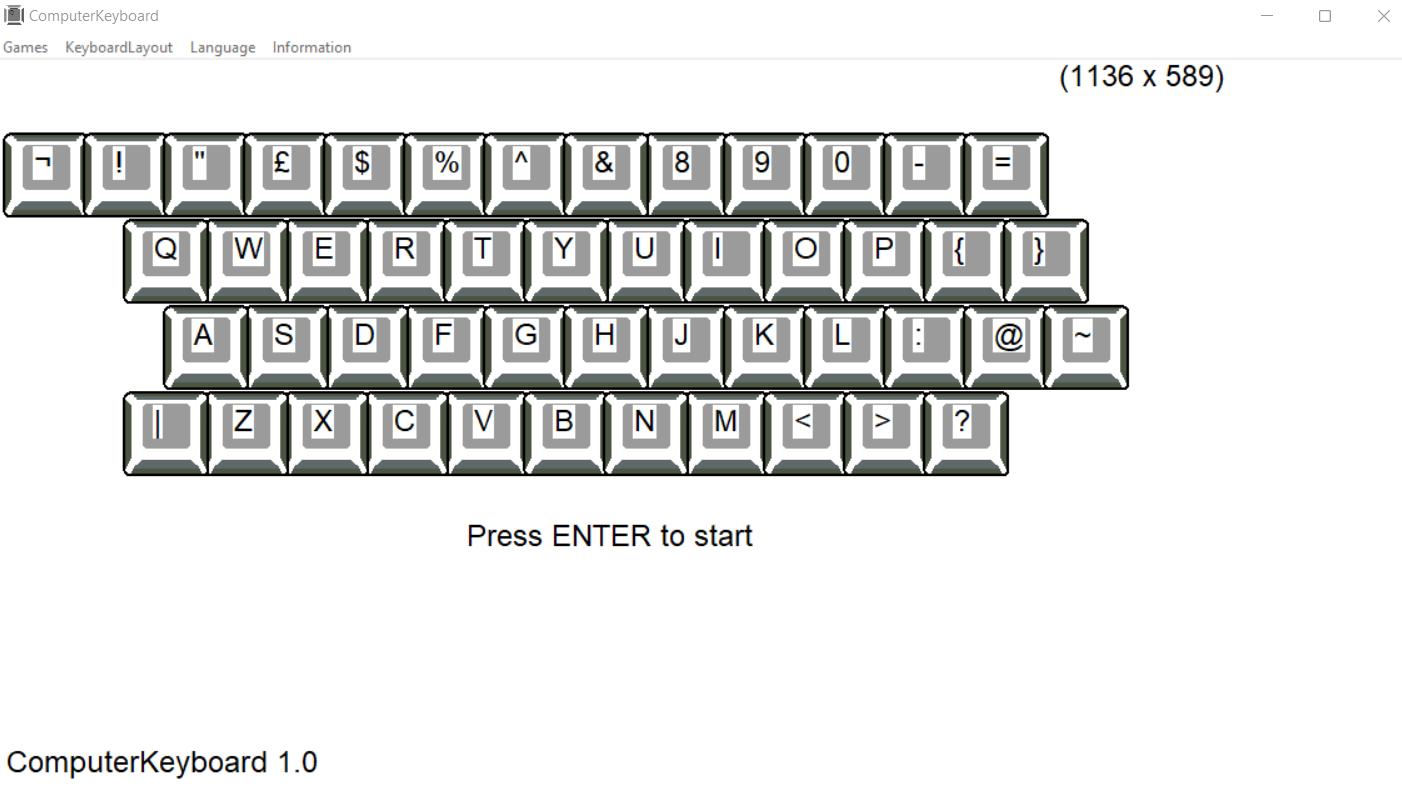
    this app helps you learn to type without looking at the keyboard. in the system:

  • QWERTY GB (English)

  • AZERTY (French)
  • QWERTY ES (Spanish)
  • QWERTY IT (Italian)
  • QWERTY PR (Portuguese)
  • QWERTY TR (Turkish)
  • QWERTY US (American)
  • QWERTY US (American) KO (Korean)
  • QWERTY US (American) JA (Japanese)
  • QWERTY US (American) ZH (Chinese)
  • QWERTZ CZ (Czech)
  • QWERTZ DE (German and Austrian)


  •               
    Get it from Microsoft


              QWERTY: US


    ComputerKeyboard

    this app helps you learn to type without looking at the keyboard. in the system:

  • QWERTY US (American)
  • QWERTY US (American) KO (Korean)
  • QWERTY US (American) JA (Japanese)
  • QWERTY US (American) ZH (Chinese)

  • AZERTY (French)
  • QWERTY ES (Spanish)
  • QWERTY IT (Italian)
  • QWERTY PR (Portuguese)
  • QWERTY TR (Turkish)
  • QWERTY GB (English)
  • QWERTZ CZ (Czech)
  • QWERTZ DE (German and Austrian)


  •               
    Get it from Microsoft


              QWERTY: US (KO)


    ComputerKeyboard

    이 앱은 키보드를 보지 않고 타이핑을 배울 수 있도록 도와줍니다. 시스템에서:

  • QWERTY US(미국) KO(한국어)
  • QWERTY US(미국) JA(일본어)
  • QWERTY US(미국) ZH(중국어)
  • QWERTY US(미국)

  • AZERTY FR(프랑스어)
  • QWERTY ES(스페인어)
  • QWERTY IT(이탈리아어)
  • QWERTYGB(영어)
  • QWERTY PR(포르투갈어)
  • QWERTY TR(터키어)
  • QWERTZ CZ(체코)
  • QWERTZ DE(독일어 및 오스트리아어)


  • Microsoft 에서 다운로드


              QWERTY: US (JA)


    ComputerKeyboard

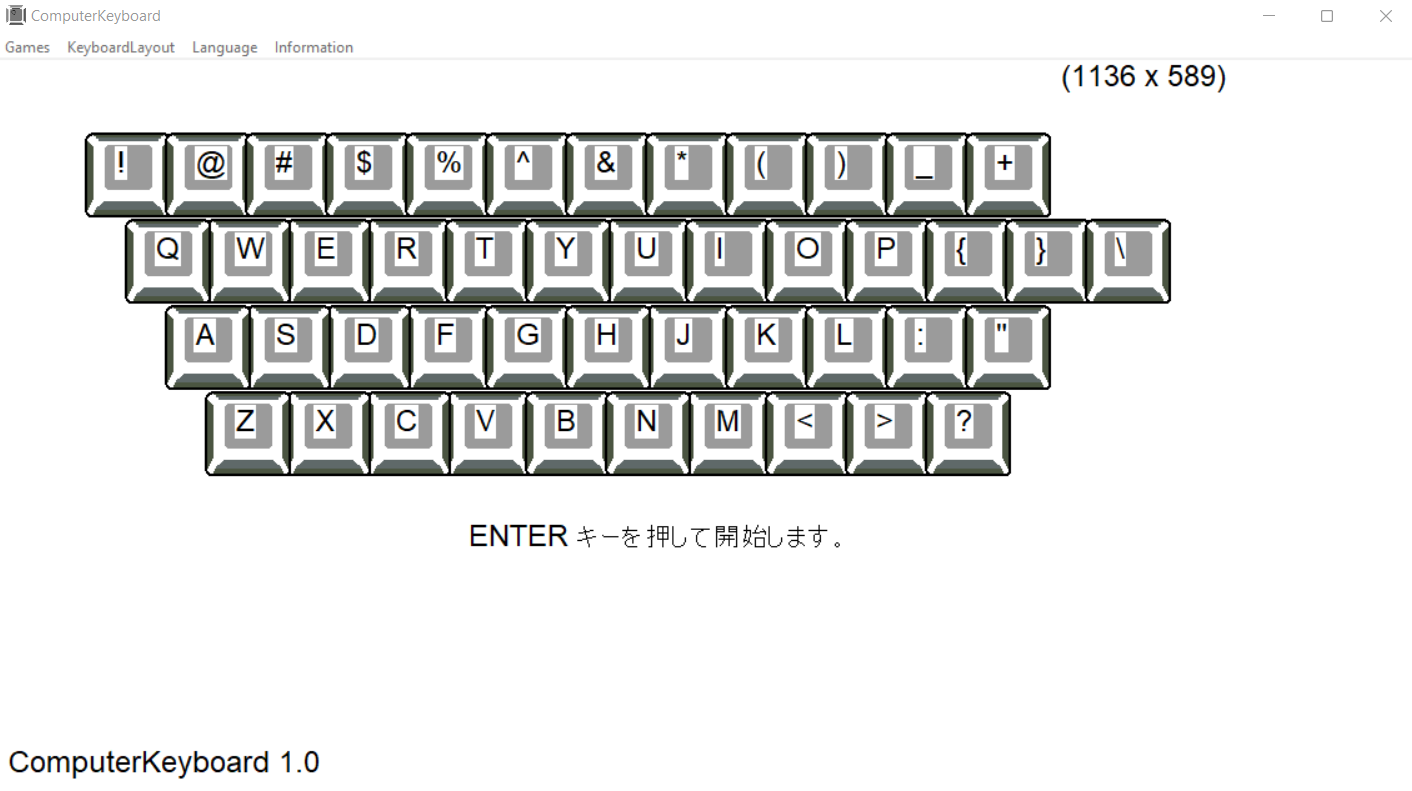
    このアプリは、キーボードを見ずに入力することを学ぶのに役立ちます。 システム内:

  • QWERTY US(アメリカ) JA(日本語)
  • QWERTY US(アメリカ) KO(韓国語)
  • QWERTY US(アメリカ) ZH(中国語)
  • QWERTY US(アメリカ)

  • AZERTY FR (フランス語)
  • QWERTY ES (スペイン語)
  • QWERTY IT (イタリア語)
  • QWERTY GB (英語)
  • QWERTY PR (ポルトガル語)
  • QWERTY TR (トルコ語)
  • QWERTZ CZ (チェコ語)
  • QWERTZ DE (ドイツ語およびオーストリア語)


  • Microsoft からダウンロード


              QWERTY: US (ZH)


    ComputerKeyboard

    这个应用程序可以帮助您在不看键盘的情况下学习打字。 在系统中:

  • QWERTY US(美式)ZH(中文)
  • QWERTY US(美式)JA(日文)
  • QWERTY US(美式)KO(韩式)
  • QWERTY US (美式)

  • AZERTY FR(法语)
  • QWERTY ES(西班牙语)
  • QWERTY IT(意大利语)
  • QWERTY GB(英文)
  • QWERTY PR(葡萄牙语)
  • QWERTY TR(土耳其语)
  • QWERTZ CZ(捷克)
  • QWERTZ DE(德语和奥地利语)


  • 从 Microsoft 获取


              QWERTY: TR


    ComputerKeyboard

    Bu uygulama klavyeye bakmadan yazmayı öğrenmenize yardımcı olur. Sistemde:

  • QWERTY TR (Türkçe)

  • AZERTY FR (Fransızca)
  • QWERTY ES (İspanyolca)
  • QWERTY IT (İtalyanca)
  • QWERTY GB (İngilizce)
  • QWERTY PR (Portekizce)
  • QWERTY US (Amerikan)
  • QWERTY US (Amerikan) ZH (Çince)
  • QWERTY US (Amerikan) JA (Japonca)
  • QWERTY US (Amerikan) KO (Korece)
  • QWERTZ CZ (Çek)
  • QWERTZ DE (Almanca ve Avusturya)


  • Microsoft'tan alın


              QWERTZ: CS


    ComputerKeyboard

    Tato aplikace vám pomůže naučit se psát, aniž byste se dívali na klávesnici. v systému:

  • QWERTZ CZ (česky)

  • AZERTY FR (francouzština)
  • QWERTY ES (španělština)
  • QWERTY IT (italsky)
  • QWERTY GB (anglicky)
  • QWERTY US (Americké)
  • QWERTY US (Americká) ZH (čínština)
  • QWERTY US (Americký) JA (Japonec)
  • QWERTY US (americké) KO (korejské)
  • QWERTY PR (portugalština)
  • QWERTY TR (turečtina)
  • QWERTZ DE (německy a rakouské)


  • Získad od Microsoftu


              QWERTZ: DE


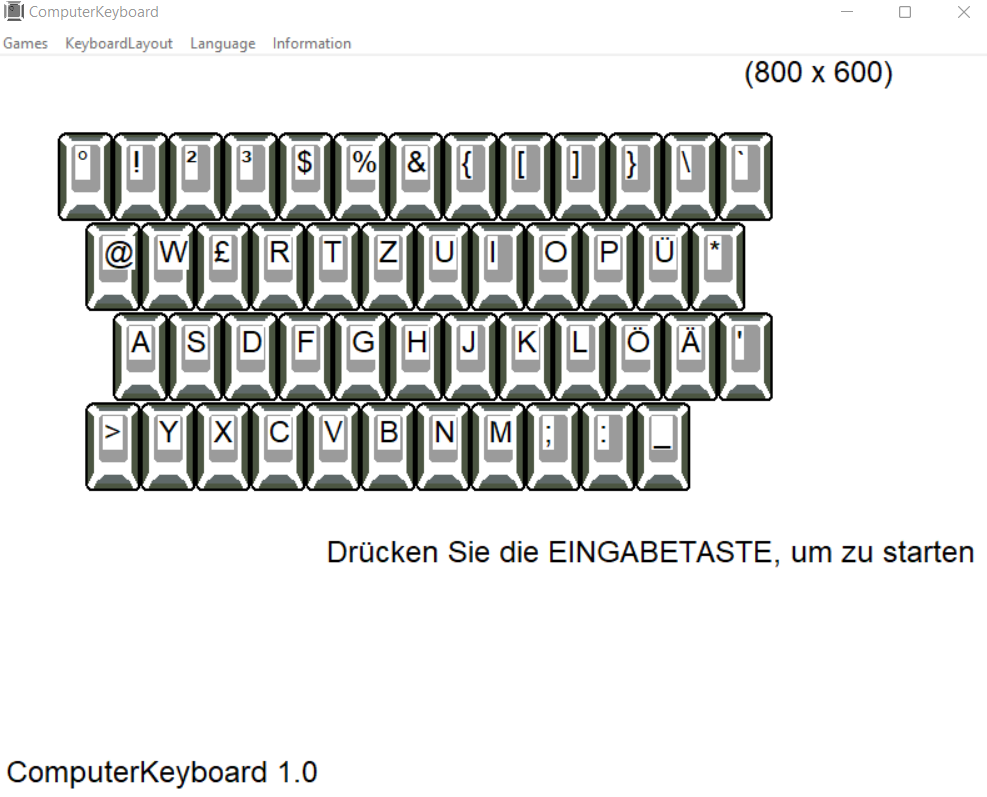
    ComputerKeyboard

    Diese App hilft Ihnen, das Tippen zu lernen, ohne auf die Tastatur zu schauen. Im System:

  • QWERTZ DE (deutsch und österreichisch)

  • AZERTY FR (Französisch)
  • QWERTY ES (Spanisch)
  • QWERTY IT (Italienisch)
  • QWERTZ GB (Englisch)
  • QWERTY PR (Portugiesisch)
  • QWERTY TR (Türkisch)
  • QWERTZ CZ (Tschechisch)
  • "QWERTY US" (Amerikanisch)
  • QWERTY US (Amerikanisch) JA (Japanisch)
  • QWERTY US (Amerikanisch) KO (Koreanisch)
  • QWERTY US (Amerikanisch) ZH (Chinesisch)

  • Von Microsoft abrufen


    Getting Started


    preface
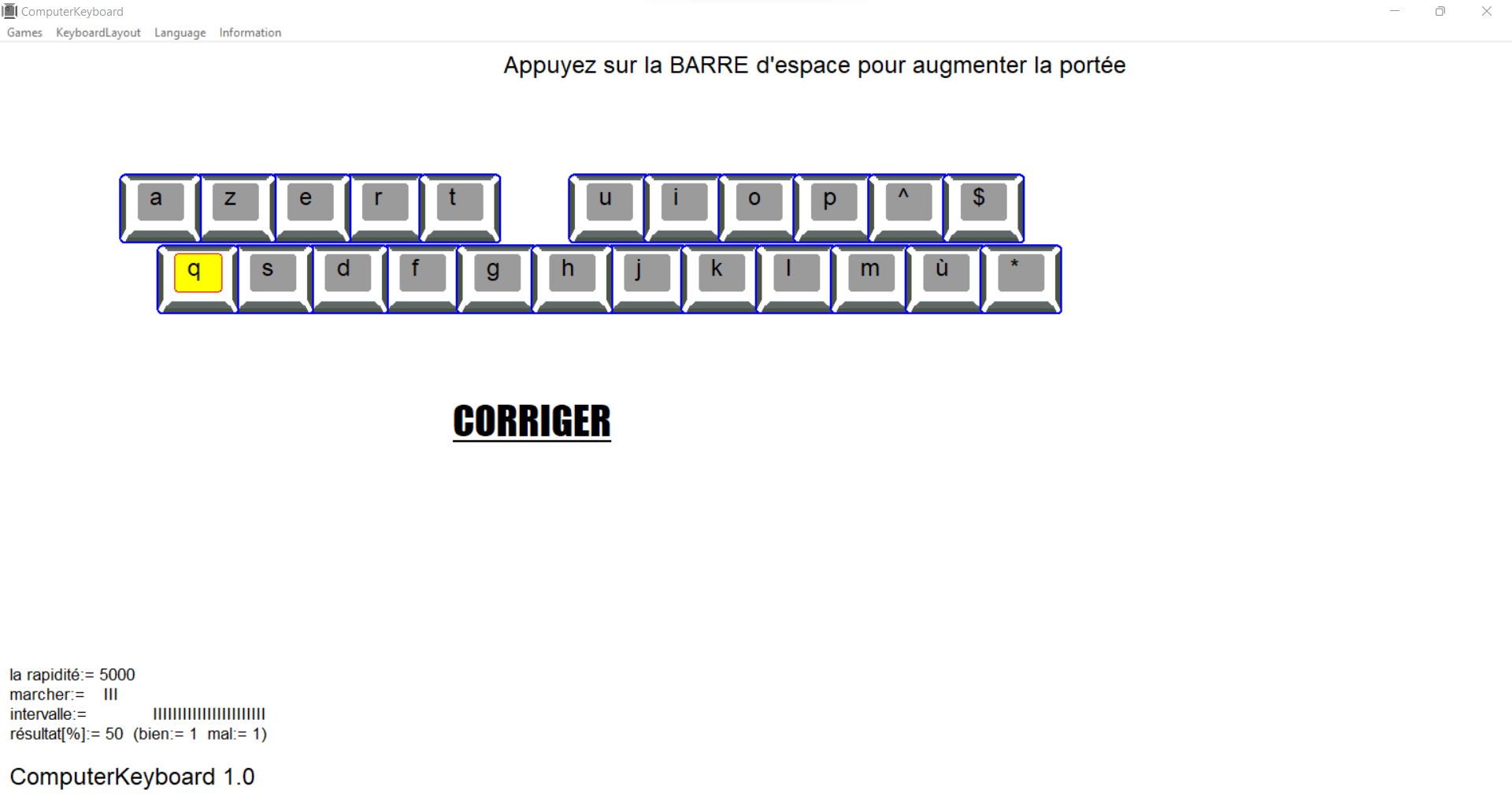
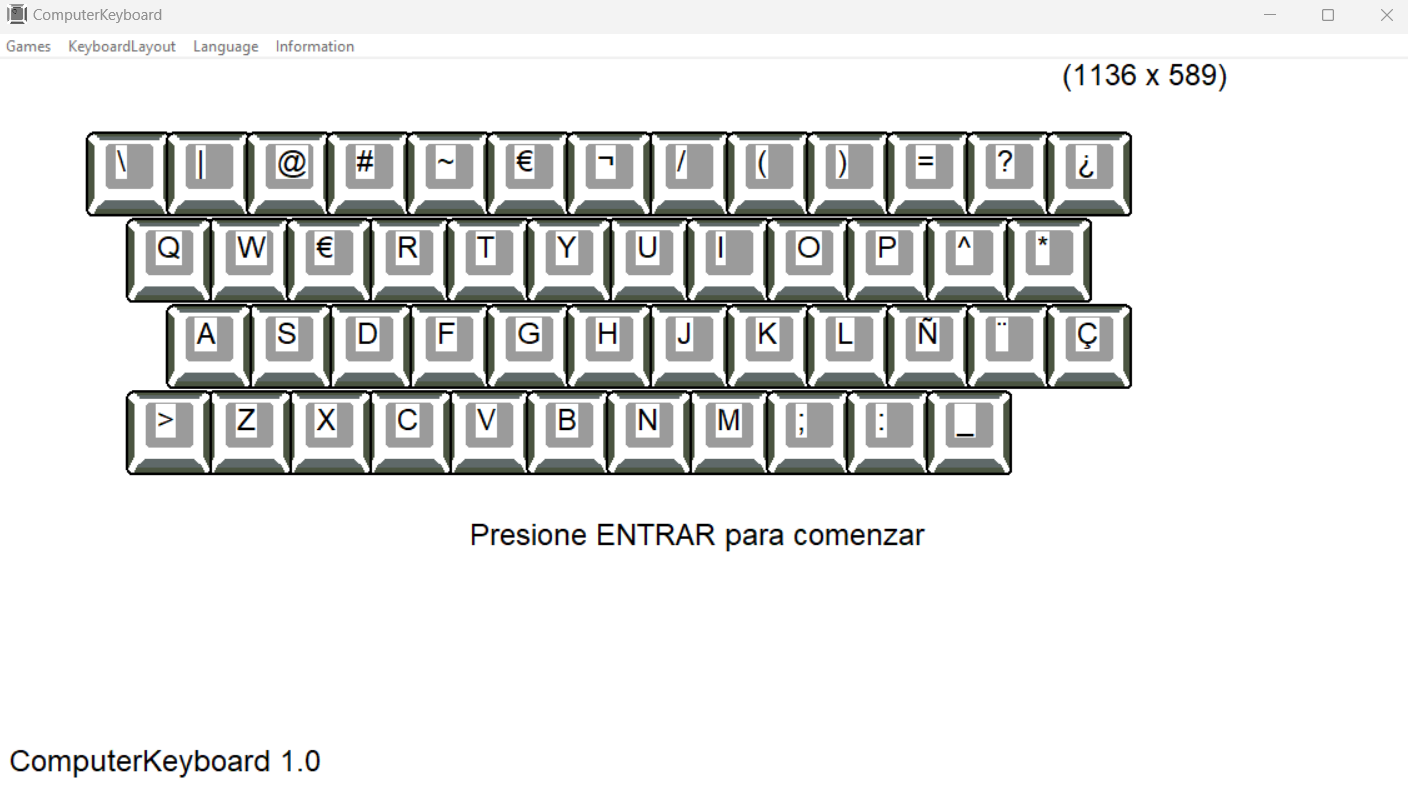
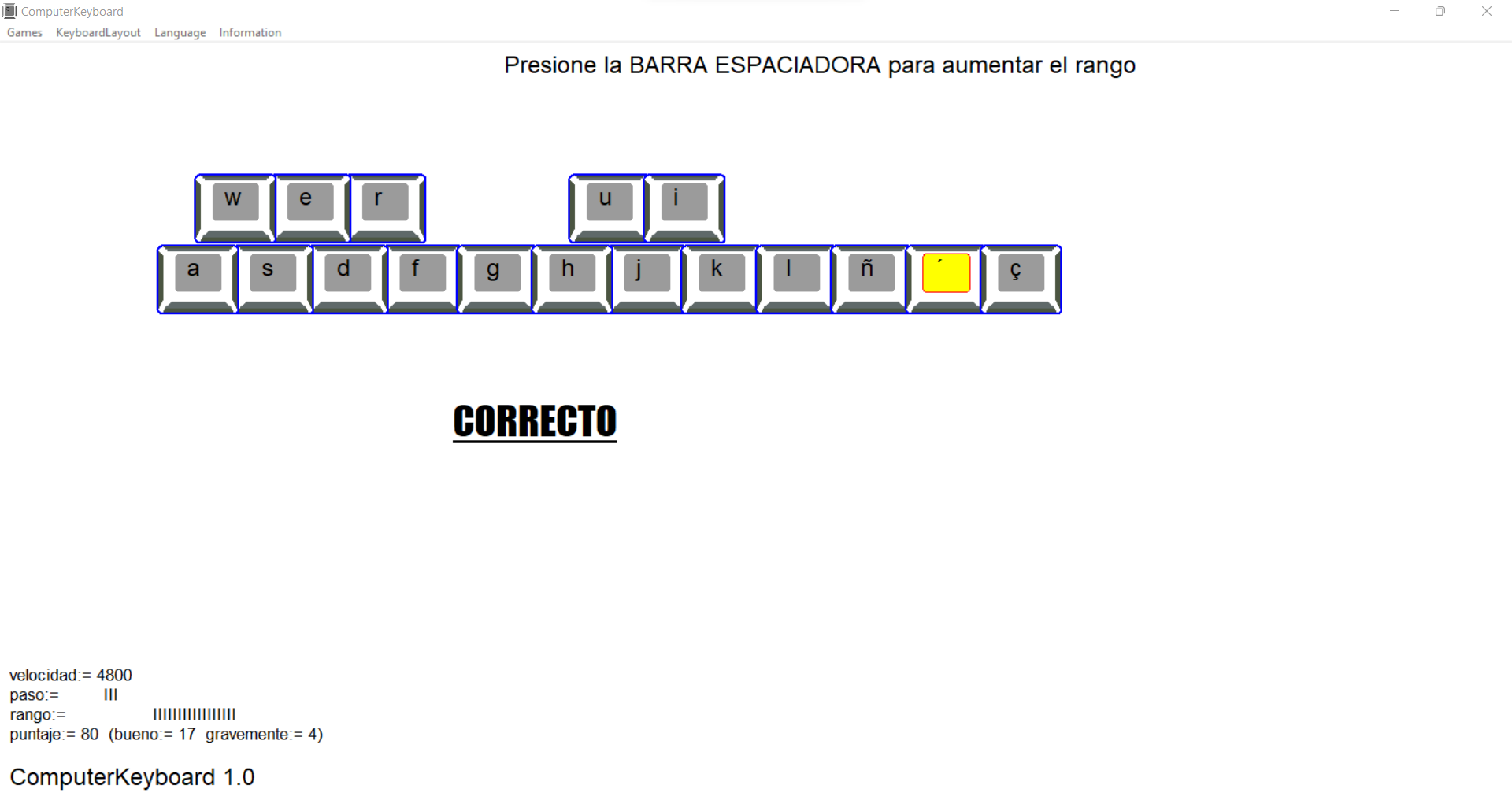
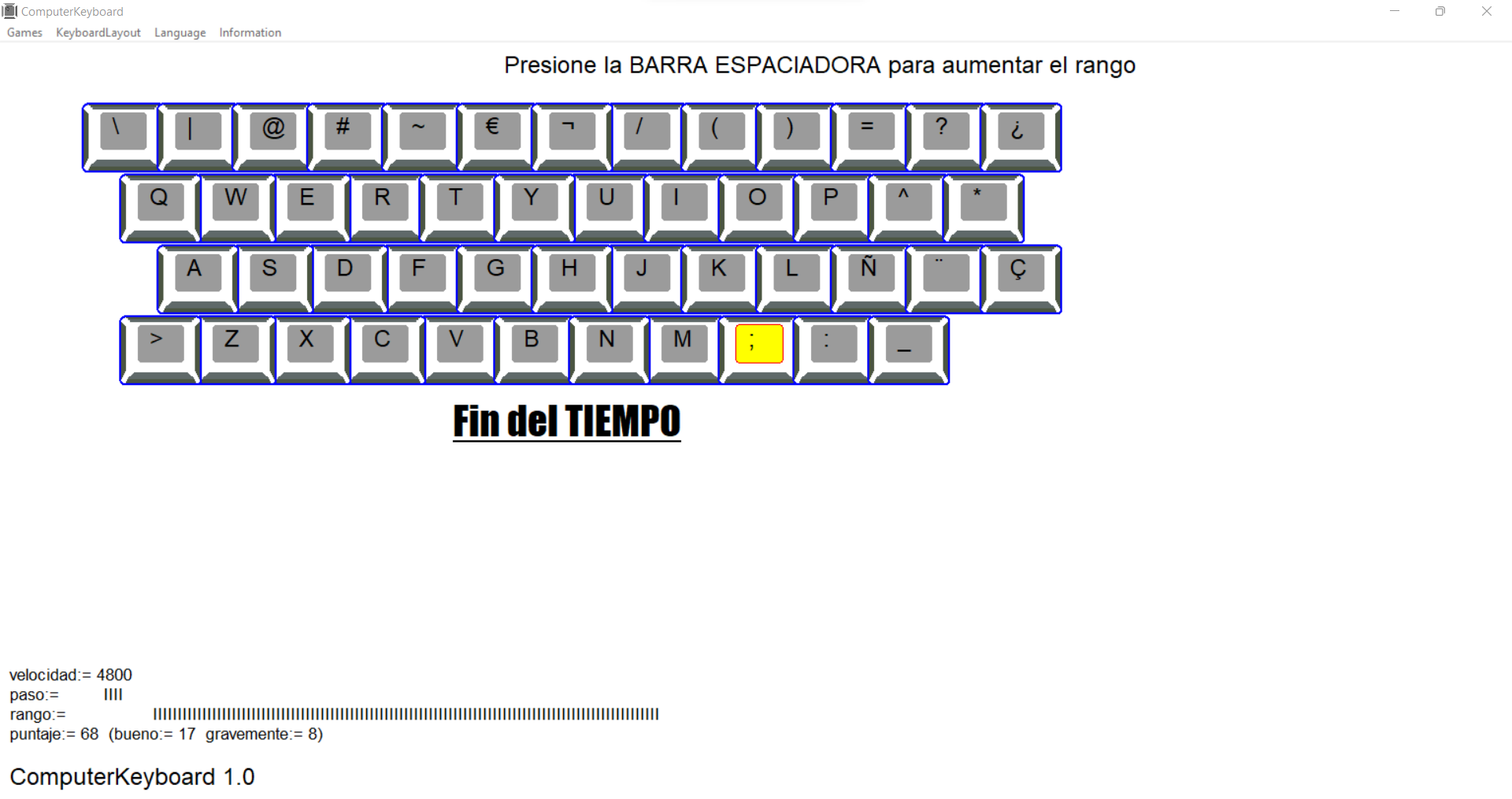
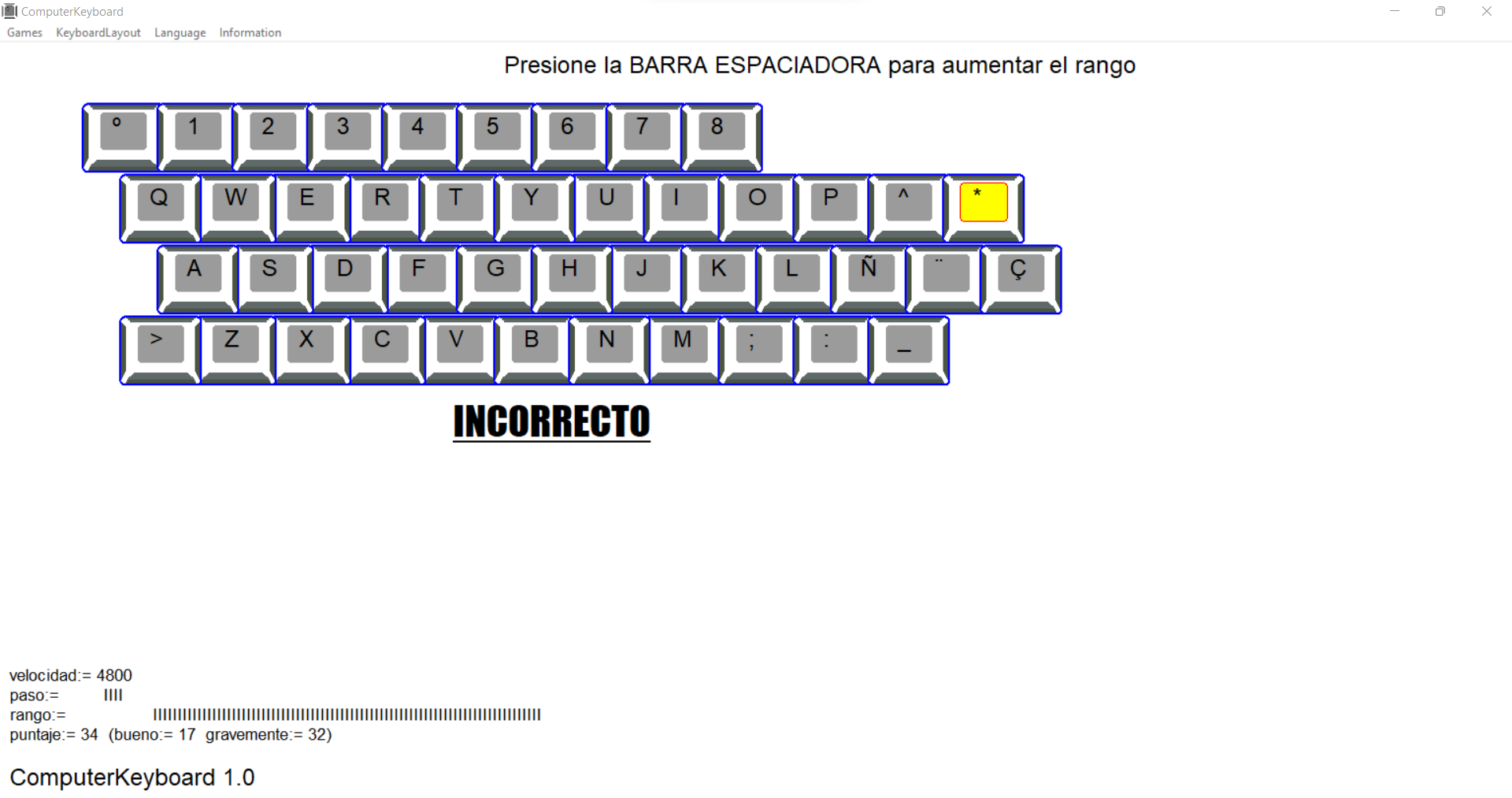
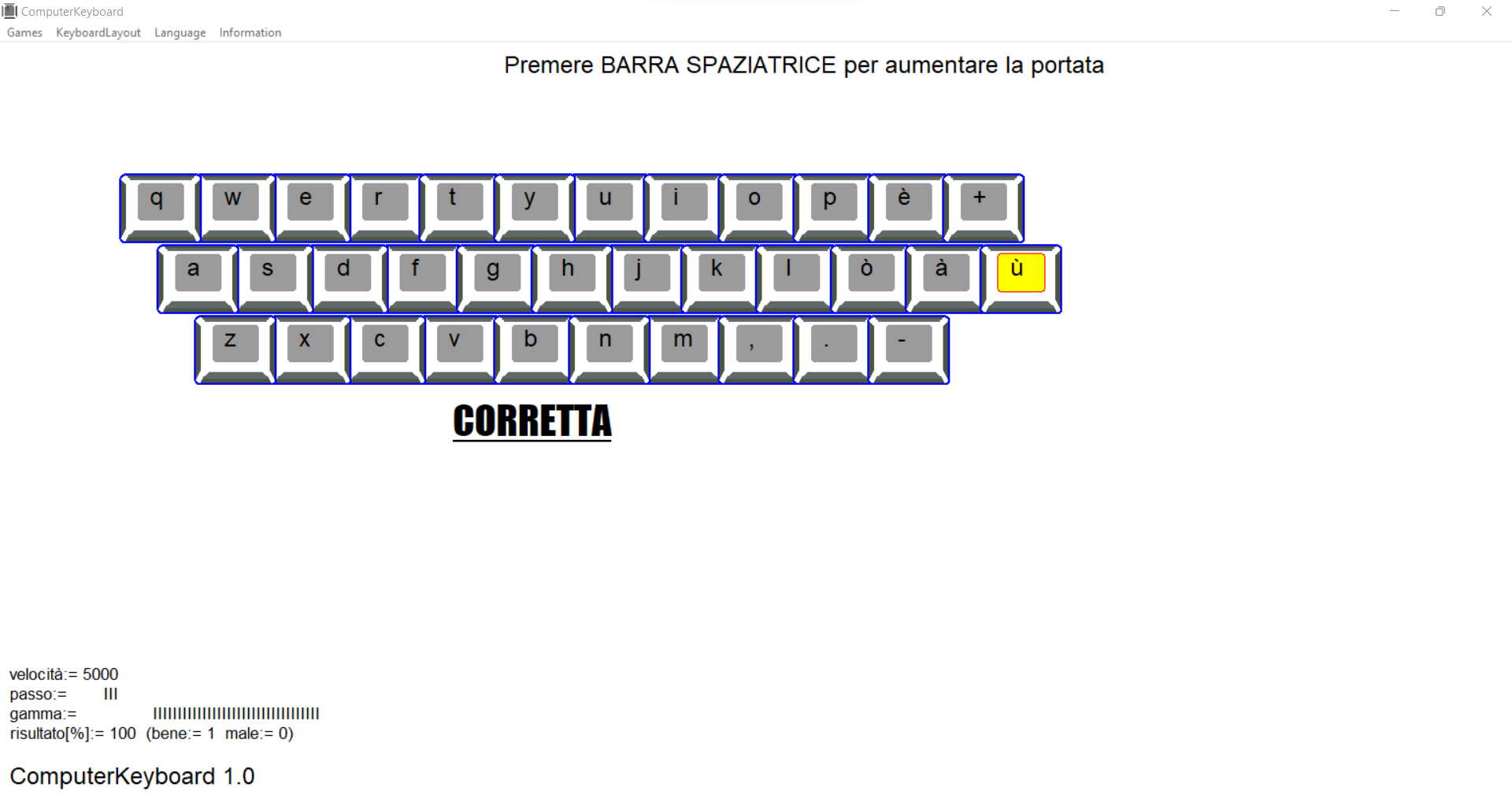
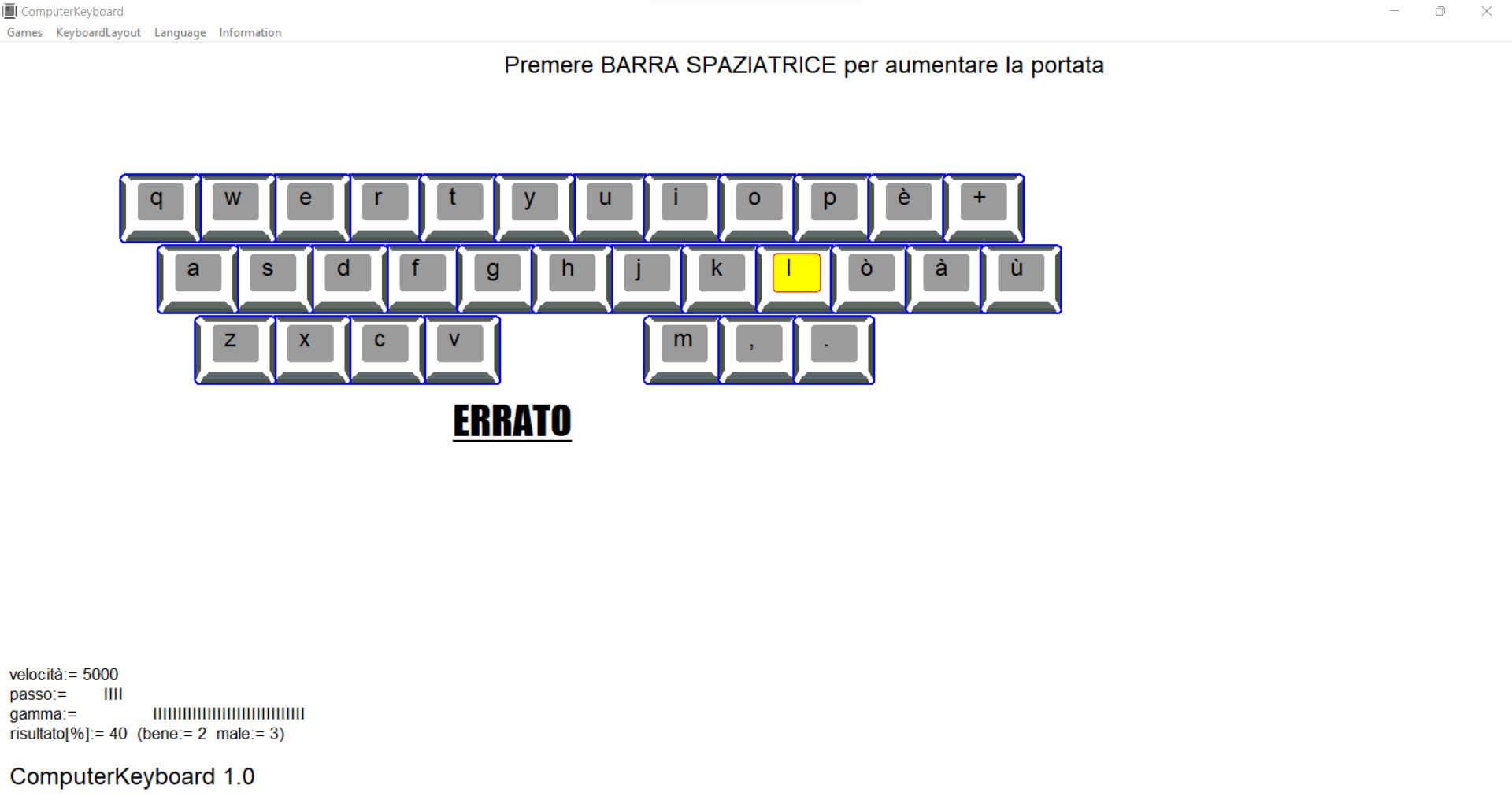
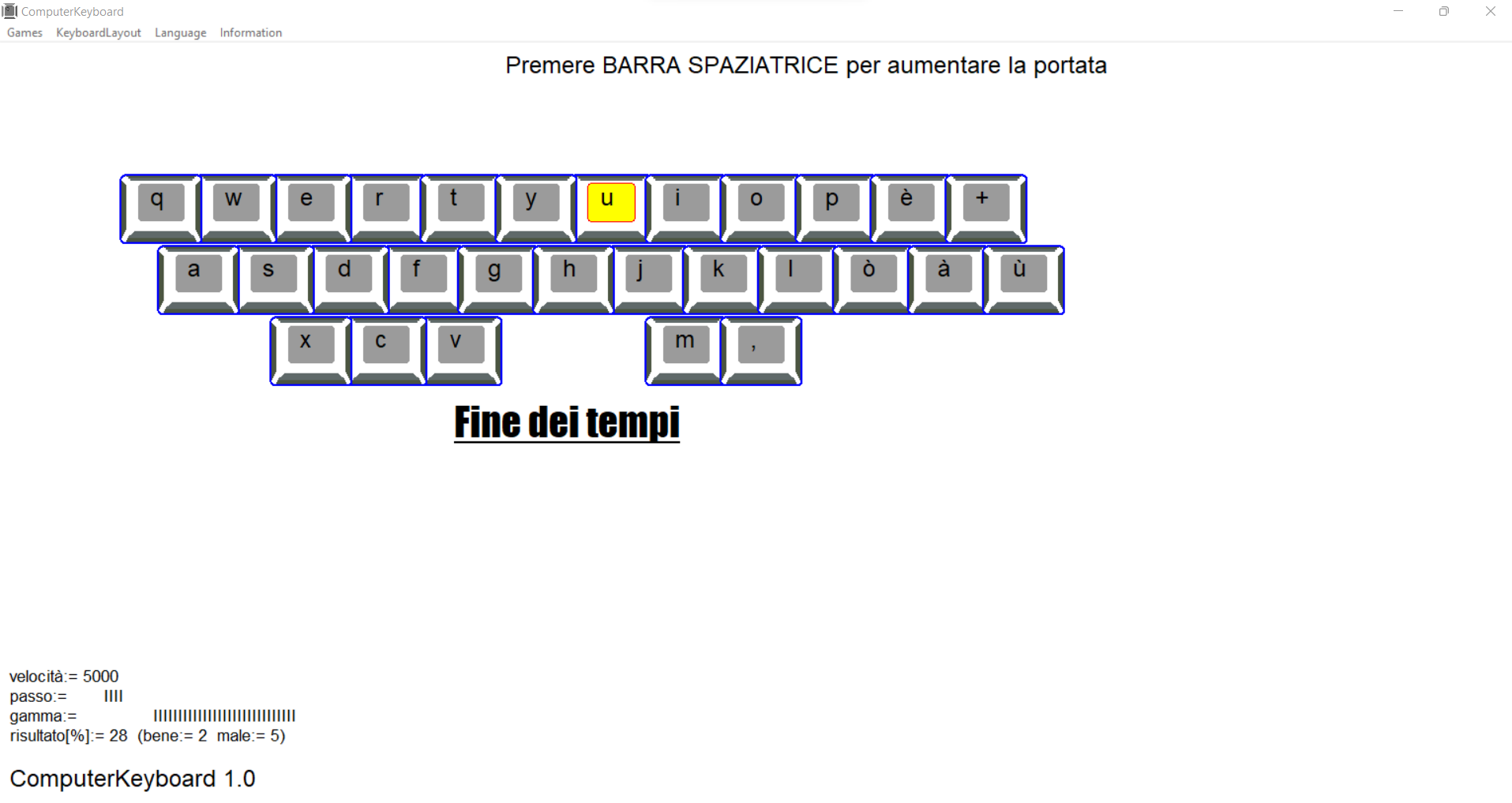
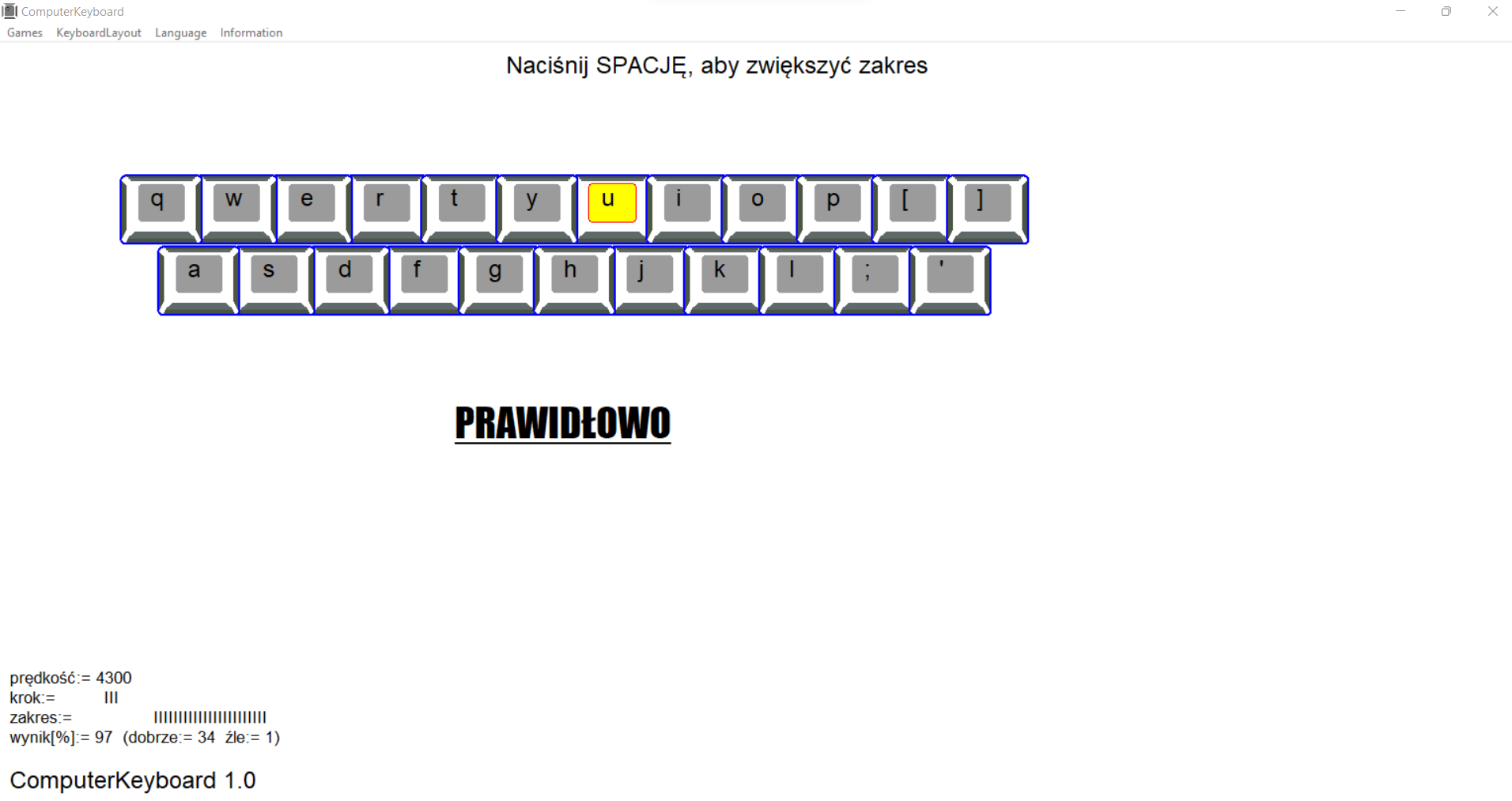
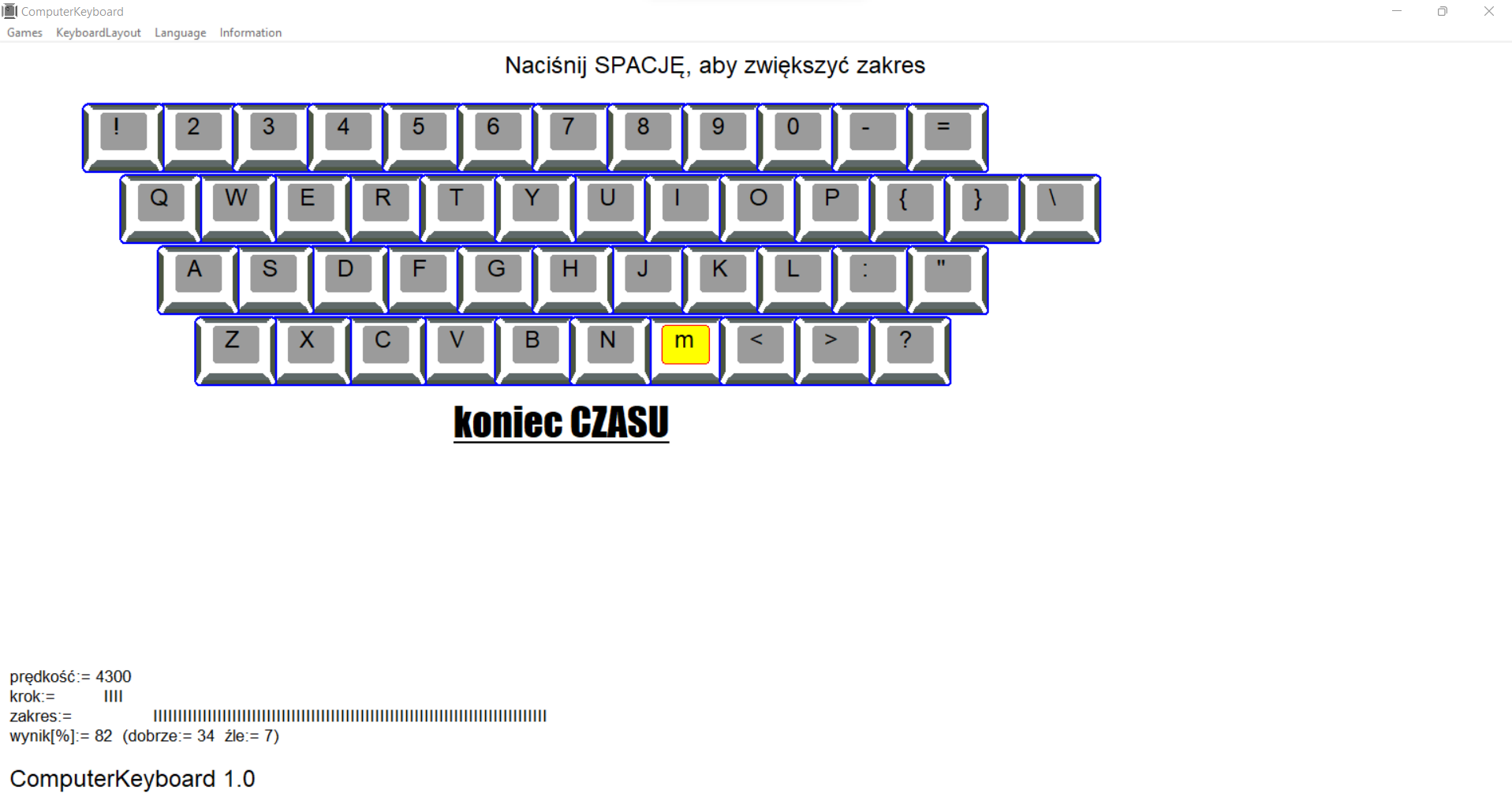
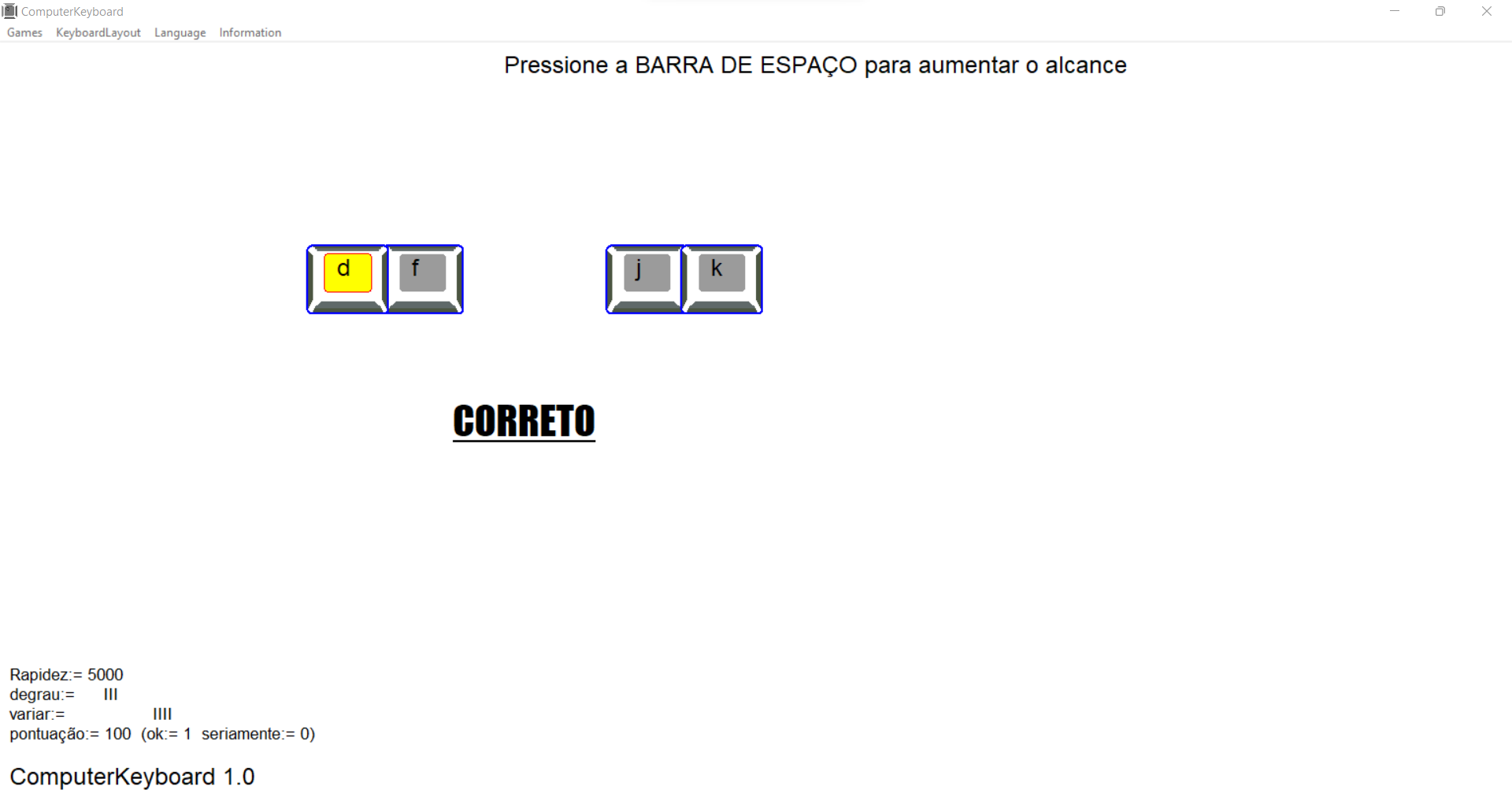
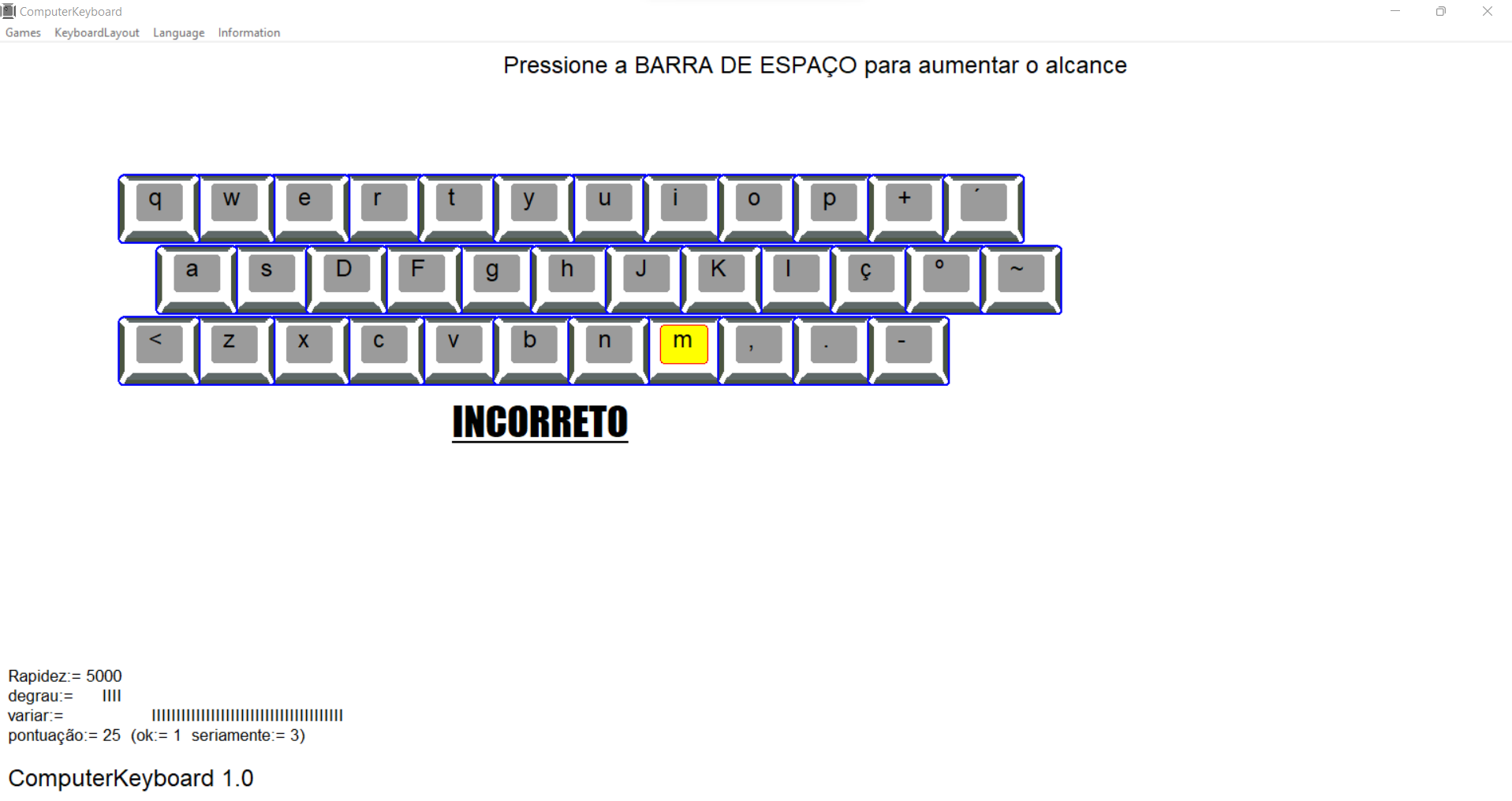
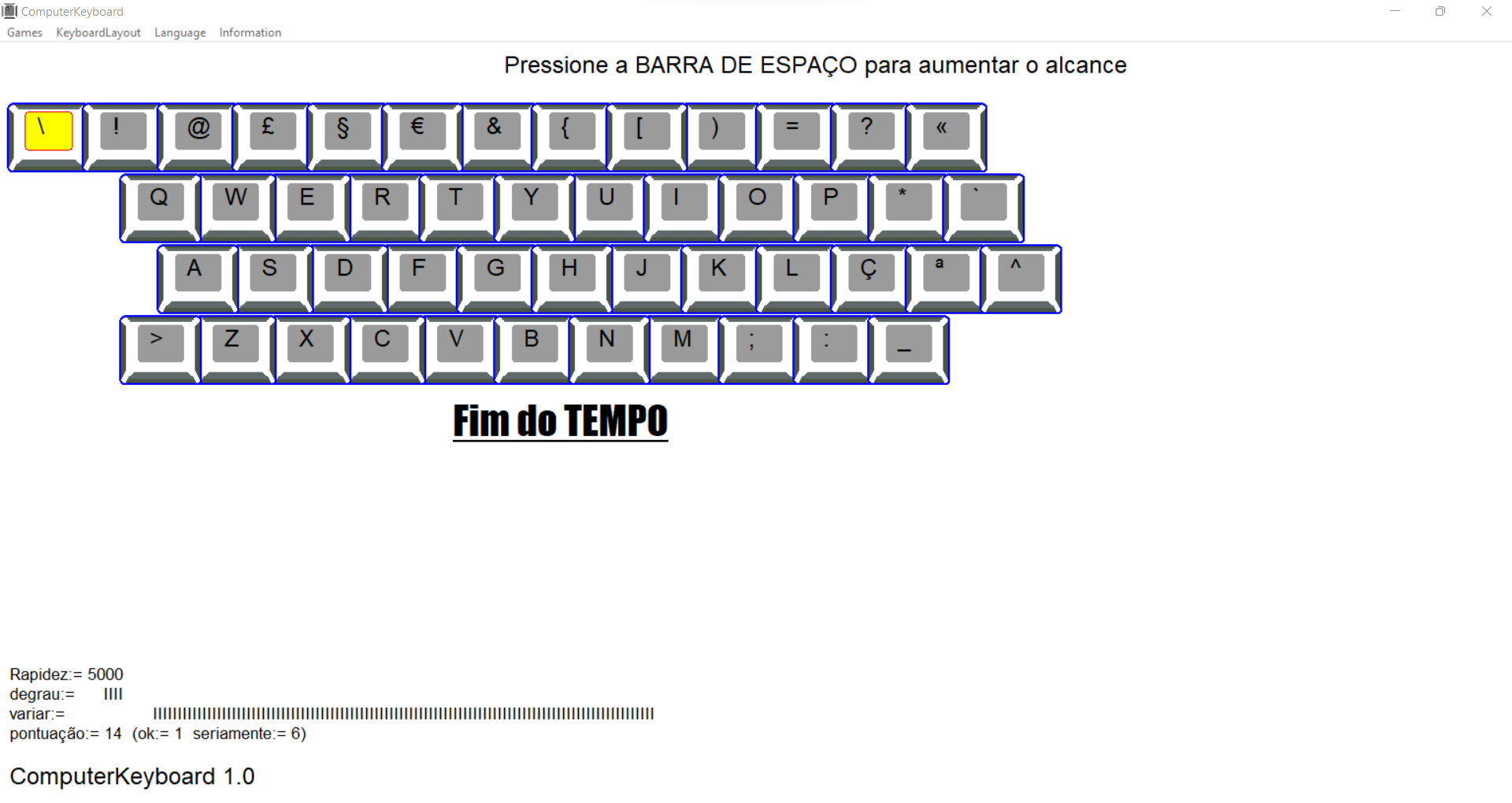
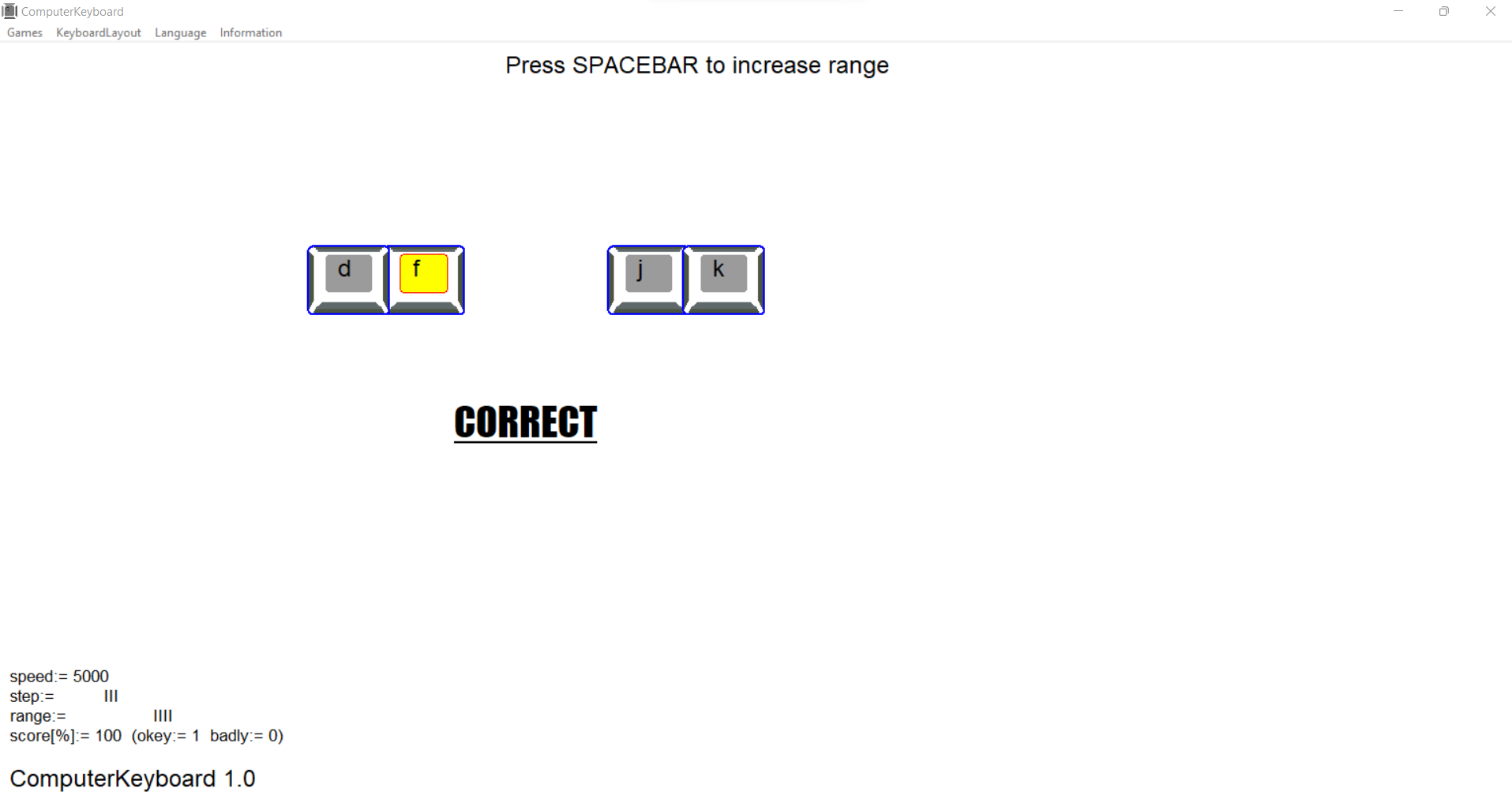
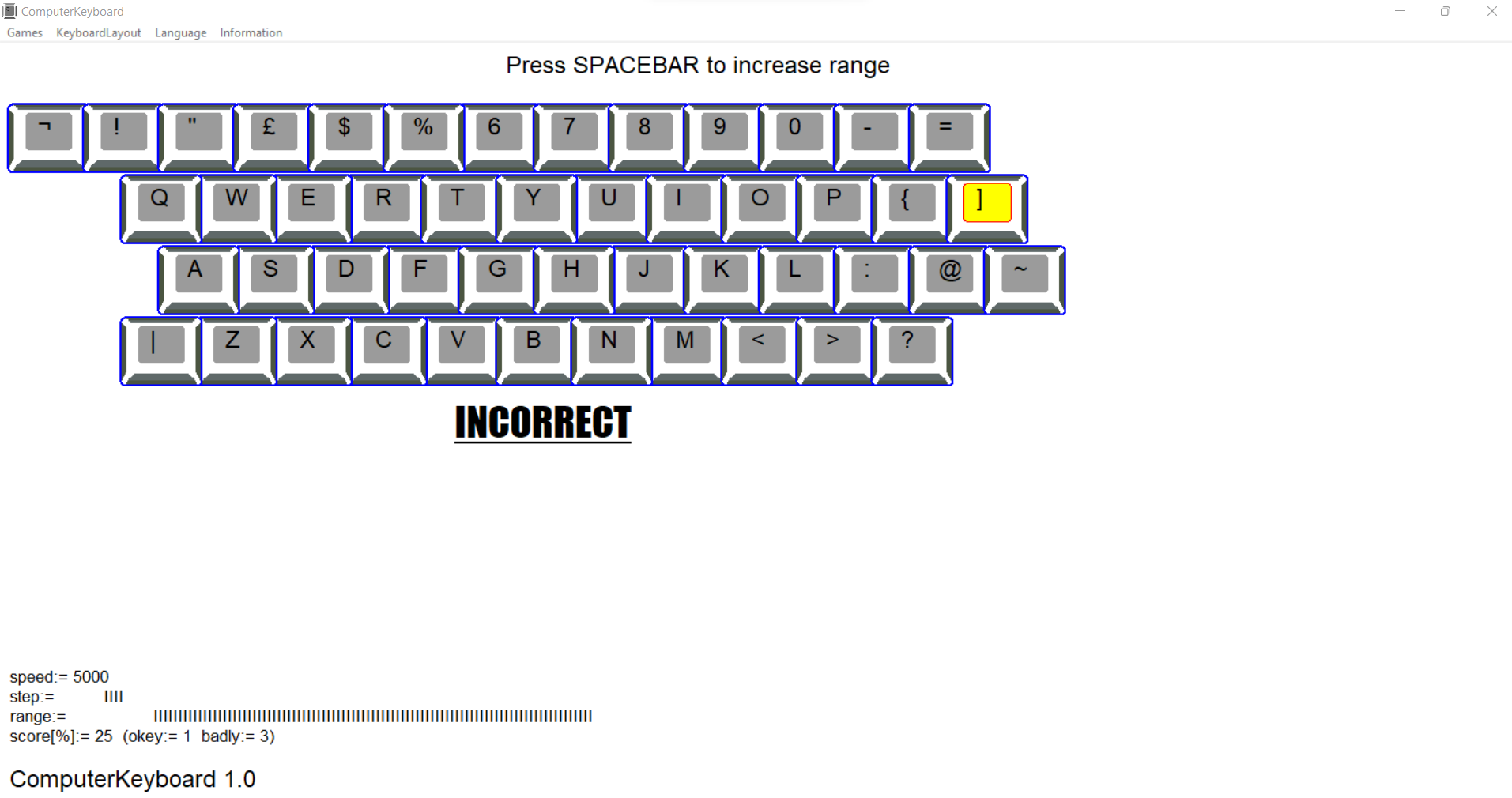
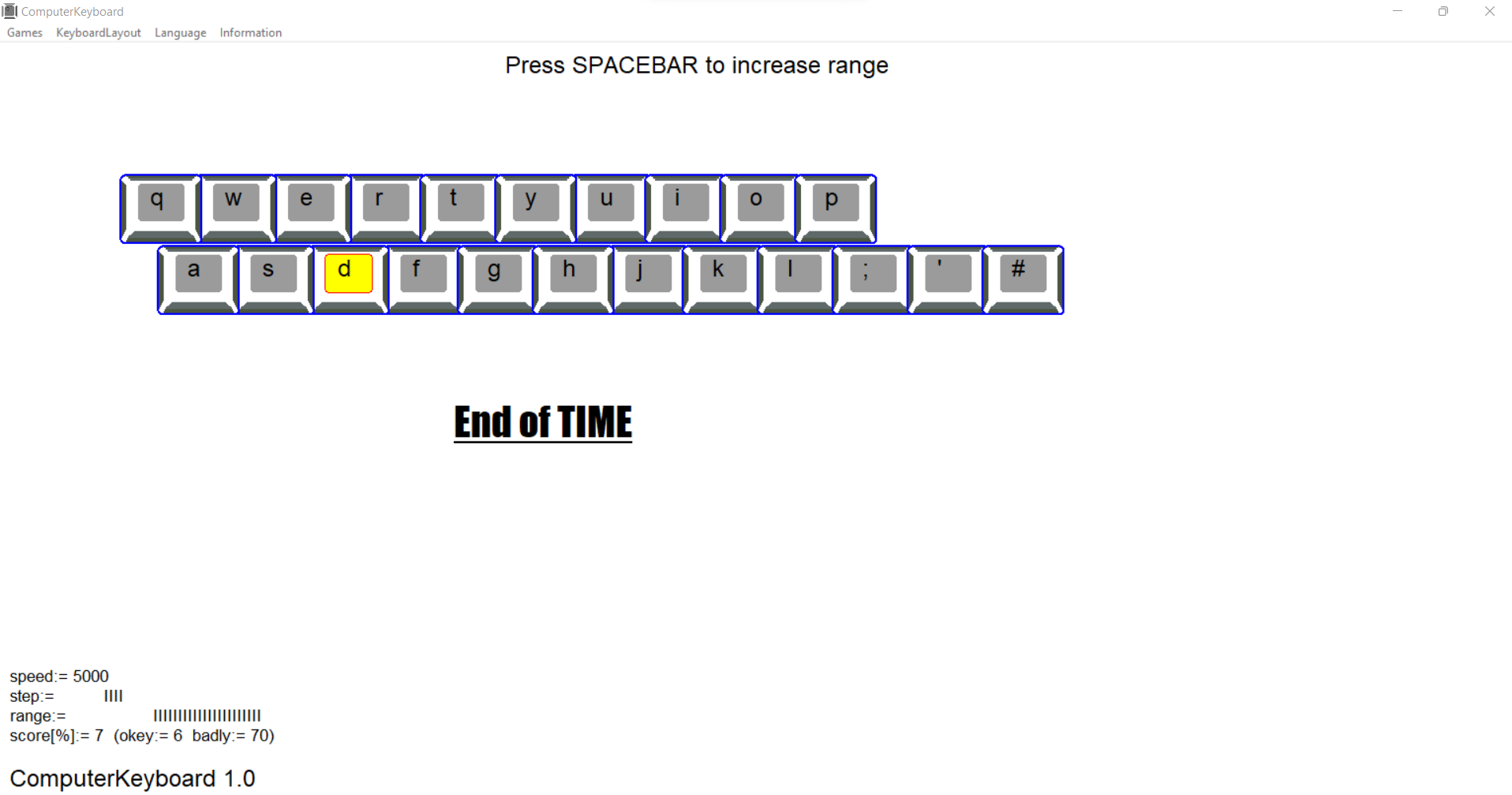
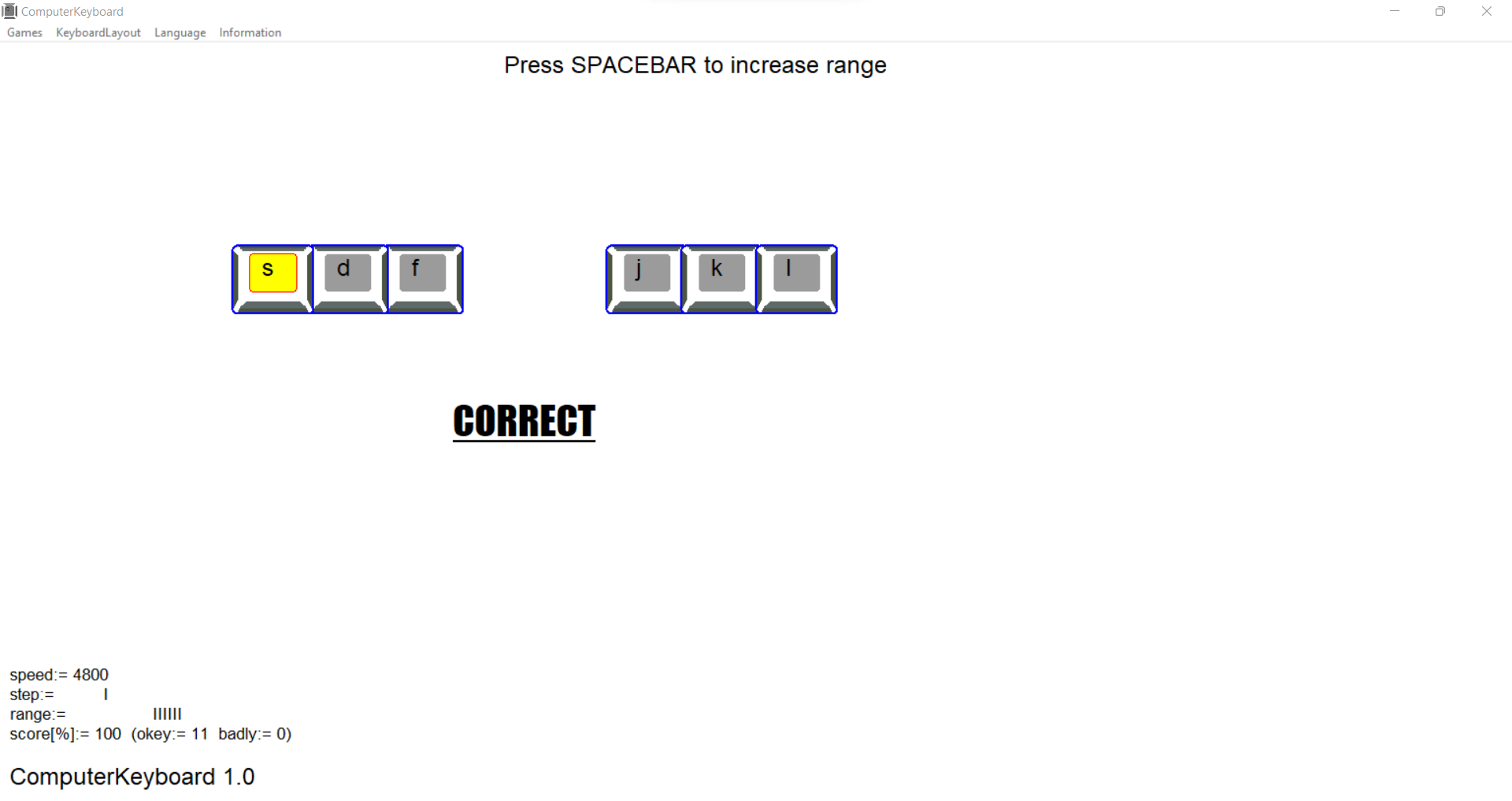
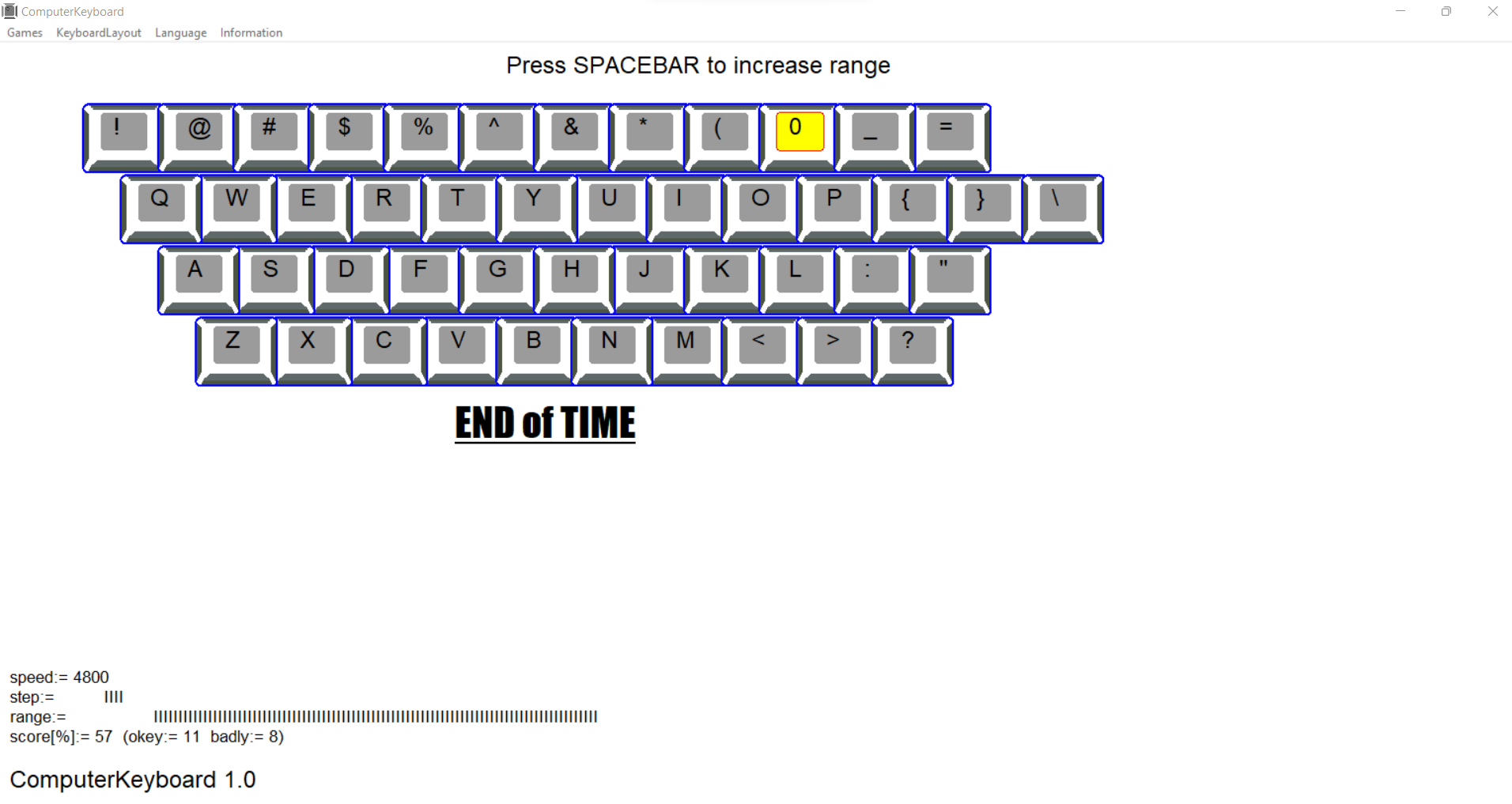
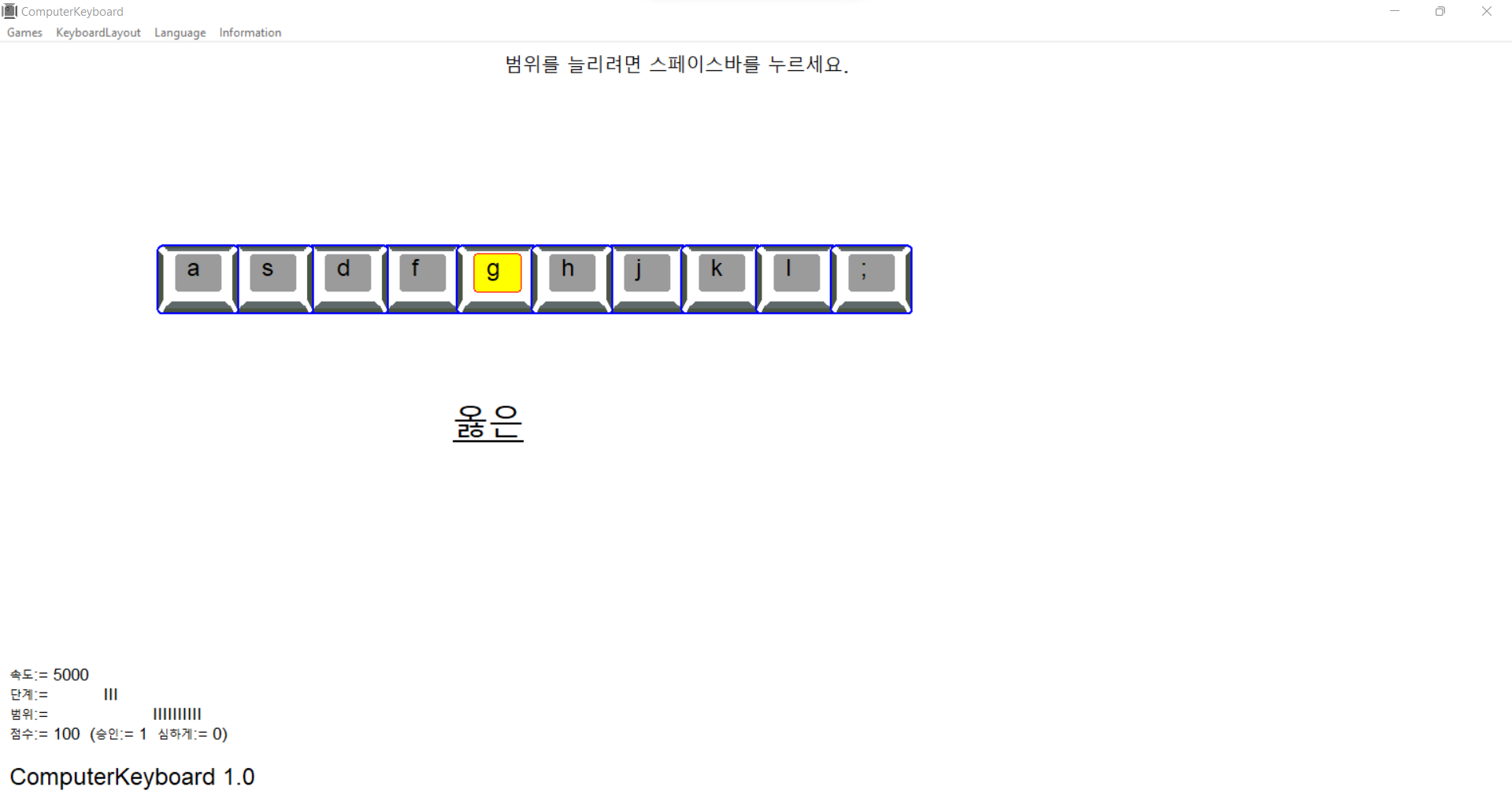
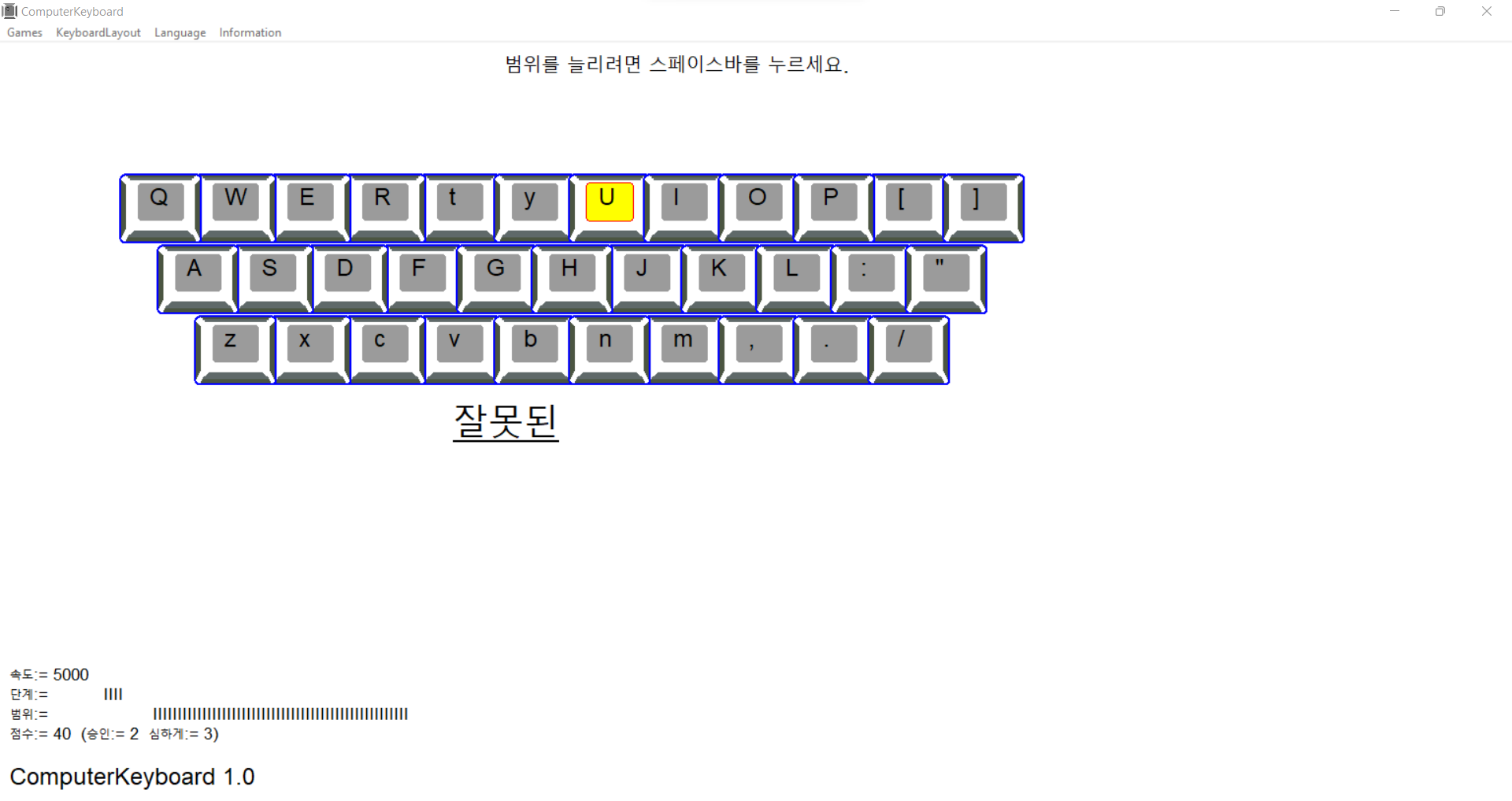
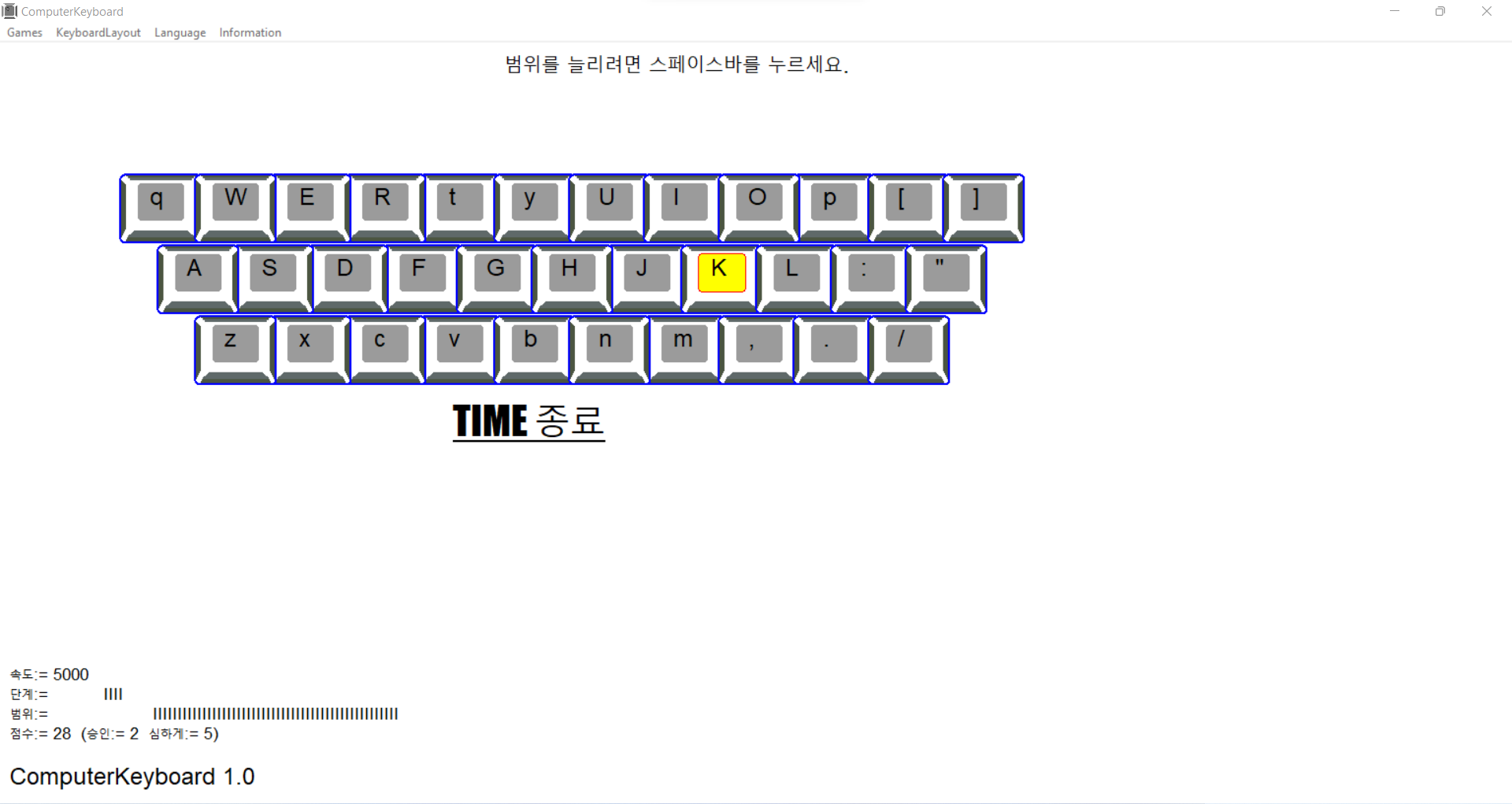
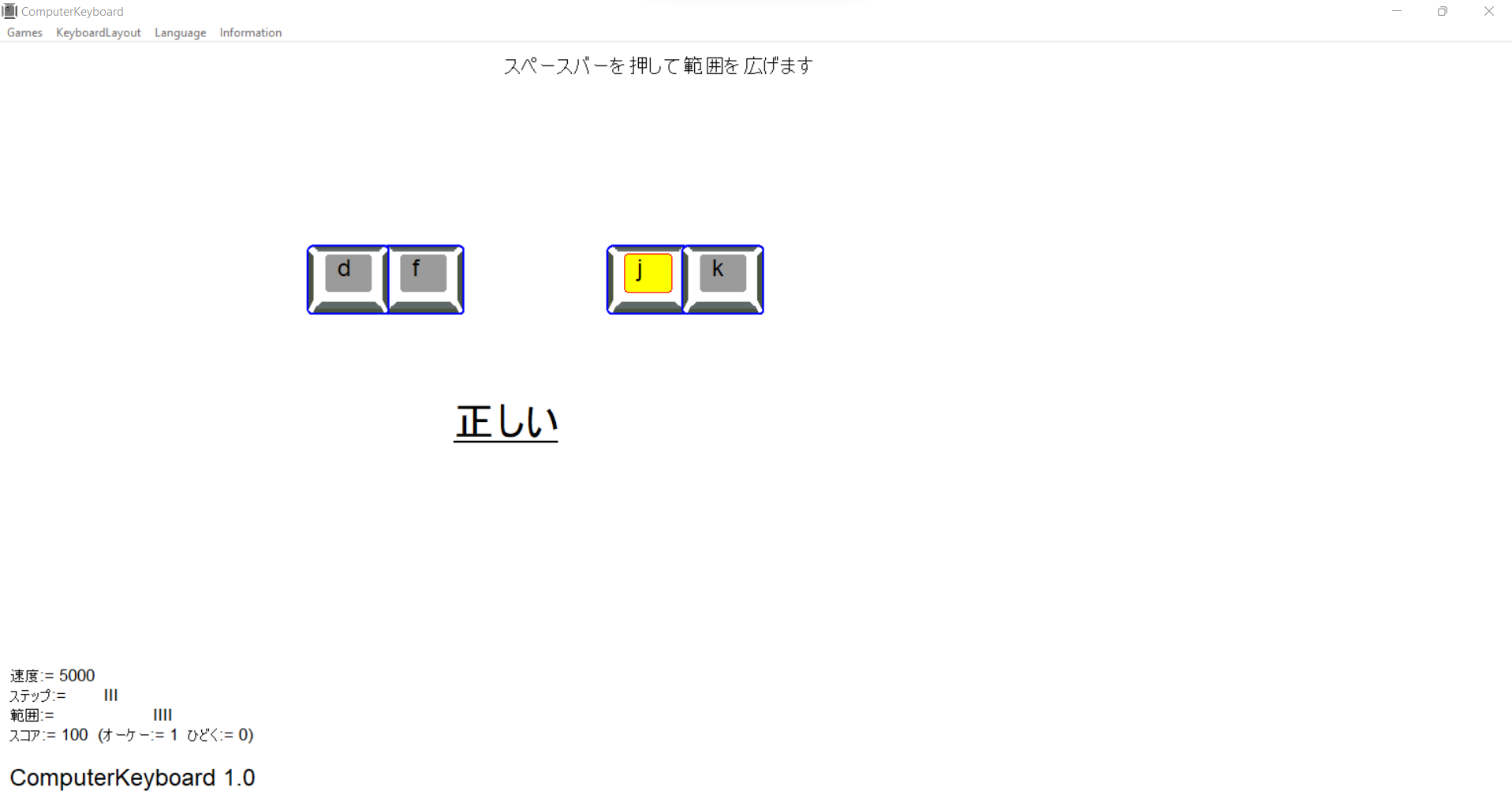
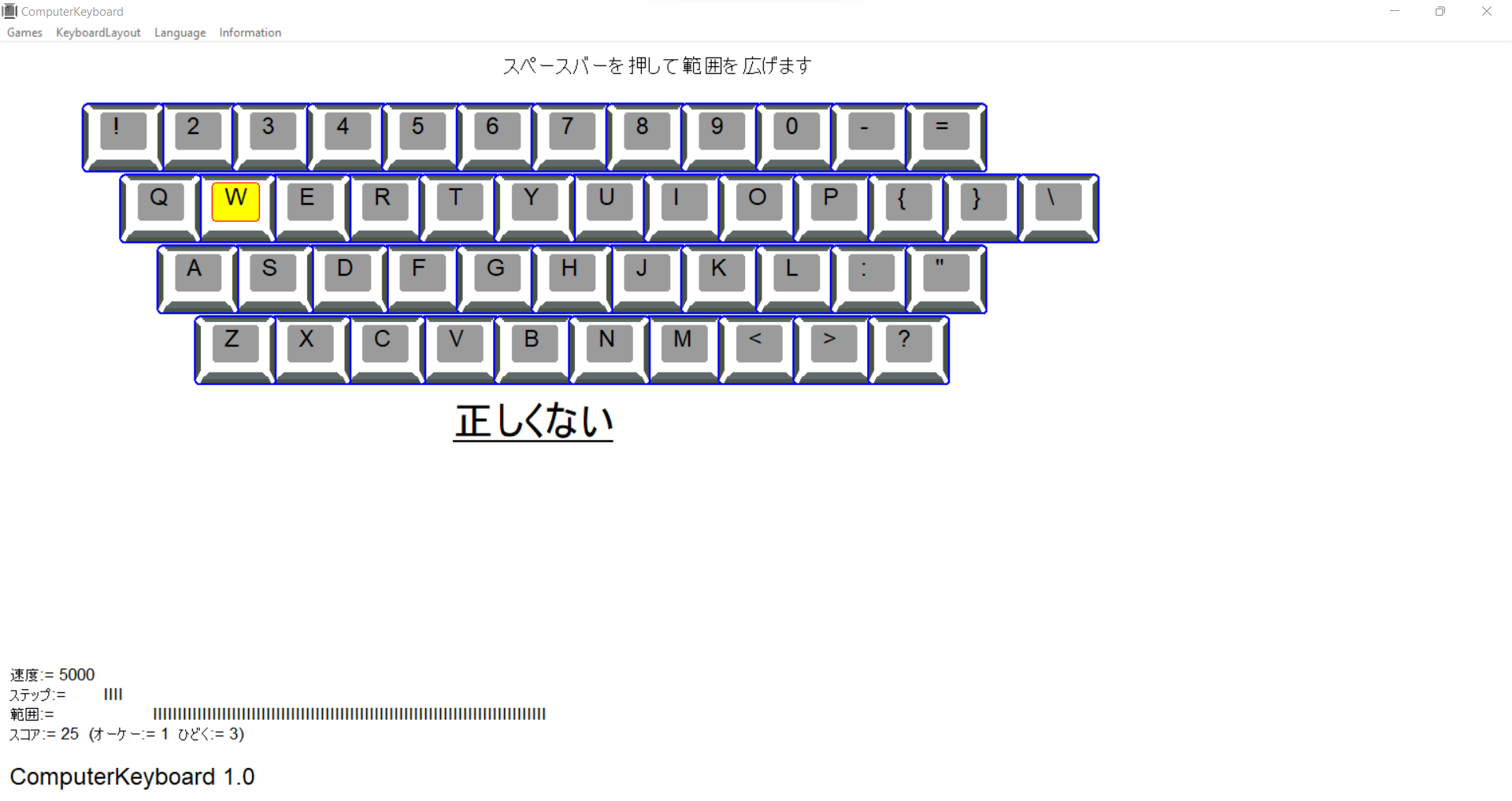
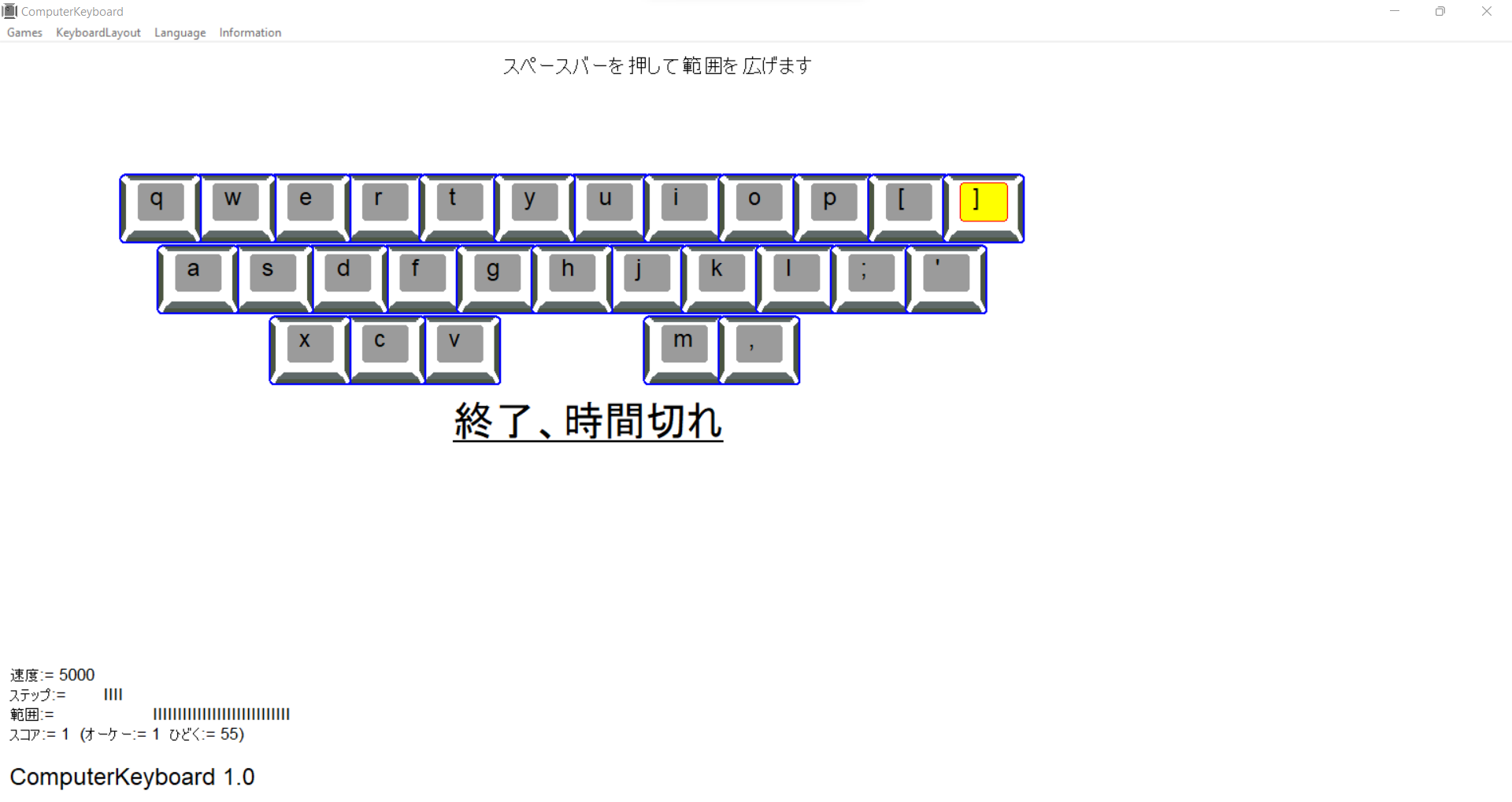
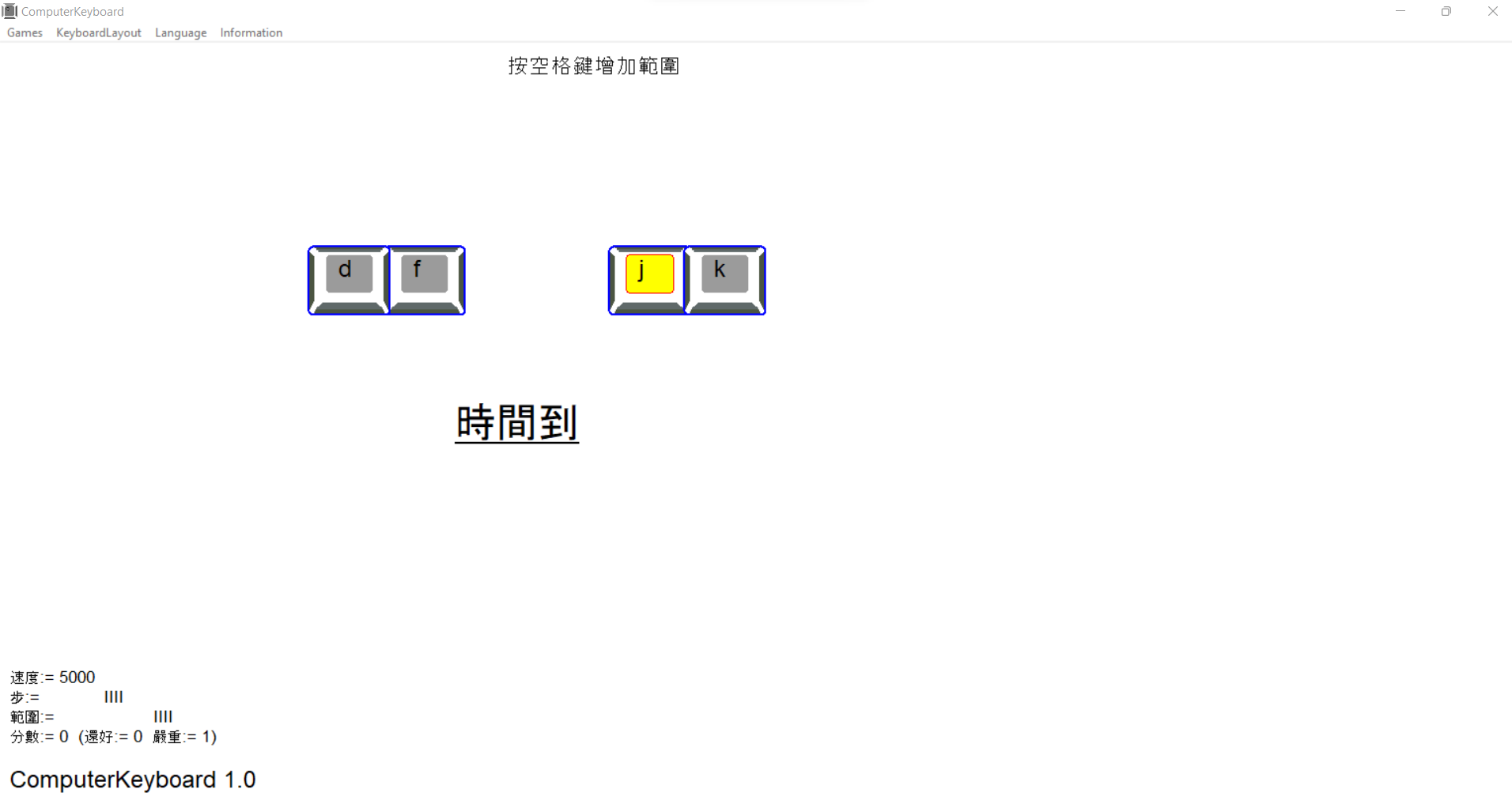
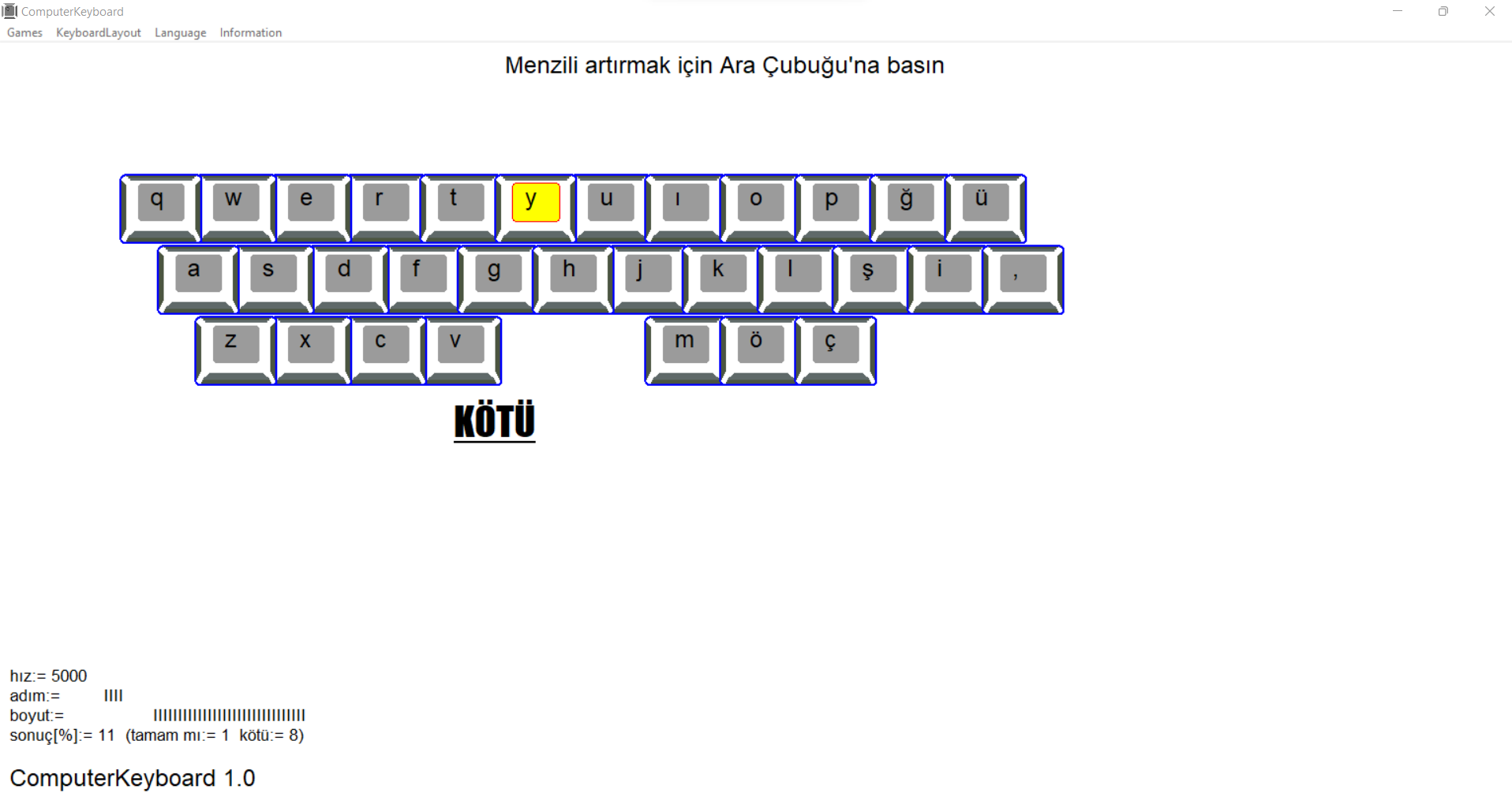
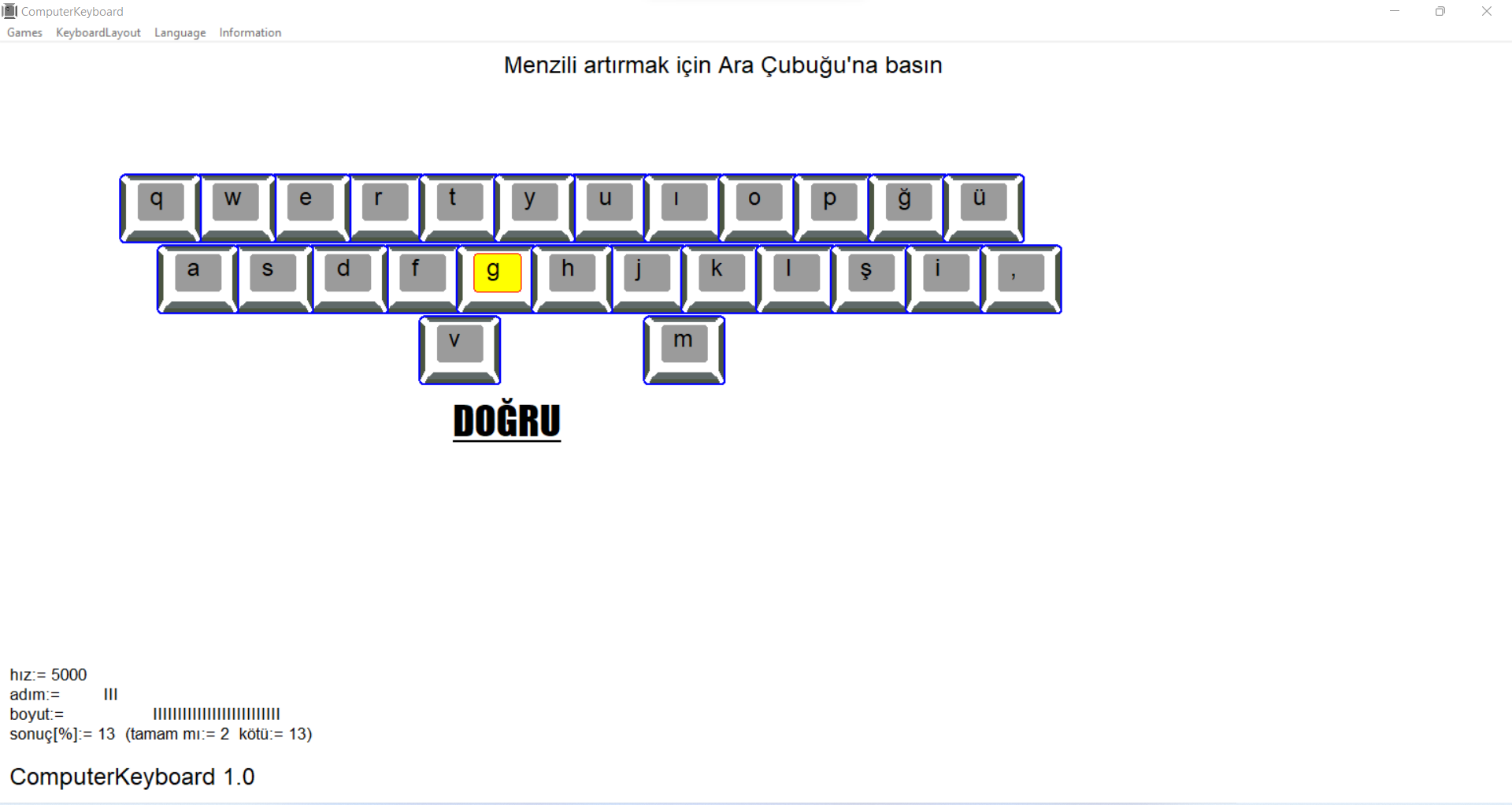
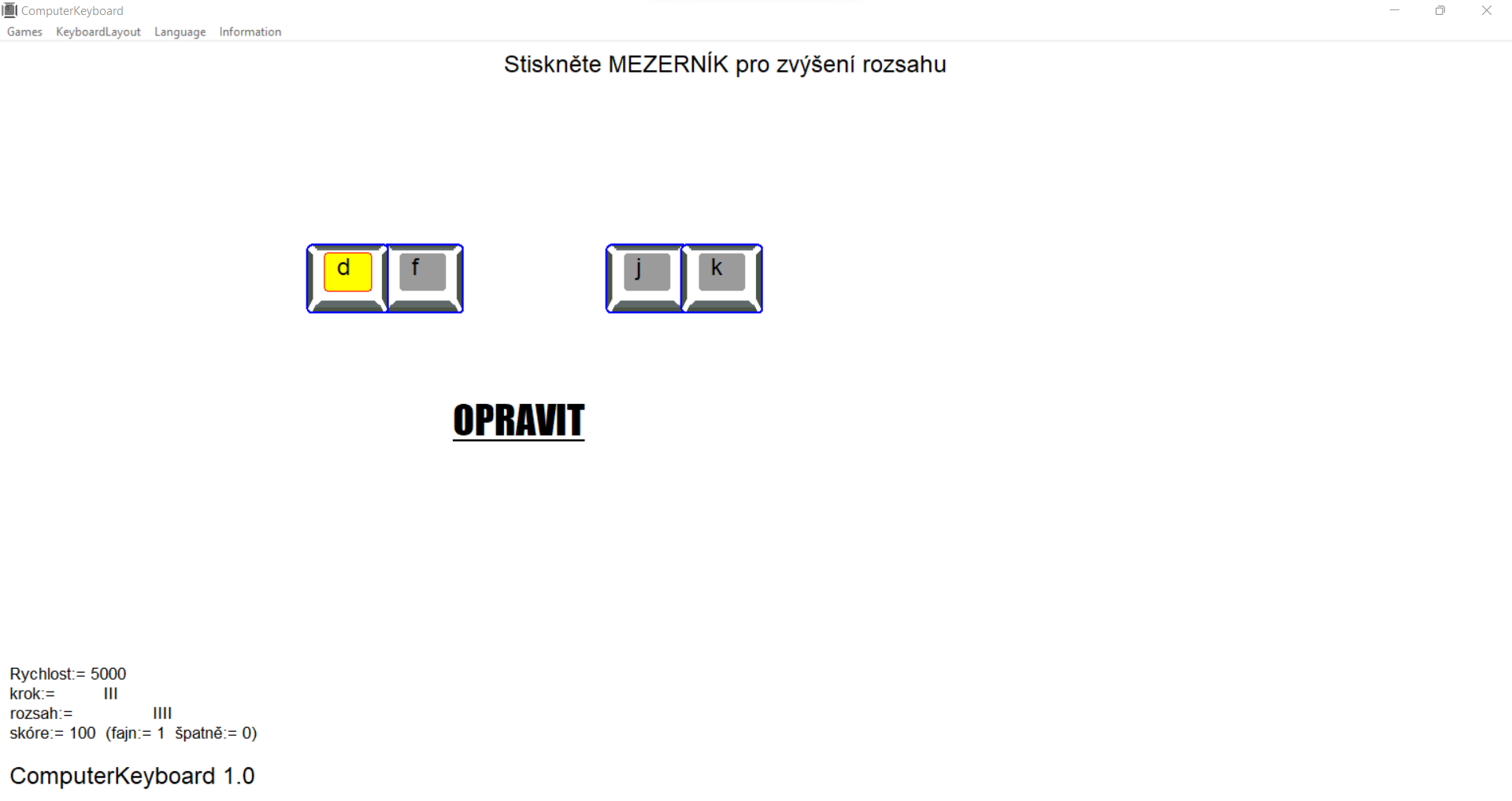
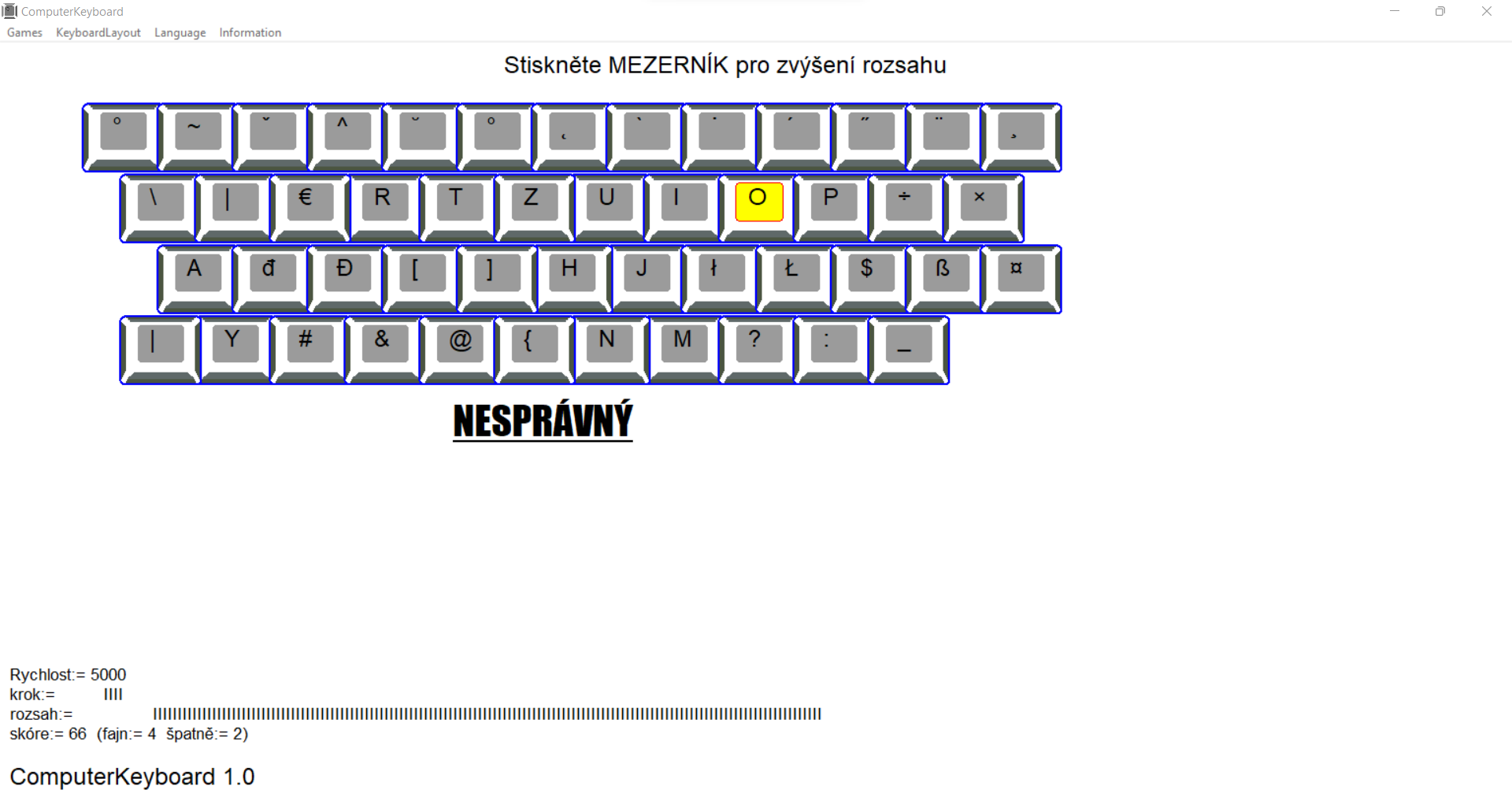
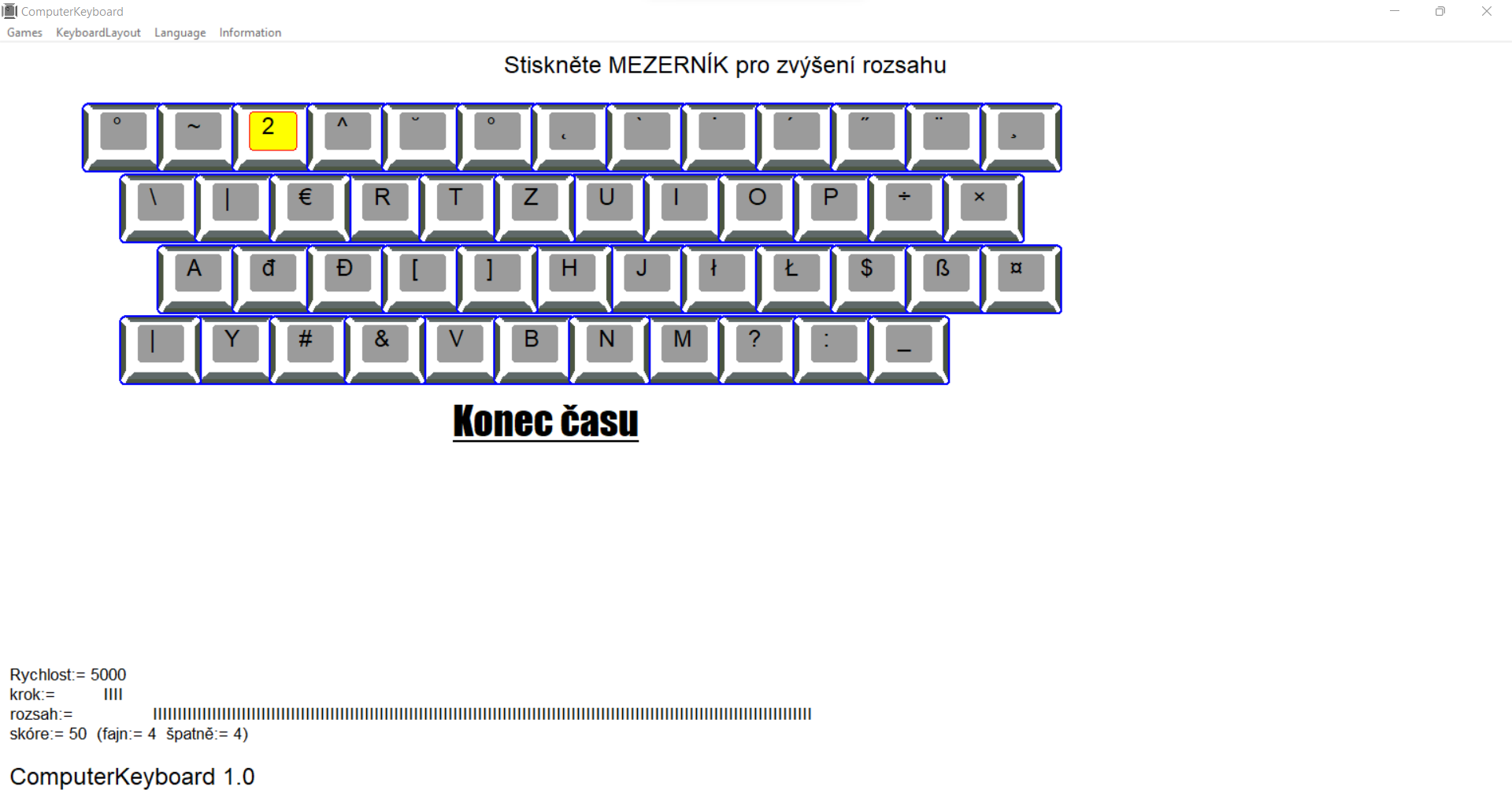
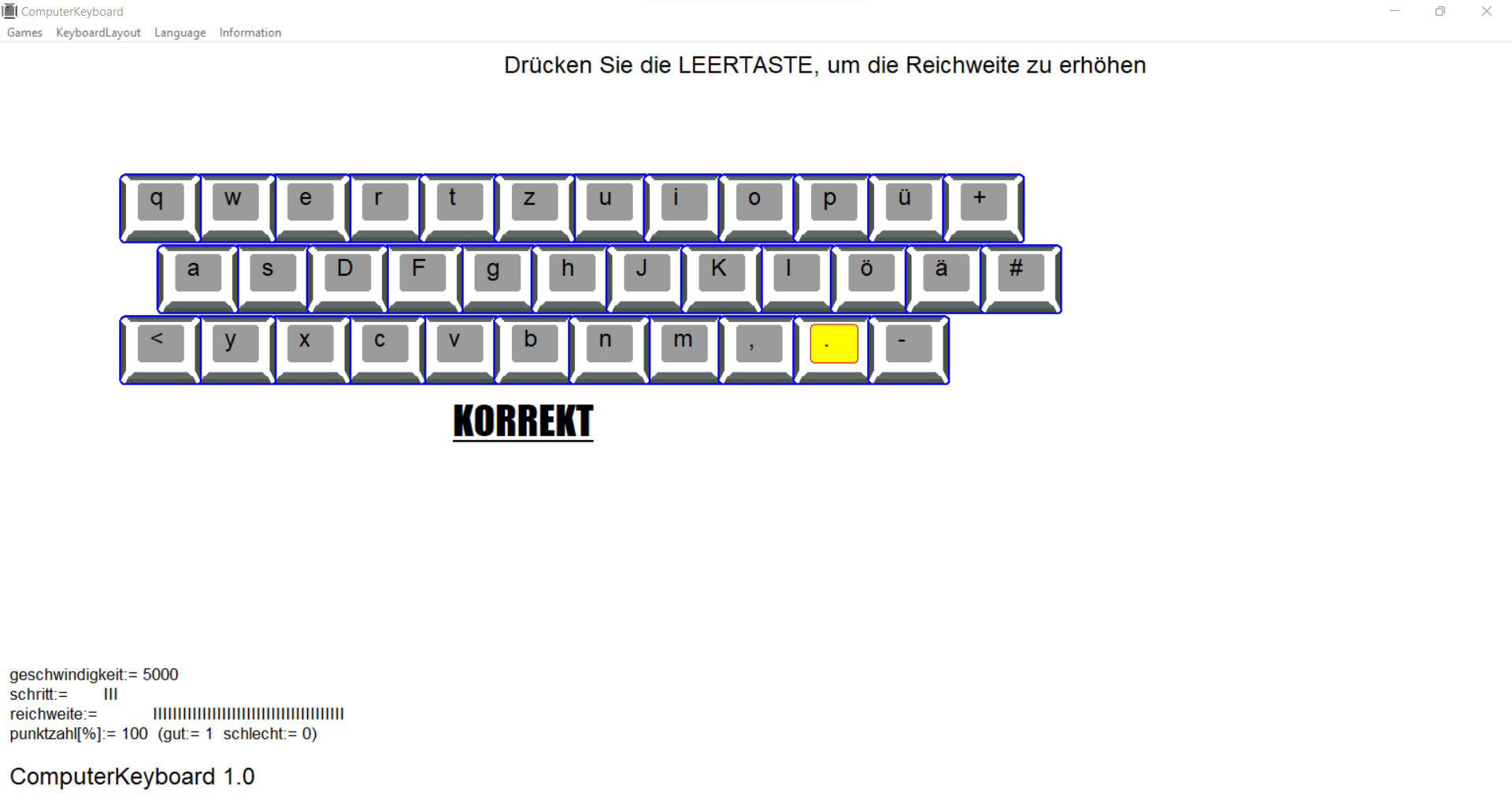
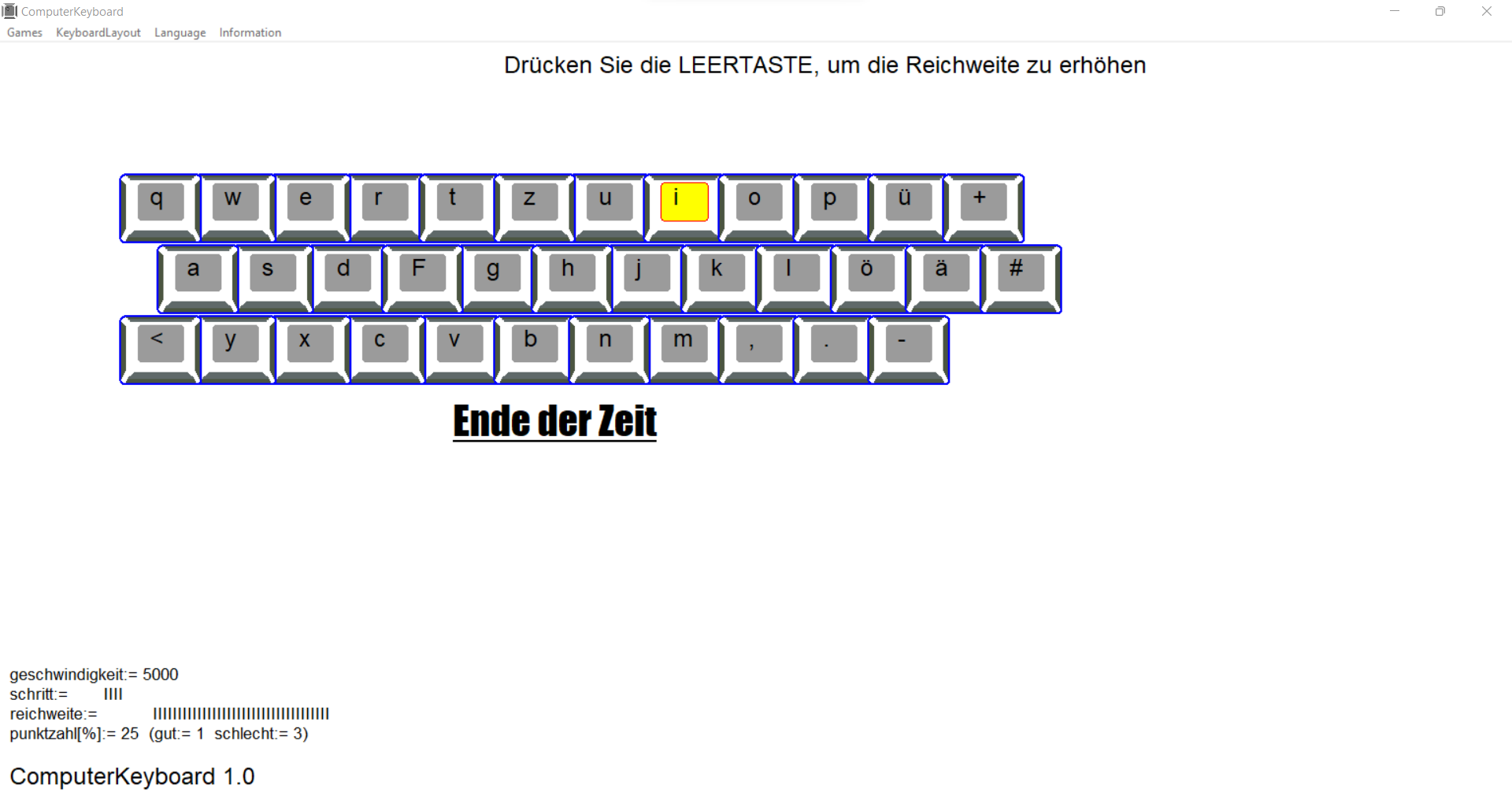
    you start your adventure with ComputerKeyboard with four basic keys. As you progress, the number of keys increases - the time needed to press the appropriate key also decreases. Giving a wrong answer reduces the number of keys. At any time, it can increase the range of available keys.

    how to start
    Home row – the starting position for our hands, consisting of placing the index finger of the left hand on the key with the “F” protrusion and the index finger of the right hand on the key with the “J” protrusion. This is the so-called starting position.

    Start by placing your hands correctly on the keyboard – the index fingers should be on the above-mentioned keys with bulges – and the remaining fingers should be placed in sequence along the line of the base keys.

    Also find the additional keys on the keyboard (shift, alt) and coordinate the movements of your fingers with them.

    Shift - when pressed together with a letter, it allows you to enter capital letters, and with a number or upper character on a key, it enters the second character entered on your keyboard.
    (practice the movements of the little finger of the left and right hand)
    Make sure the CapsLock key has not been pressed accidentally.

    Alt or AltGr - On some keyboard layouts, pressing a key together with another key allows you to enter certain letters, symbols, or language-specific characters.

    program keys:
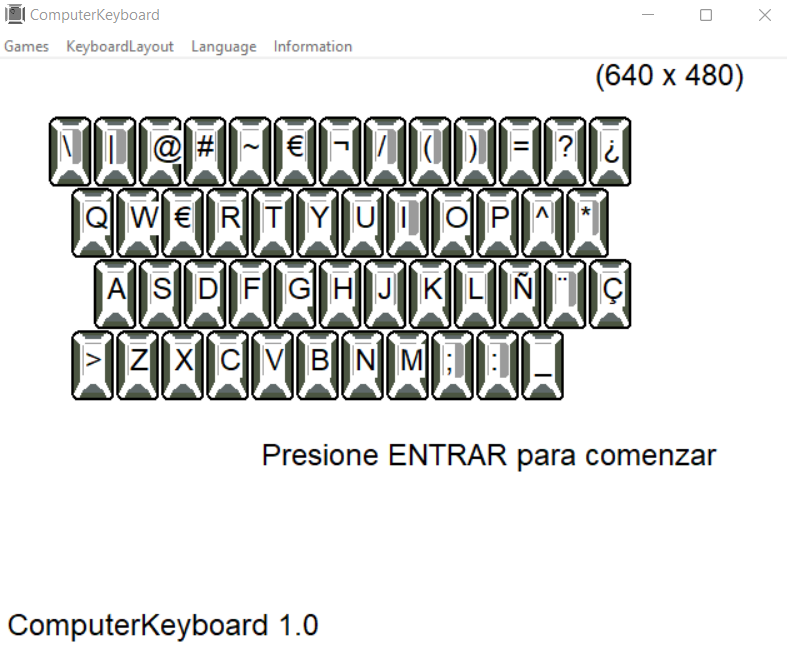
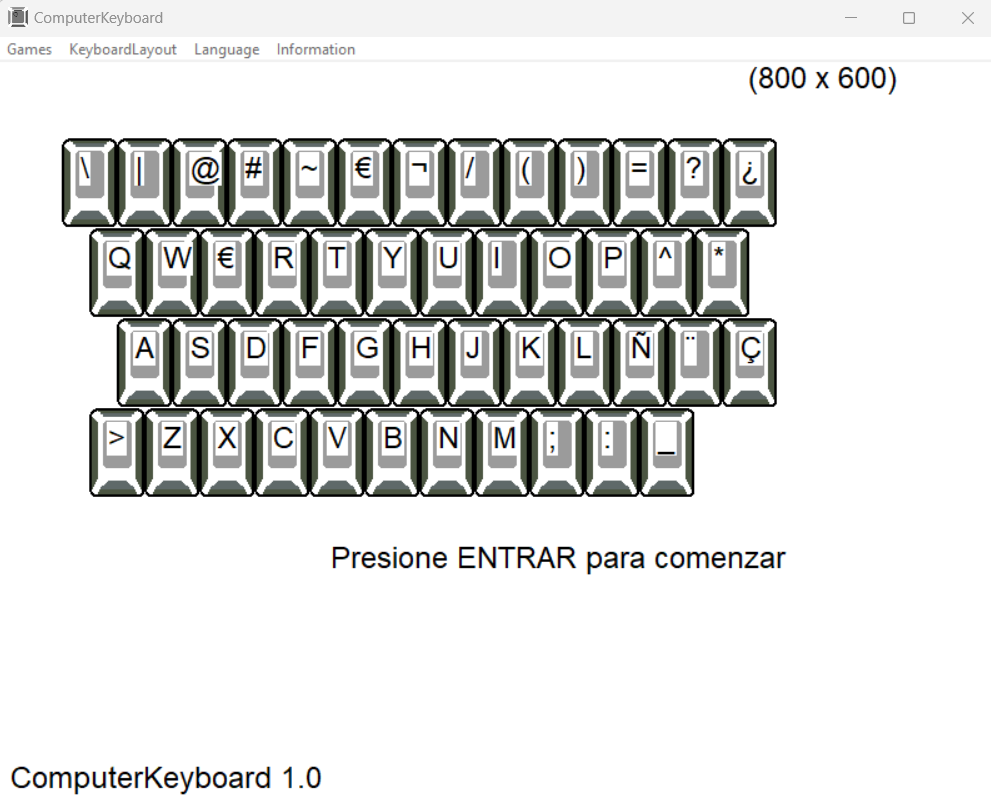
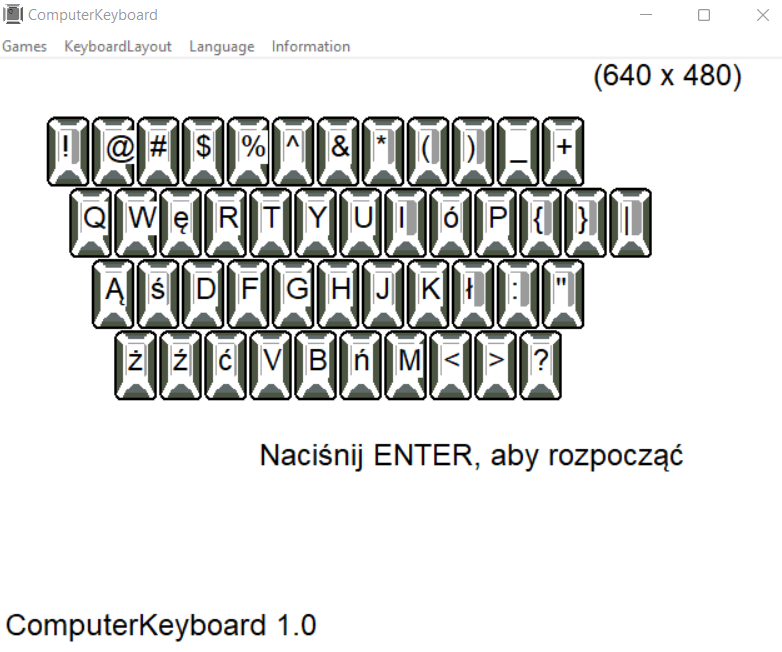
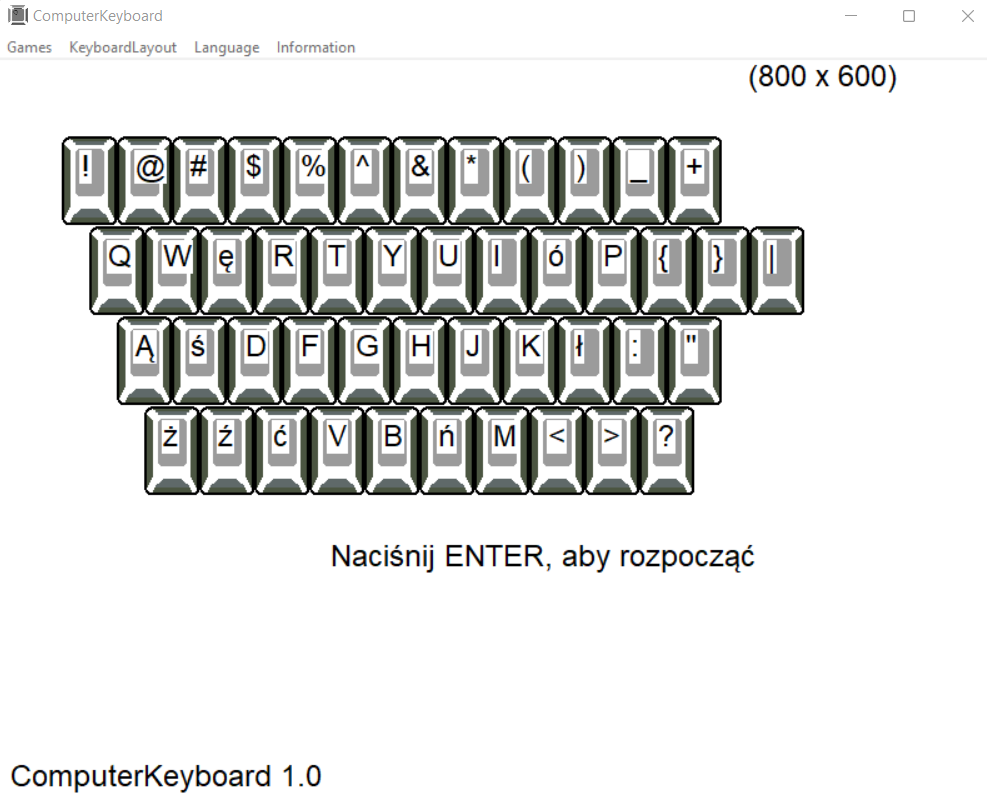
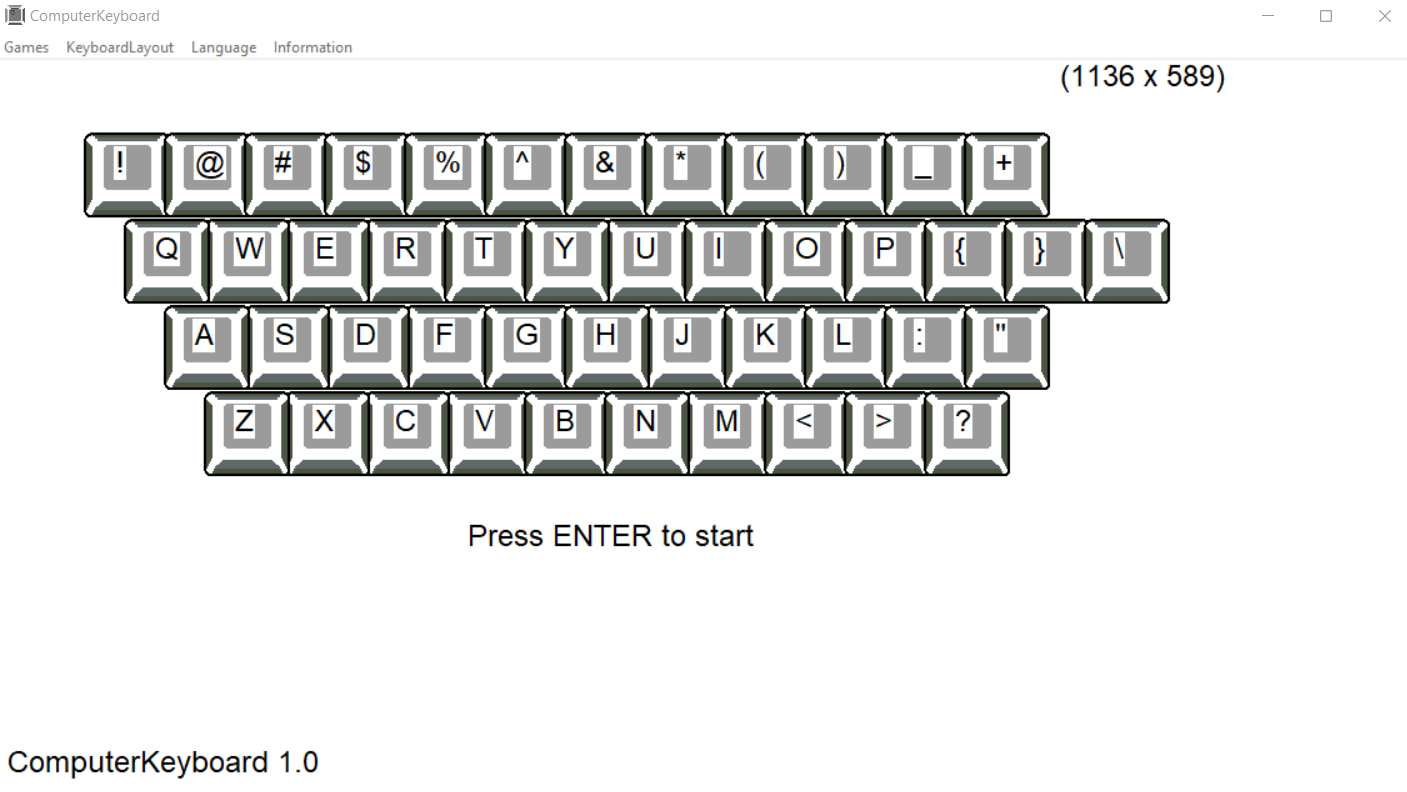
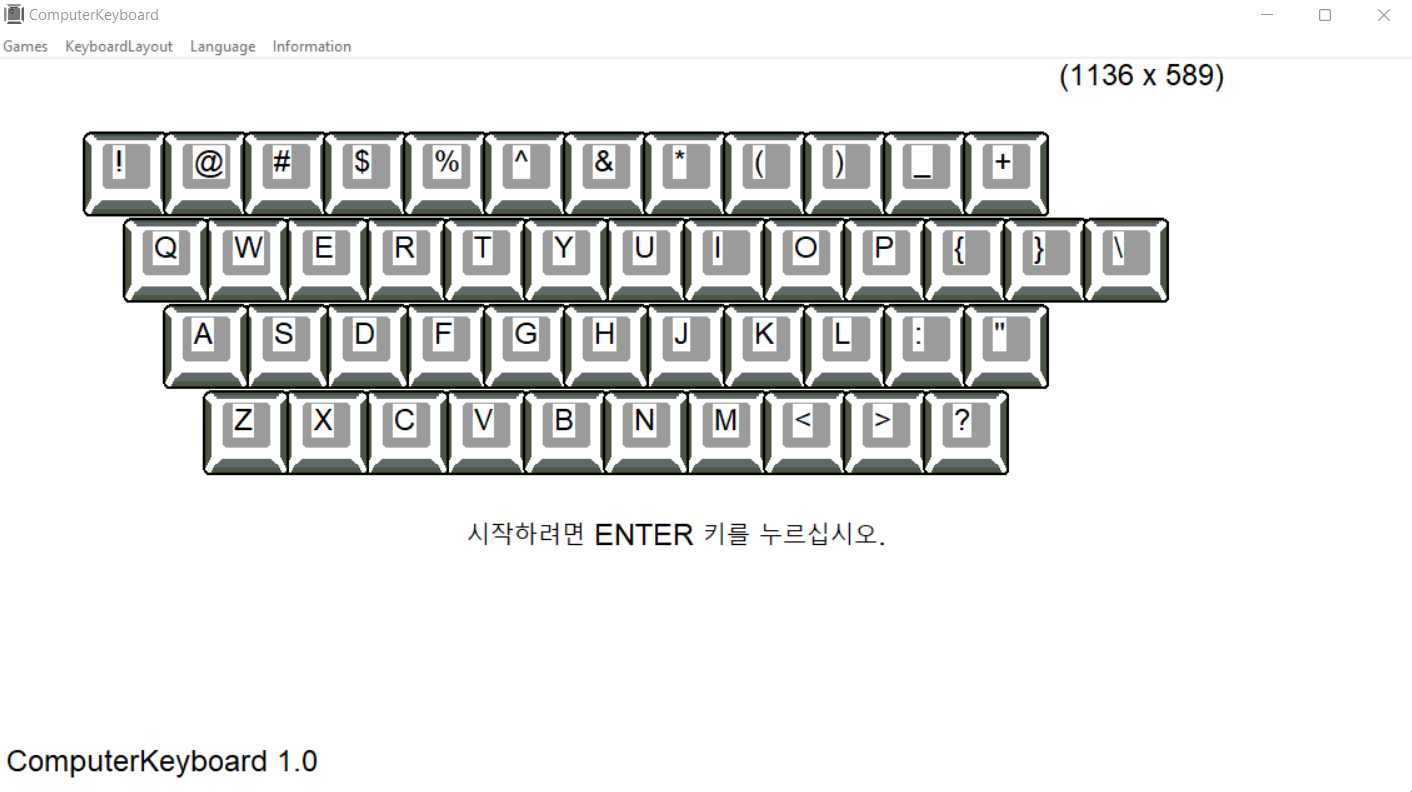
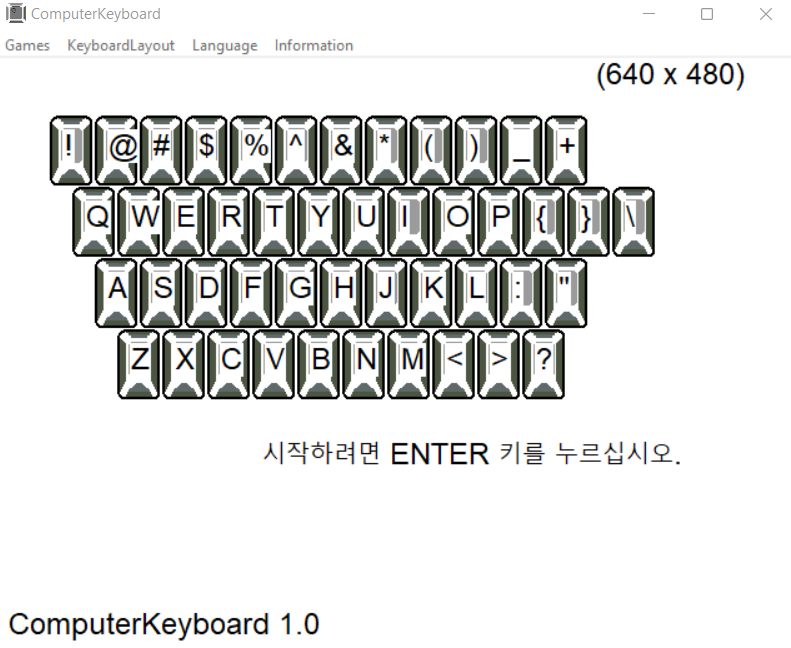
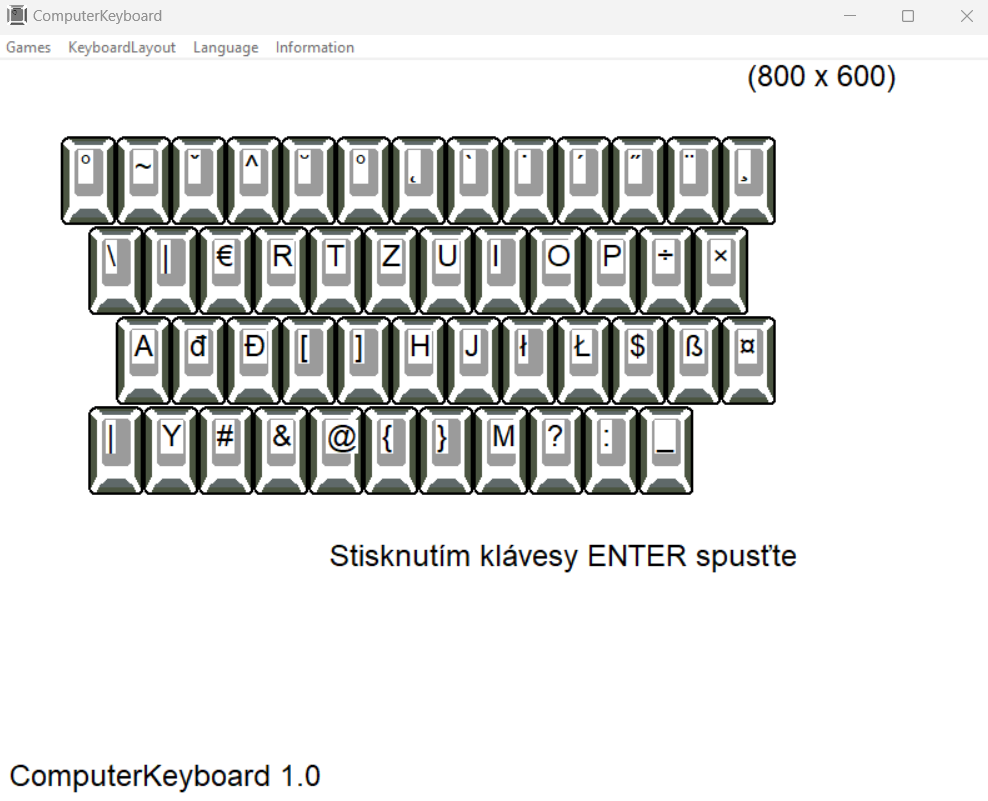
    ENTER - start
    ESC - Exit
    SPACE - increase range

    program options:
    Exit – exit the program
    KeyboardLayuot – keyboard selection
    Language - language selection
    About – information about the creator

    System settings
    If you select a different keyboard than the one installed in the operating system, you must add the appropriate keyboard layout.
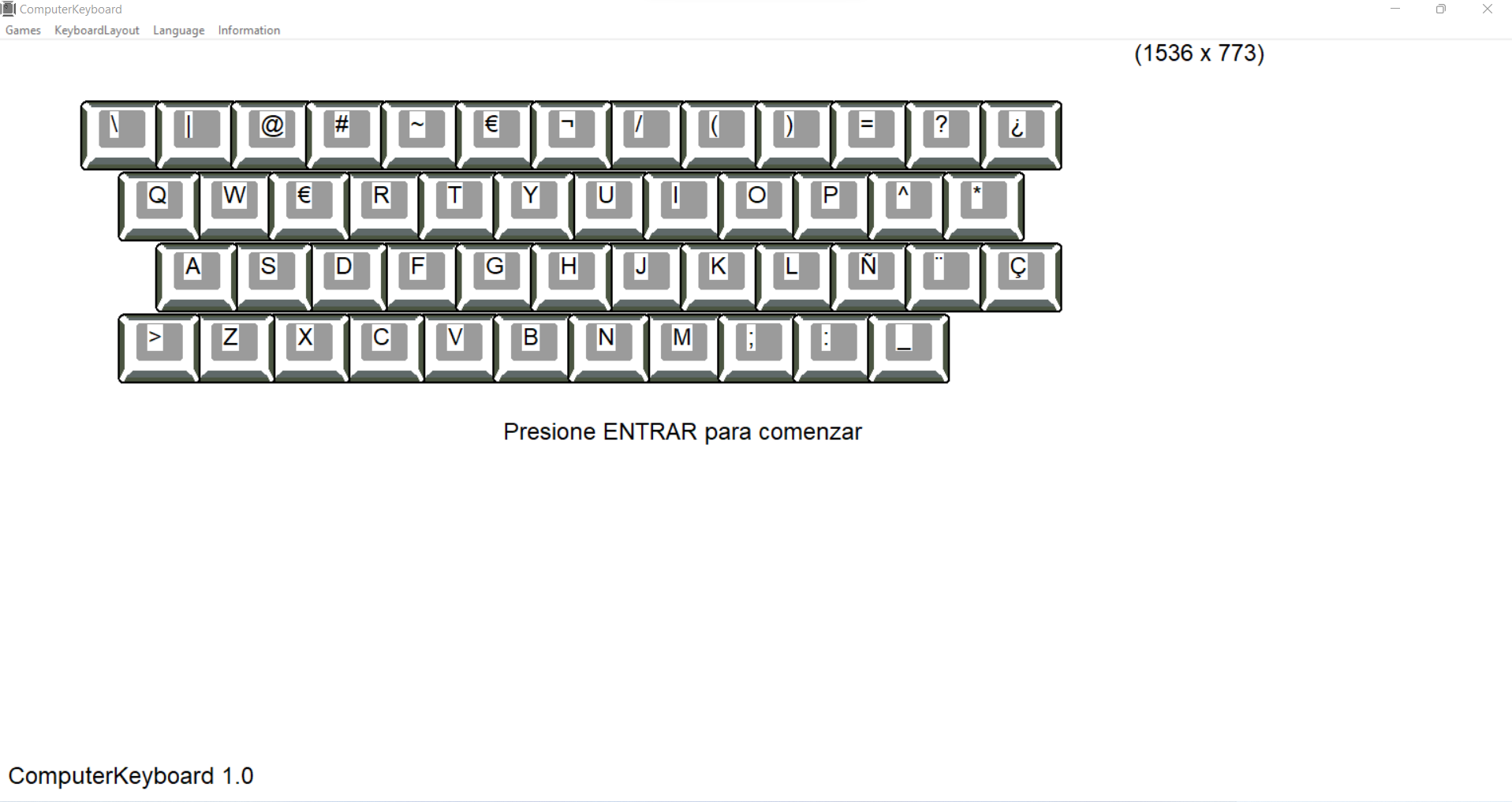
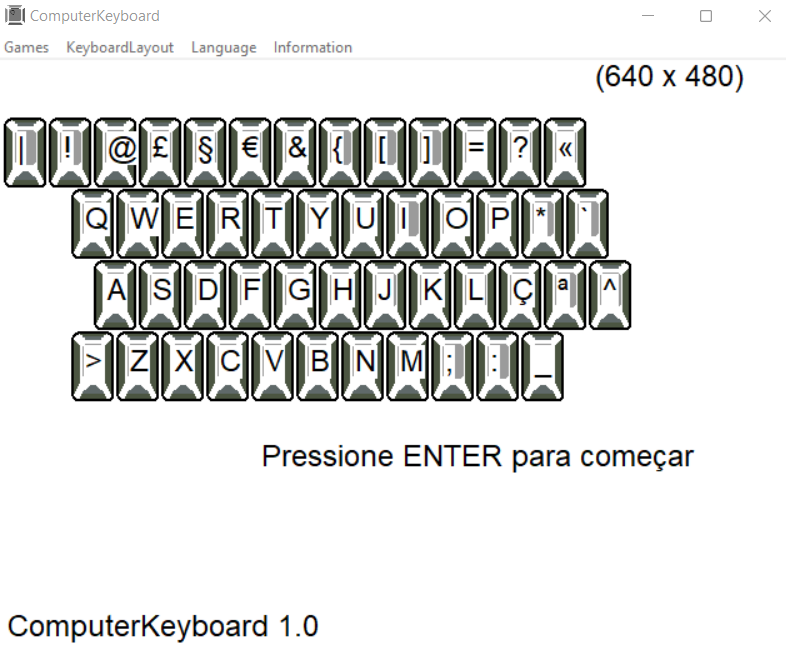
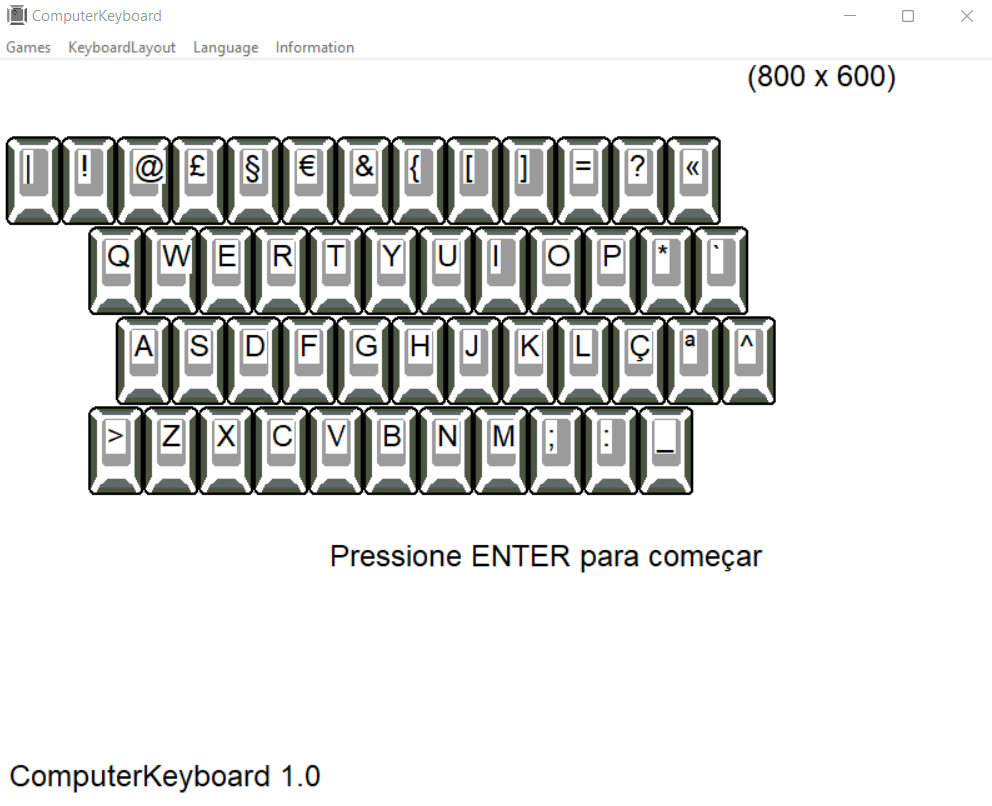
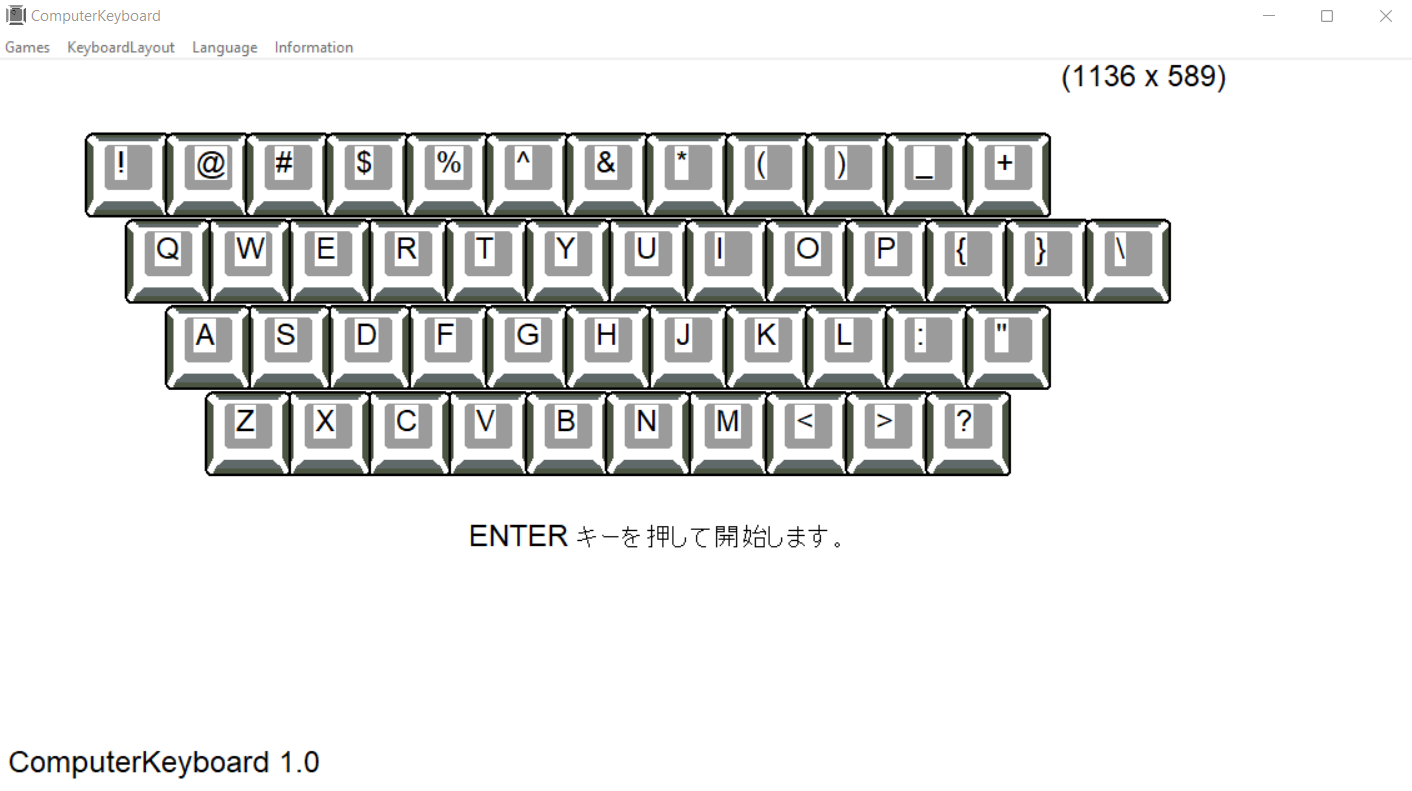
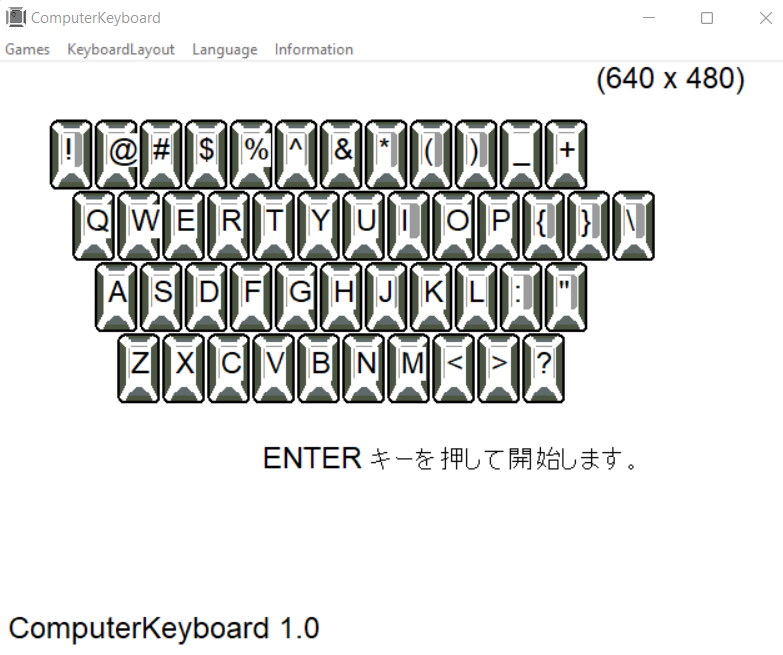
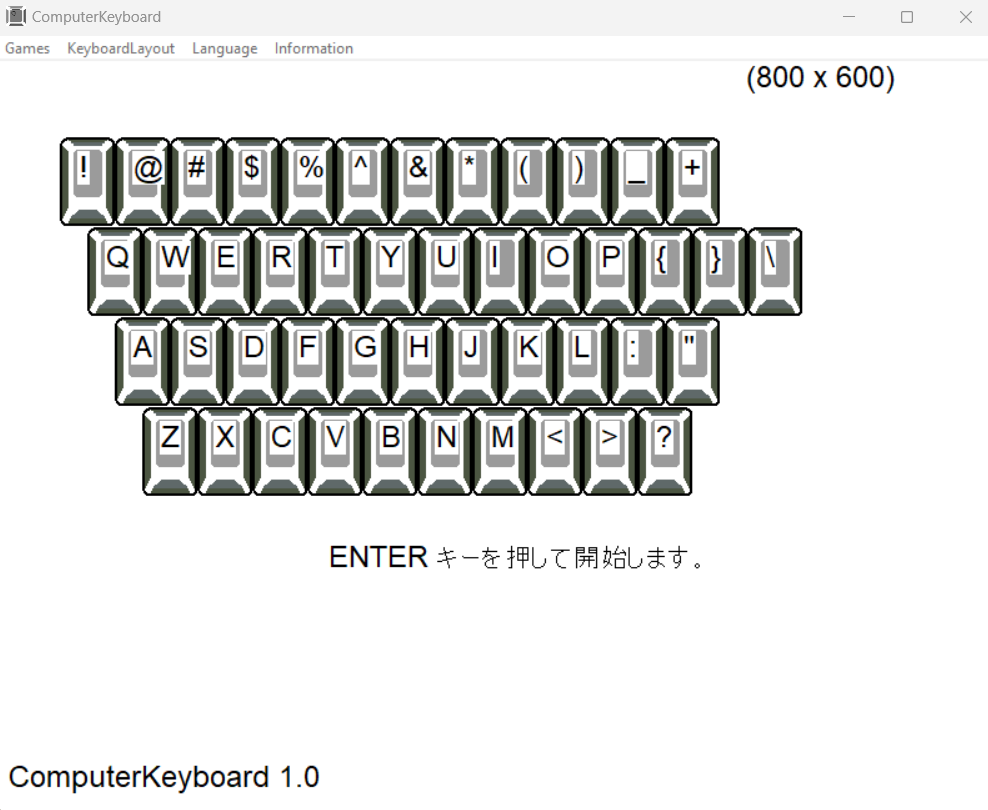
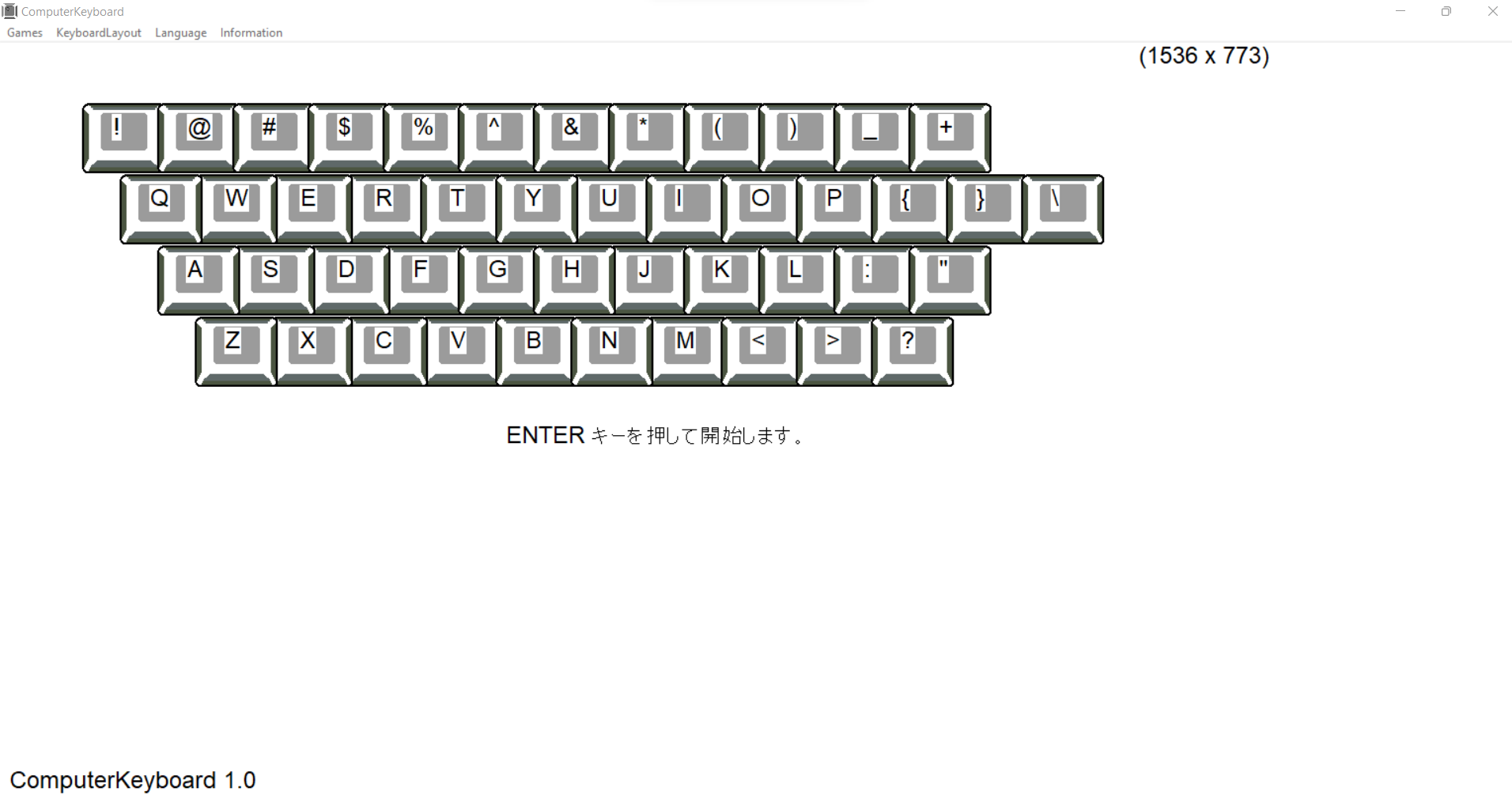
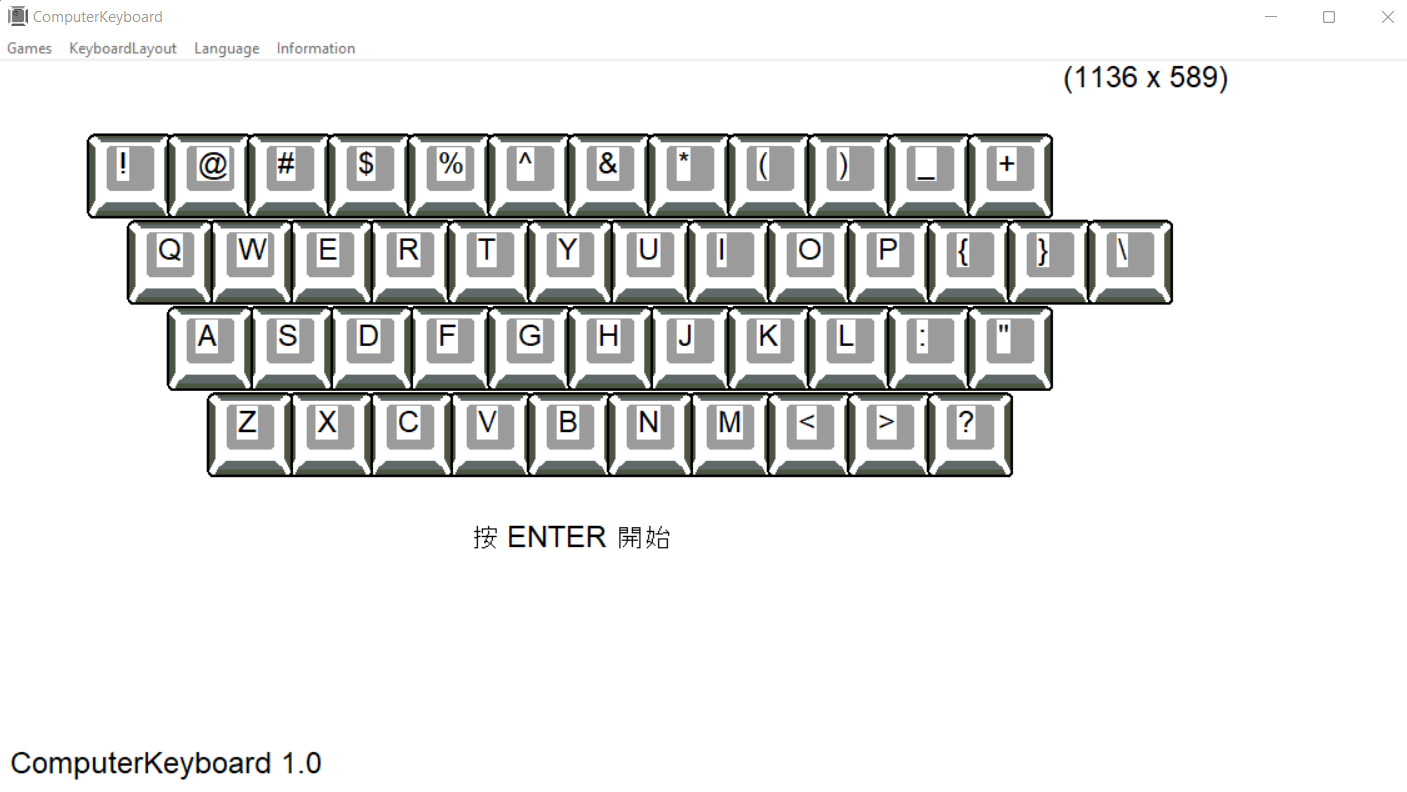
    You can also customize the appearance to your preference by changing the scale or resolution in your system's screen settings

    remember
    To look at the characters displayed on the monitor by the ComputerKeyboard program, and not at the keyboard, when answering.
    always maintain correct posture at your desk when using your computer


          ComputerKeyboard      
    1896